
Scan product barcodes with your phone camera to add items to an order. Each product's SKU is its barcode, so give the product a SKU, print a label with that code, and scan it at checkout.
Make sure you're on the latest version of the app. See Update the Take App Mobile App.
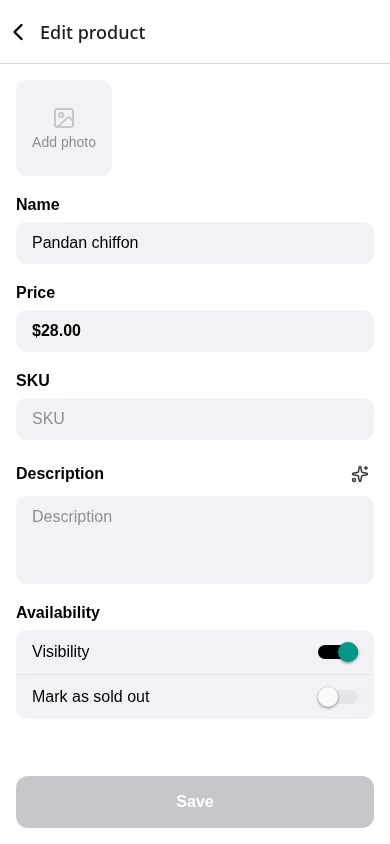
Set a product's SKU
- Go to the Products tab and open a product, or add a new one.
- Enter the code in SKU. If the product already has a barcode printed on it, enter that number.
- Tap Save.
Each SKU must be unique in your store.
The SKU field shows only for products without variants. To set a SKU for each variant, use the web dashboard. See Product variants and Product's SKU.
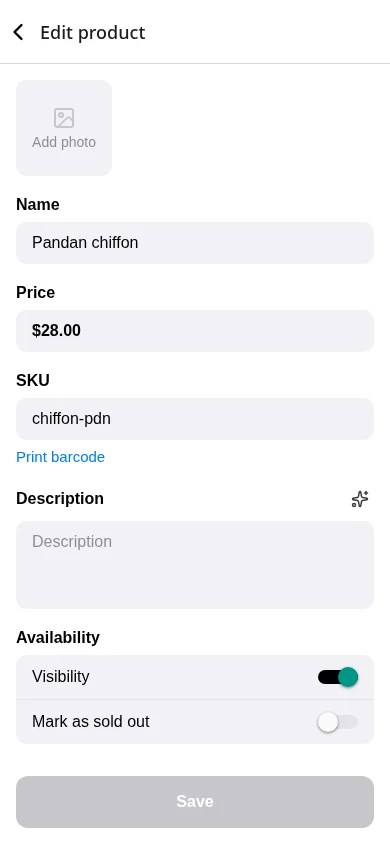
Print a barcode label
- Open the product after its SKU is saved.
- Tap Print barcode under the SKU field.
- The free barcode generator opens in your browser with the SKU and product name filled in.
- Choose the Barcode type and Label sheet, then tap Print label sheet, or download the barcode as an image.
Use Code 128 for your own SKUs. It takes letters and numbers. Use EAN-13 or UPC-A only for a product that has a retail barcode number.
 |  |
|---|
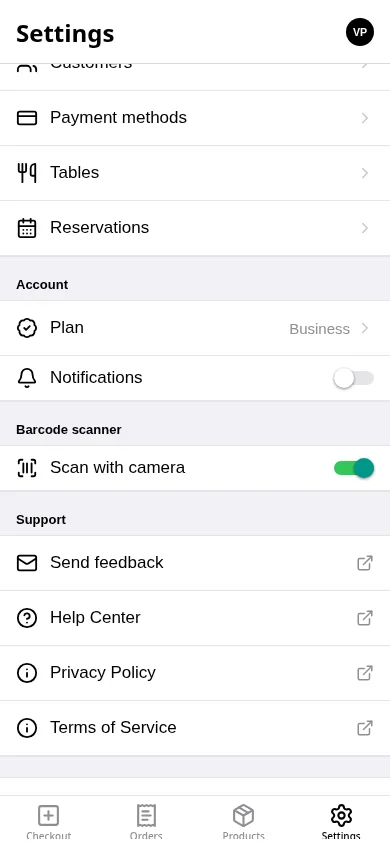
Turn on camera scanning
- Go to the Settings tab.
- Under Barcode scanner, turn on Scan with camera.
This setting is saved on each phone. Turn it on separately on every phone that scans.
Scan items into an order
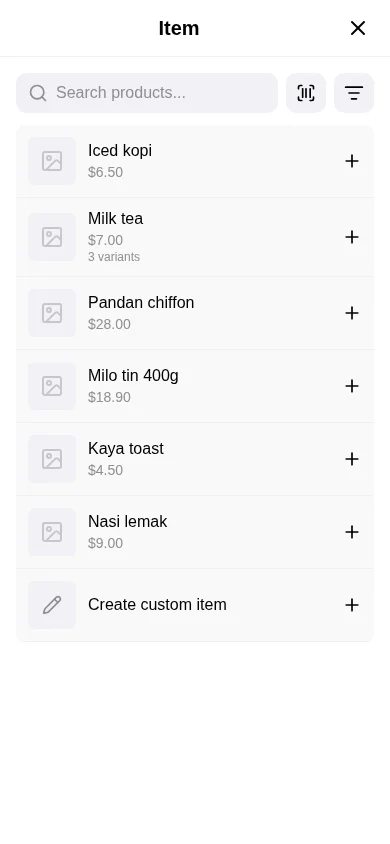
- On the Checkout tab, tap Add item.
- Tap the scan button next to the search bar.
- Allow camera access if the app asks.
- Point the camera at a barcode. The item is added to the order.
- Keep scanning the next items. The camera stays open until you close it.
To add the same item again, tap the camera view, then scan it again. A barcode left in front of the camera is never added twice.
If the scanned product has options to choose, the option screen opens. When you scan a variant's barcode, that variant is already selected.
 |  |
|---|
Supported barcodes
The camera reads Code 128, Code 39, Code 93, EAN-13, EAN-8, UPC-A, UPC-E, and QR codes. It can't read ITF-14 carton labels.
For EAN-13, EAN-8 and UPC-A, the SKU matches with or without the last (check) digit. A UPC-A code also matches with or without a leading zero. So if you typed the SKU without the check digit, the printed label still scans.
Troubleshooting
- "No product with this barcode" — No product or variant has this code as its SKU. Check the SKU on the product, then scan again.
- "Several products share this barcode" — Two or more products have the same SKU, so nothing is added. Pick the item from the list for now, then give each product its own SKU.
- Same item doesn't add again — Tap the camera view, then scan the item again.
- "Camera access is needed to scan barcodes" — Tap Open Settings and allow camera access for Take App. Go back to the app and the camera starts.
- No scan button — Turn on Scan with camera in Settings on this phone.
- No SKU field on a product — The product has variants. Set variant SKUs on the web dashboard.
- No Print barcode link — Save the product first. The link shows once the SKU is saved.