
You can create up to 5 different stores. This is ideal for businesses managing multiple outlets or brands. If you need more than 5 stores, additional stores can be added for $8 per month each. For more details on scaling options, please check this add-ons article.
The plan is designed to accommodate growth, letting you start with 5 stores and scale as your business expands. This flexible approach ensures you can grow at your own pace without significant upfront commitments.
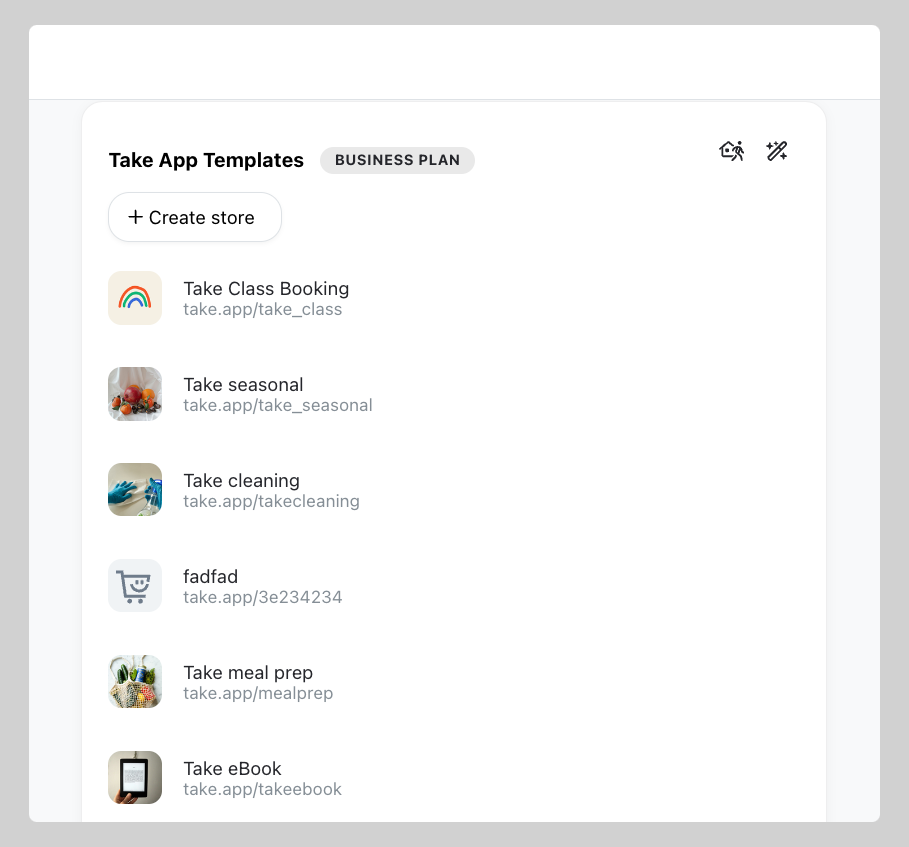
Create a new store
-
Go to your Admin panel, and hover your mouse over your store name. Click on
Create new storefrom the dropdown menu.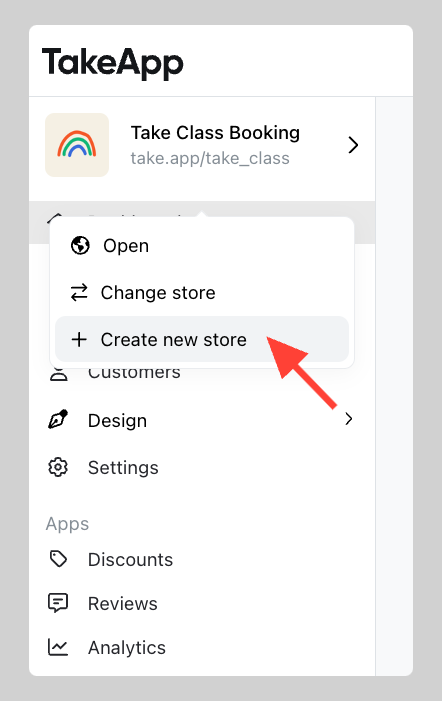
-
Type your Store name, WhatsApp number, Currency, and Store link. Then click Create
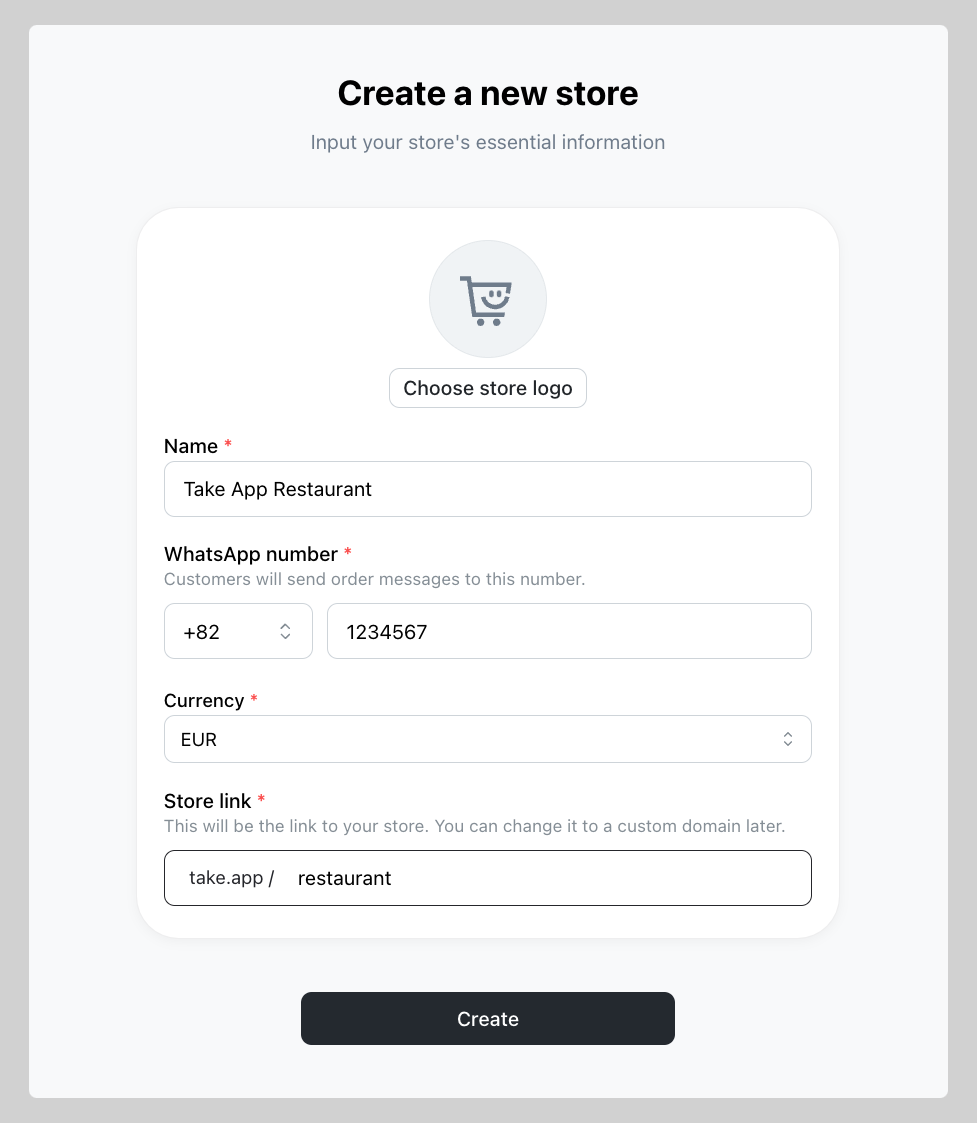
Tips: You can use either the same or a different WhatsApp number for each store you create.
Duplicate an existing store
Cloning a store copies its setup, which is useful when you run several branches that each need their own admin phone number to receive orders.
-
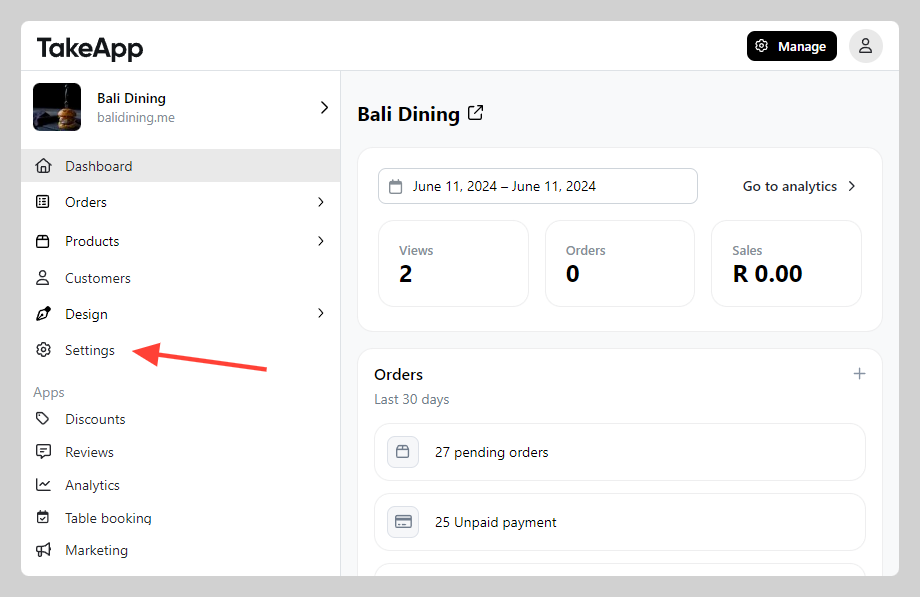
Go to Admin > Settings
-
In Store Detail, navigate to the "Profile" section and scroll down to find Duplicate store. Input the new store name and link, then click
Duplicate store.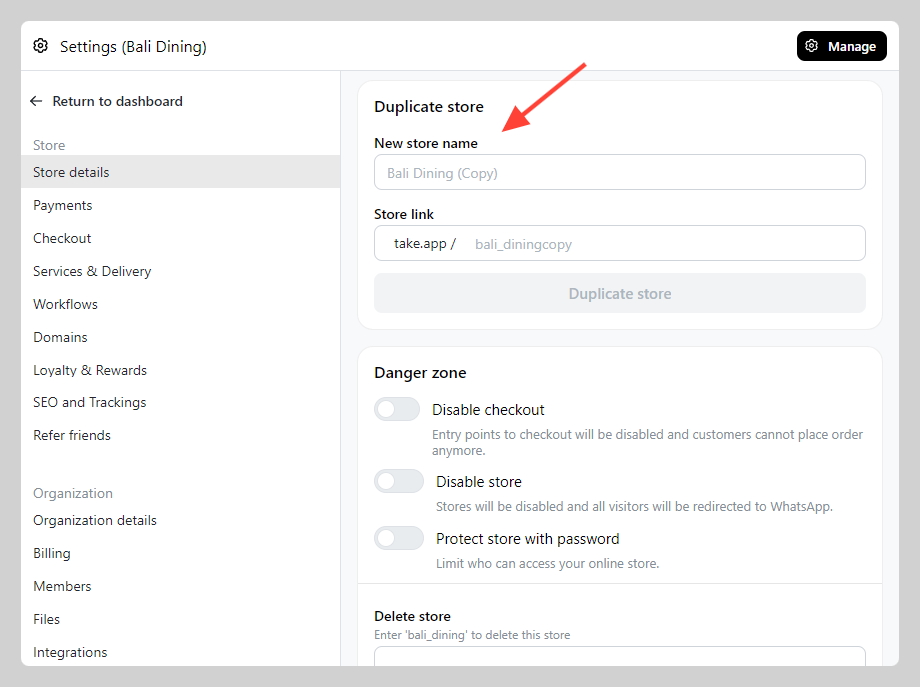
Switch between stores
- Go to your admin dashboard.
- Hover your mouse over your store name.
- You will see a section called "My stores".
- Click on any store to switch.
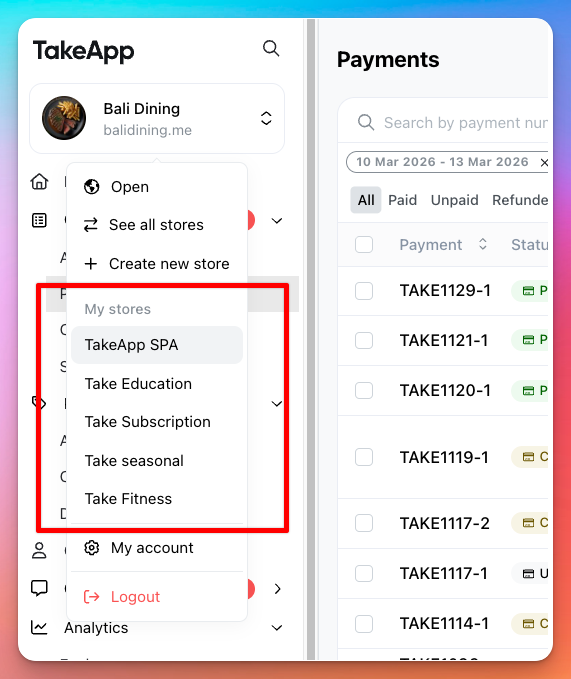
- You can see up to 5 stores in this menu for quick access.
- If you have more than 5 stores, click "See all stores"