A fulfillment workflow sends a WhatsApp message when an order's fulfillment status changes. You can build your own, and two useful ones are already built in.
How to create a fulfillment workflow
Step 1: Navigate to the Workflow section and select Create.
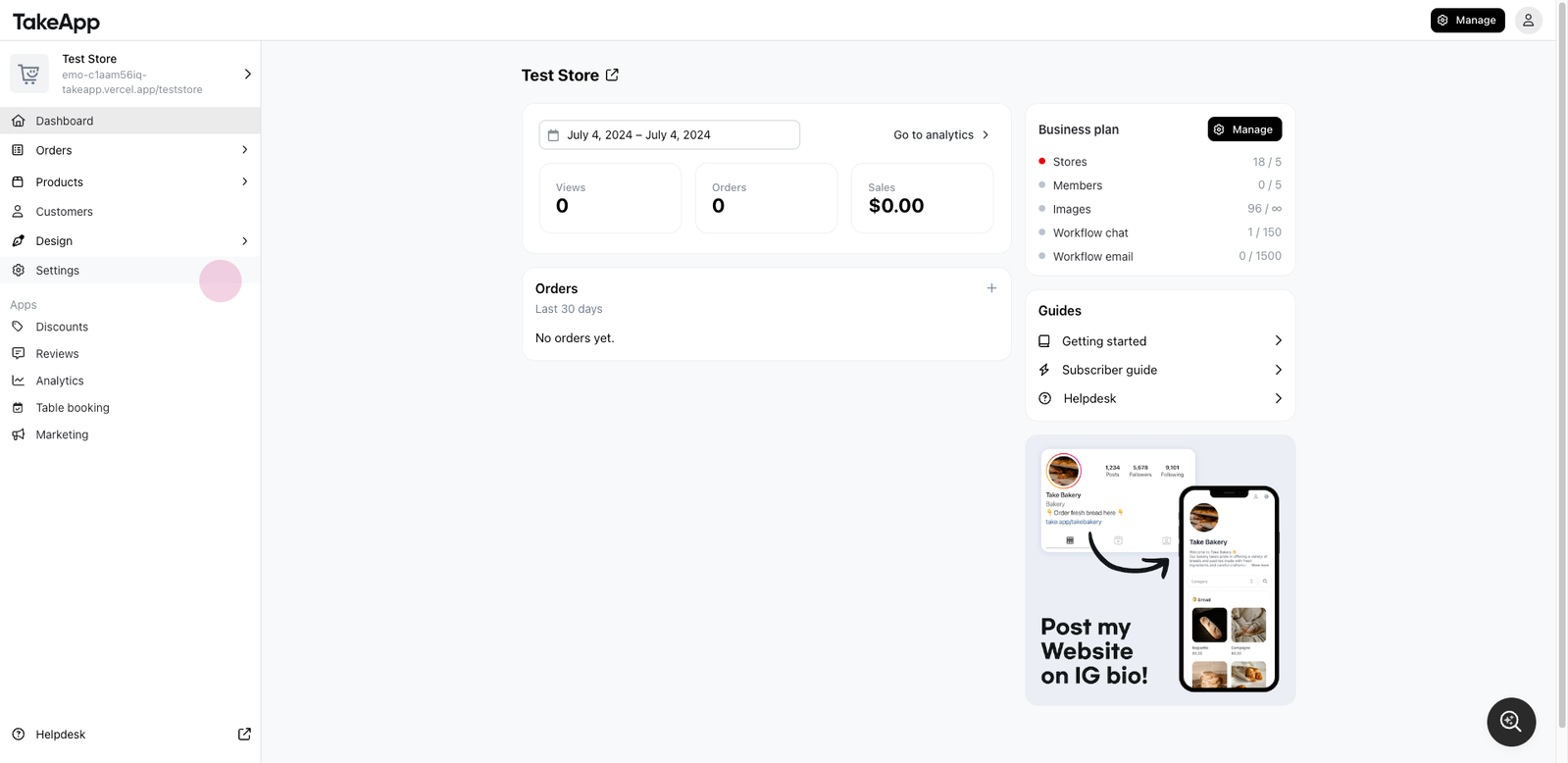
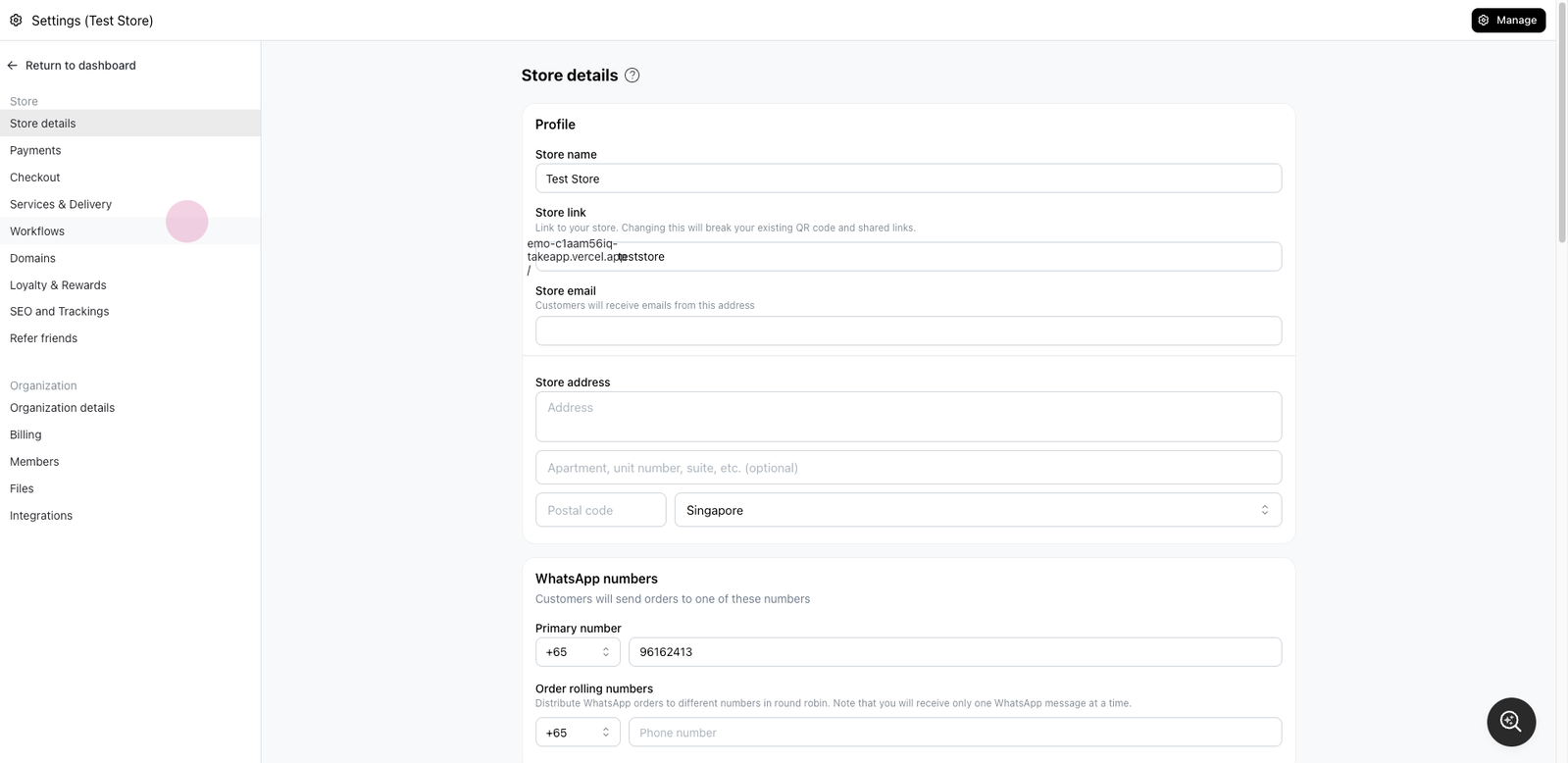
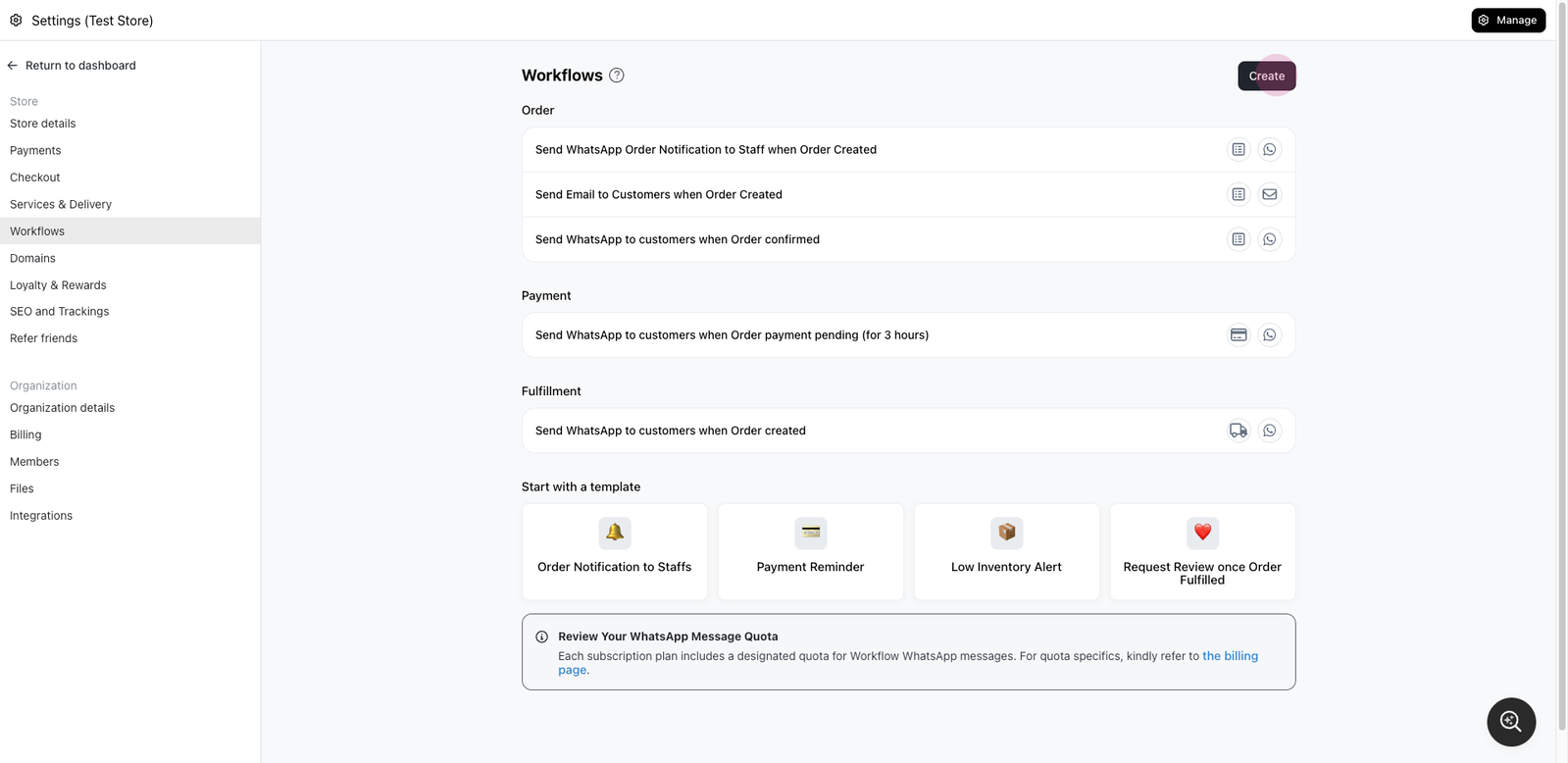
Step 2: Locate the Trigger section. Here, find and select the fulfillment status. For this demonstration, select Ready for Fulfillment.
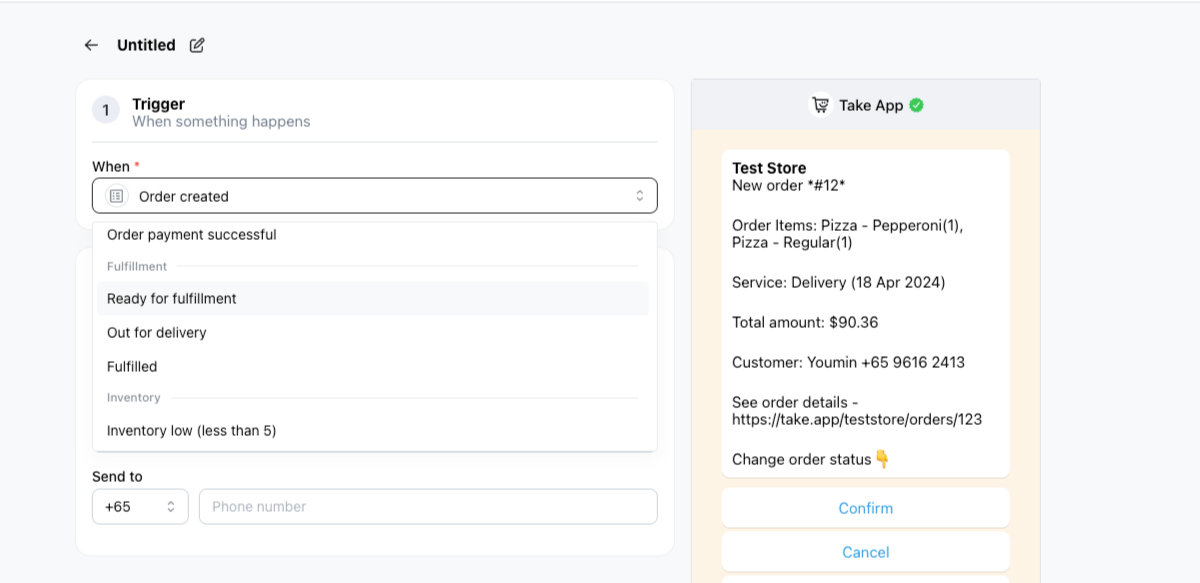
Step 3: Decide on the action to be taken. Options include sending a WhatsApp message to staff or customers. In this case, select Send WhatsApp to Staff.
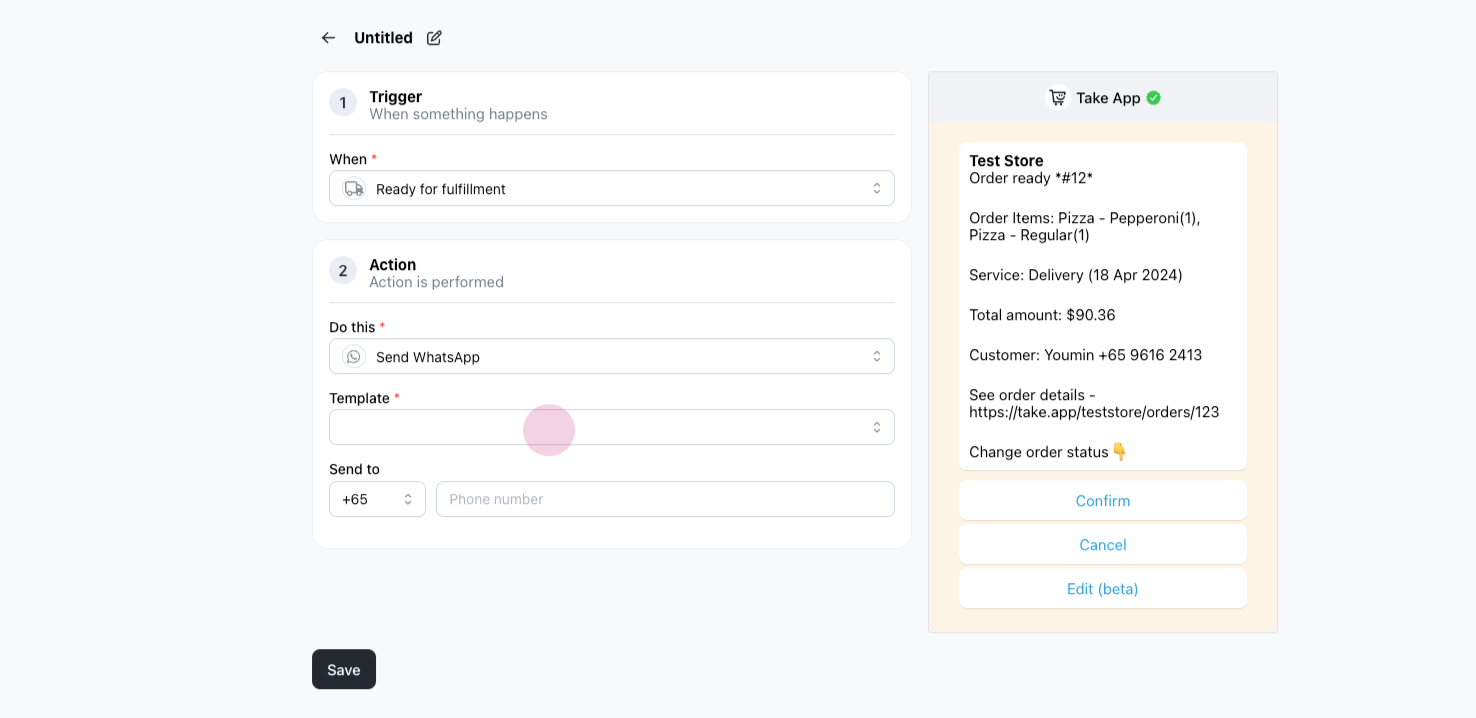
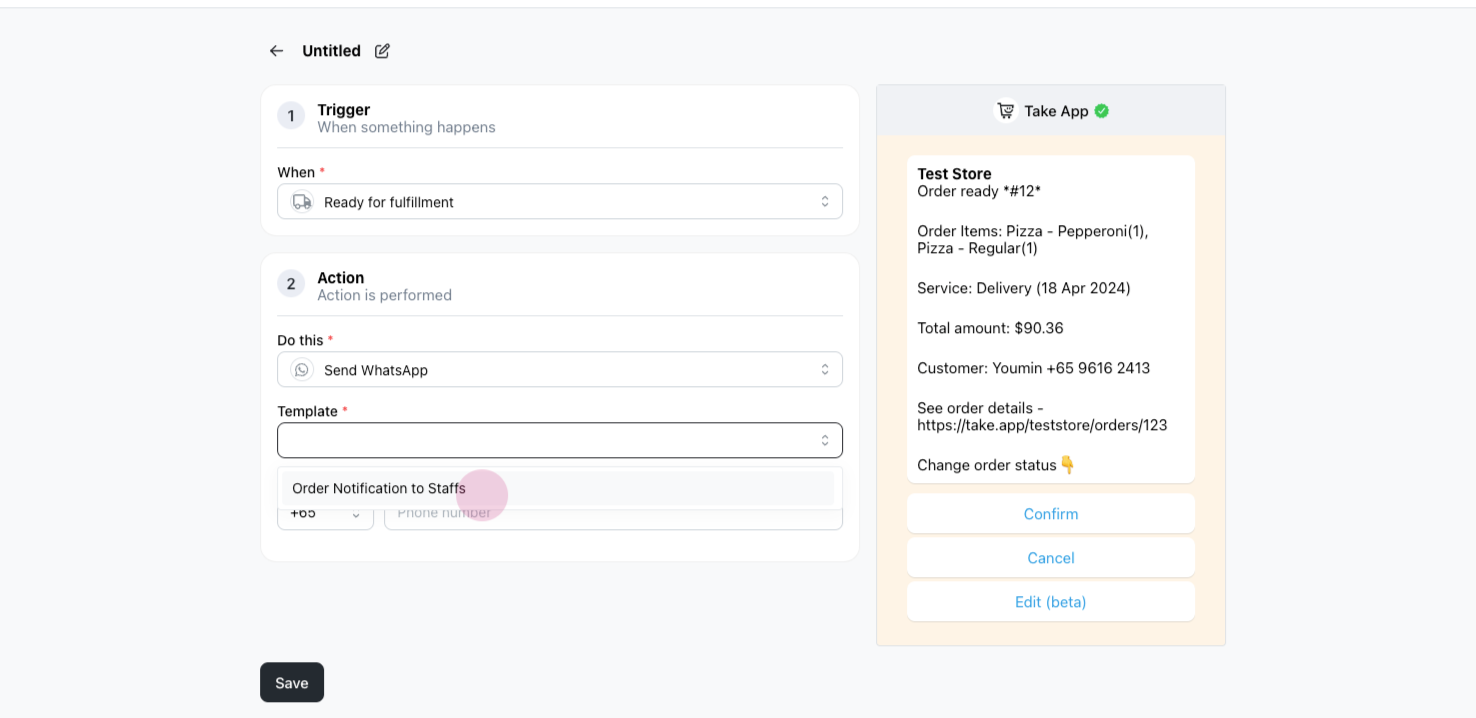
Step 4: Choose the appropriate template, enter your phone number, and click Save.
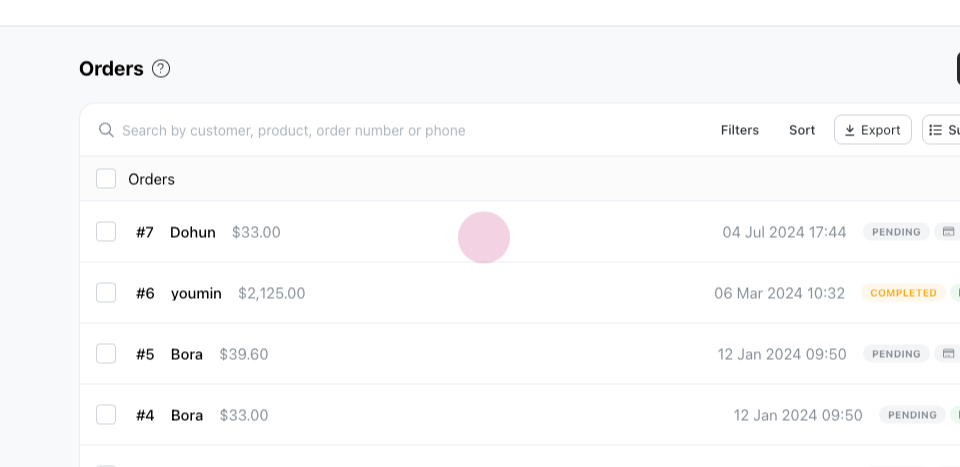
Step 5: In the Order section, select the order for which you want to change the fulfillment status.
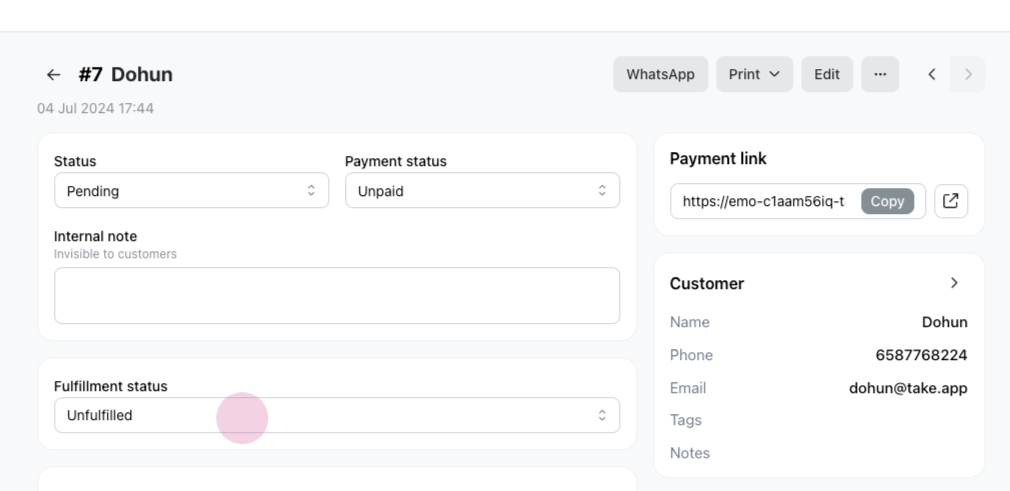
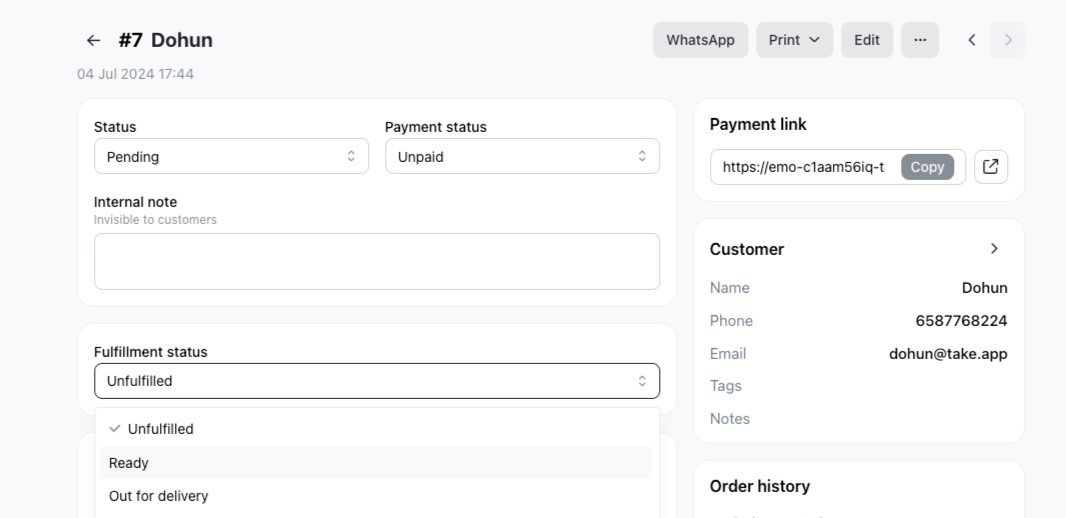
Step 6: Change the status to Ready.
Upon completion, you'll receive a WhatsApp notification confirming the change.
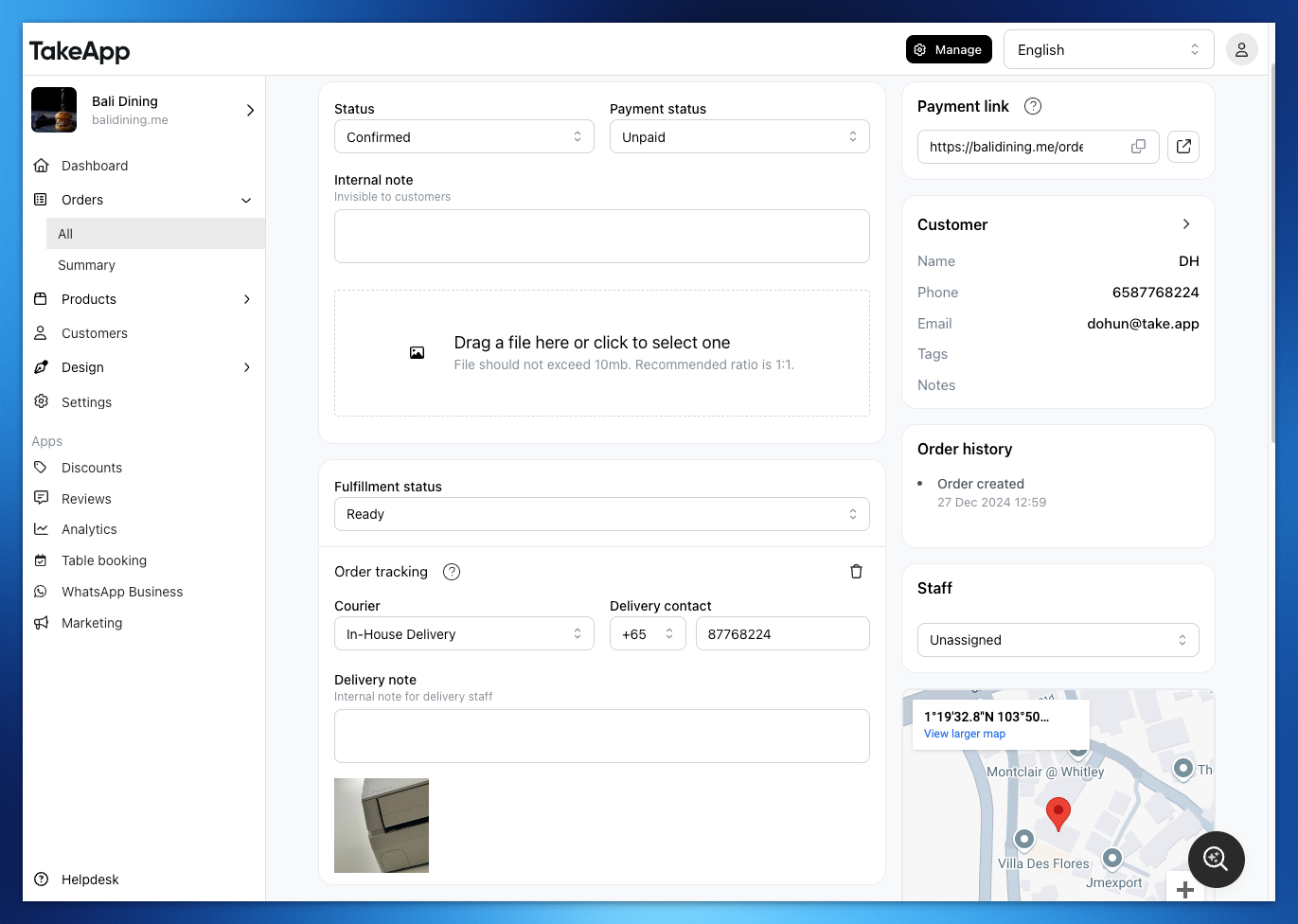
Ready → notify your in-house driver
This is a Business plan feature.
When you change the order fulfillment status to "Ready", Take App automatically sends a workflow message to your in-house driver.
Pre-requisites
- Has "Delivery" added & accept the customer's location from "Delivery" -> learn how to add delivery method
- Any order that is not "type: delivery" will not be able to use this function (e.g. pick-up order type will not be able to trigger the message)
- Make sure the
Fullfilment readyworkflow is active (Settings > Workflow > Built-in workflow > Fulfillment ready > Active)
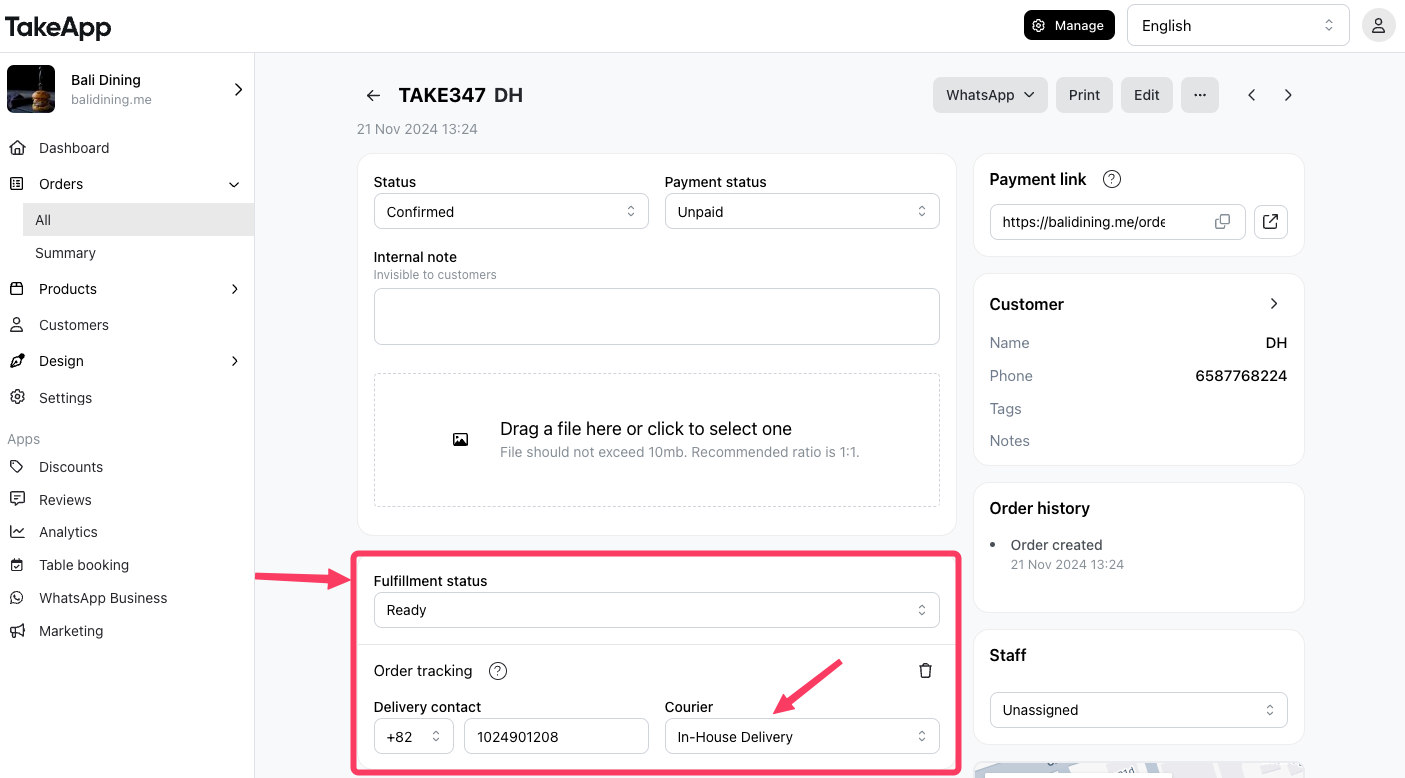
Important flow:
- Choose "in-house delivery"
- Fill in the delivery contact WhatsApp number
- Lastly, change the fulfillment status to "Ready"
Please make sure to follow this flow otherwise our system can not send the message to the driver's WhatsApp
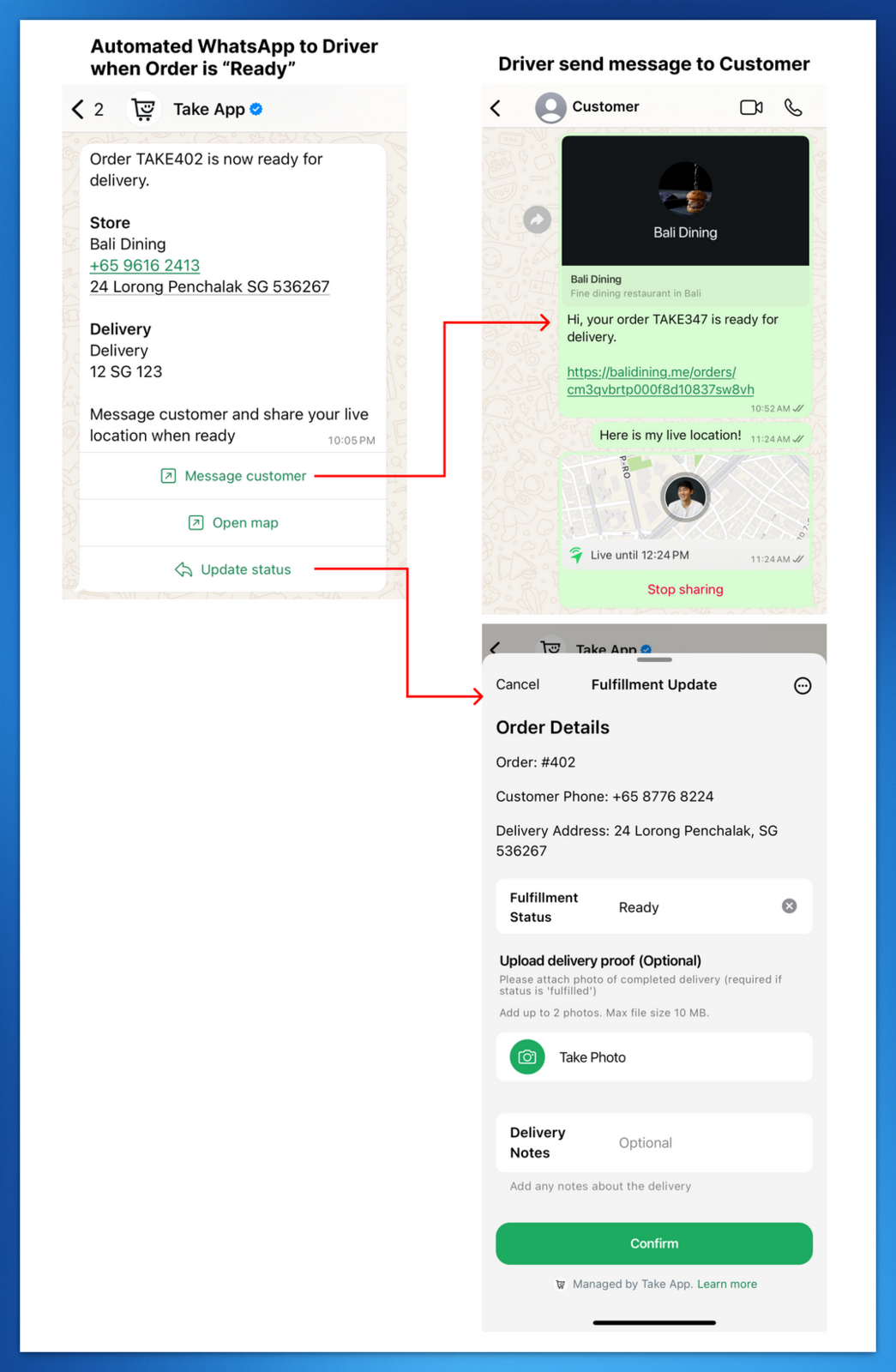
What the driver sees
- After the merchant updates the fulfillment data, our system will send delivery fulfillment message to driver's WhatsApp
- Then the drivers can see the order and go to the store to pick-up the order that need to be delivered
- Additionally, the driver could
- Change fulfillment status
- Open the order
- Upload delivery proof (image)
- Update the delivery note
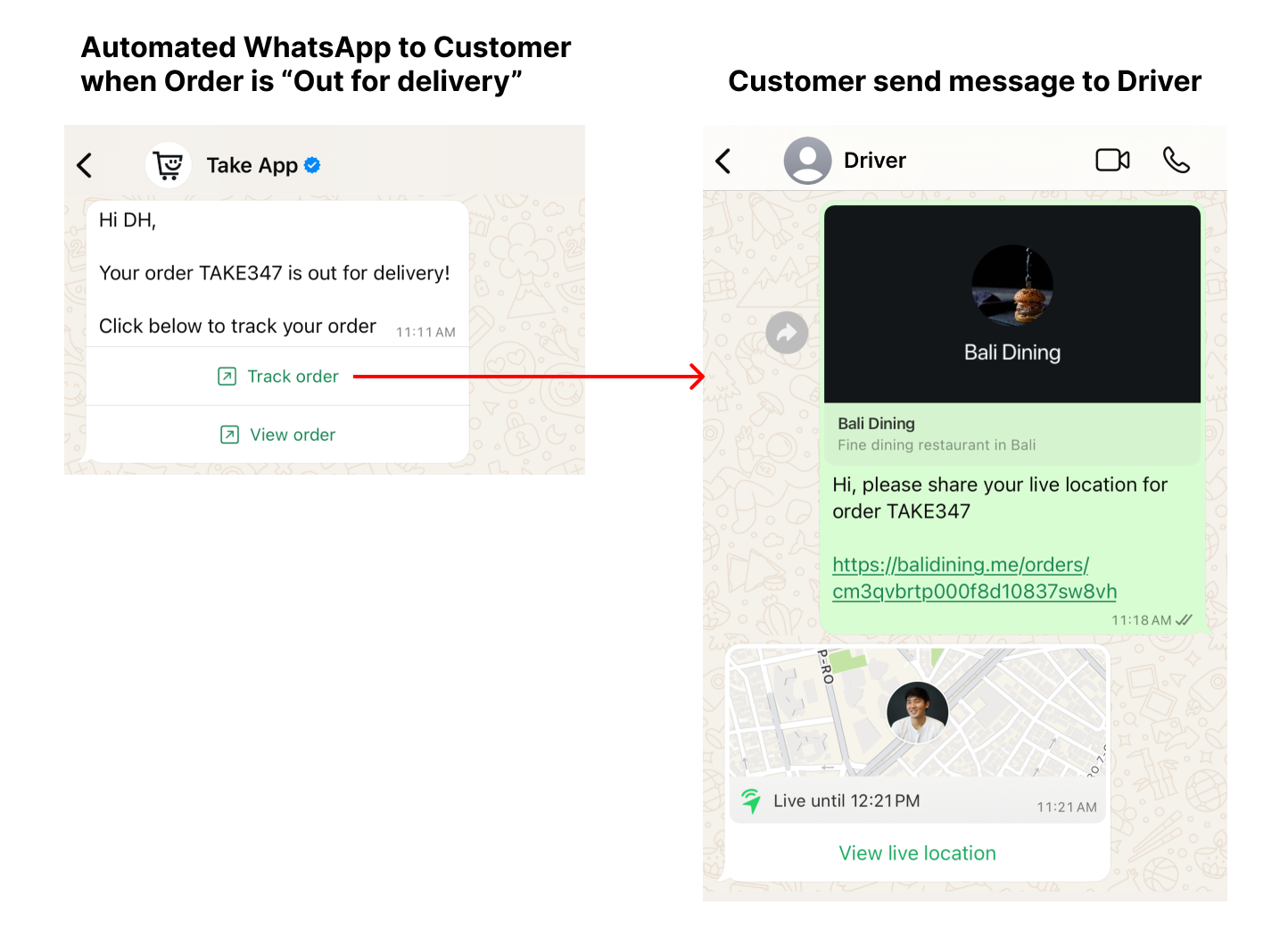
Out for Delivery → notify the customer
This is a Business plan feature.
When you change the order fulfillment status to "Out for Delivery", Take App automatically sends a WhatsApp message to the customer, under these conditions:
- Order marked as "Out for Delivery"
- Has Order Tracking courier and Tracking number added
- Has "Delivery" added & accept customer's location from "Delivery"
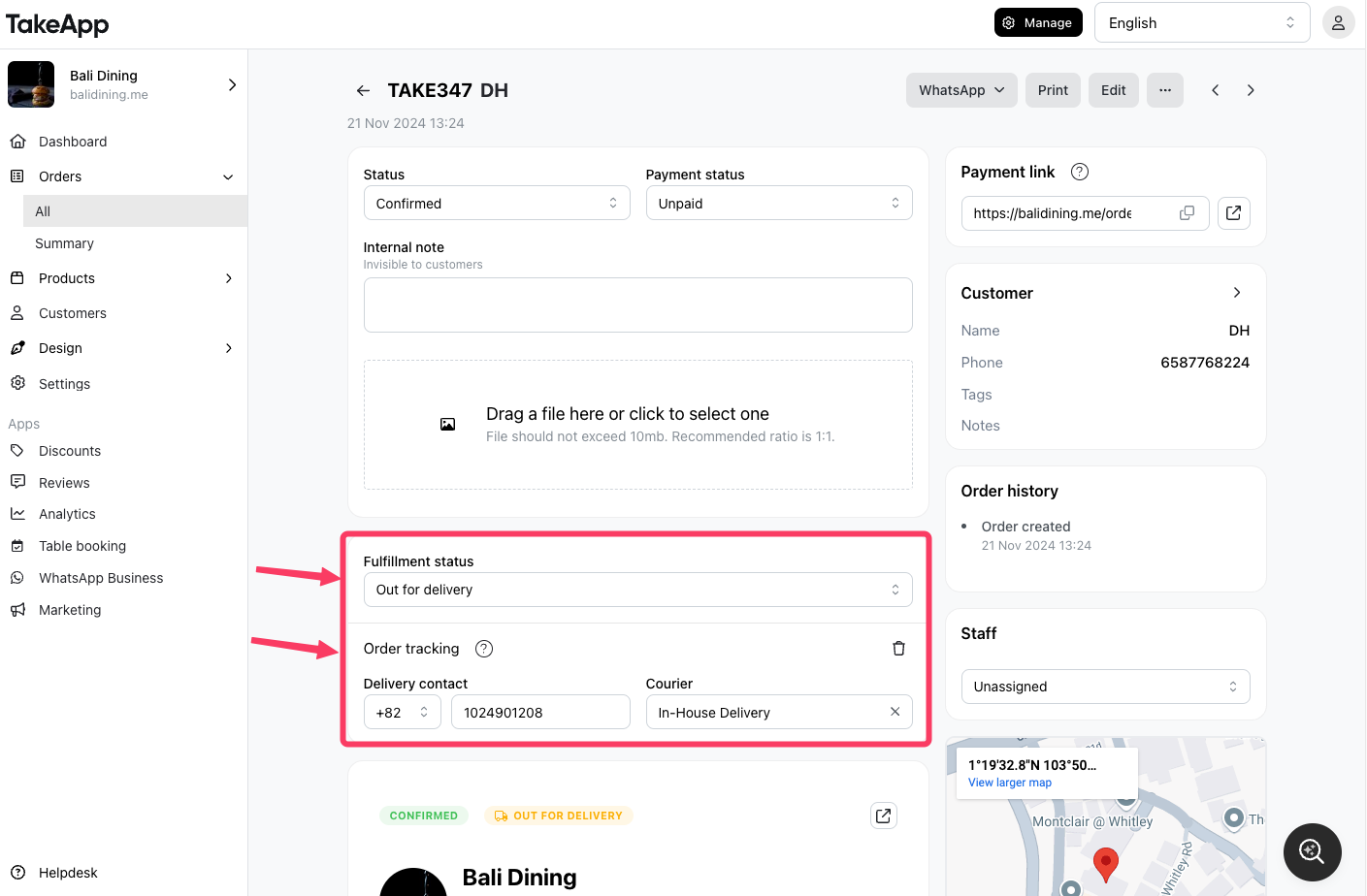
If the tracking info is "In house Delivery", clicking Track order sends a message to the driver's WhatsApp asking them to share their live location. For any other courier, it opens that courier's tracking page.