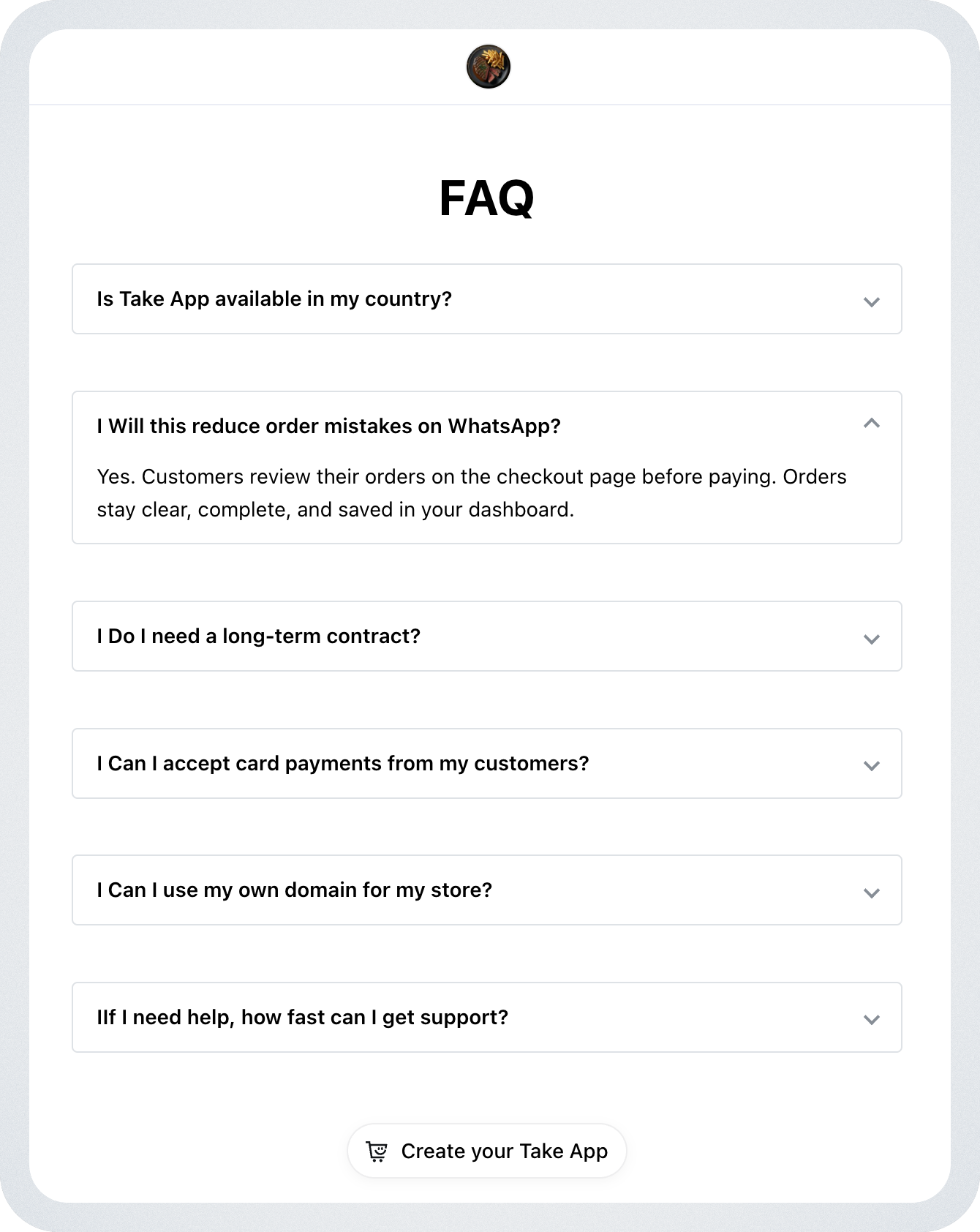
You can add custom pages like "About Us", "Privacy Policy", "Return policy," or "Terms and Conditions" in your storefront.
How to add custom pages
-
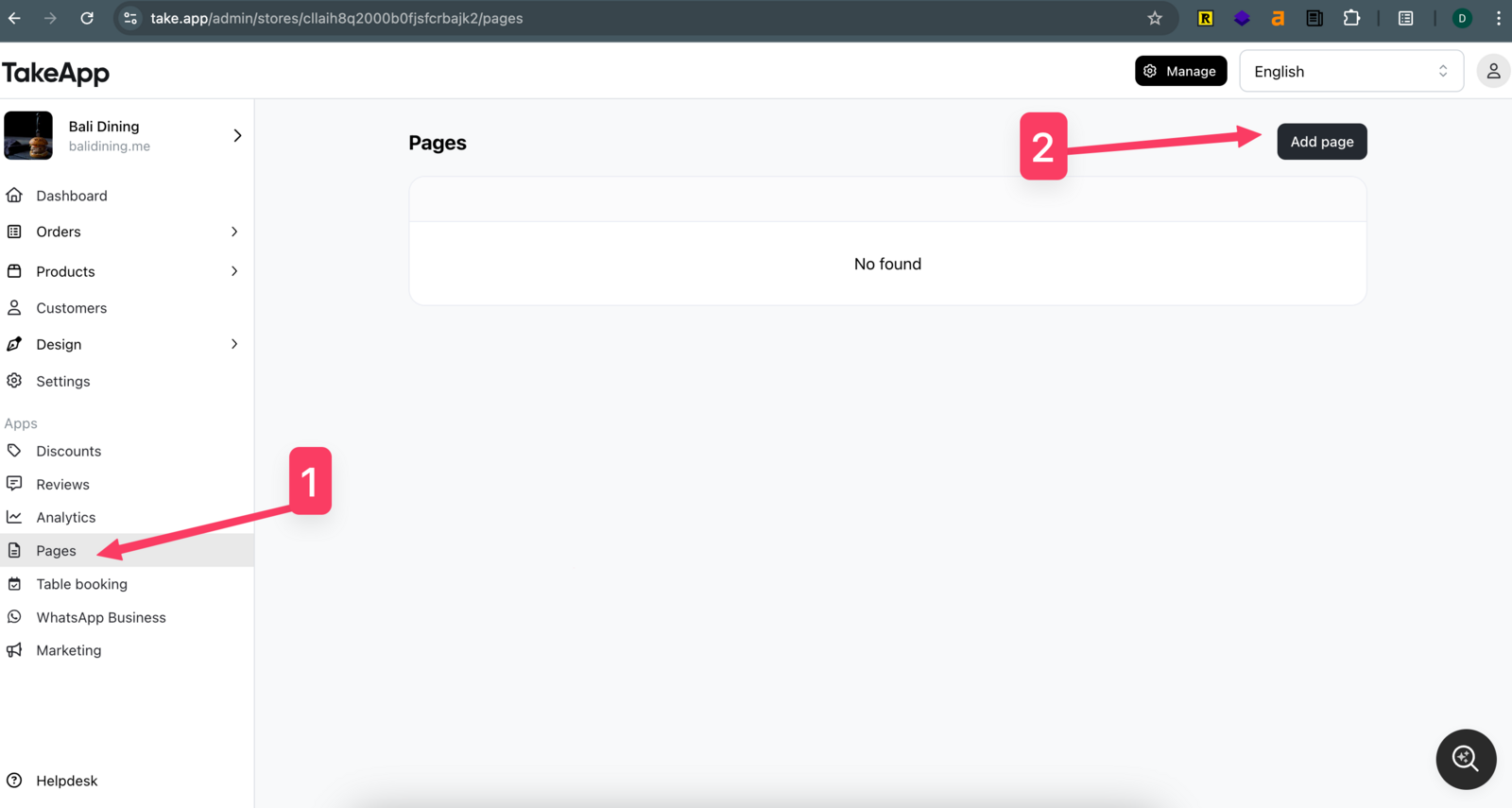
First, go to Pages in the Menu and click "Add page"
-
Add a Title, Content and customize your page link. If you wish to add images, insert the following text:
. Make sure your image is hosted somewhere publicly accessible. After you're finished, click "Save". Click "Preview" button to see your page under your website.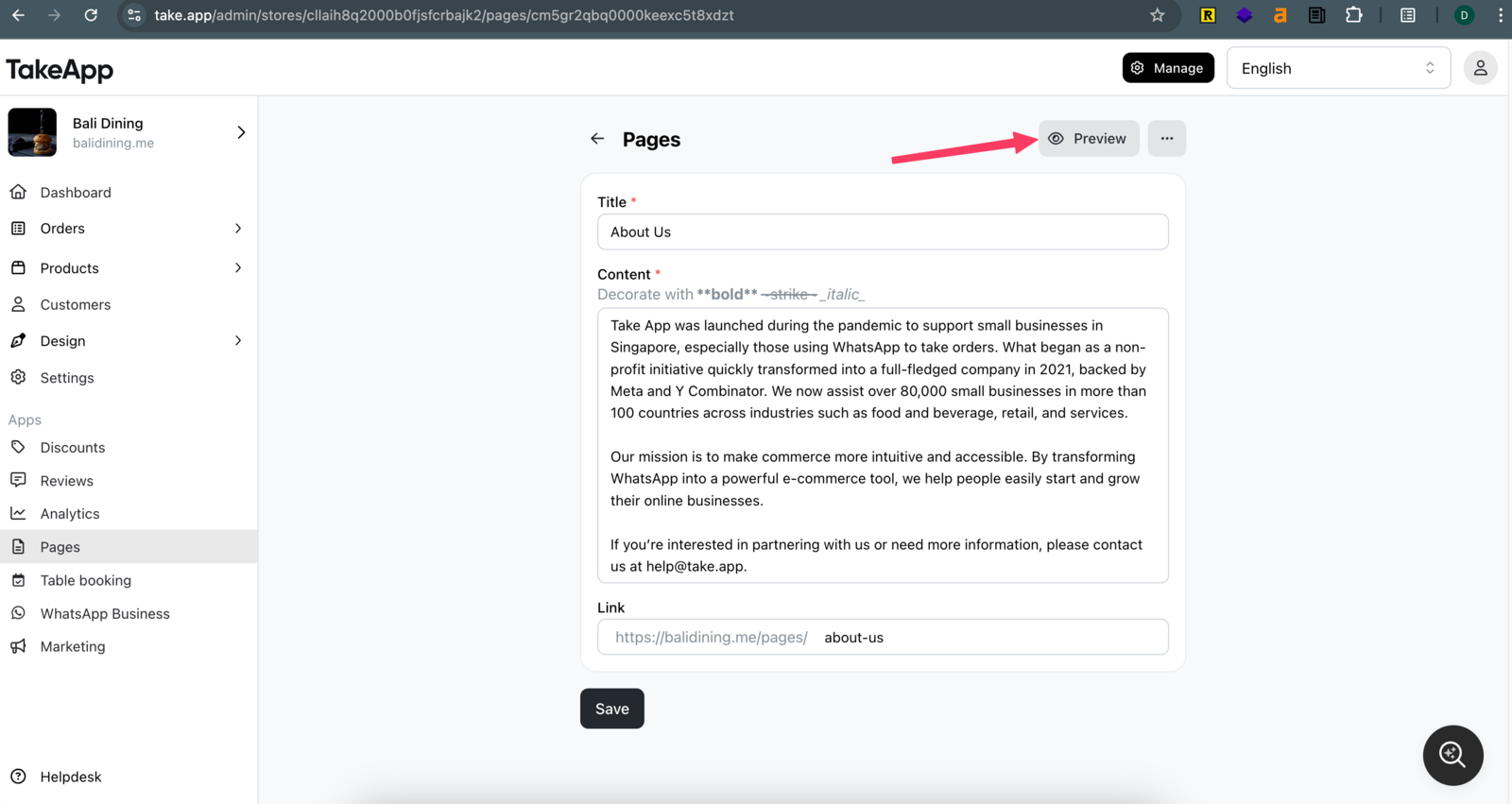
-
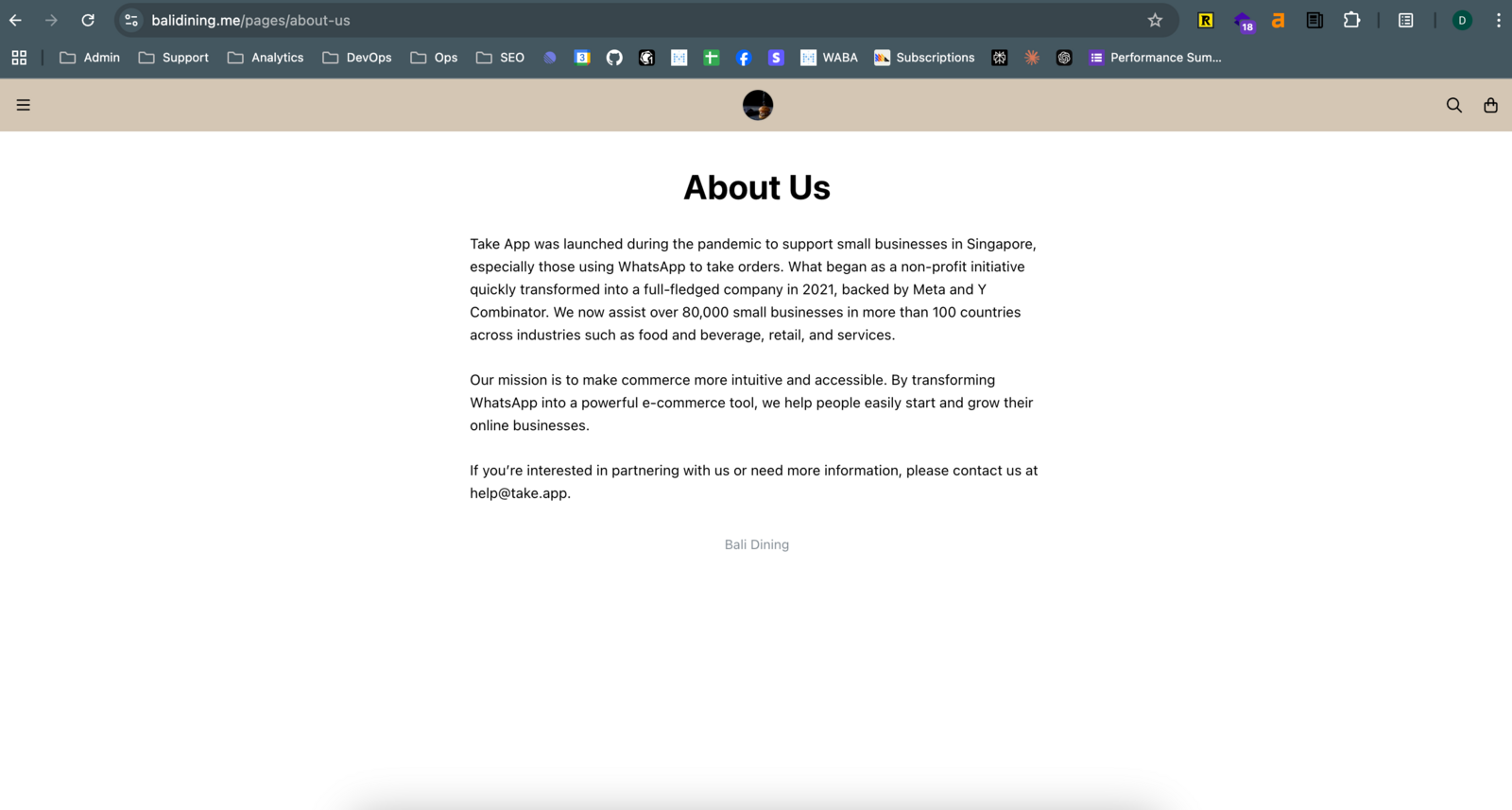
You can see your page content under "/pages/[link]".
-
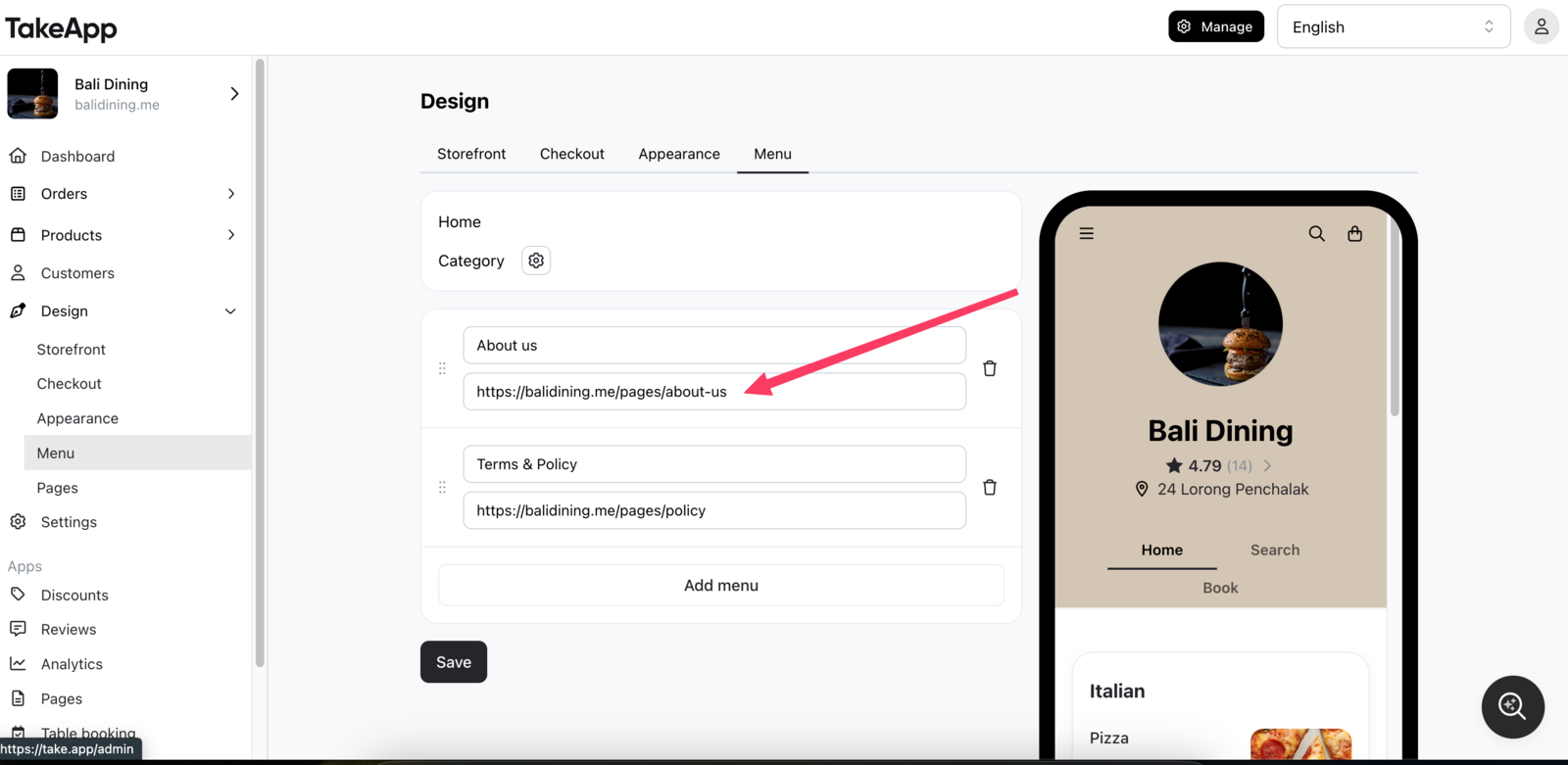
To add your custom page to your store's navigation, go to In Design > Menu, add your custom page URL and title and click "Save".
Page Types: About Us, Policy, and FAQ
You can now assign a type to a page (About Us, Policy, or FAQ) in Admin > Pages. Assigned pages will automatically appear at the bottom of your storefront.
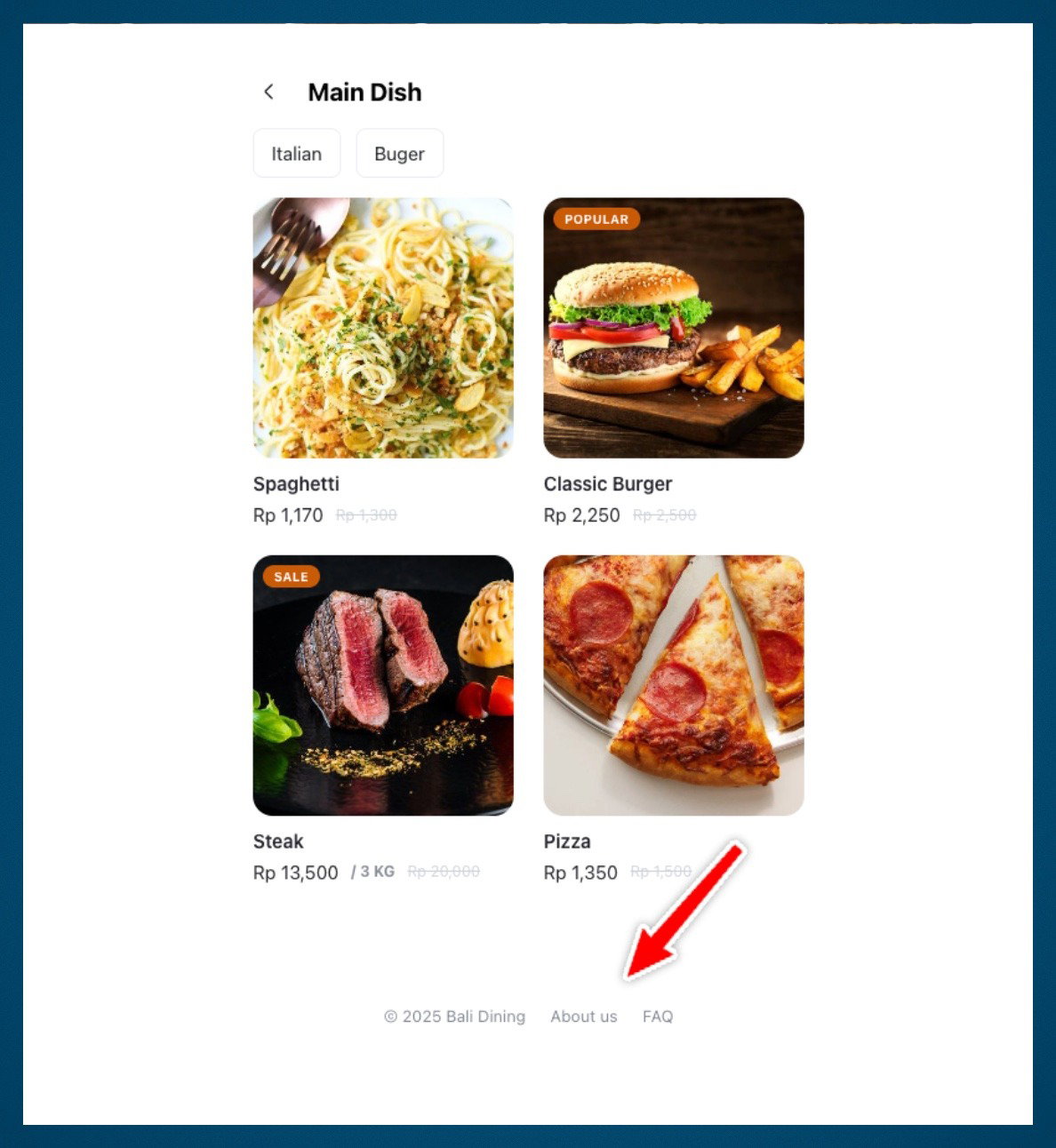
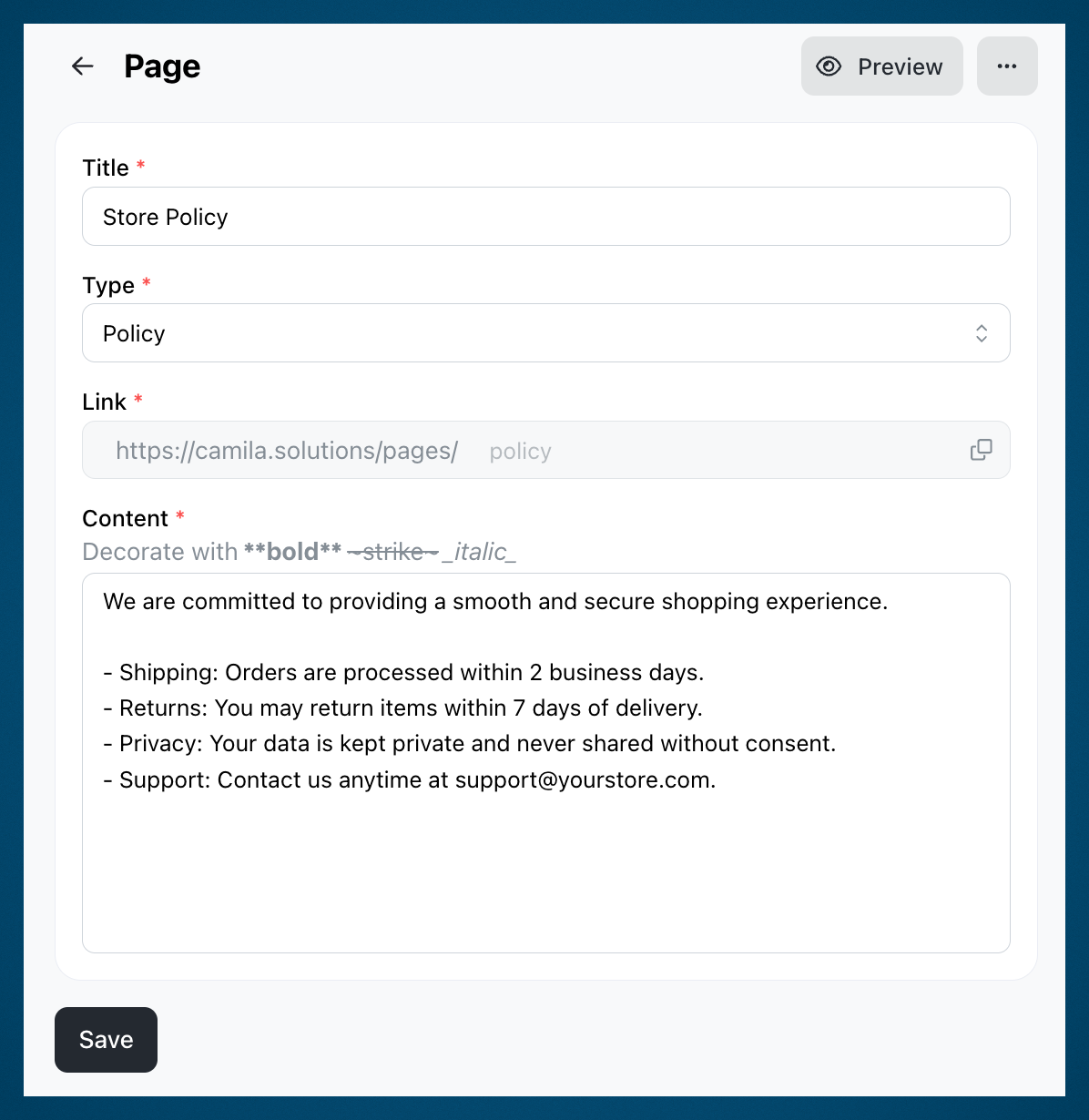
You can only have one page per type, and you can still add them to your menu manually via Admin > Design > Menu.
Collapsible Sections
You can add collapsible sections to any page — useful for FAQs, terms, or any content you want visitors to expand on click.
How to add a collapsible section
In the page content editor, wrap your title and content using the following syntax:
<details><summary>Title</summary> content </details>
The section will appear as a collapsed item on your page. Visitors can click it to expand and read the content.