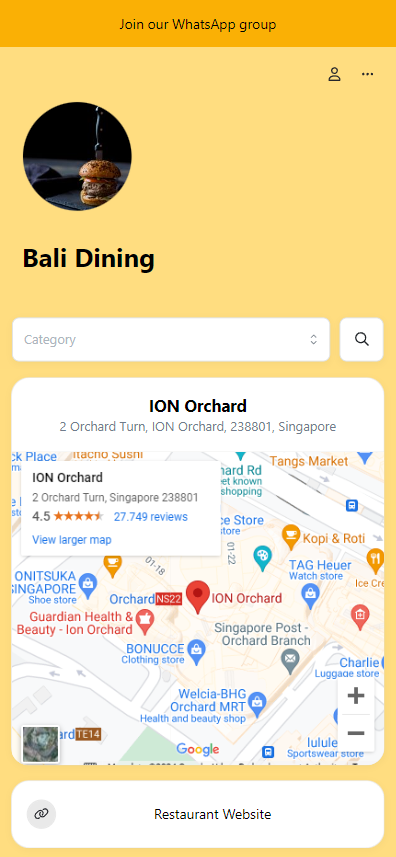
Your storefront is built out of cards. Alongside the product cards, you can add text, images, video, links to other sites, and a map of your store.
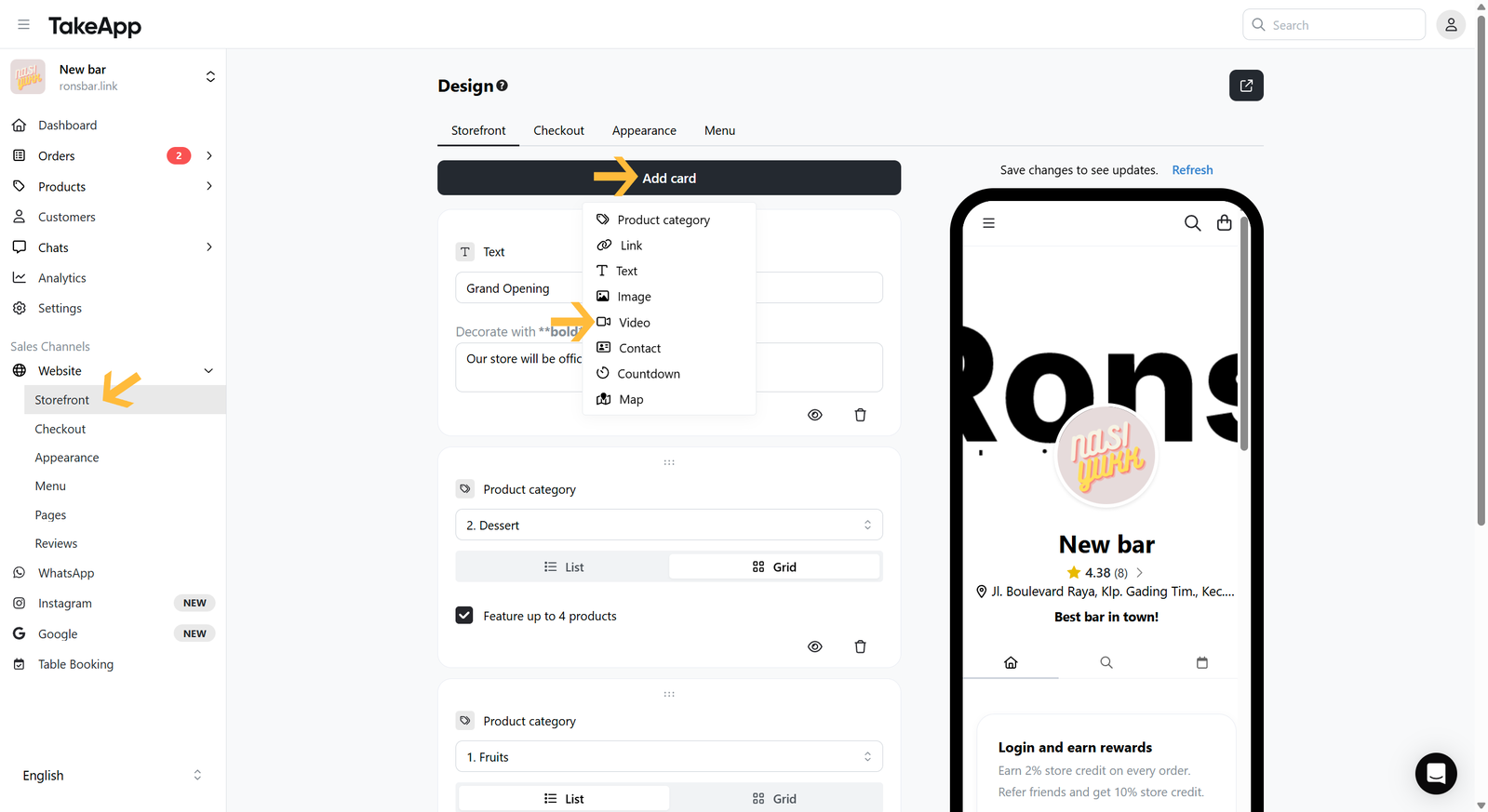
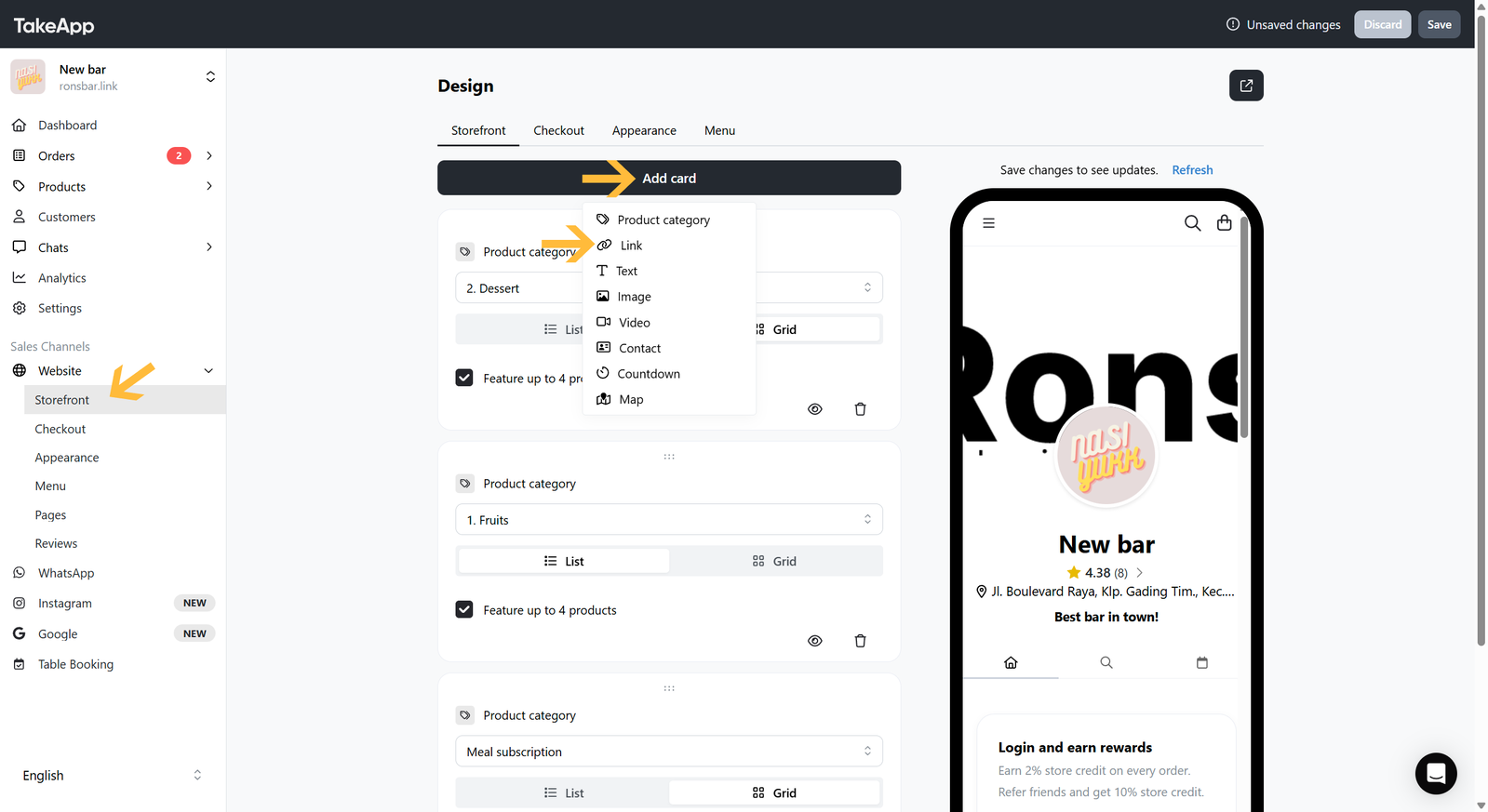
Every card is added the same way: go to Admin > Website > Storefront, click Add card, and choose the card type. Fill it in, then save.
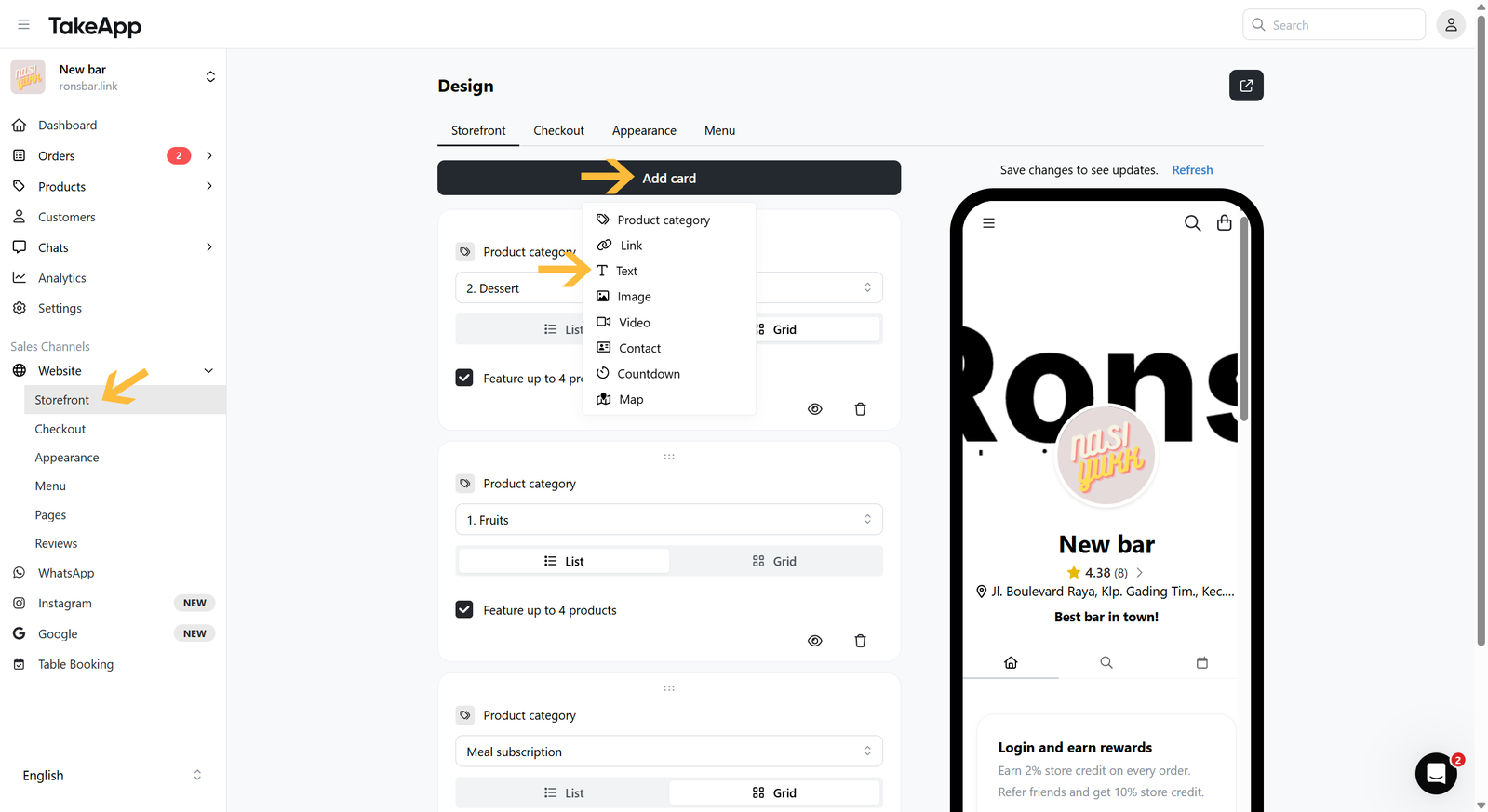
The sections below cover what each card type is for.
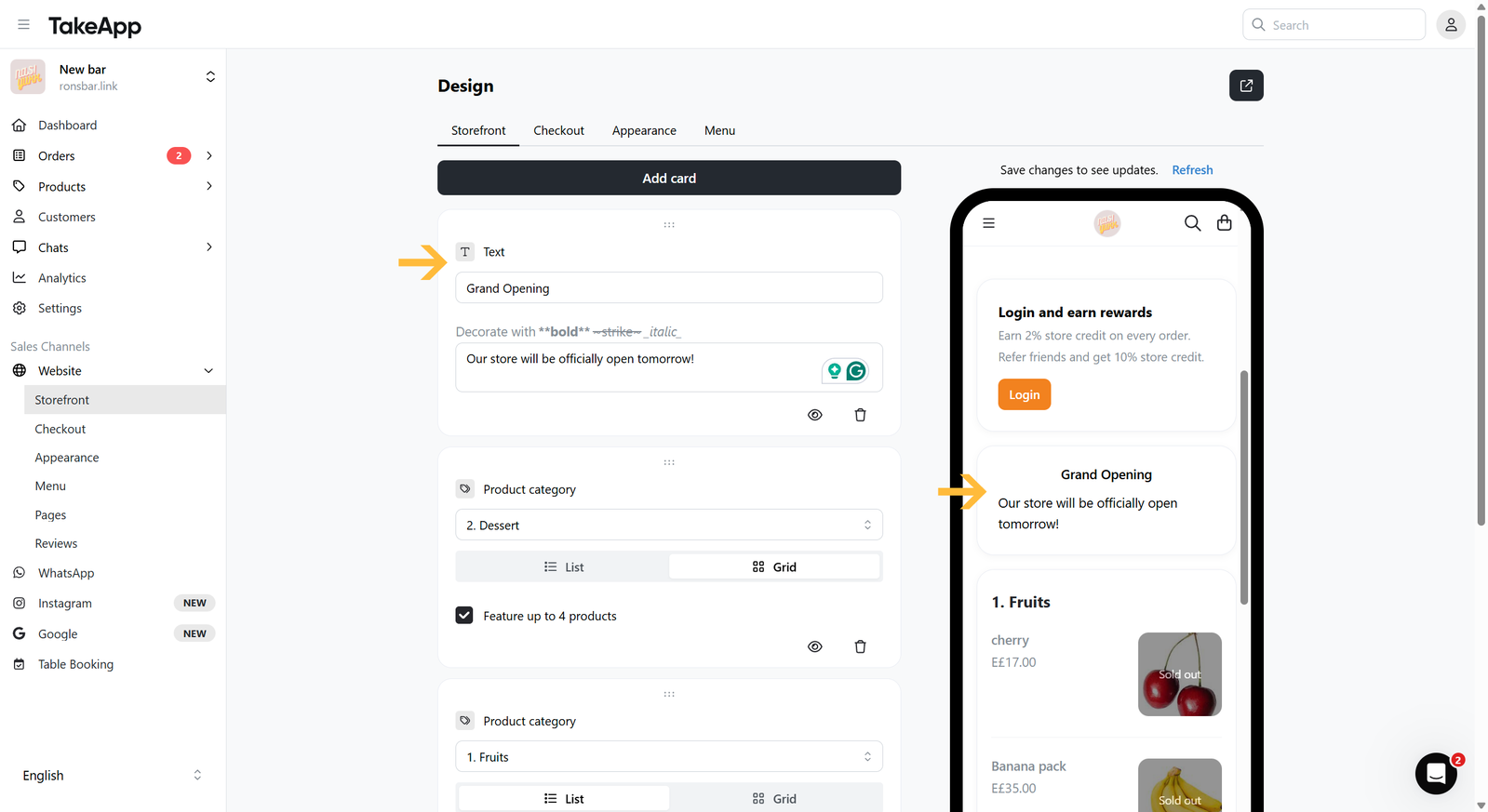
Text
Static text such as your store background, an important notice, or steps to order. Add a title and the text content.
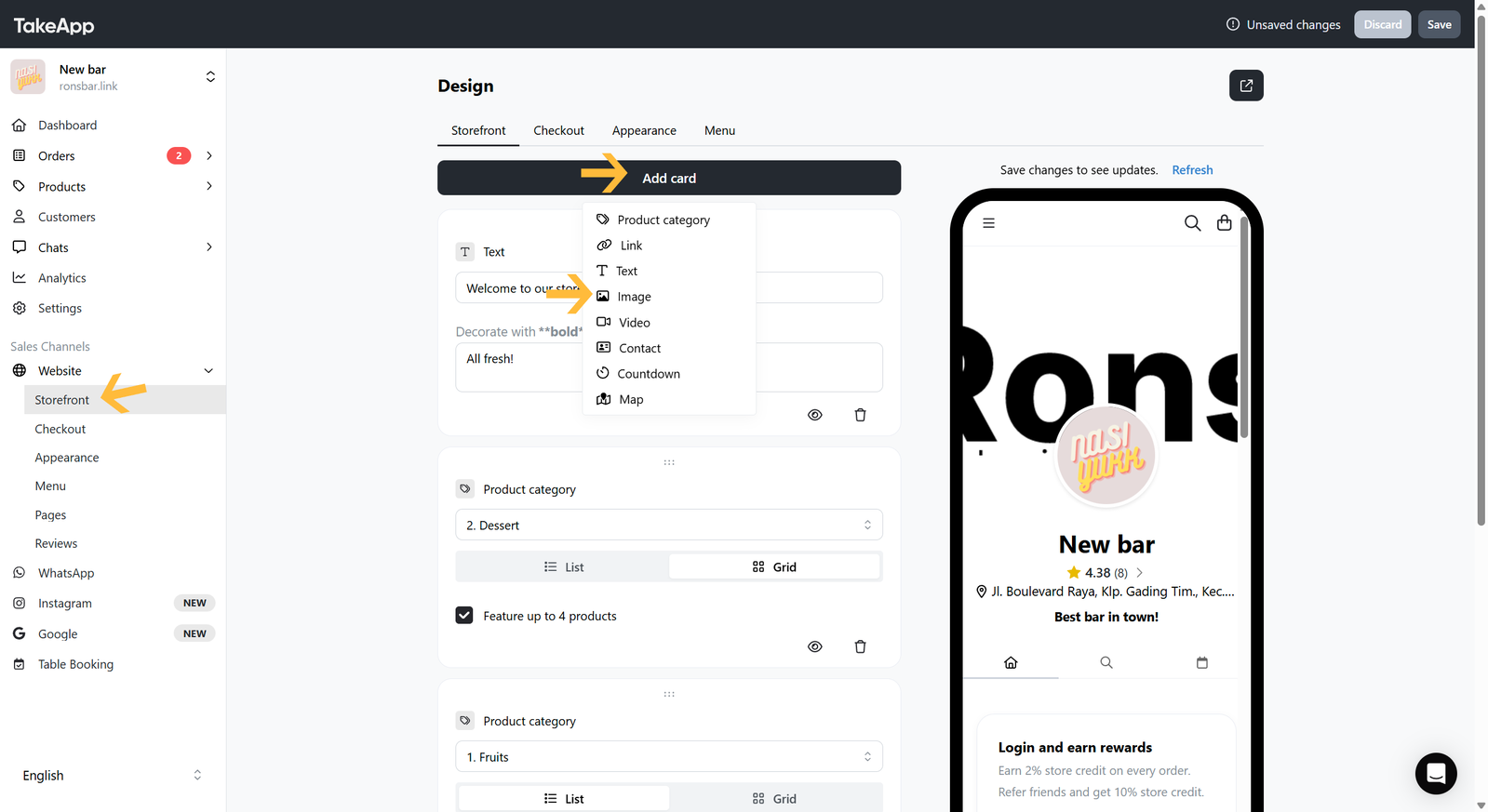
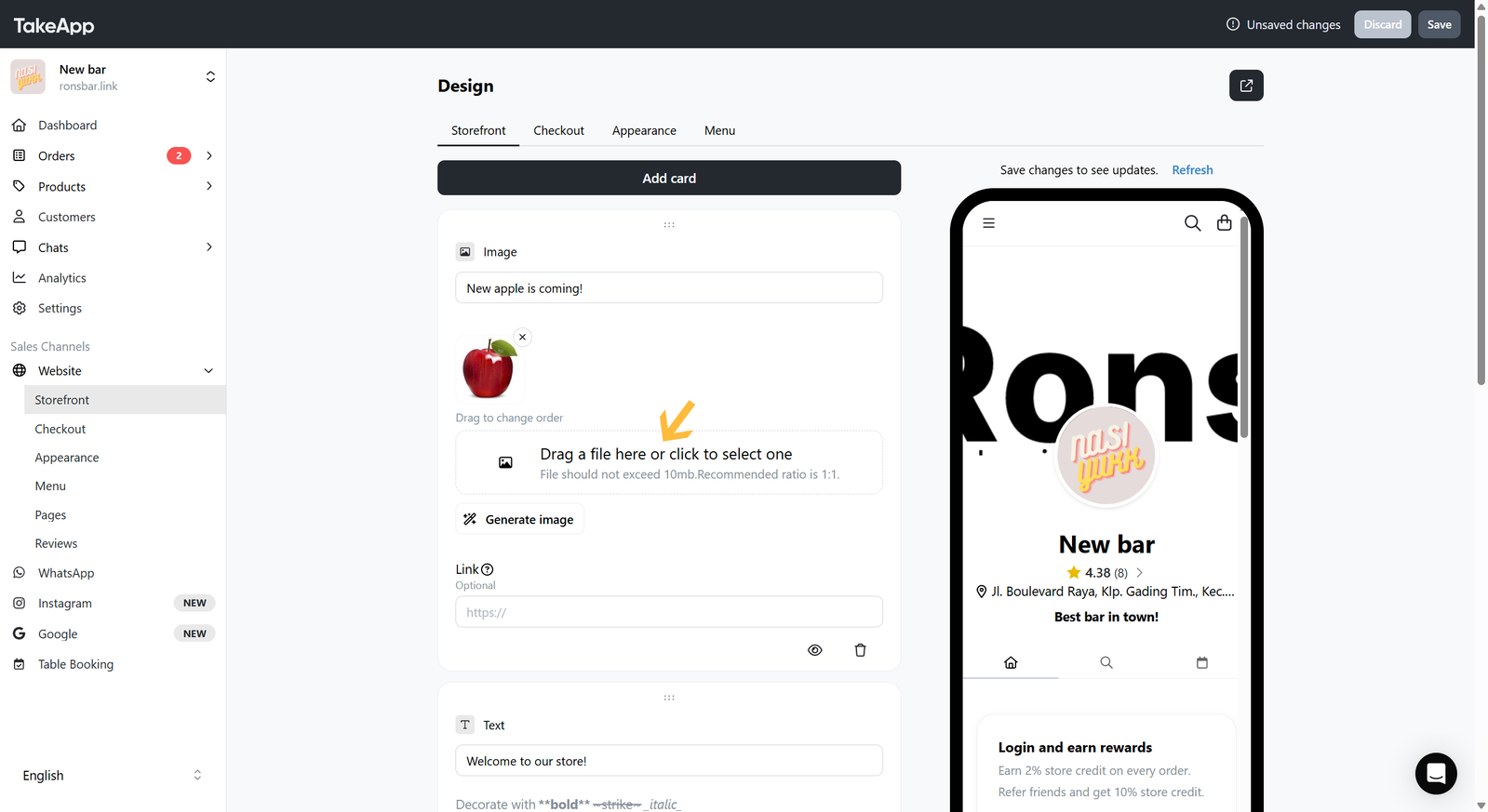
Image
A promotional image or a photo of your menu. JPEG, JPG, PNG, and GIF are supported. Add a title, then upload the image from your device.
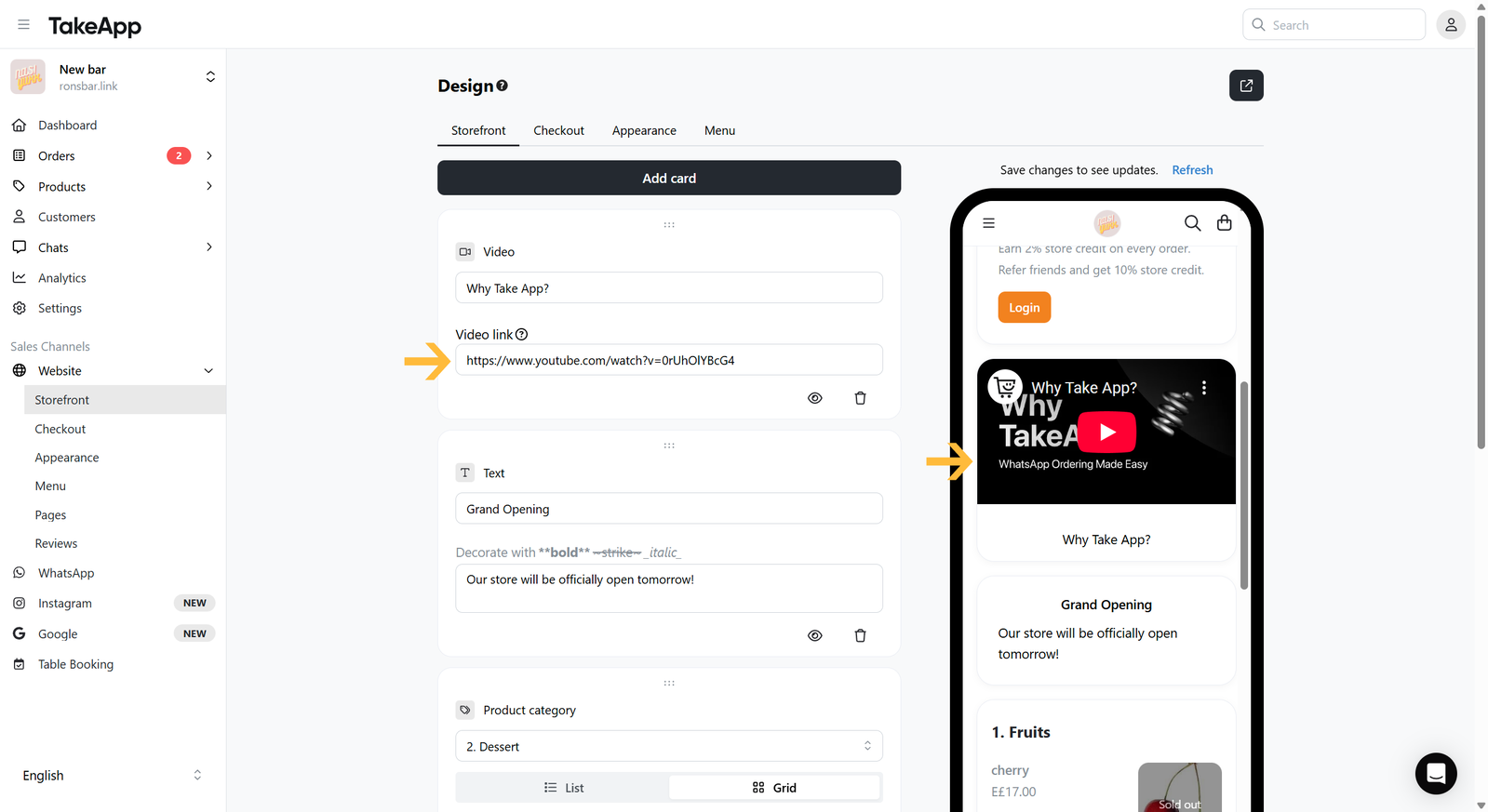
Video
A promotional or tutorial video. YouTube and TikTok links can be embedded. Add a title, then paste the video link.
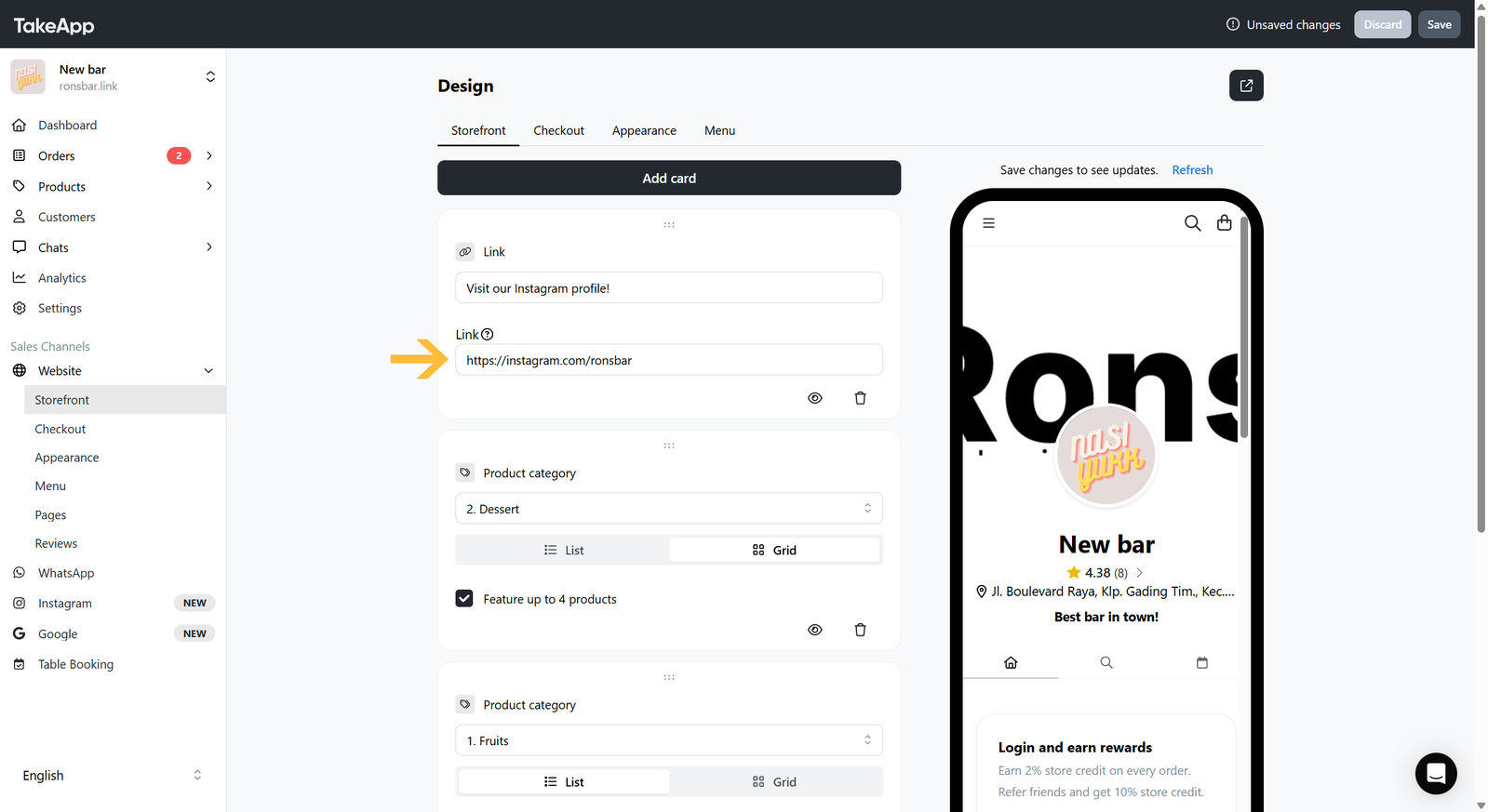
Link
A link to a social media profile or any external website. Add a title and the URL.
Map
Shows your store location on the storefront.
-
Click
Add cardand choose "Map".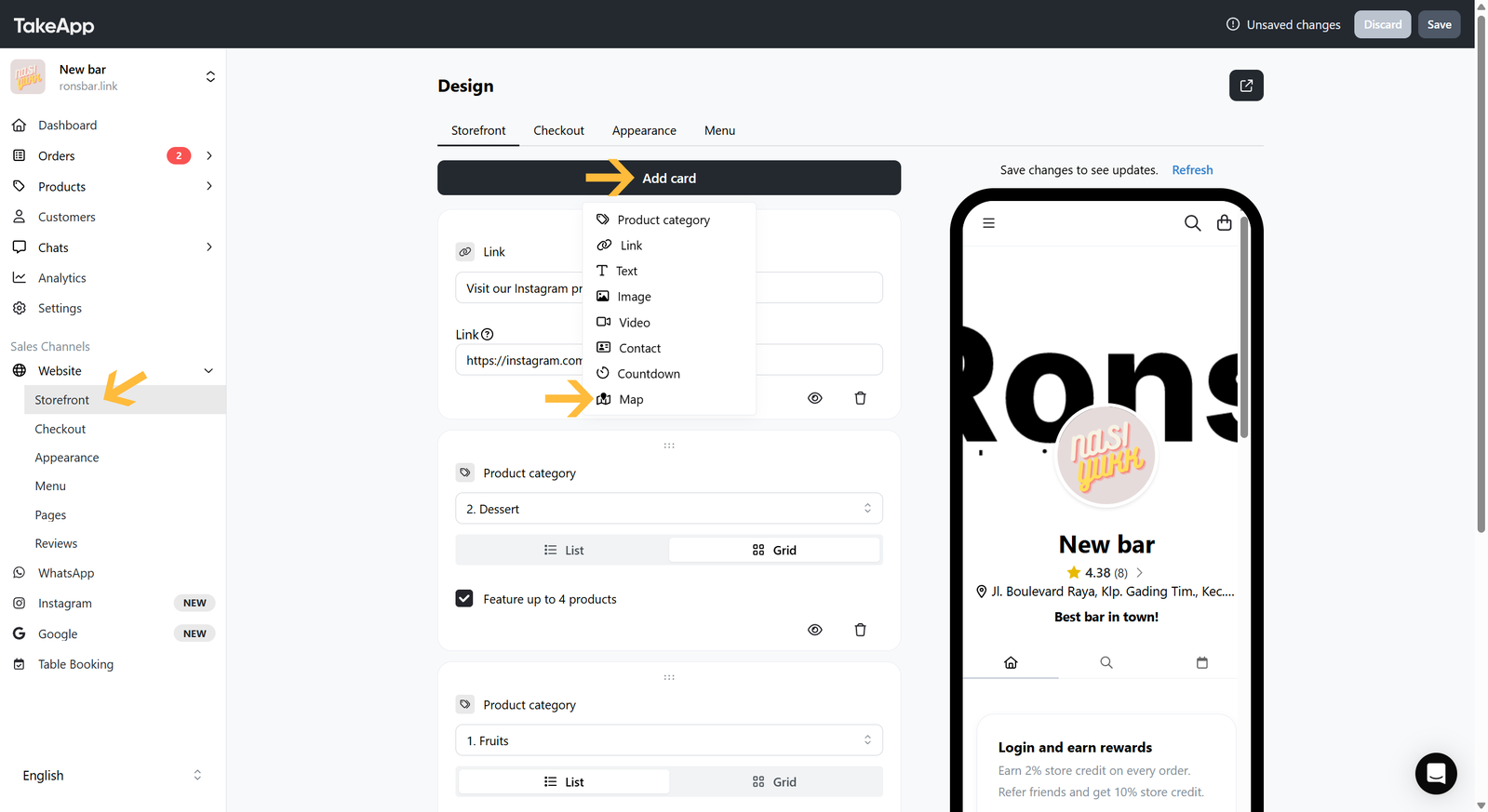
-
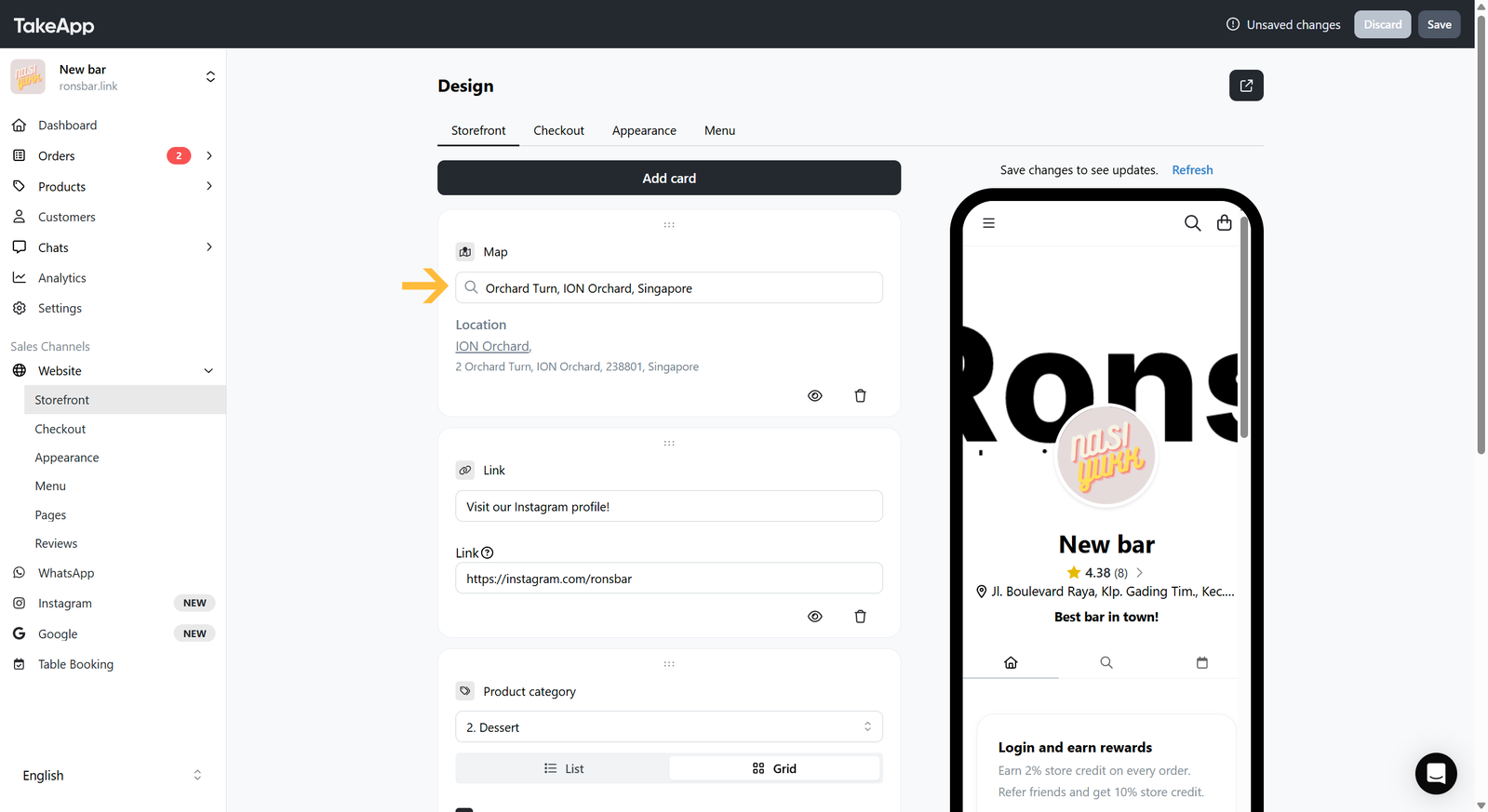
Type your full address in the search field and pick your store's location.
-
Check the storefront to confirm the map shows the right place.