
Chatbot is retiring at the end of September 2026. Instead, use Meta Business Agent. Learn more
Only stores that already set it up still see this page.
Let AI reply to your customers for you. The chatbot answers common questions, sets expectations, and keeps customers engaged even when you're unavailable.
It works in two places:
- WhatsApp — needs the WhatsApp Business integration.
- Instagram — needs the Instagram Business integration.
If you have the WhatsApp integration, you can use the chatbot in both places.
How it works
The chatbot feeds directly from your store: products, pages, delivery methods, delivery types, payment options and more. On top of that, it can use any extra details you give it.
Everything is managed in Settings > Advanced > Chatbot.
Setting up your chatbot
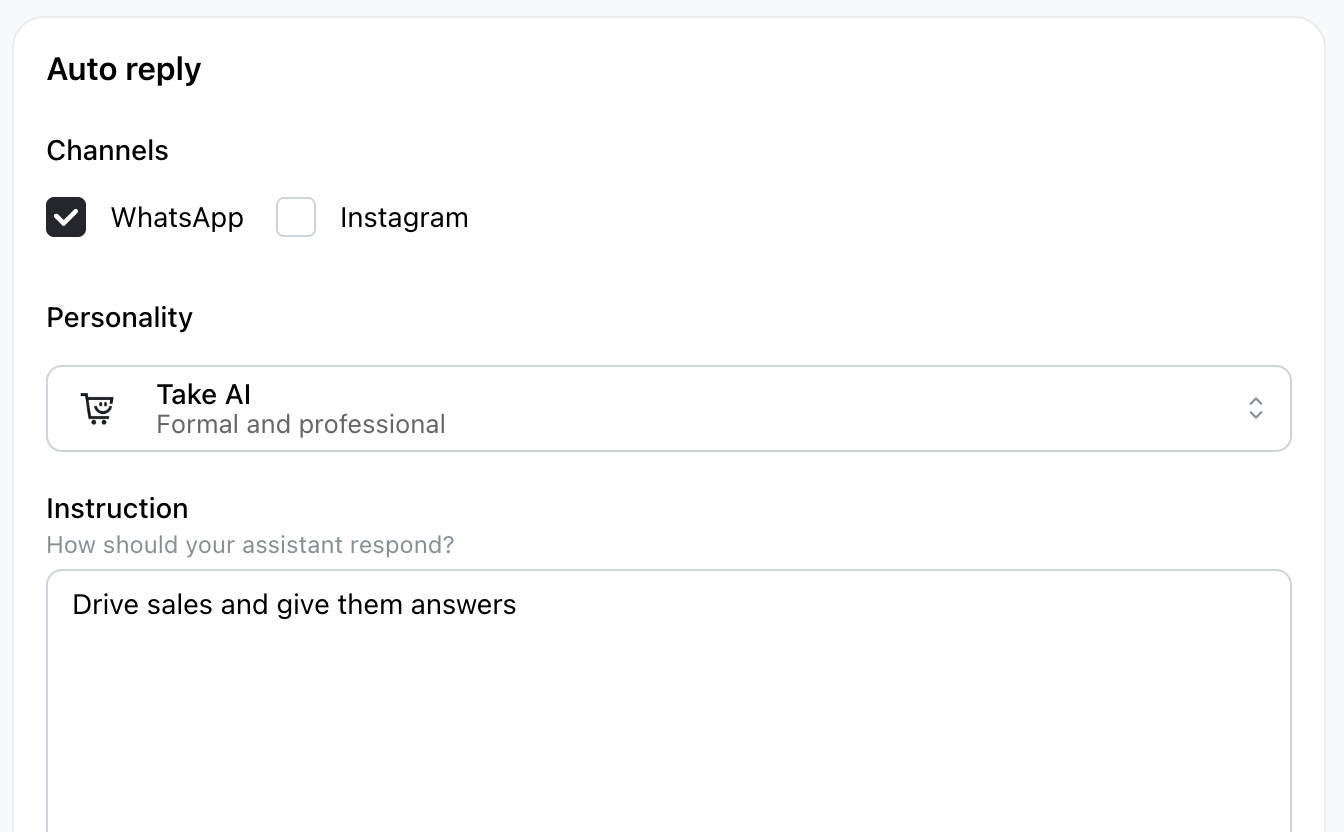
1. Add instructions
Instructions guide how the chatbot answers. It already knows everything public in your Take App store, so only add what's extra or specific to you.
2. Ice breakers (WhatsApp only)
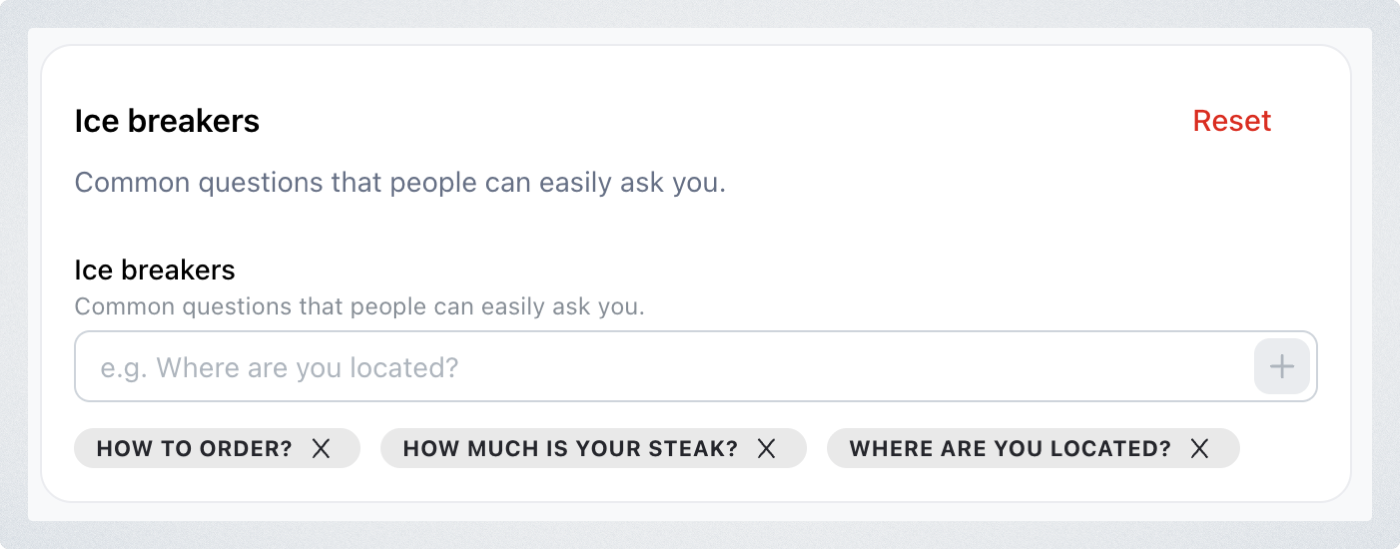
Ice breakers are clickable questions shown when a customer first opens the chat on WhatsApp — up to four. They give customers an easy way to start the conversation.
Examples:
- "Where are you located?"
- "How do I order?"
3. Choose an identity
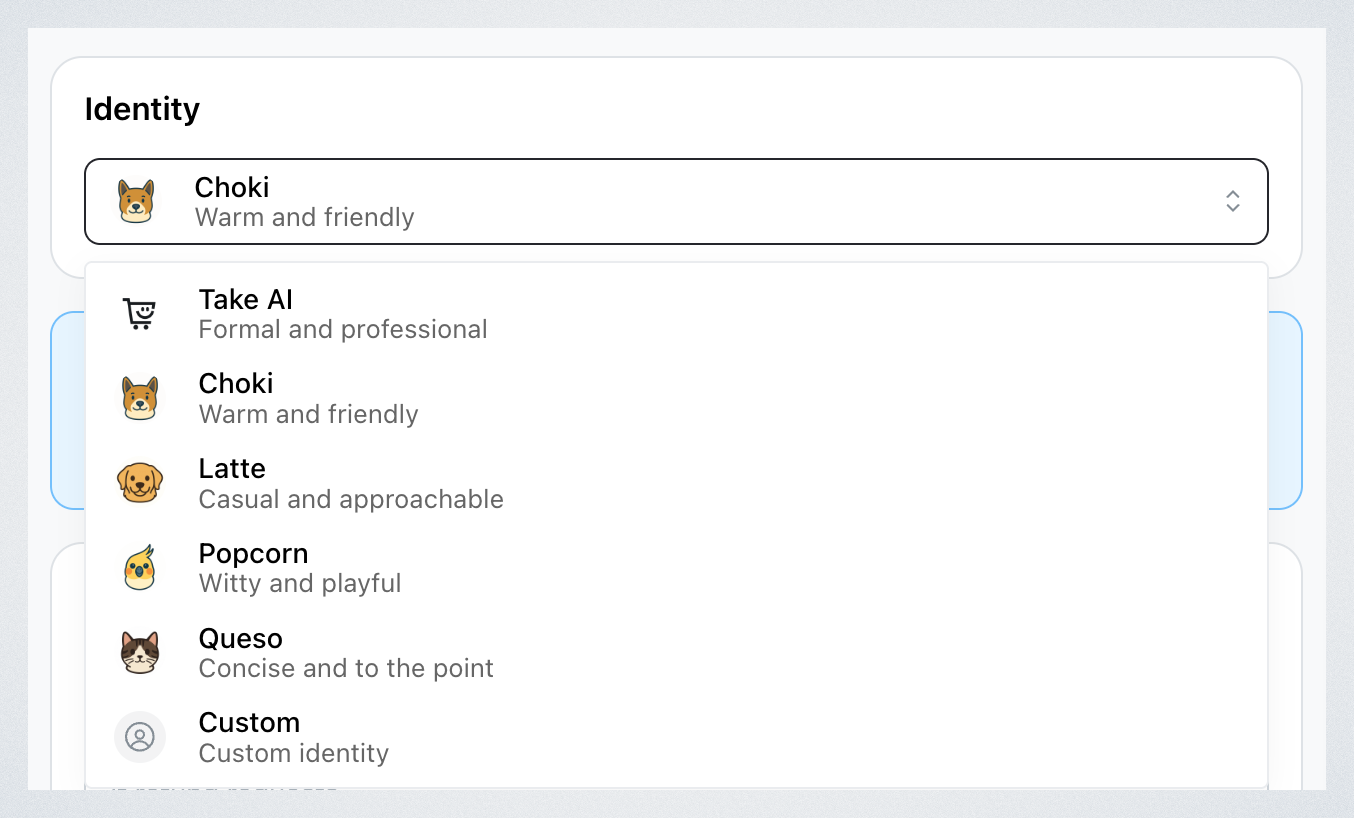
The identity sets the tone of every chatbot reply and the avatar customers see, so your brand voice stays consistent.
There are five presets:
- Take AI — formal and professional
- Choki — warm and friendly
- Latte — casual and approachable
- Popcorn — witty and playful
- Queso — concise and to the point
Pick Custom if you'd rather write your own style and voice.
4. Select the channels
Under Channels, tick WhatsApp, Instagram, or both.
Managing chats
- Every chat the chatbot handles appears in Customers > Inbox.
- On WhatsApp, replying yourself — from the Inbox or from the WhatsApp Business app — switches that conversation to manual mode.
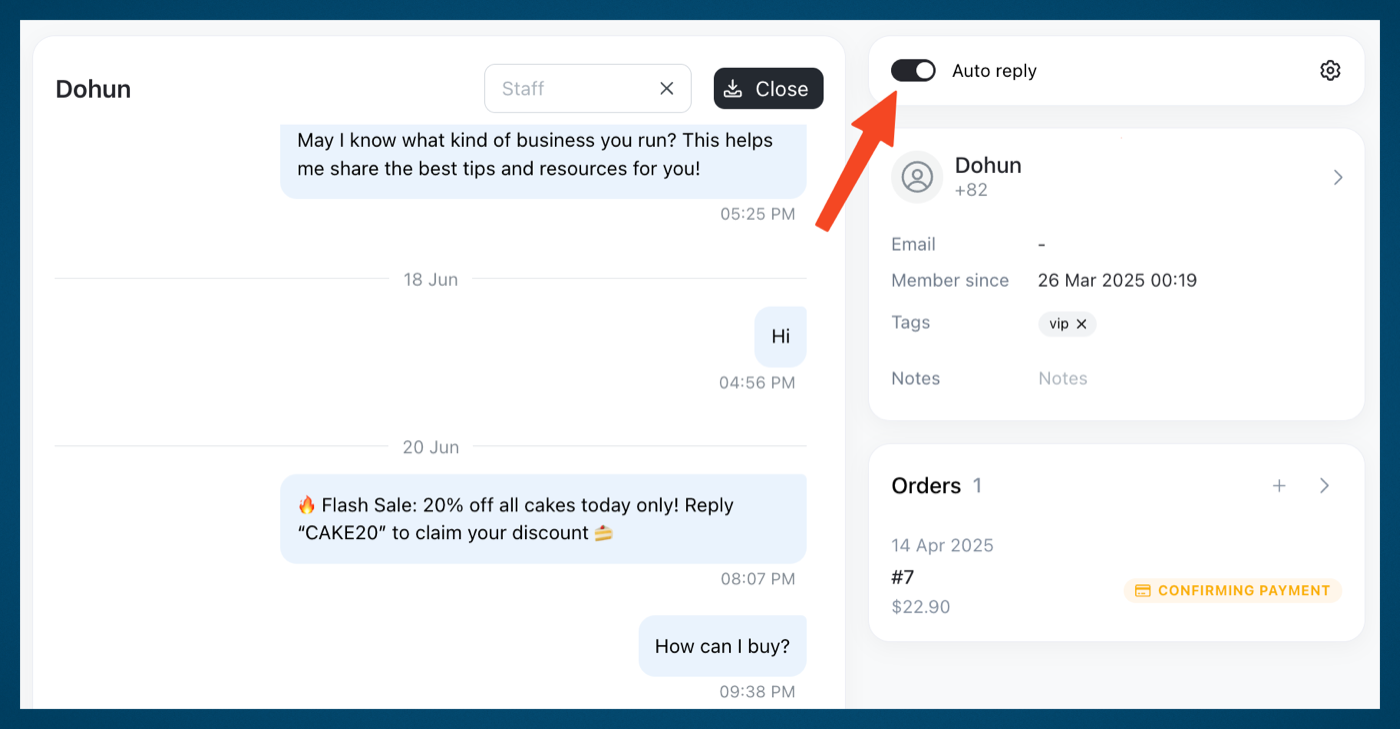
- You can turn auto replies on or off for each chat individually.
A WhatsApp away message can stop the chatbot. WhatsApp Business away messages switch the chat to manual mode, which stops automated replies. Turn the away message off in WhatsApp Business to keep the chatbot answering.