
You can directly talk to customers in Take App Inbox if you have connected WhatsApp Business with Take App.
When a customer sends a message to your WhatsApp Business number, you will be able to reply directly via Take App Inbox.
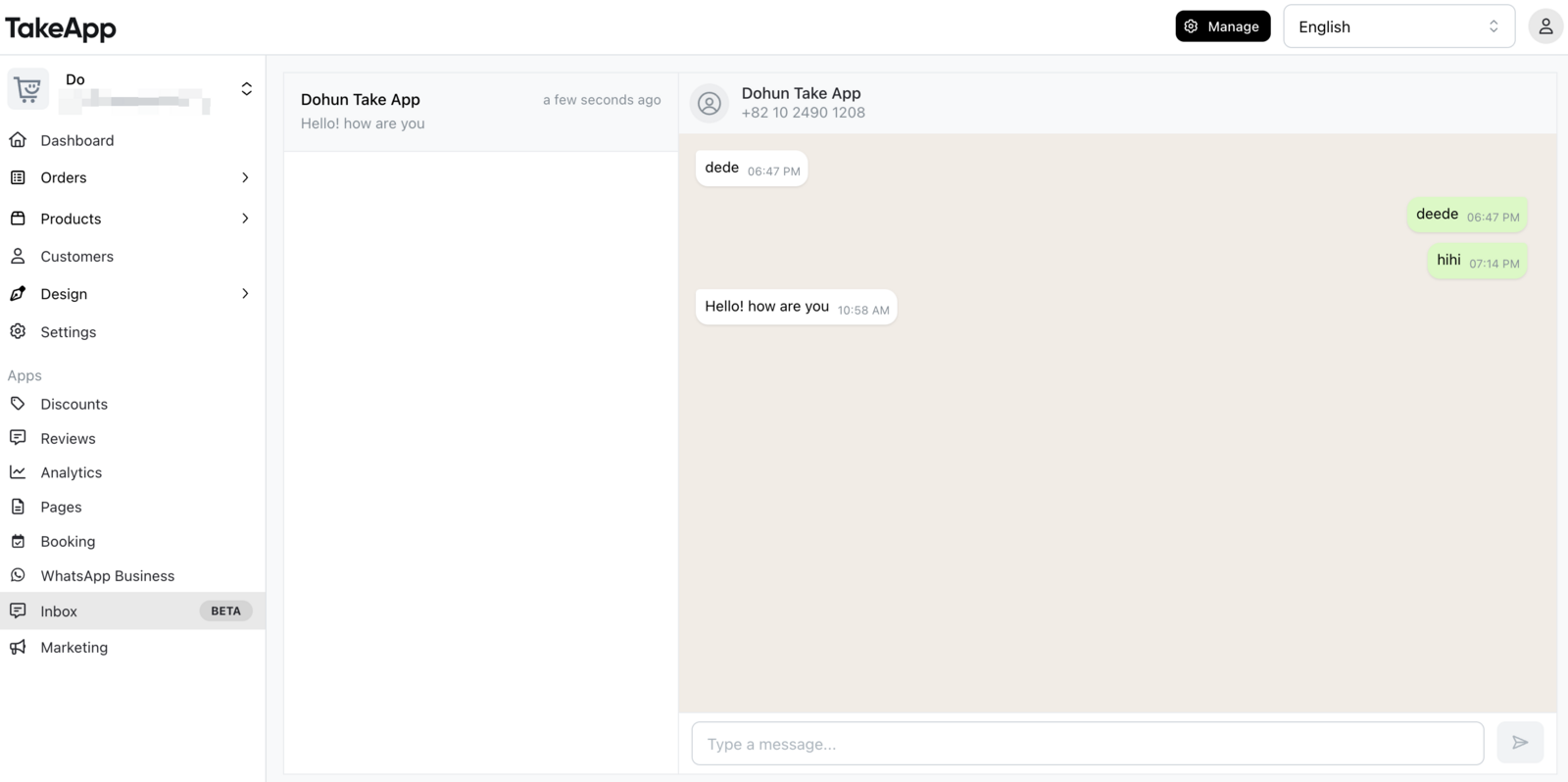
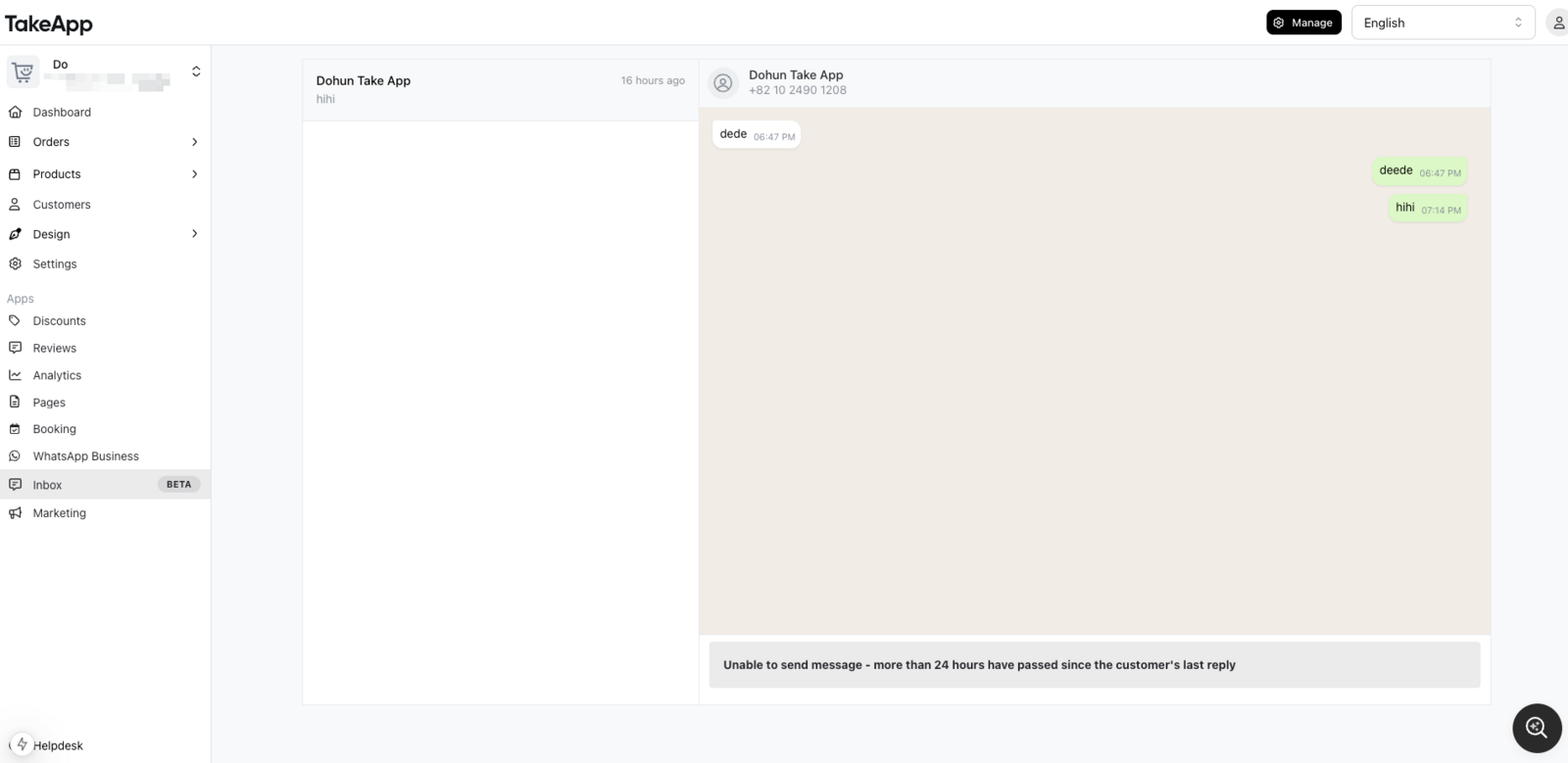
Please note that you can only reply to a customer within the 24-hour conversation window, as per WhatsApp's policy.
If the conversation window has closed, the customer will need to start a conversation with you again before you can respond.
Close and reopen conversations
How to close a conversation
- Select Chat > Inbox in your dashboard.
- Select the conversation you want to close.
- Click on the "Close" button.
- The conversation status will change to Closed, and it will be moved to the Closed tab.
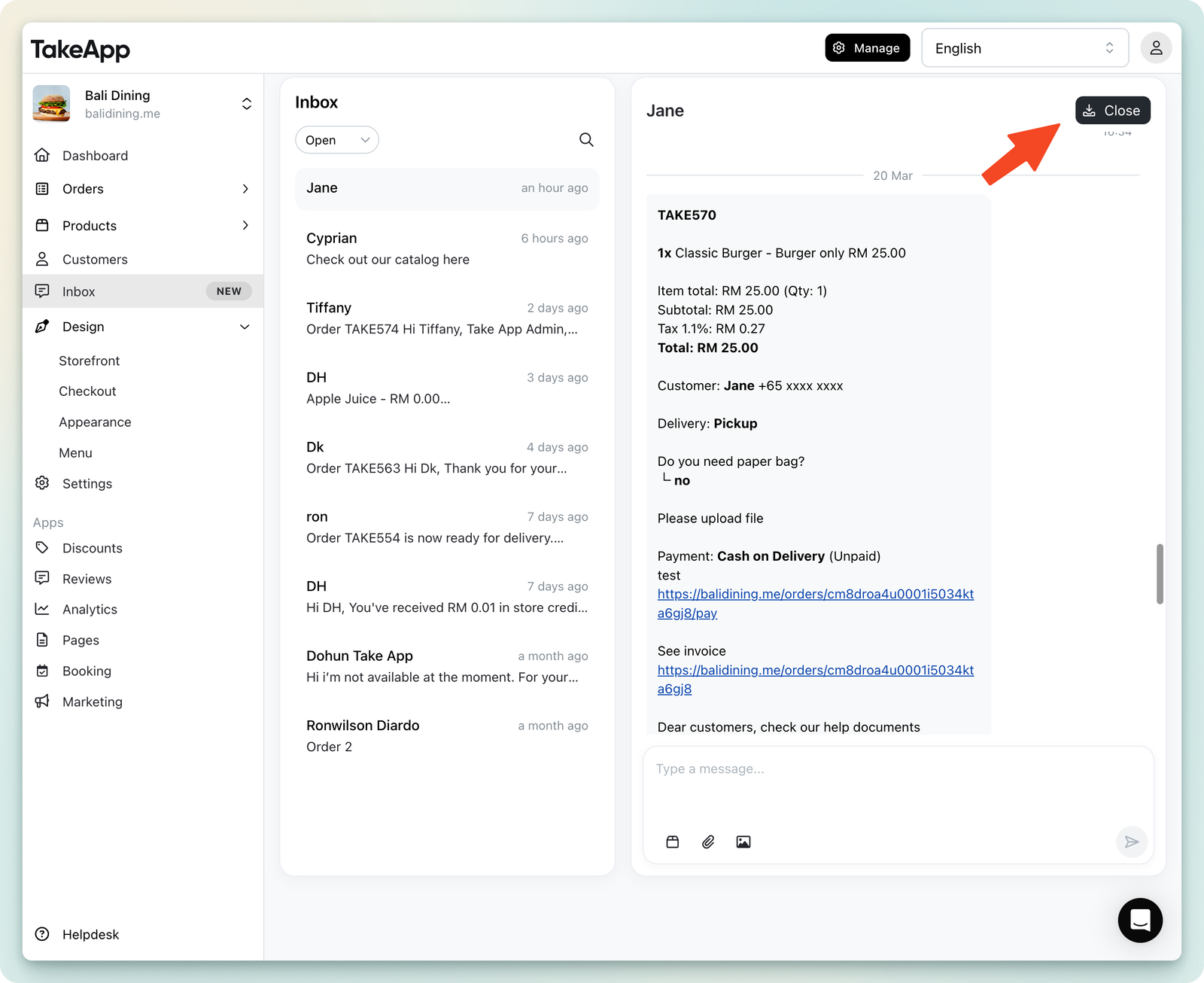
Close a conversation when the customer inquiry is resolved — it keeps the inbox focused on active cases.
How to reopen a conversation
- Go to the Closed tab in the Inbox.
- Select the conversation you want to reopen.
- Click on the "Reopen" button.
- The conversation will move back to the Open tab.
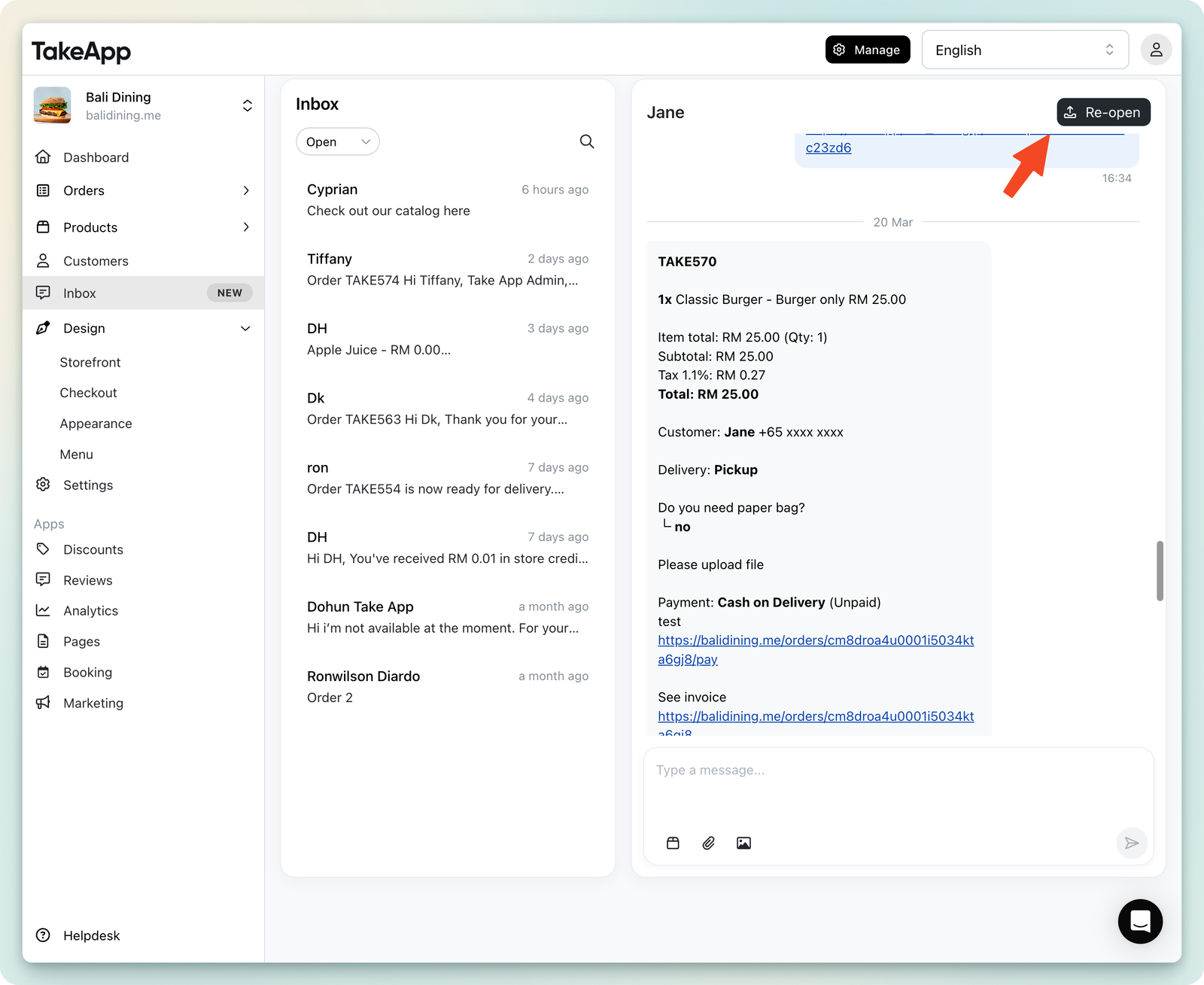
If a customer sends a new message to a closed conversation, it reopens automatically and moves back to the Open tab.
Inbox filtering
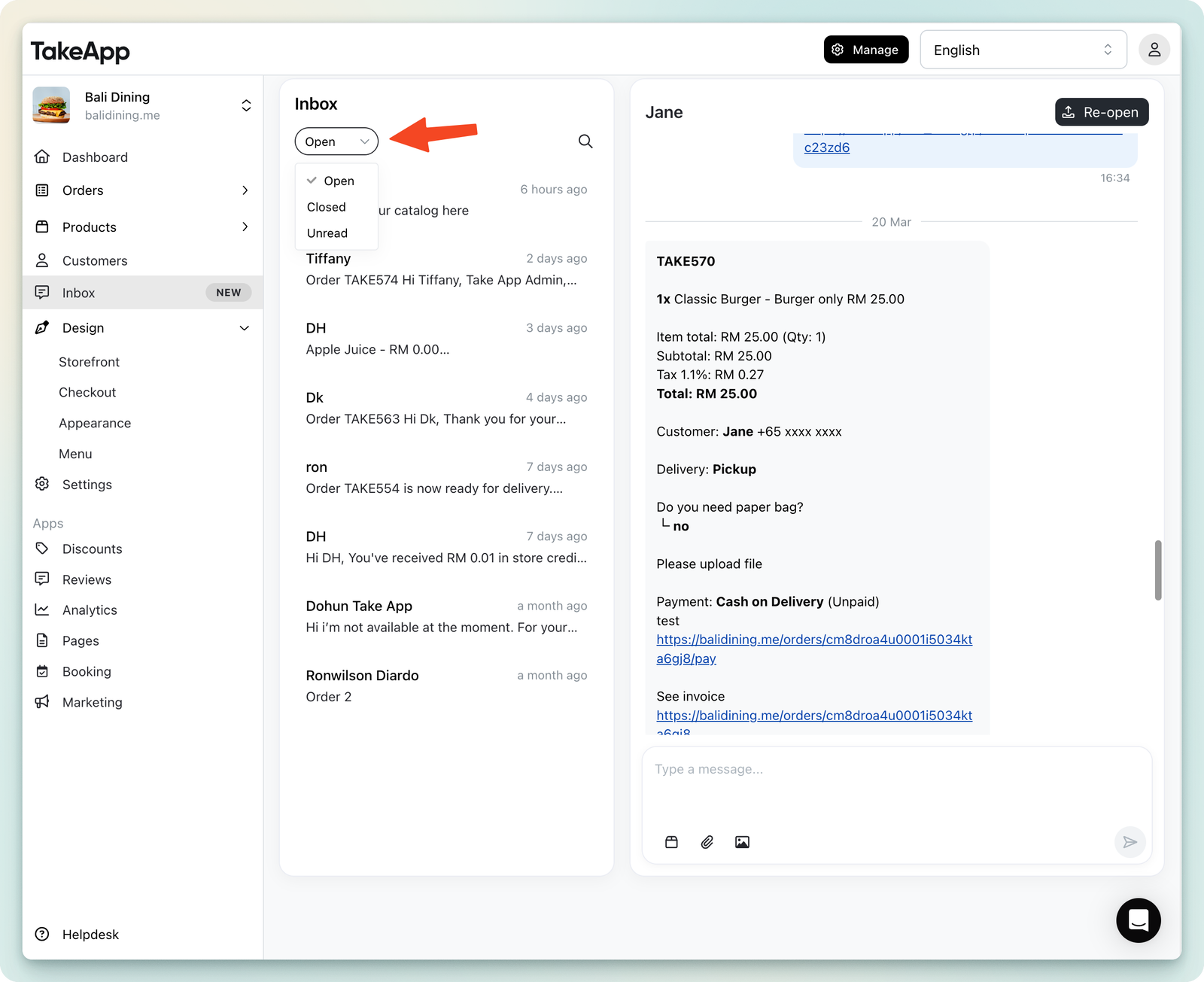
You can filter conversations to manage the inbox more effectively.
Available filter options:
- Open (Default) – Displays all active conversations.
- Closed – Shows conversations that have been marked as resolved.
- Unread – Highlights messages that have not been read yet.
To use them, open the Inbox, click Filter, and select Open, Closed, or Unread.
Tip: You can also use the Search Bar with filters to find specific conversations by phone number or customer name.
Staff assignment
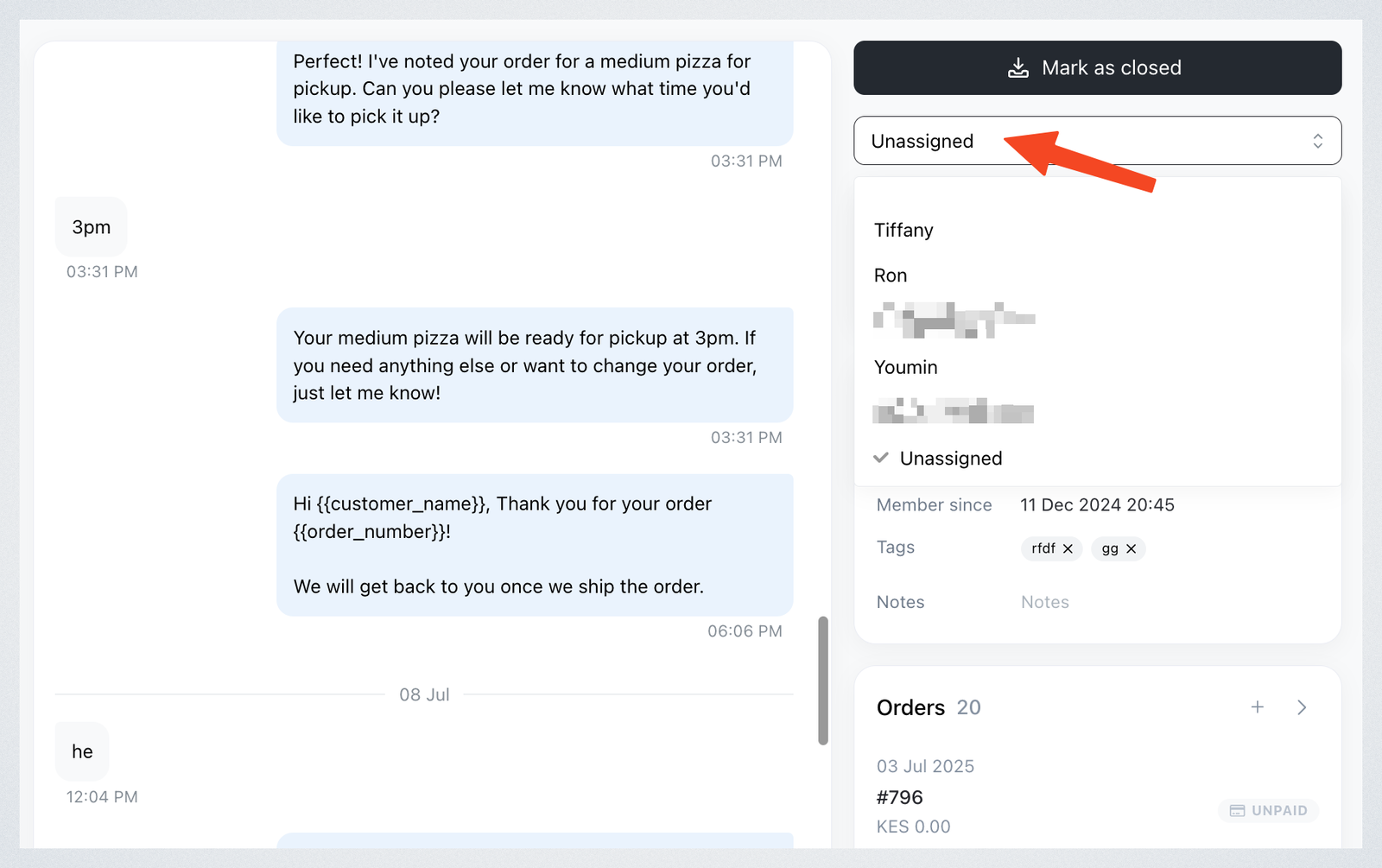
You can assign staff to conversations to ensure proper follow-up.
- Open the chat from your Inbox
- In the conversation panel at the right, select the staff member from the dropdown list
Replying from the Inbox — or from the WhatsApp Business App — switches that conversation to manual mode, so any automated reply stops for it.
Keyboard shortcuts
- Cmd/Ctrl + Backspace – Close the current conversation
- Cmd/Ctrl + ↑ / ↓ – Navigate between conversations