
Your store is one link. This article covers the ways to get it — and individual product links — in front of customers.
The Share panel in your dashboard collects all of these in one place, along with Google listings and ad tracking.
Copy your store link
You can share your store link in two ways.
-
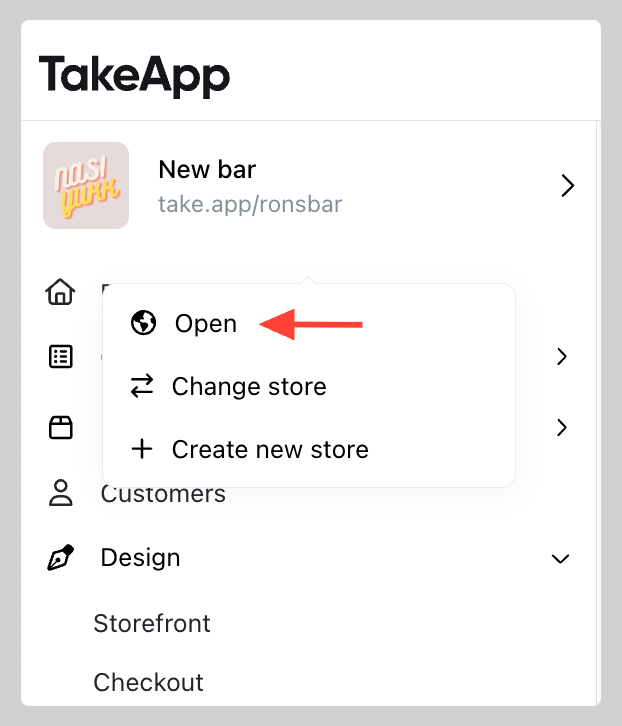
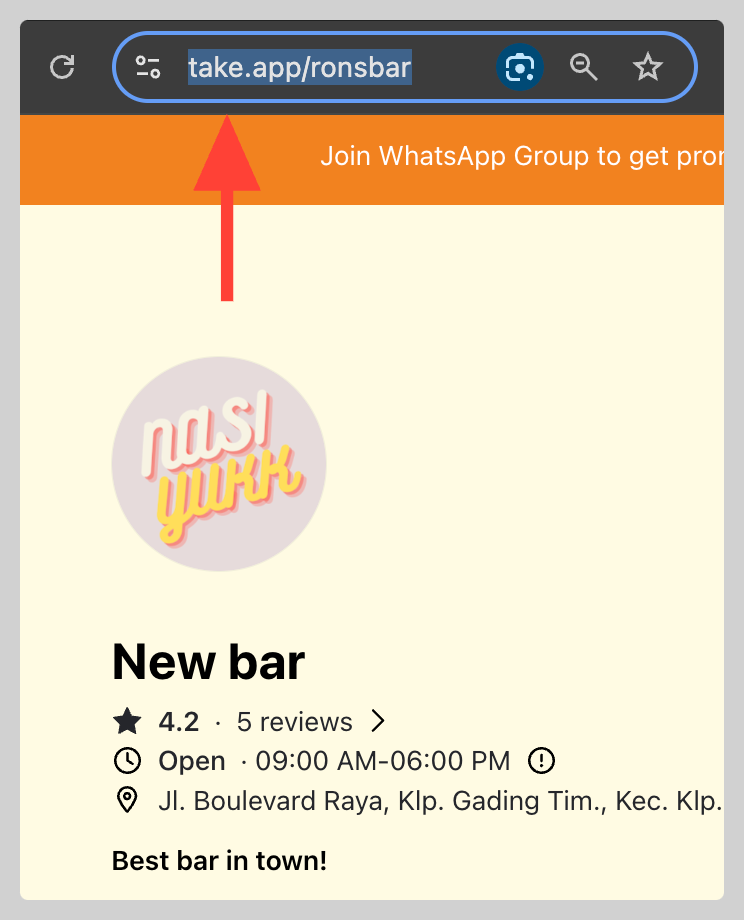
On your dashboard, move your mouse over your store's logo or name. A pop-up menu will appear — click on "Open" to view your store. Now, simply copy the URL of your store from your browser's address bar.
-
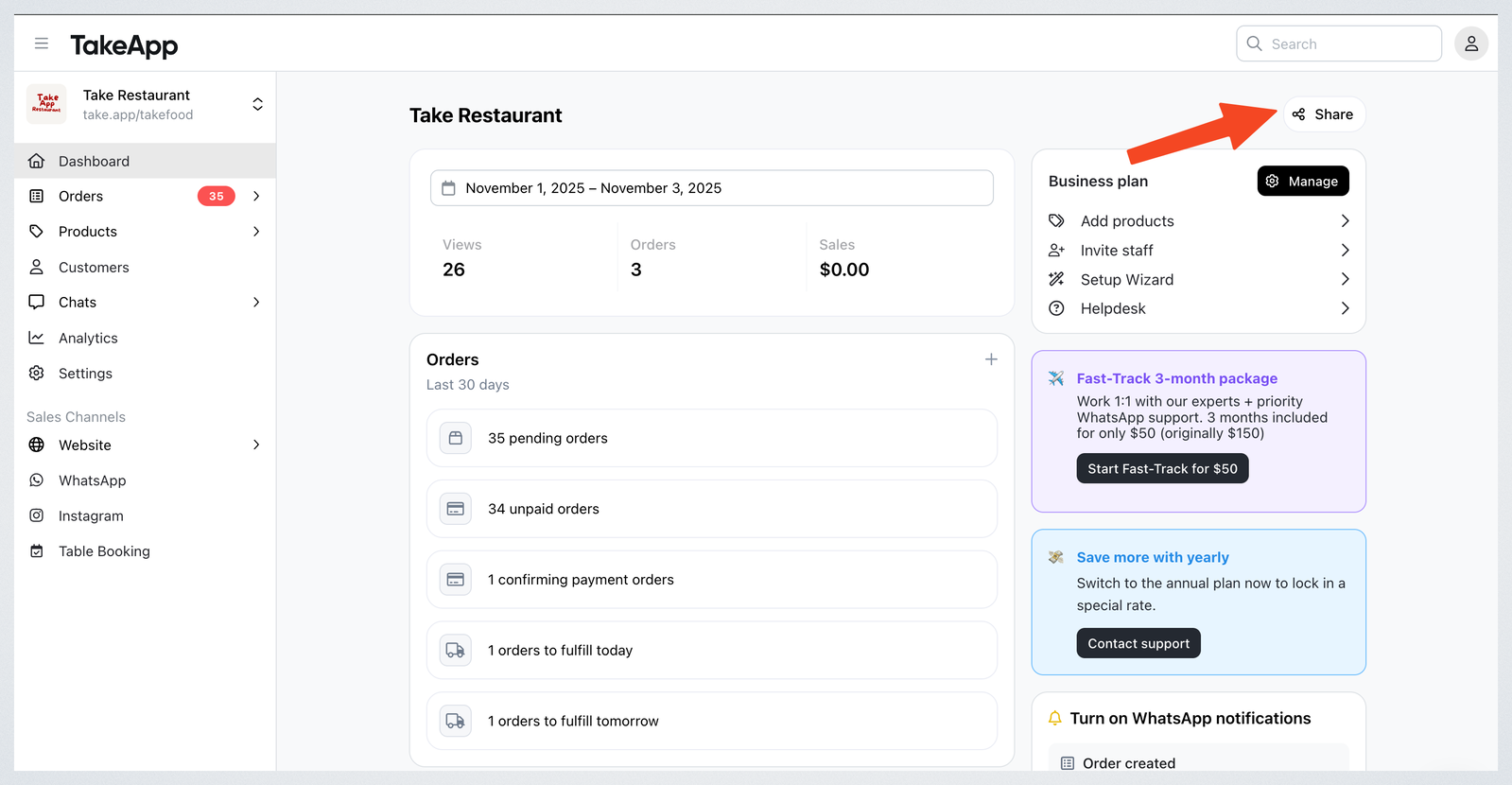
In your Admin dashboard click on Share. There, you can easily copy and share your store link.
Share a single product
Sharing a product's own permalink takes the customer straight to that product instead of your store's front page.
-
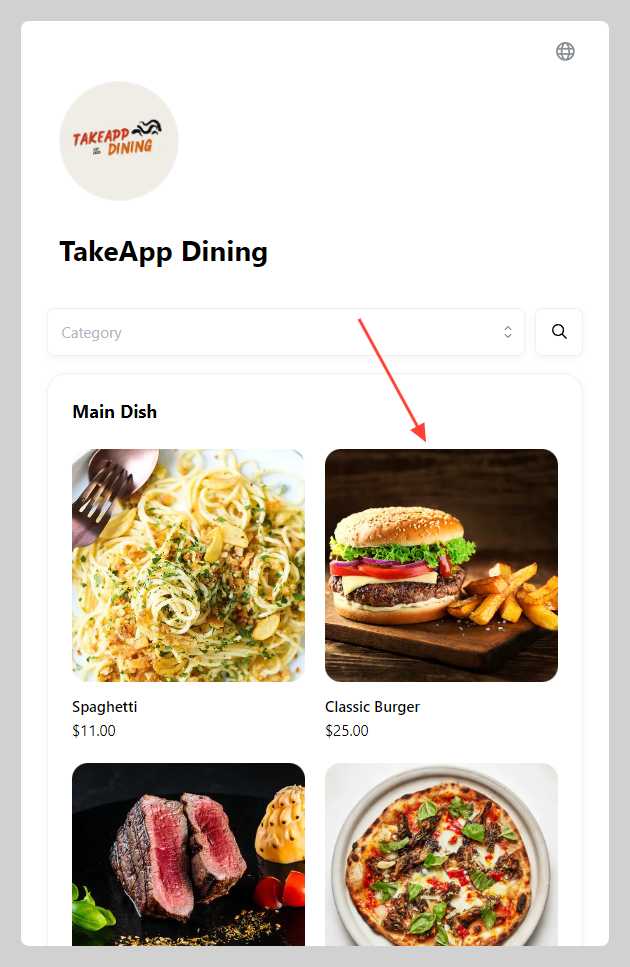
Go to your storefront and click the product you want to share.
-
On the product detail page, click the "Link" icon and
Copy url.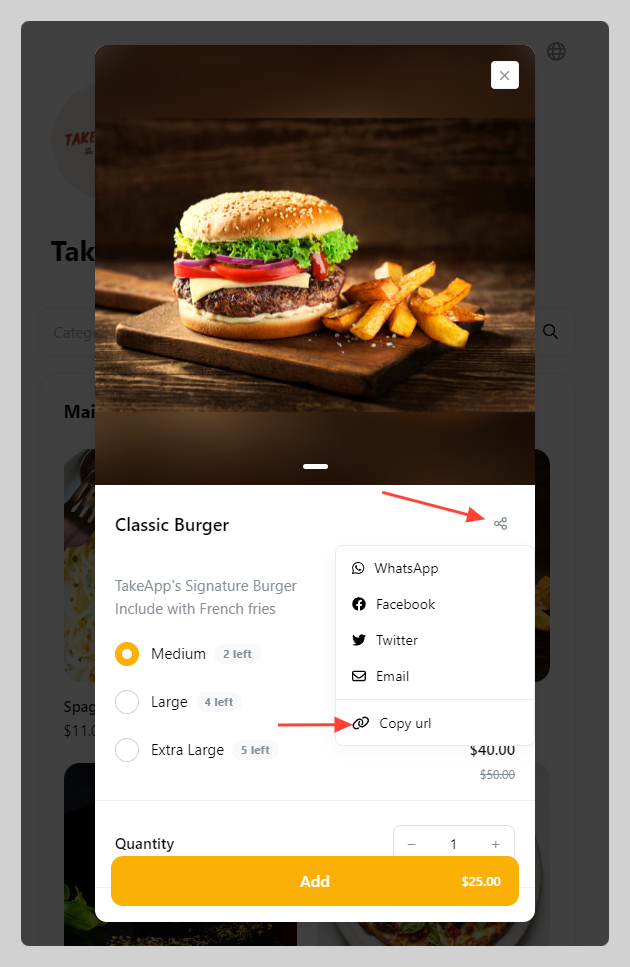
-
Paste and share the link with your customer on WhatsApp or any other messaging app.
Share on social media
Putting your store link in your Instagram, TikTok, or Facebook bio — and sharing a product in an Instagram story customers can buy from — is covered in Share your store on social media.