
This article is a guide on how to import products from a CSV file using TakeApp. You can upload hundreds or even thousands of product listings at once, and the steps are straightforward.
Three ways to import
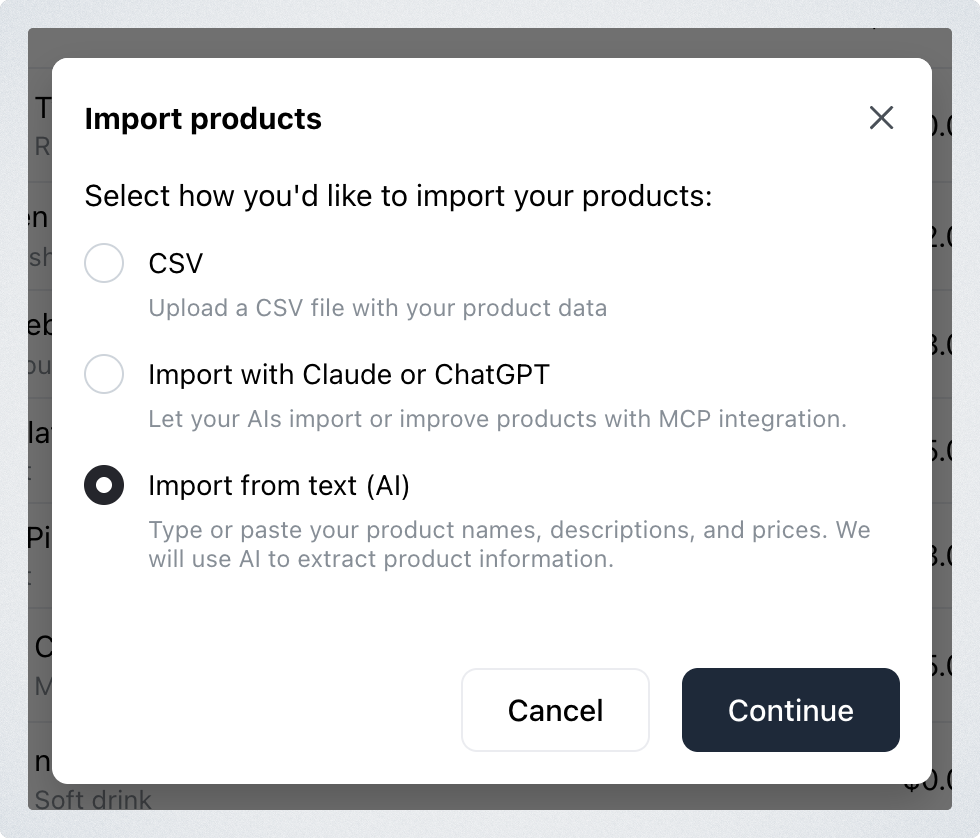
Clicking Import on the Products page asks how you want to import first:
- CSV — upload a spreadsheet of product data. That is what this article covers.
- Import with Claude or ChatGPT — let an AI tool add and improve products over MCP. See Connect Claude and ChatGPT with MCP.
- Import from text (AI) — paste your product names, descriptions and prices as plain text and let AI pull the products out of it.
Choose CSV and click Continue to follow the steps below.
How to bulk product upload using CSV file
Step 1: Navigate to the Admin > Products. You will find the Import button.
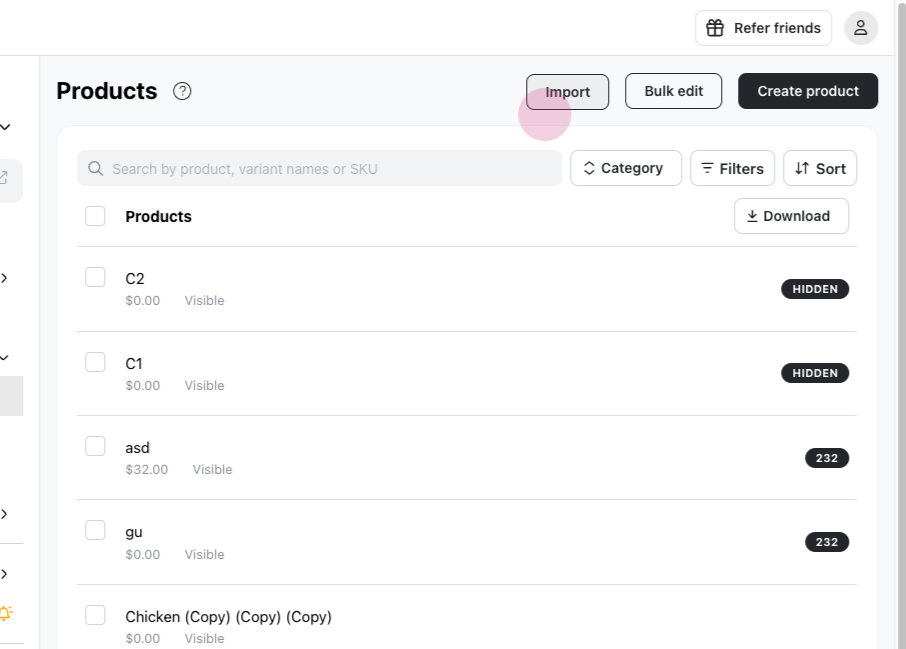
Step 2: Download the CSV template.
Important: Always download our sample CSV template by clicking "use our sample CSV template." Fill your product data into that template and leave the column headers on the first row exactly as they are — don't rename them to match your own file.
Notes:
- Products without ProductID and VariantID are considered new products
- Products with same handle will be imported as variants of the same product. - Categories from the CSV will be added, not changed. If you input an empty category, the current category won't be removed.
- Images will upload automatically if an Image URL is provided
Step 3: After you have finished populating the template, click Import again, choose CSV and click Continue. Once the CSV file is selected, you will be able to map which column in the CSV file corresponds to which destination column.
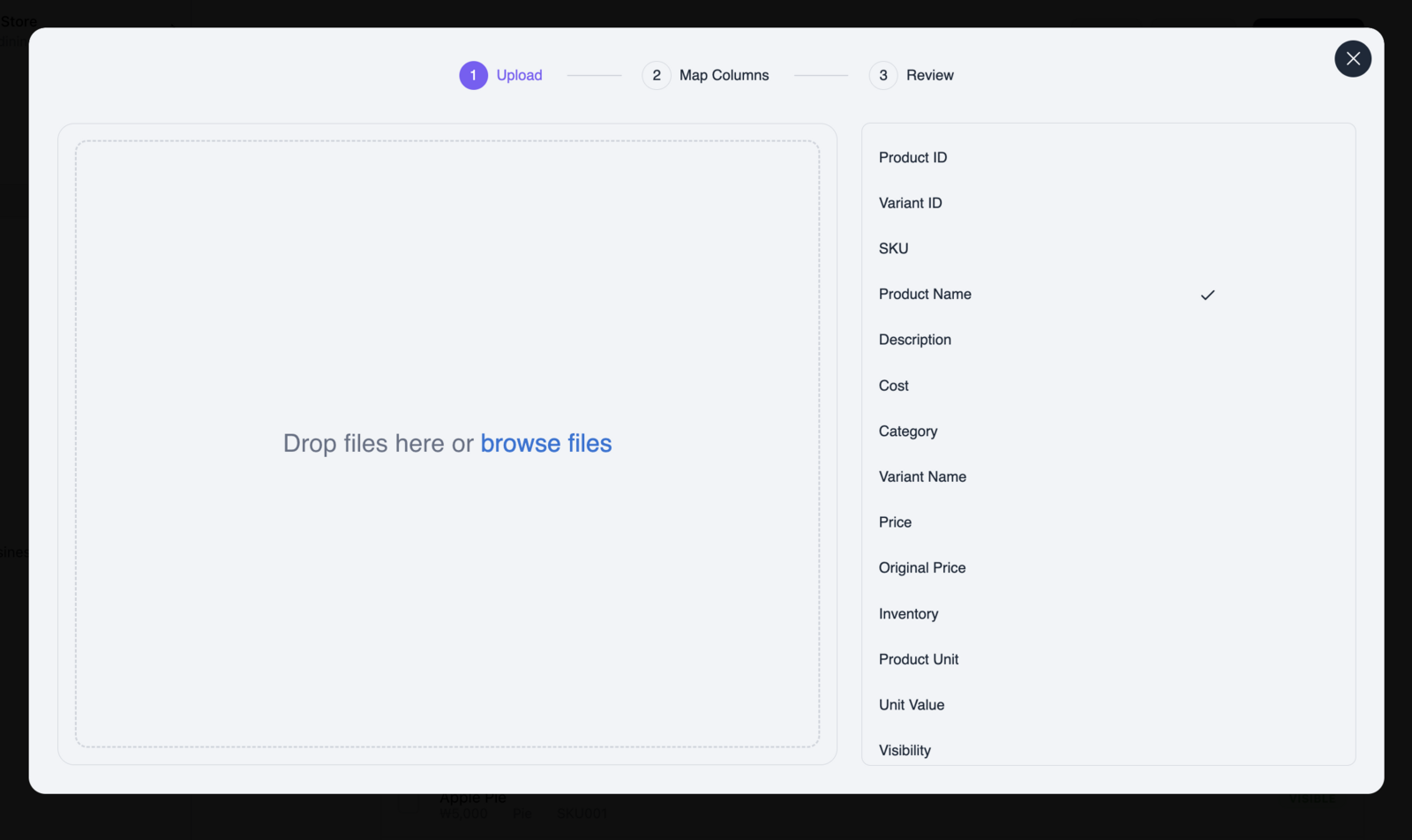
Step 4: After the columns are mapped correctly, click the Continue button. You will then see which rows of the CSV file will be imported. You will be able to verify the names of the products being imported, their descriptions, categories, and variant names.
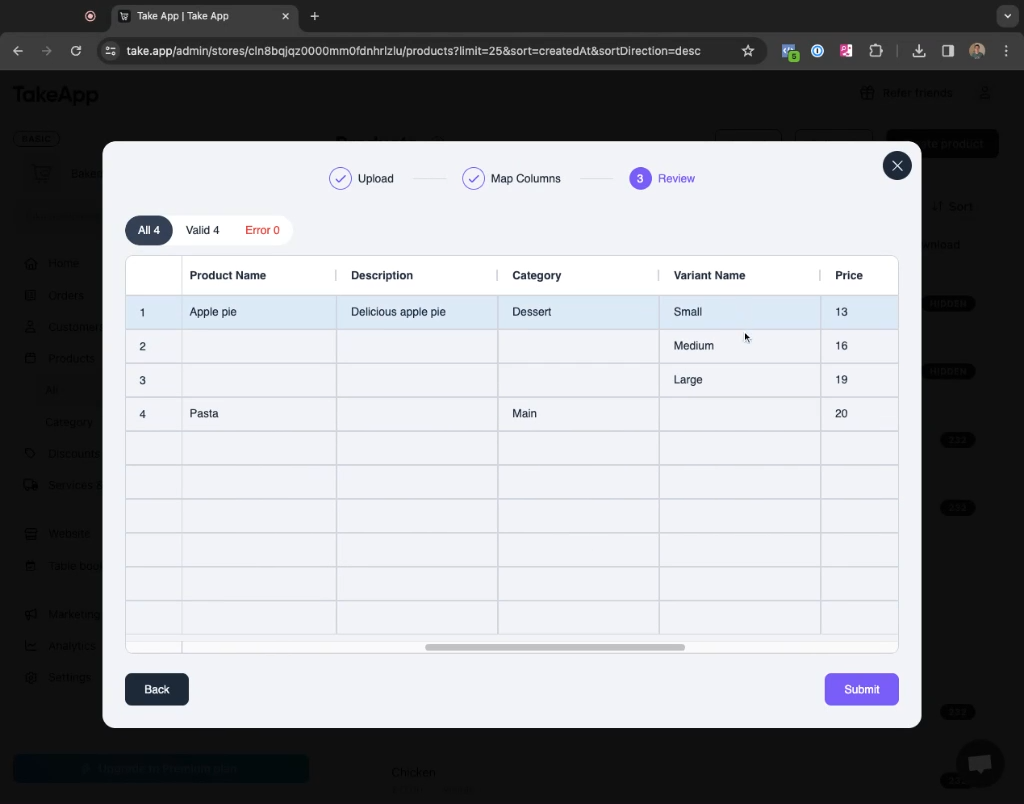
Step 5: Next, click the Submit button to complete the import process. You will receive a confirmation of successful import. Click Done to finalize the process. At this point, the imported products, for example, "Pasta" and "Apple Pie", will be added to your product list.
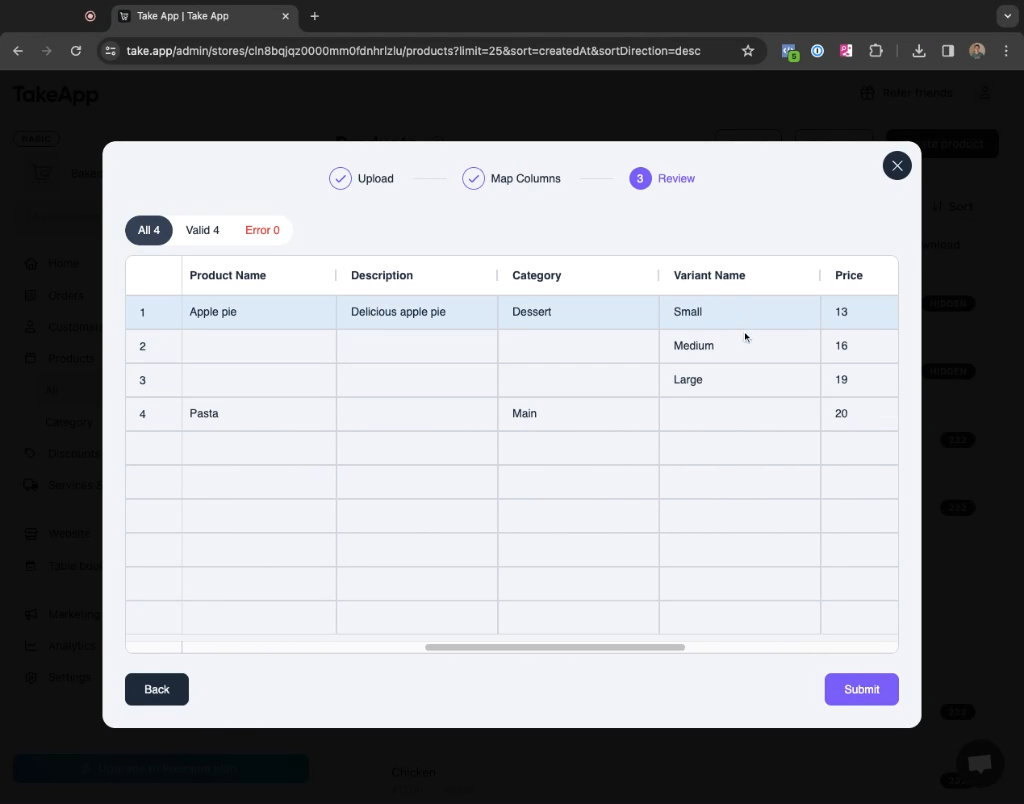
Step 6: To verify the import, you can check the details of the imported products. For instance, if you check "Apple Pie", you will see that it has three variants: small, medium, and large. Each variant is identified under the "Apple Pie" product using a specific handle.
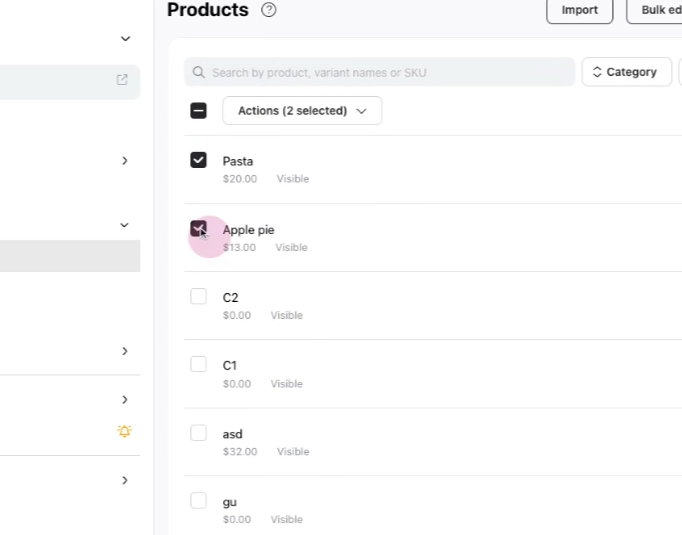
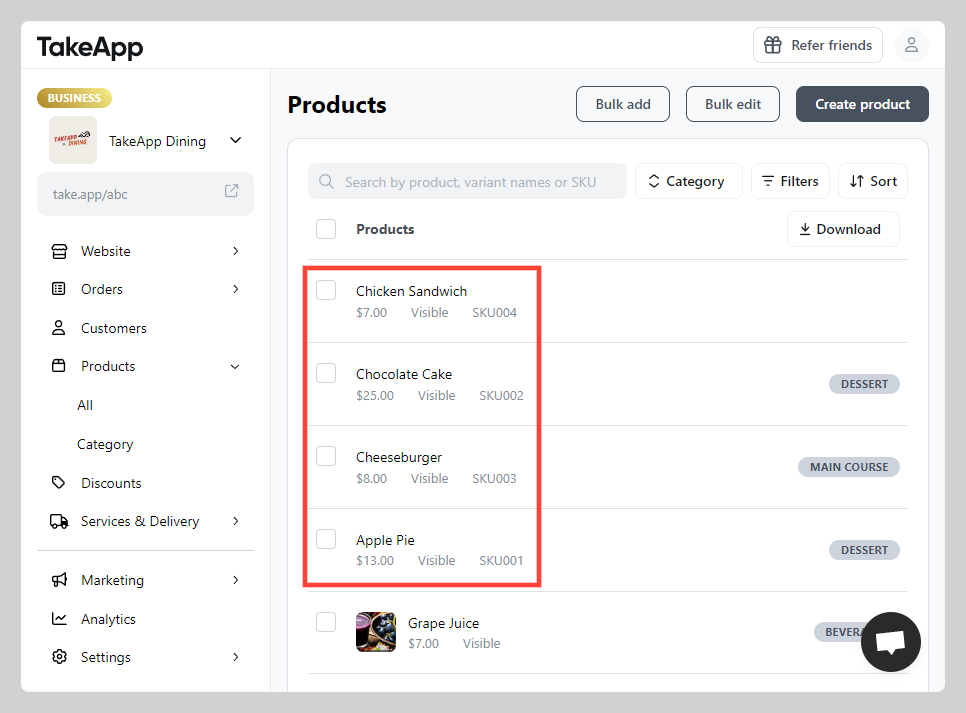
Step 7: Check the products created after the import finishes. The upload time varies with the size of your product list.
Also, when uploading the CVS file, you can include "Product Unit" (e.g., KG, G, L, PCS), "Unit Value," and "Visibility", if needed.
Visibility accepted values are VISIBLE and HIDDEN. Leaving the column out imports every row as VISIBLE. Extra spaces and capitalization don't matter.
For Price, enter plain numbers (e.g. 1299 or 12.50). Do not include currency symbols or thousand separators; those can import as 0.
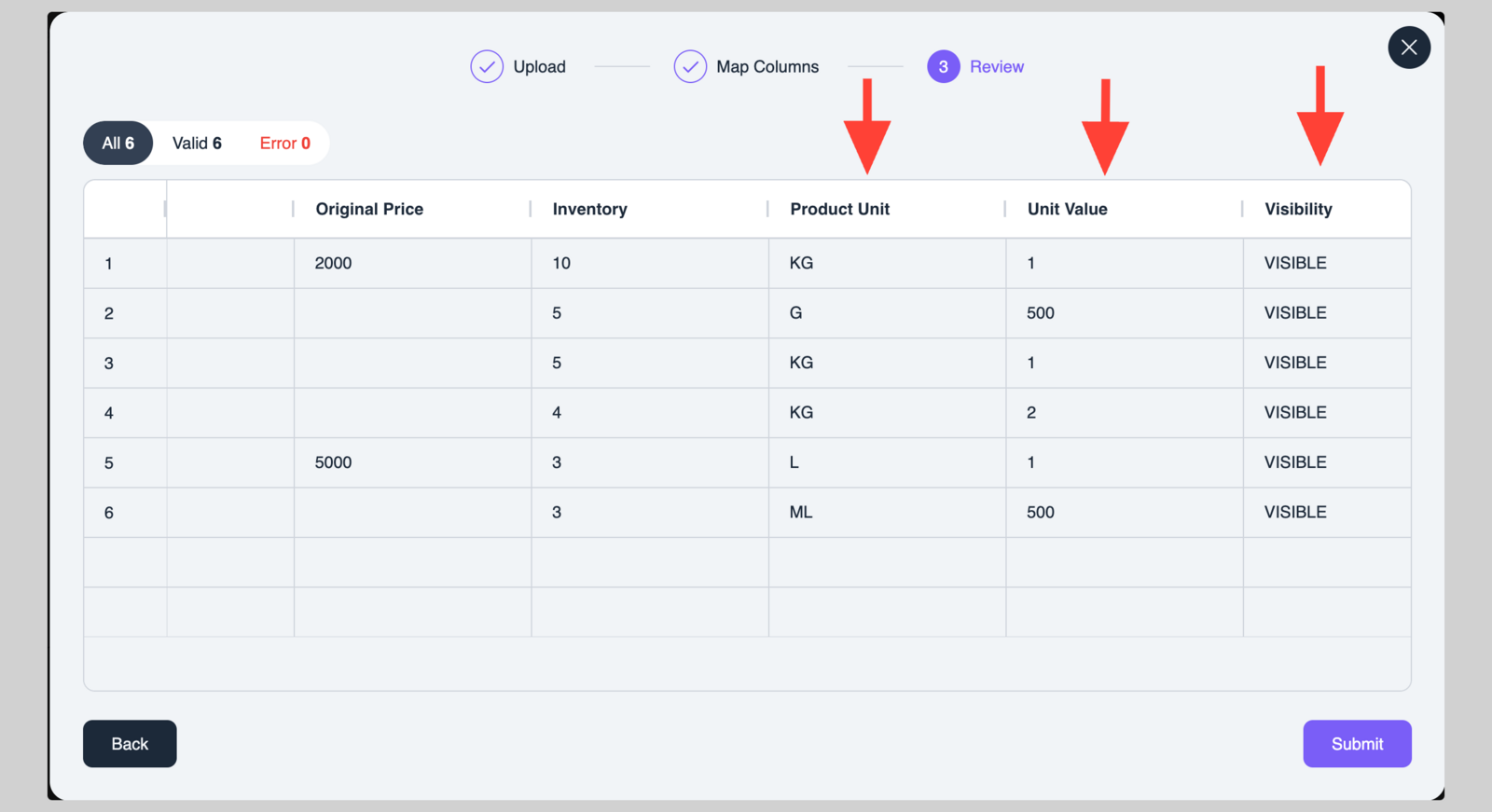
Important: The product unit values must be written exactly as accepted by our system. Use the correct format and capitalization. For example:
- Use KG (not “kilogram” or “Kg”)
- Use L (not “liter” or “ltr”)
Image URL Upload
We accept any publicly available image URLs. It may take some time for the product image to appear beside the product name.
Occasionally, there may be some errors such as when uploading Wikimedia images (due to them guarding against third-party downloads), or Imgur images (due to rate limiting issues).
We do accept Google Drive links too, but you have to change it to the below format and make sure the image is accessible to public.
If images are not uploading, please contact support, or try a different type of link.
If Image URL Upload is not working, also consider using the Hidden Drag and Drop feature inside the Product Listing page to upload images in bulk.