
The store owner email is the address the owner signs in to Take App with. It's part of your own account, not your storefront — customers never see it, and no email is sent to them from it.
For the address your customers hear from, see Store email.
Change the store owner email
-
Go to Admin
-
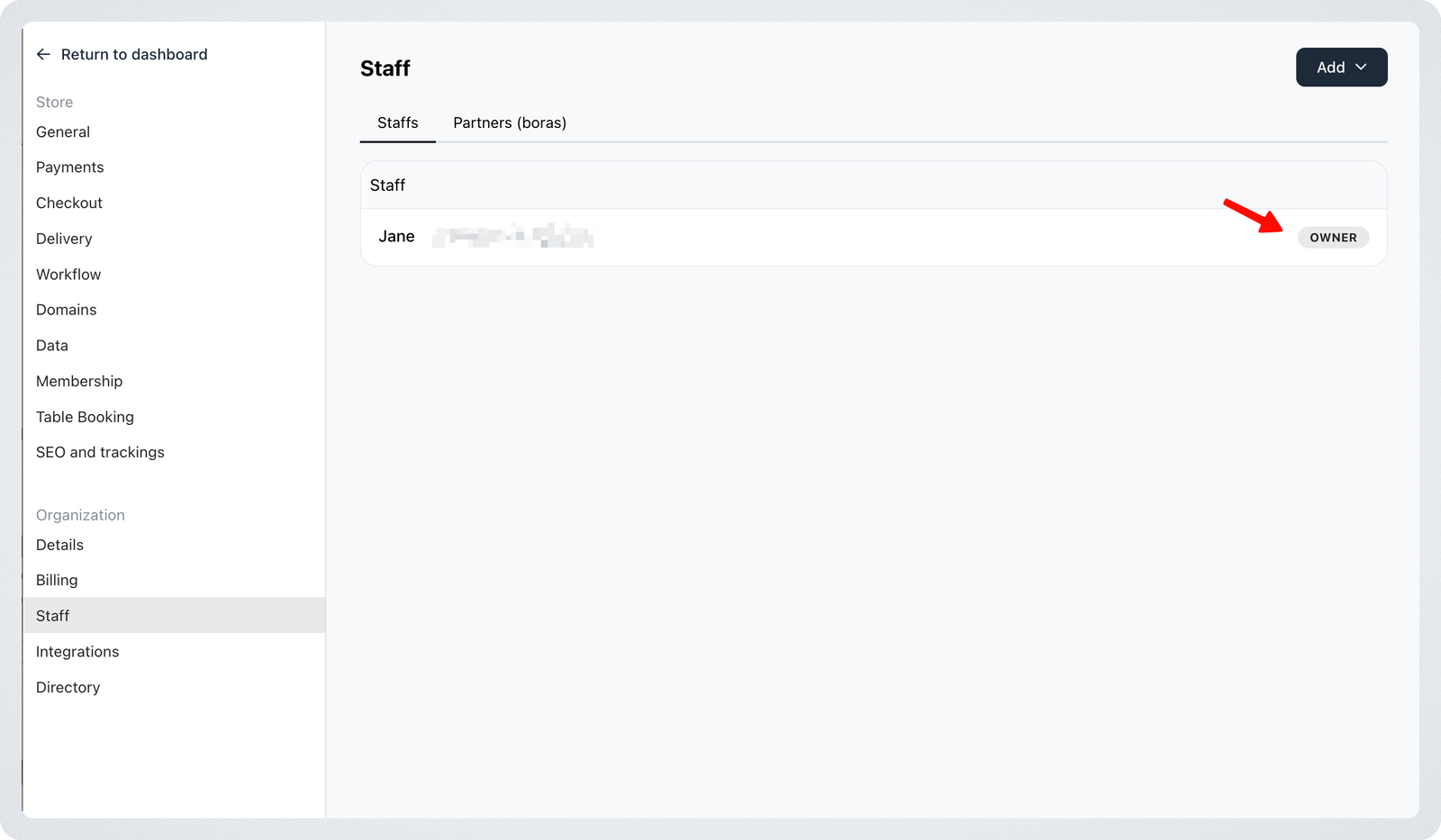
Navigate to Settings > Staff
-
Select the Store Owner
-
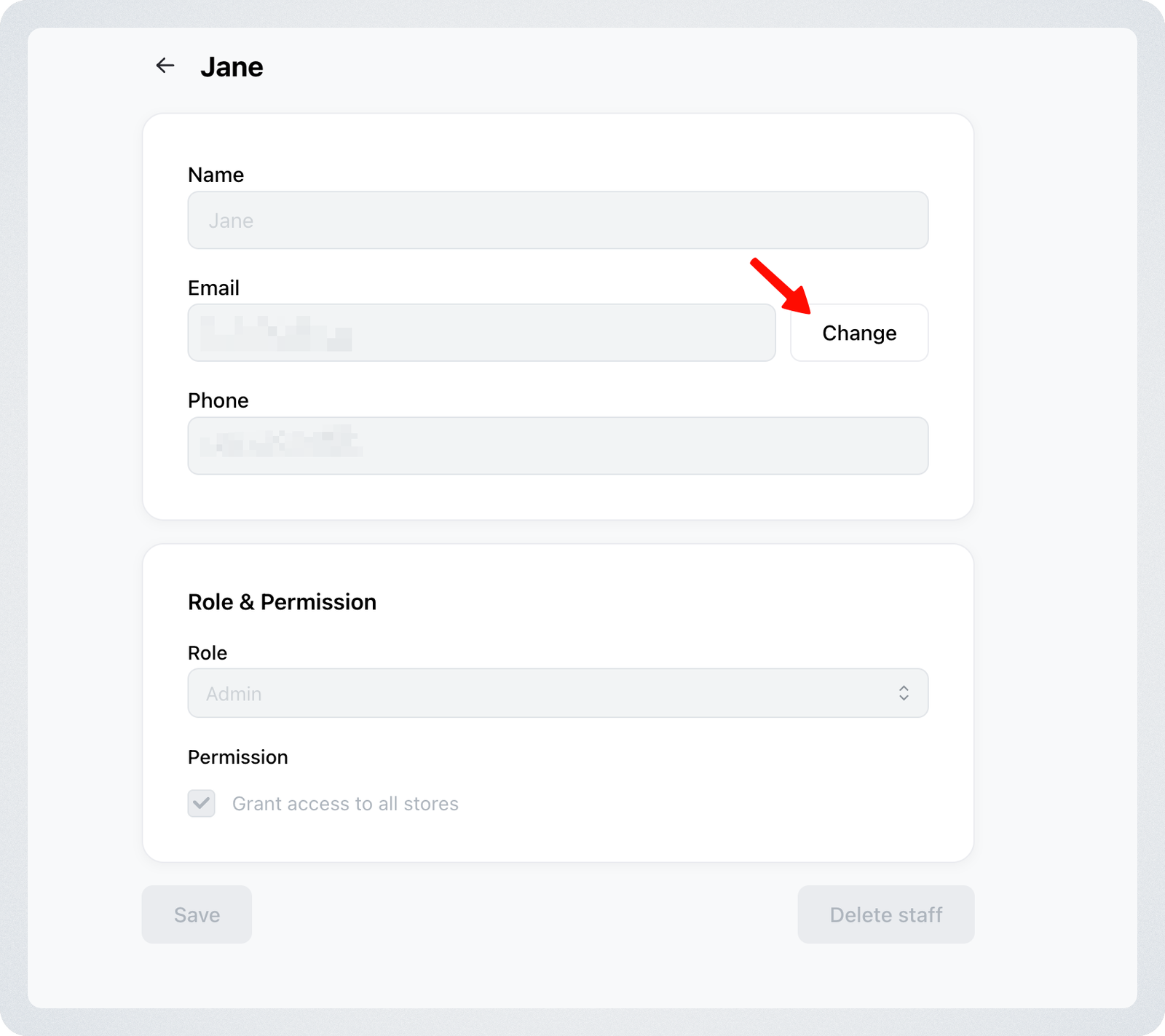
Click Change, next to the email.
-
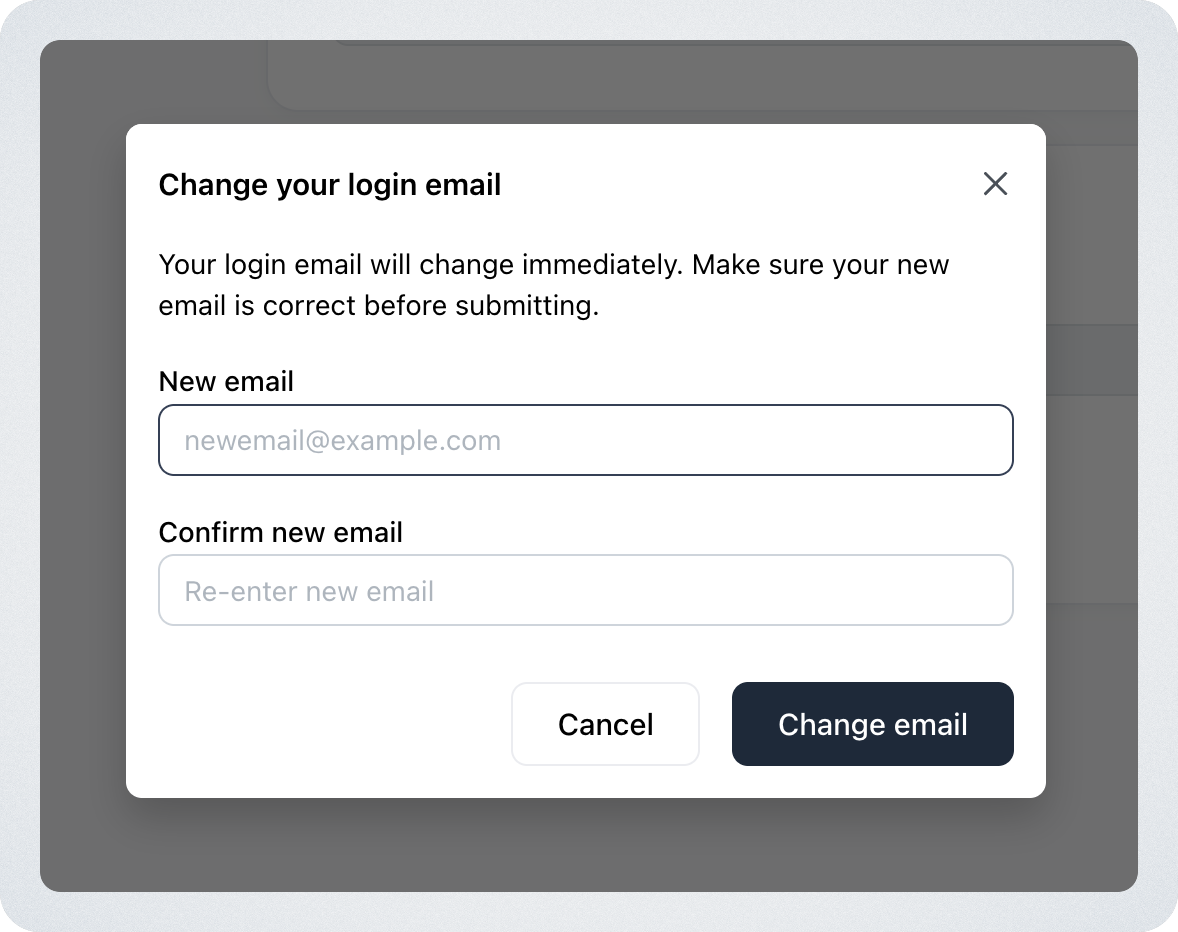
Enter the new email address and click "Change email"
Only store owners can change their email
- The Change Email option is only available for the Store Owner account.
- Admins and Staff members cannot update their email addresses directly.
Multi-organization behaviour
Email changes only apply to the current organization. If a user belongs to multiple organizations, changing the email in one organization will not update the email used in the others.
Security notification
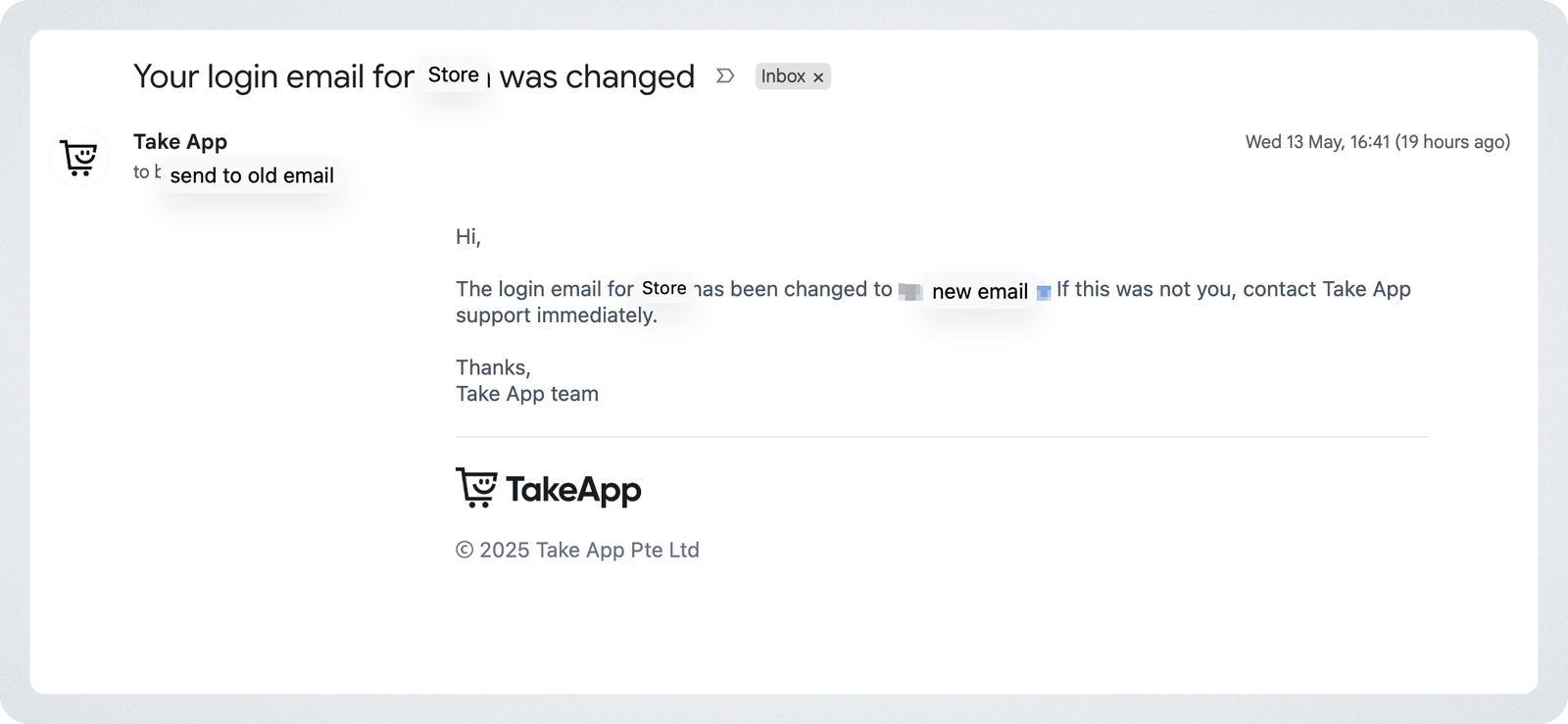
After the email address is successfully changed, a notification email is sent to the previous email address associated with the store owner account. This is sent for security purposes — if you did not make the change, contact Take App support immediately.
Update a staff member's email
Staff and Admins can't change their own email address. To change one:
- Delete the existing Staff account
- Re-invite the Staff member using the new email address