
Take App

Sharing invoice link

After order is created, you can share the invoice link to your client or staff to notify them (in case they do not see it).

  1. Go to Admin > Orders > All and click on the order that you want to share its invoice link.
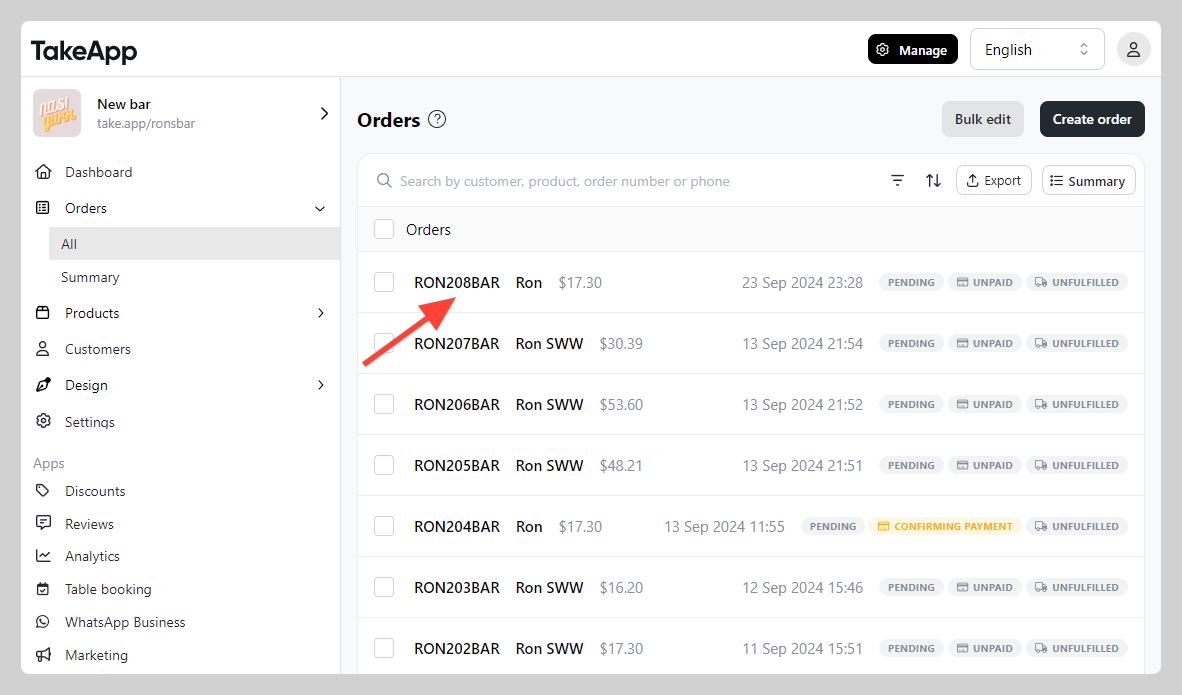
    Sharing invoice link
  2. Click on the "Link button" at the invoice section (top right corner)
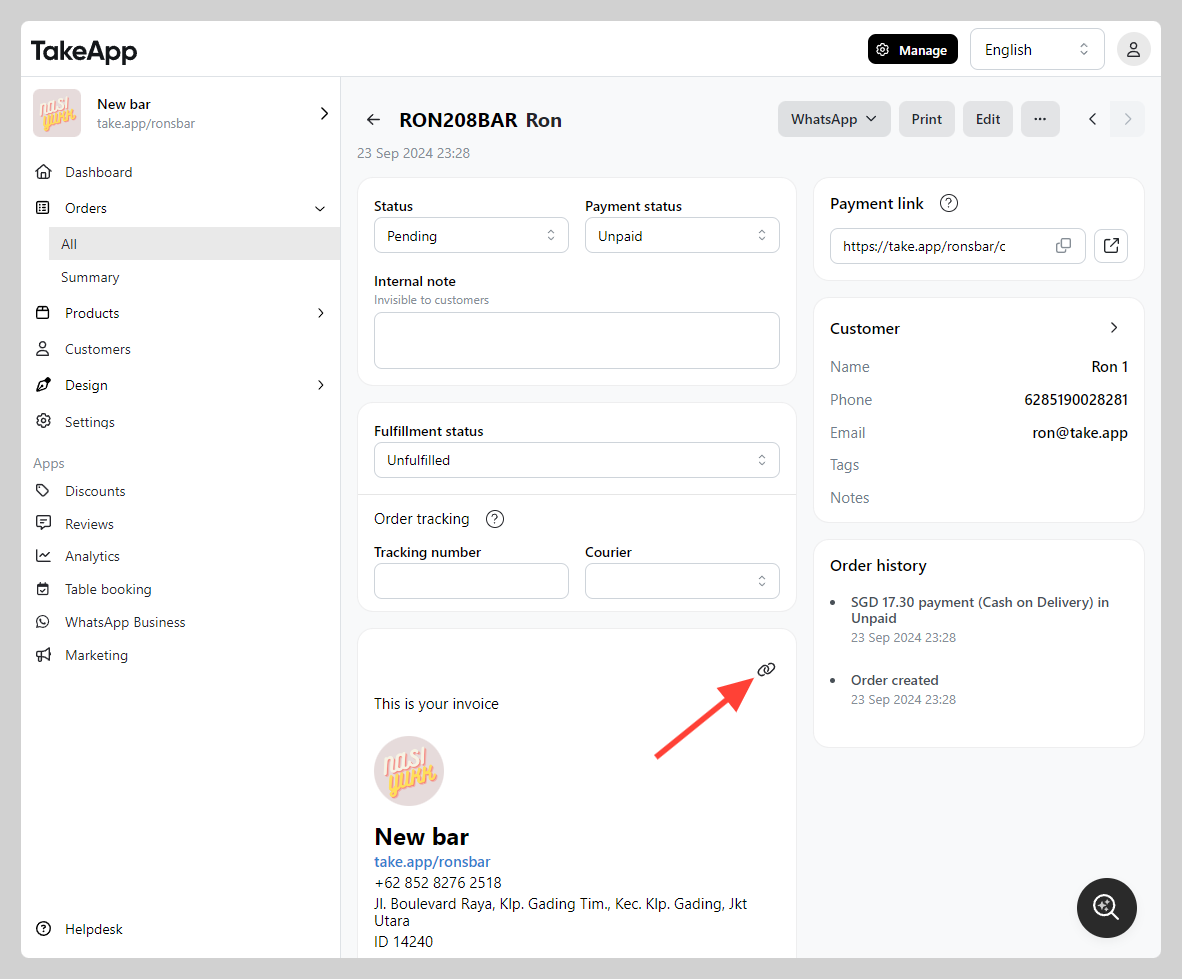
    Sharing invoice link
  3. Copy the invoice link from the URL bar
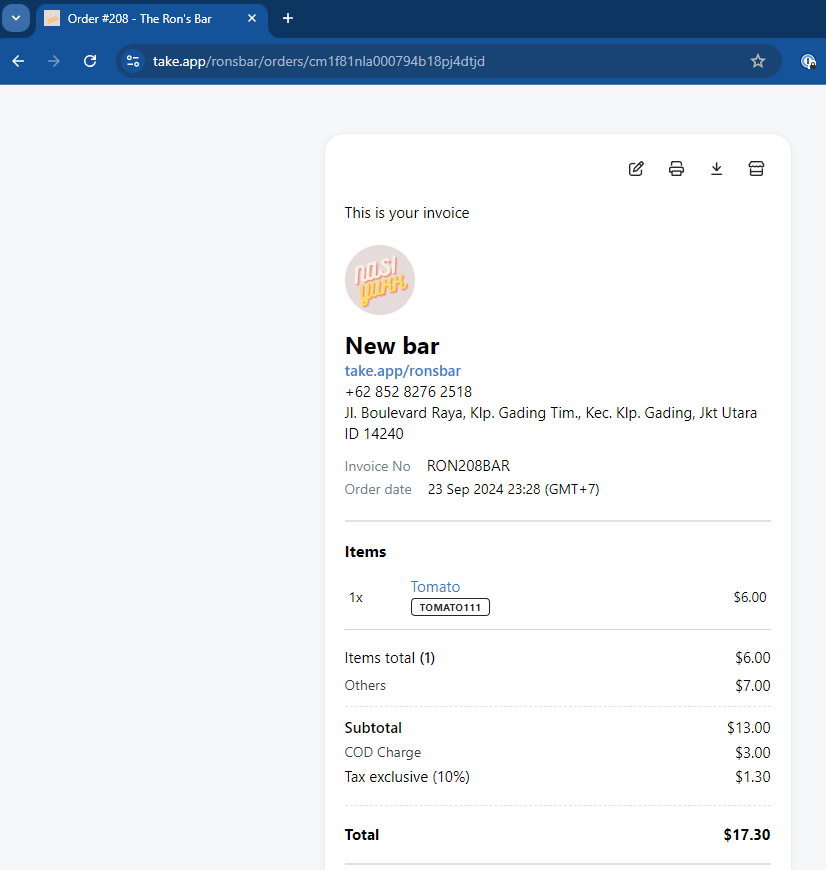
    Sharing invoice link

Get directions from the receipt

Customers can open the shared invoice link and tap Get directions to open Google Maps for the order's saved pickup or delivery address. The button appears when the order has a valid address or map location. For pickup orders, set the pickup location so customers know where to collect their order.

Add pickup or delivery to a calendar

When an order has a scheduled pickup or delivery date, its online receipt shows Add to calendar. Customers tap it and save the event in their calendar. Orders without a scheduled date or time do not show this button.

  • On Android, the button opens a prefilled Google Calendar event. On other devices, it opens or downloads a calendar file to import.
  • A date without a time becomes an all-day event. A time slot uses its start and end times; a single time creates a 30-minute event.
  • The event includes the order link and the saved address, when available. Times follow the store's timezone; the customer's calendar may display them in their own timezone.

This saves a copy of the schedule, not a live calendar subscription. If the order's schedule changes, customers should update the saved event.

Más en Recibos

Recibos →

¿Sigues necesitando ayuda?

Haz una pregunta y recibe respuesta al momento, o habla con nuestro equipo.