
A custom domain lets you use your own web address for your online store — abc.com instead of take.app/abc — making your brand look more professional and memorable, and easier for customers to find.
If you don't own a domain yet, you can buy one in Take App and skip the DNS work entirely.
How to add a custom domain in Take App
-
Go to Admin menu > Settings > Domains
-
Click on the
Connect existing domain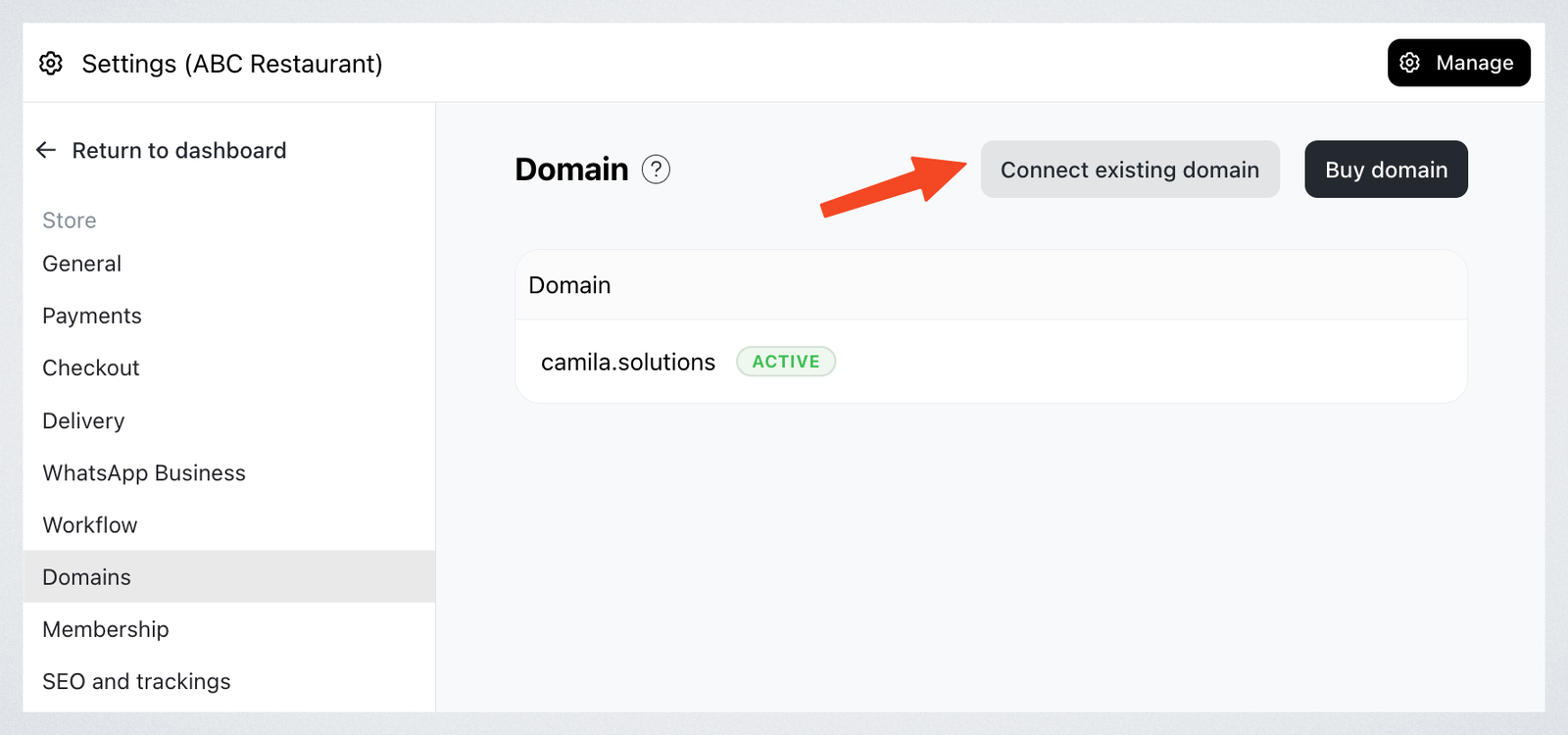
-
Type your custom domain address then press
Add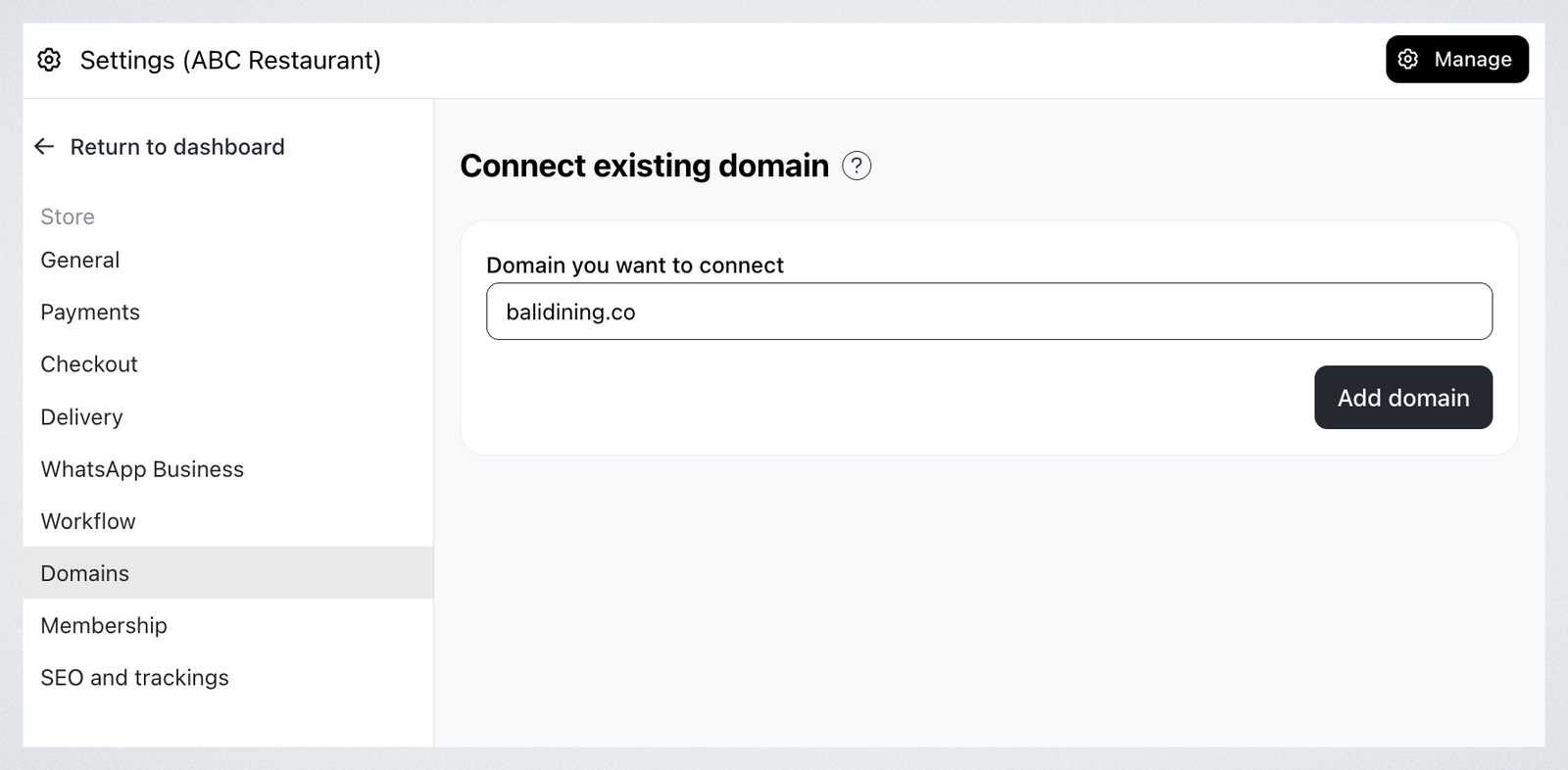
-
Your domain is registered in Take App. The next step is to update your domain provider's DNS settings with the details shown.
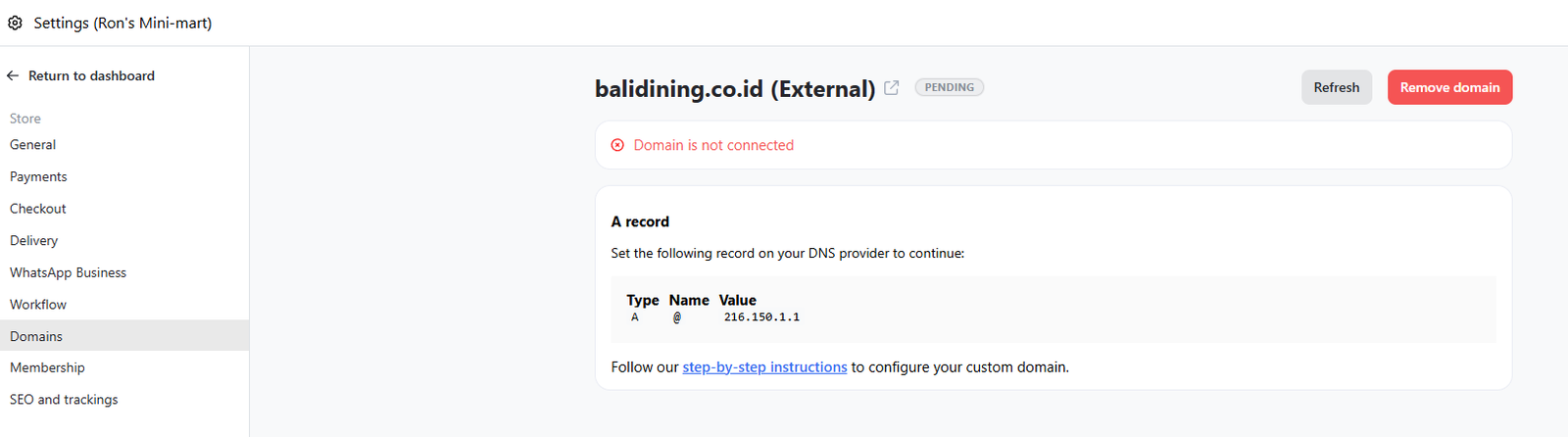
If Take App asks you to verify ownership first, the Domains page shows a TXT record instead of the records below. Add that TXT record at your provider, wait for it to propagate, then come back — the A or CNAME instructions appear once ownership is confirmed. Always copy the values from your own Domains page; they are issued per domain.
Important note: The SSL certificate is typically generated within 1 hour, but in some cases it may take up to 5 days.
Update your domain provider's DNS settings
-
Login to your domain provider service and go to DNS settings. Follow your domain provider's guides (e.g., Namecheap)
-
Add an A record:
Type: A
Host: @
Points to: 216.150.1.1
And don't forget to remove any other A records to avoid complications. -
Go back to Take App's domains settings and refresh. All settings are properly configured, and you will see the custom domain has connected successfully.
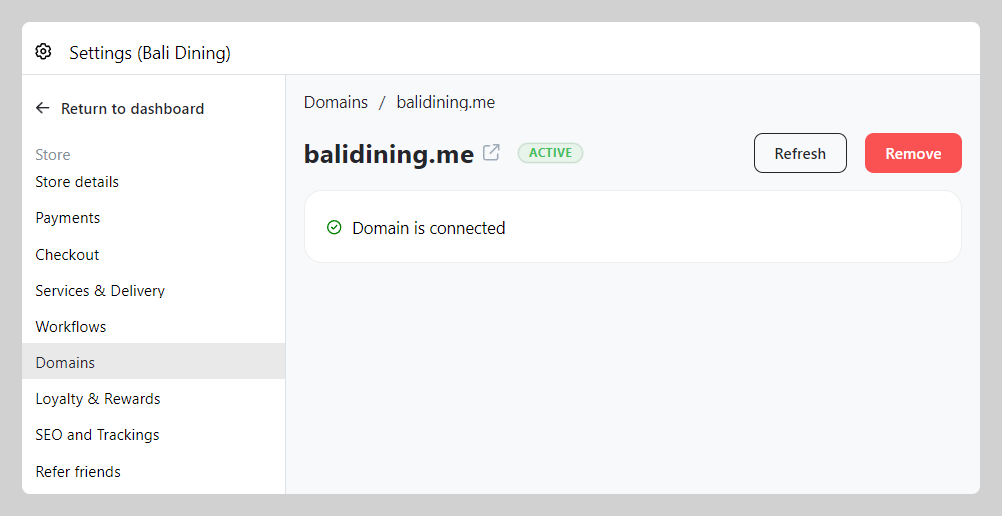
Domain settings propagation takes a maximum of 24 hours.
Frequently Asked Questions
I want to add a subdomain such as www or order.balidining.me
Yes — connect a subdomain if you want to keep your main domain pointed at another website.
- Go to Domains settings and click
Connect existing domainbutton. - Add the domain, including your subdomain. e.g.
order.balidining.me - Go to your domain provider settings and add the following values
Type: CNAME
Name: your subdomain (e.g. order)
Value: copy the exact value shown on Take App's Domains page for your domain — it is issued per domain, so do not reuse one from another store or from this guide
4. Save and wait a maximum of 24 hours to propagate the changes.
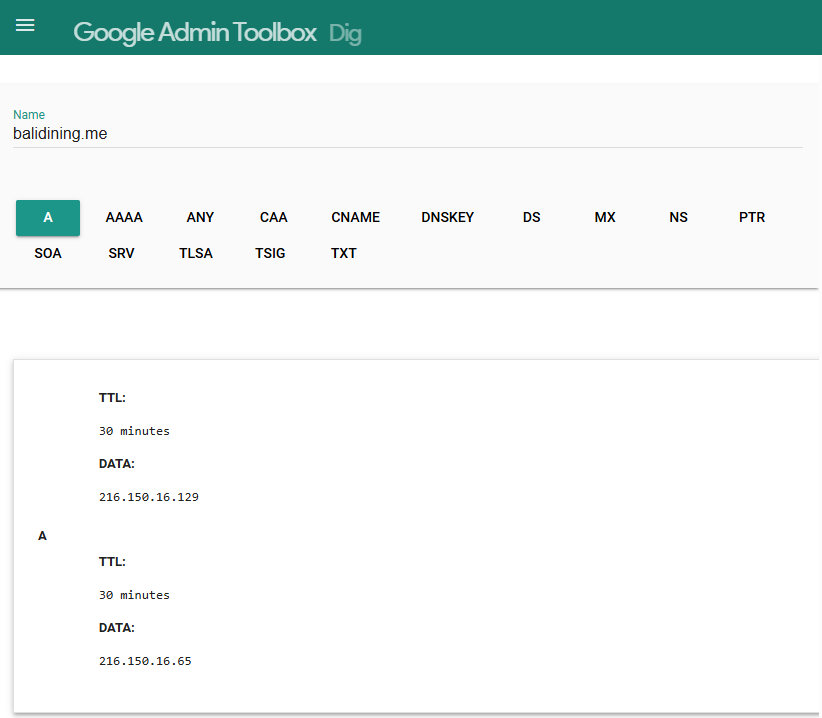
How can I check if I've entered my DNS settings correctly?
You can double-check the DNS records provided by Take App and compare them with what you've entered with your domain registrar. To verify that your DNS changes have been applied correctly, you can use an online DNS lookup tool.
What should I do if my domain is already linked to another platform?
If your domain is currently linked to another website or store, you'll need to disconnect it from that platform before connecting it to your Take App store. Check the settings with your domain provider or web host to release the domain.
Why isn't my domain connecting immediately?
DNS changes can take time to propagate across the internet. It usually takes up to 24 hours for the changes to fully take effect. If your domain isn't connecting immediately, please allow some time and check back later.
What if I don't have a domain?
If you don't have an existing domain, you can easily buy one in Take App. Please follow this guide.