
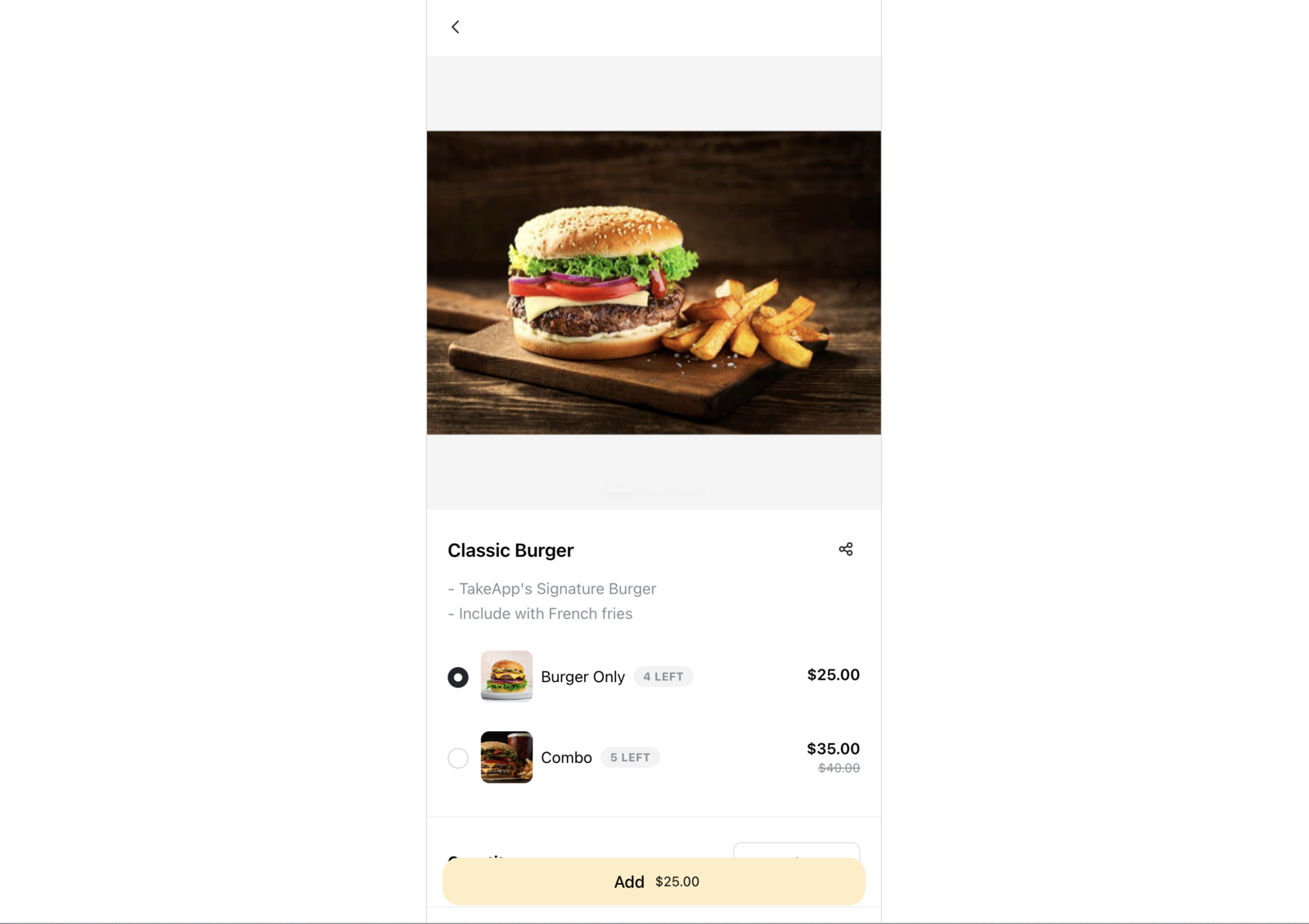
Add a variant when your product comes in distinct versions, like varying sizes or colours. Each variant has its own price, and can have its own image.
If instead you want to ask the customer a question or offer add-ons, use product options.
How to add a product variant
-
Find your product from Admin > Products and click on the specific product you wish to modify.
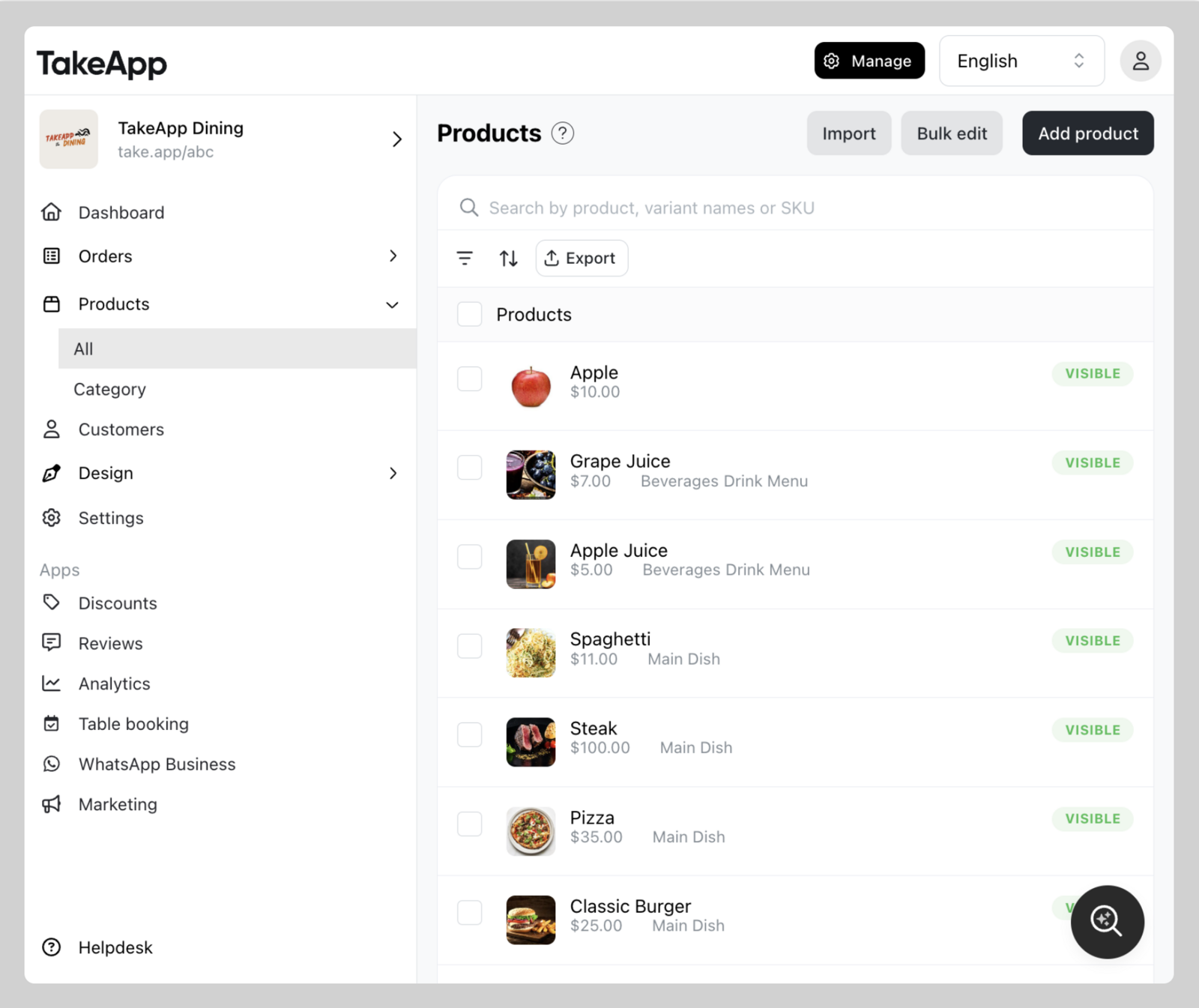
-
Scroll down to the variants and options section and click
Add variant.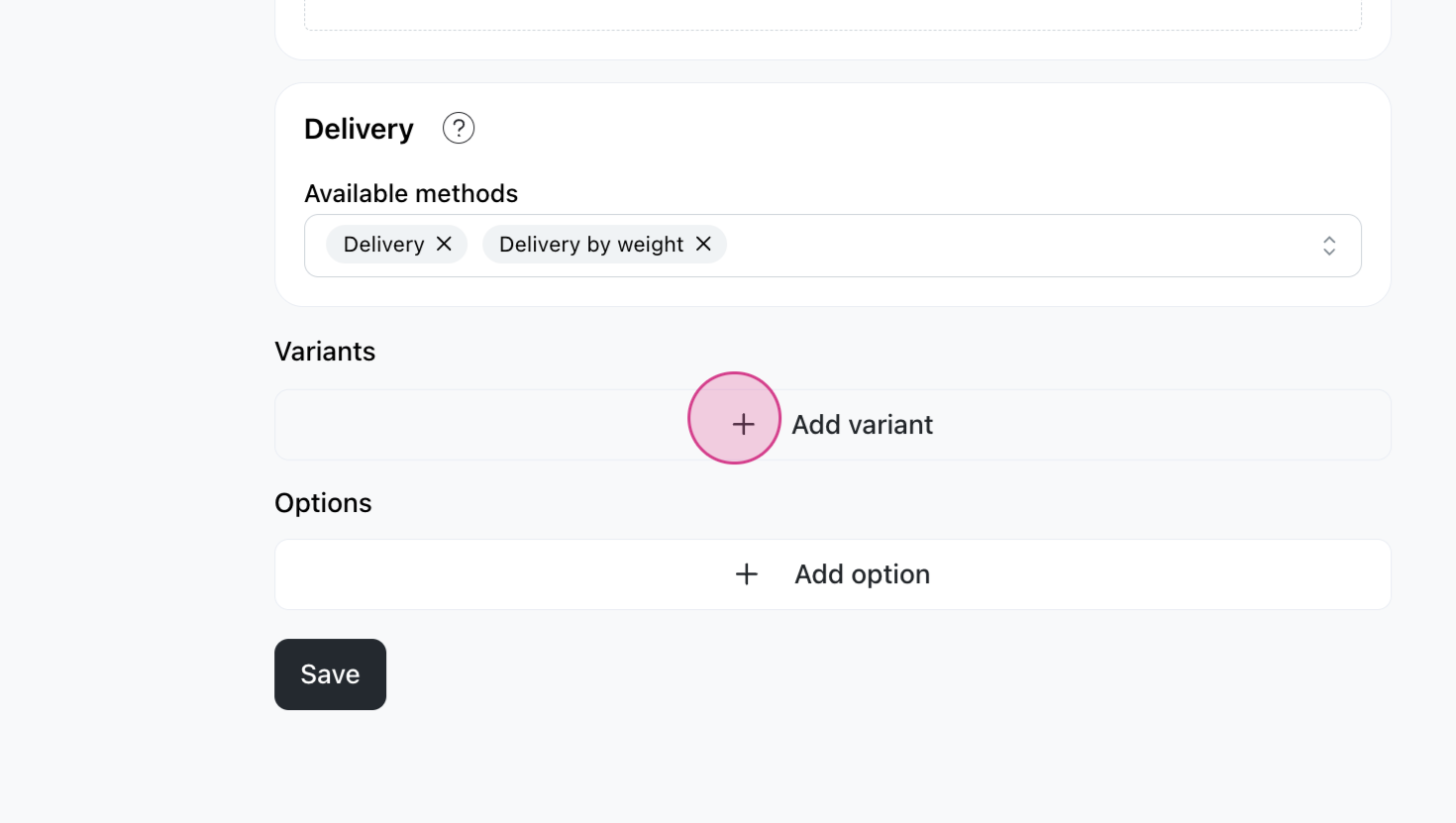
-
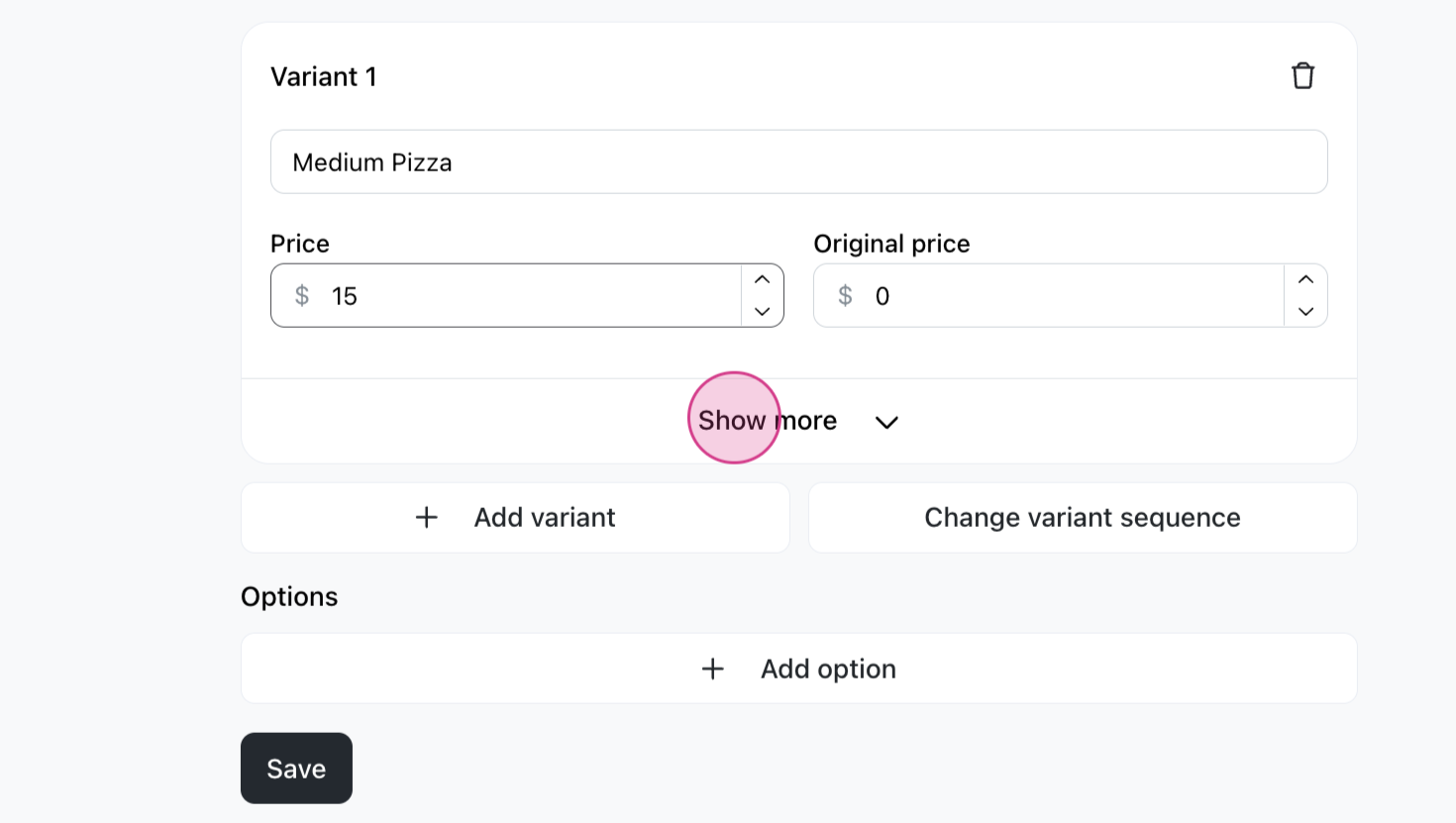
Type in the variant name and price, then click Save. Add as many variants as you need.
Tips
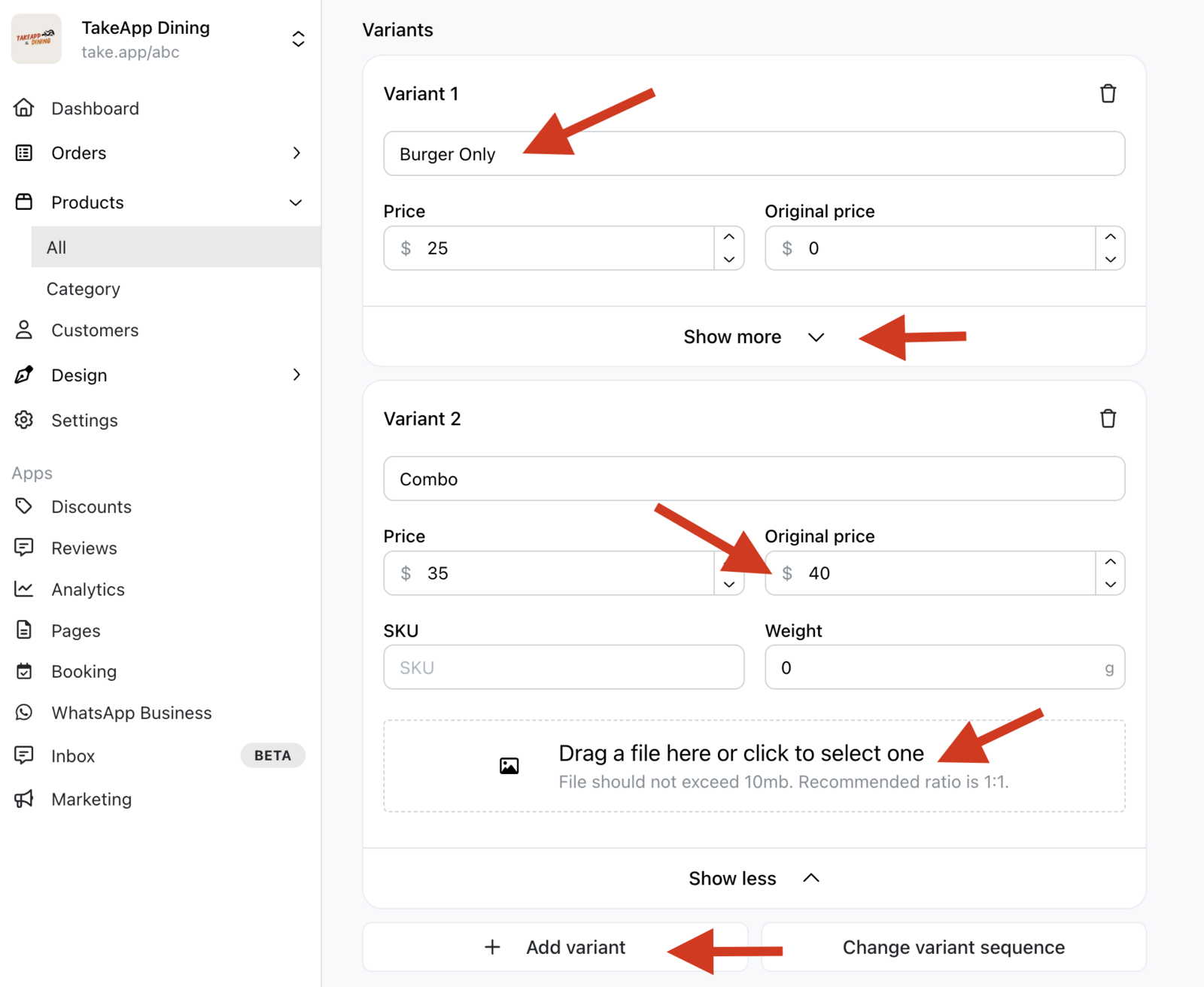
Fill in the original price too if you want "strikethrough pricing" — for example, $40 now, down from $50.
You can also add an image for each variant.

To create many variants at once, see Bulk add for product option.