
How to add Peach Payments
-
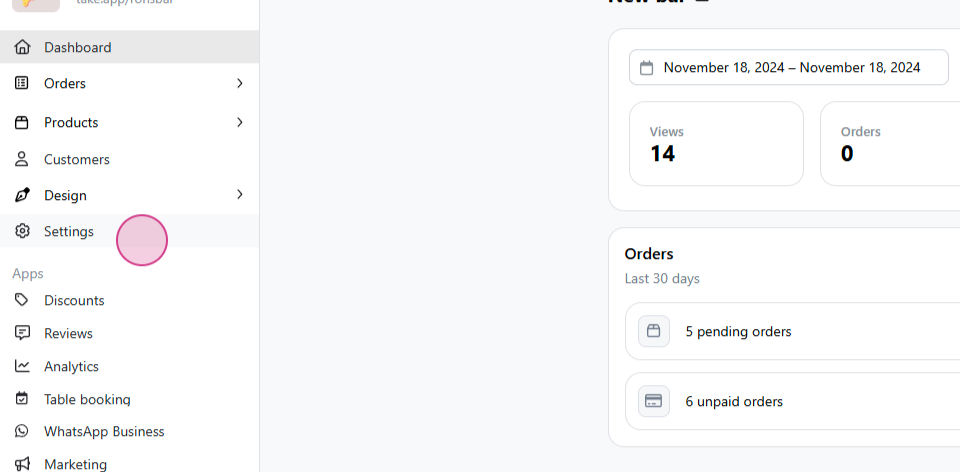
From the dashboard, select Settings.
-
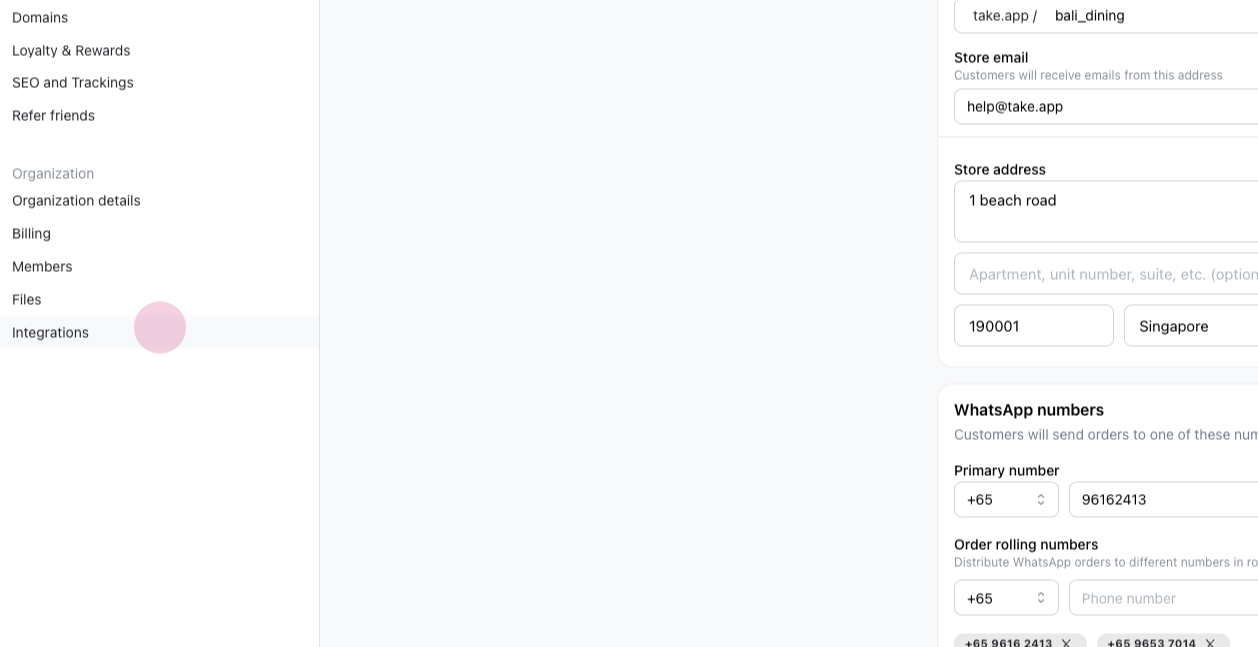
Navigate to Integrations.
-
Choose Peach Payments.

-
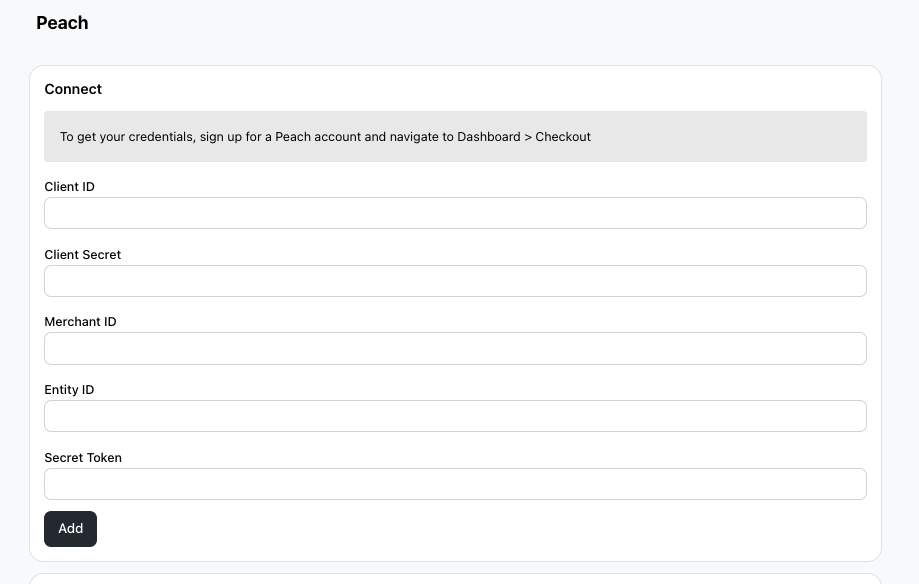
Input your credentials from the Peach Dashboard onto Take App.
-
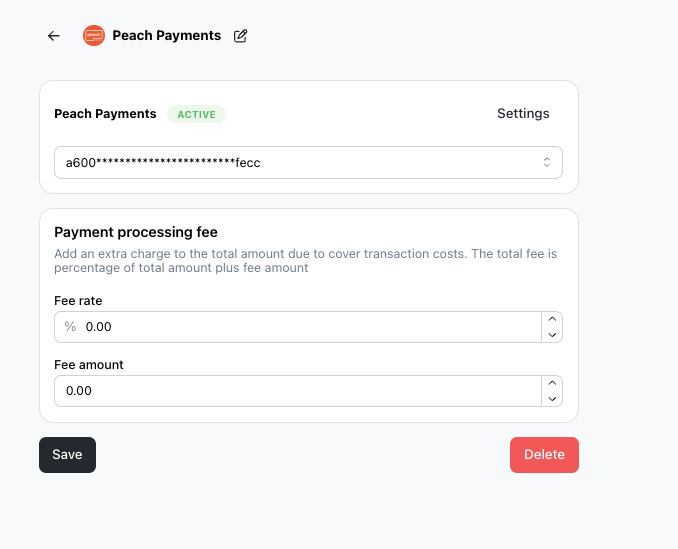
Proceed to Payments, add Peach Payments, and select Save.
-
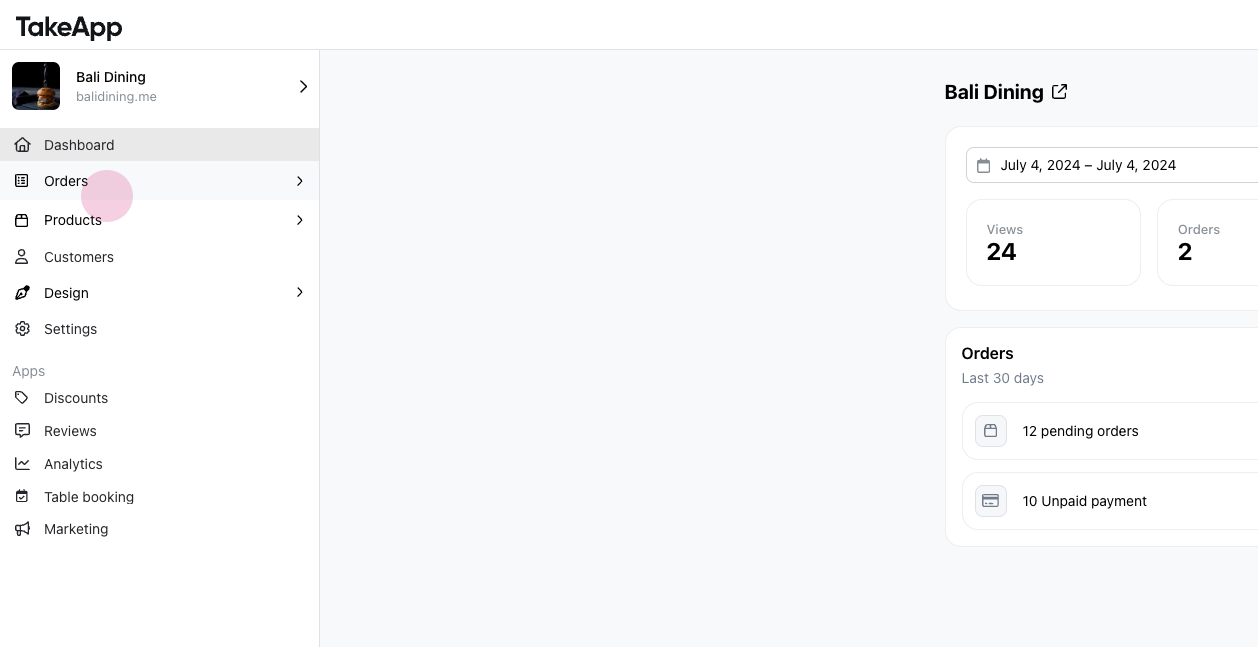
Return to the dashboard. Go to orders, then All.
-
Open any unpaid order and open a new tab for payments.
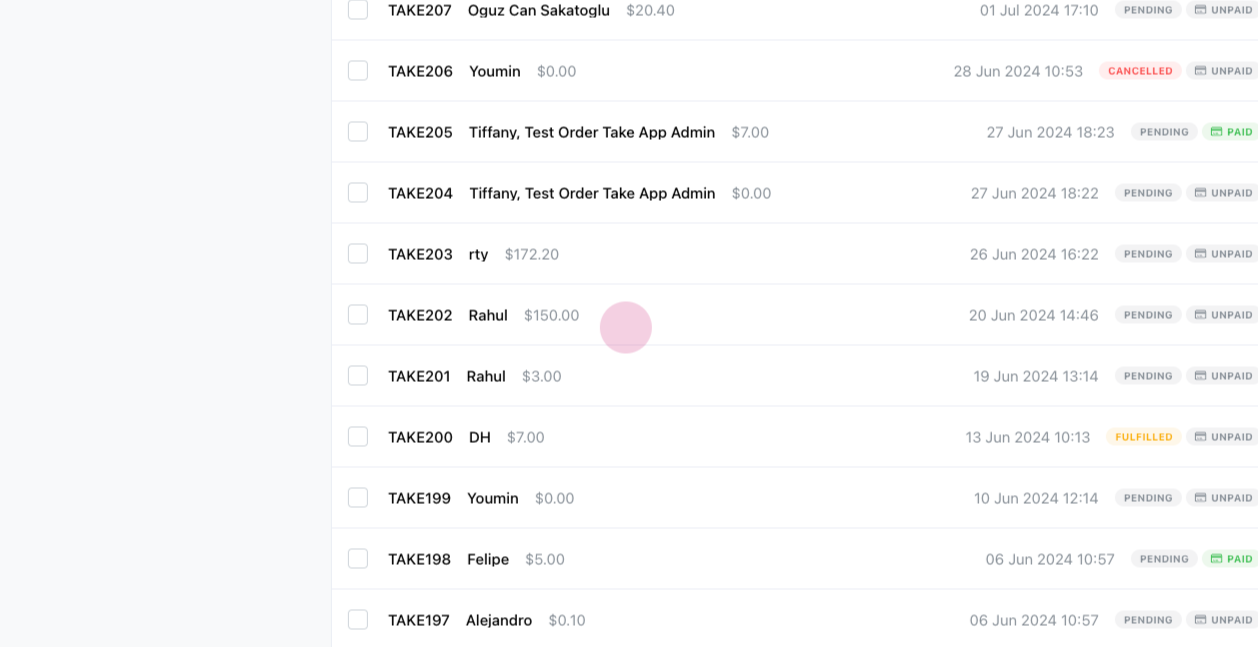
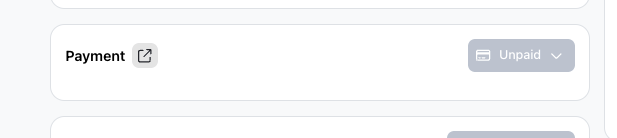
8. Make sure your store currency in MUR/ZAR/USD. Choose Peach Payment as the payment method.
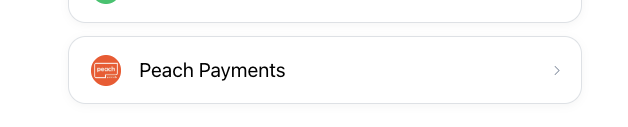
9. Proceed with payment process.
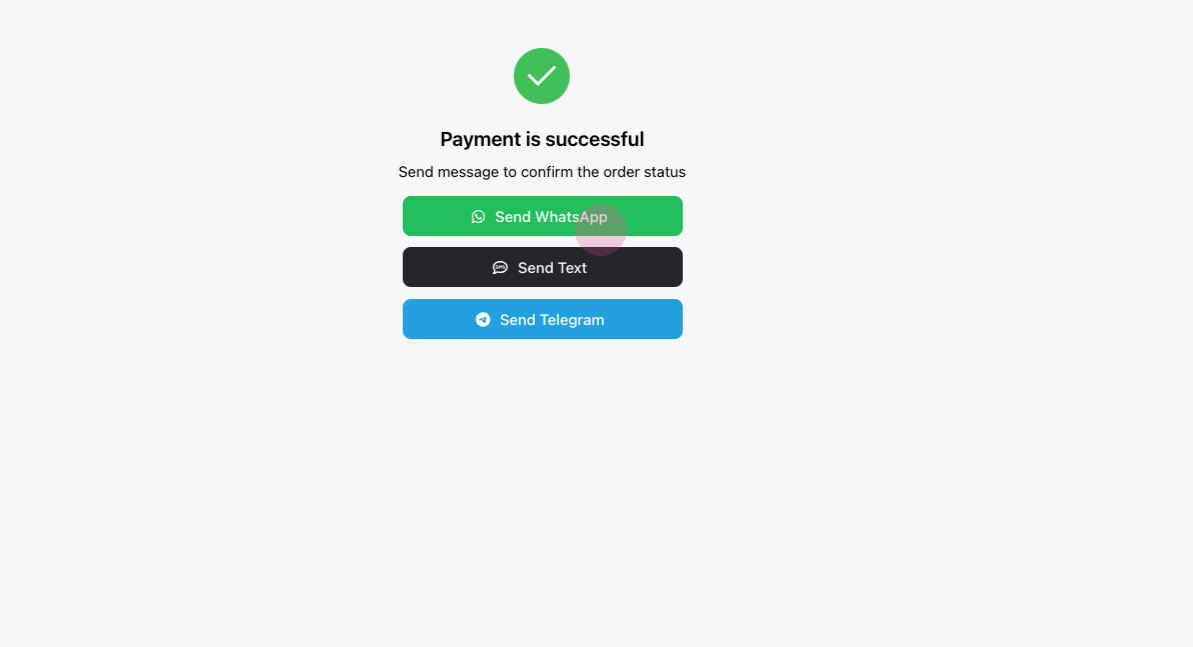
10. Wait for the payment to complete and send a WhatsApp message. This action should mark the invoice as paid, completing the customer's payment process.
Additional Requirements
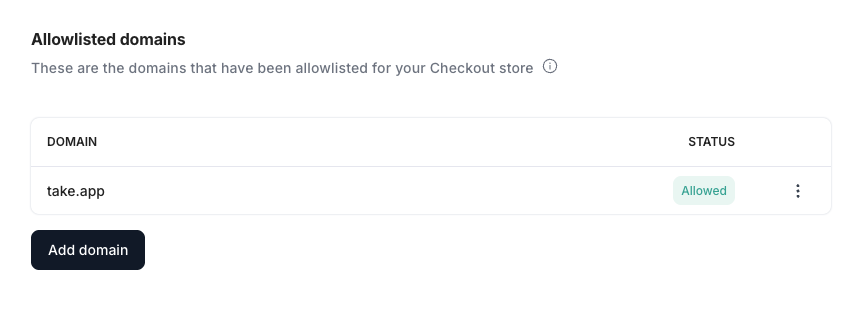
1. Make sure to allow list take.app inside your Peach Payment dashboard for the payment method to work.
2. Make sure your currency is MUR, or whatever currency your Peach Payments is in.
3. Make sure to put all the 5 API keys in the right order.
4. Finally, you must contact Peach payments to enable cancel/fail page in case buyer cancels their transaction