
The low inventory workflow ensures you’re automatically notified via WhatsApp or email when a product’s inventory falls to 5 or fewer items.
Set up Low-inventory workflow
- Go to Settings > Workflow and select Create.
- Locate the Trigger section. Here, select Inventory low
- In the Action section, select the notification method: WhatsApp or Email.
- Choose the appropriate template, enter your phone number, and click Save.
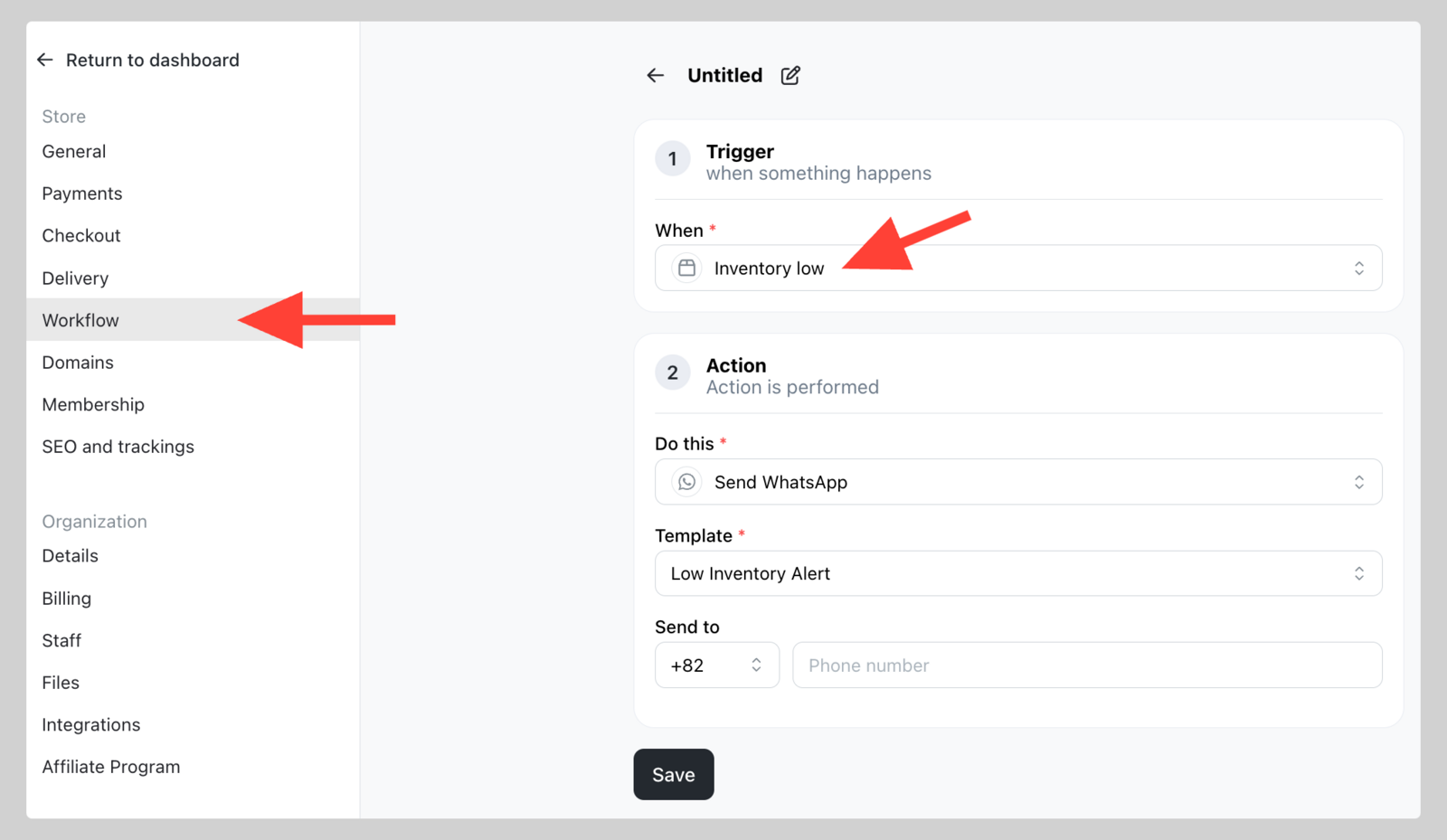
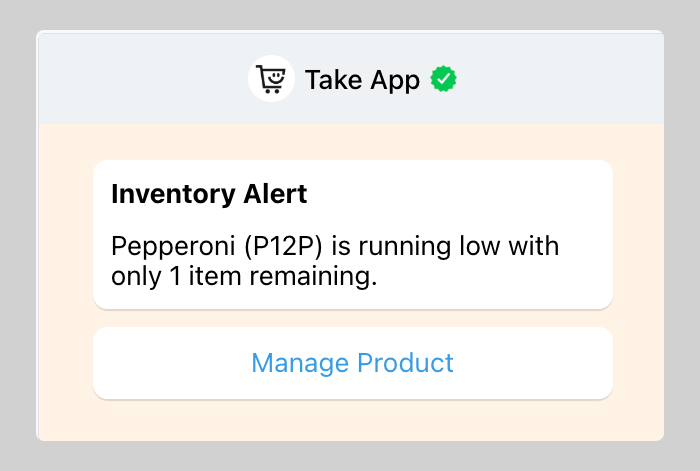
Once the workflow is configured, you’ll automatically receive notifications whenever a product’s inventory falls below 5 items:
Note: Ensure inventory is enabled for your products.
Note: Notifications will not be sent for inventory changes made through bulk product edits.
Note: Ensure inventory is enabled for your products.
Note: Notifications will not be sent for inventory changes made through bulk product edits.
See also: