You can export orders in CSV format if you need to re-adjust the data for other purposes.
How to export orders by using CSV file
-
Go to Admin > Orders and click
Export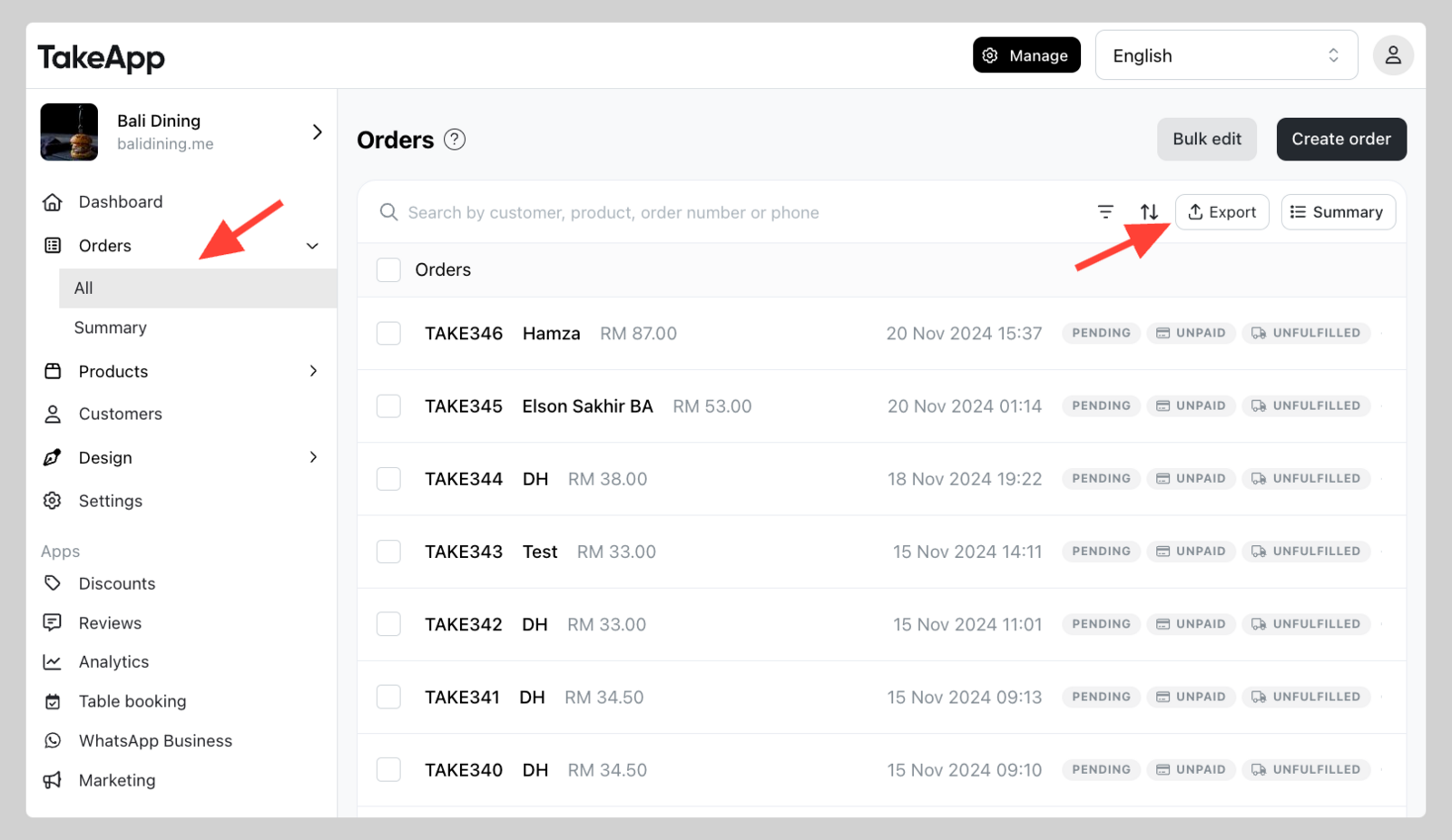
-
Under Export to, choose CSV file
The other option, Claude or ChatGPT, hands your orders to an AI tool over MCP instead of downloading a file — see Connect Claude and ChatGPT with MCP.
-
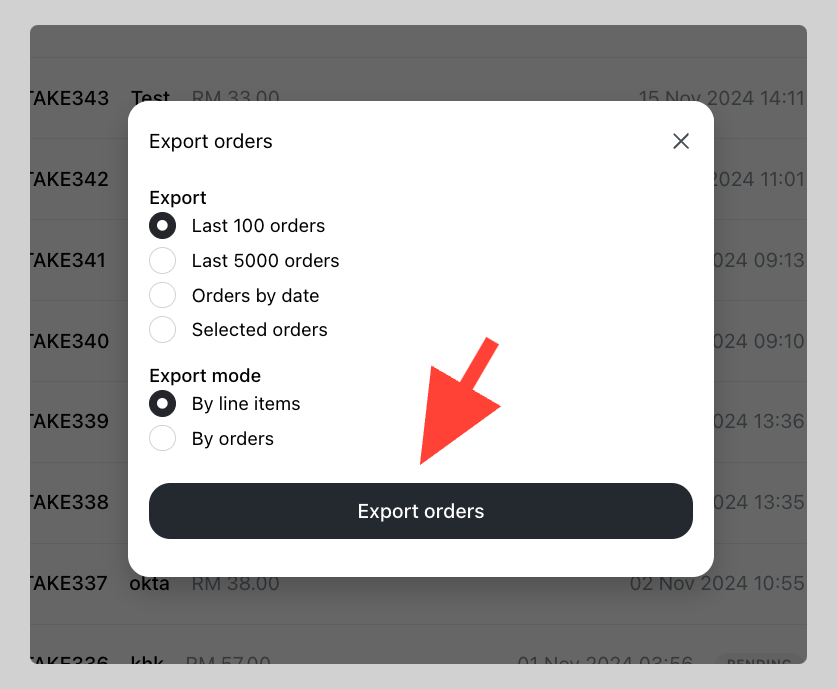
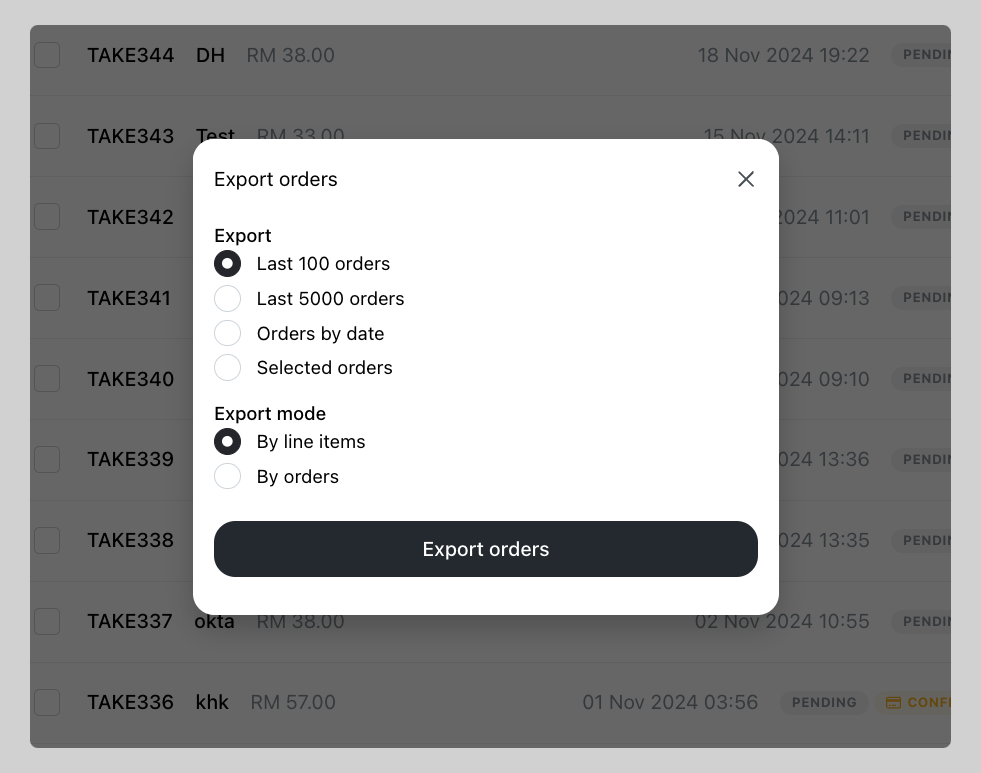
Choose the range of orders
- Last 100 orders will export the last 100 orders since the last order created
- Last 5000 orders will export the last 5,000 orders since the last order created
- Orders by date export orders of date range you specified
- Selected orders will export selected orders only
-
Choose the Export mode
-
By line items will generate multiple rows when the order has multiple products/variants.
-
By orders will always generate single row per order.
-
-
Click
Export orders. CSV file will be downloaded.