
Buying your domain through Take App means it connects to your store automatically: no DNS records, no external setup. Annual Business plans include a free domain — see below.
If you already own a domain, connect it instead: Use a domain you already own.
How to purchase a domain in Take App
-
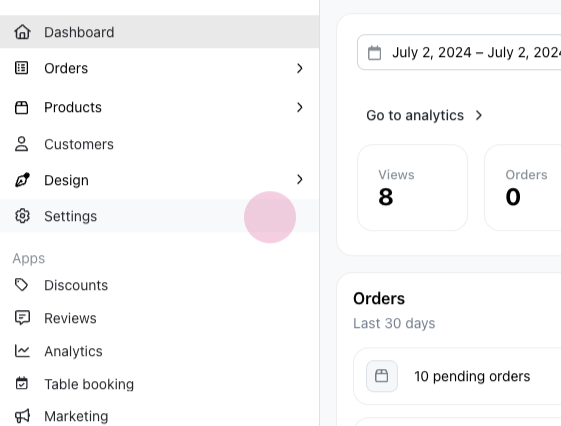
From the admin dashboard, go to Settings.
-
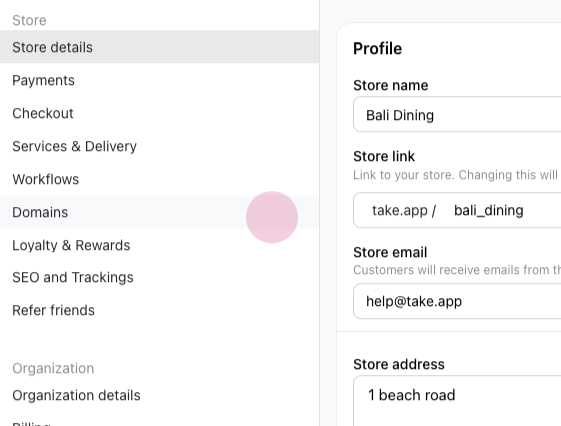
Go to domains
-
And then click
buy new domain.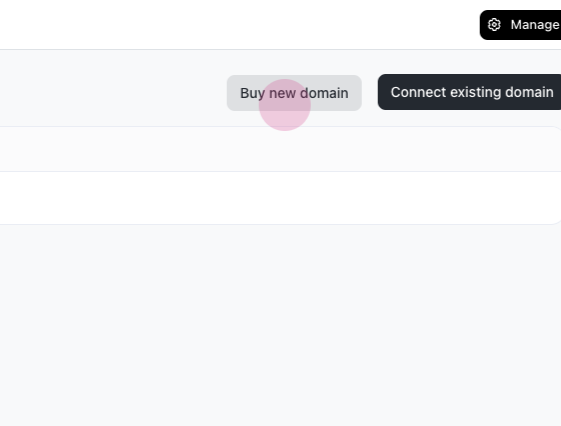
-
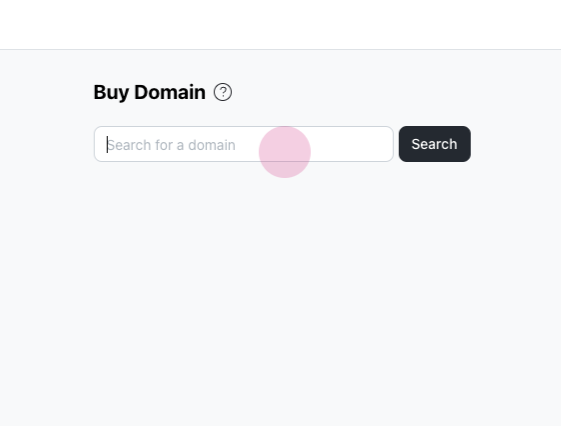
Type your new domain and click Search
-
You will see the list of the available domains and prices, along with suggestions similar to your search. Click the
Buybutton, and you will be redirected to Stripe checkout.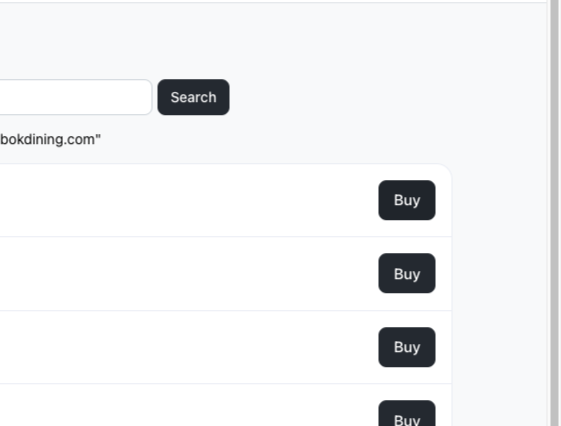
Domains purchased directly through Take App are connected to your site automatically once payment completes — there's nothing to configure. It may take up to 24 hours for the connection to propagate across the internet, and you don't need to do anything while it does.
The free domain on annual Business plans
- Eligibility: the free domain benefit is available exclusively with annual plans. You need to be on an annual Business plan to qualify.
- How to claim: after upgrading, request a free domain code and redeem it against a domain of your choice.
- Limits: it's a one-time offer, available on your first upgrade to an annual plan. Renewals and later upgrades don't include another free domain.
Add your own DNS records
Business plan required. Learn Subscriptions
For a domain you bought through Take App, you can add your own records from Settings > Domain > click on the domain and add your record.
Some use cases that you can do with this are:
- Adding CNAME record for Subdomain (e.g. order.abc.com)
- Adding TXT and MX record for custom email connection (e.g. Zoho Mail)
- Adding TXT record for Google or Facebook website verification
The records Take App created to keep your store online (the main A record, www, and the _vercel check) can't be deleted. Records you add for email or verification still can.
Notes: Please follow the instructions on each platform (e.g., Zoho Mail configuration) and add the right DNS record in Take App domain settings.
Renew your domain
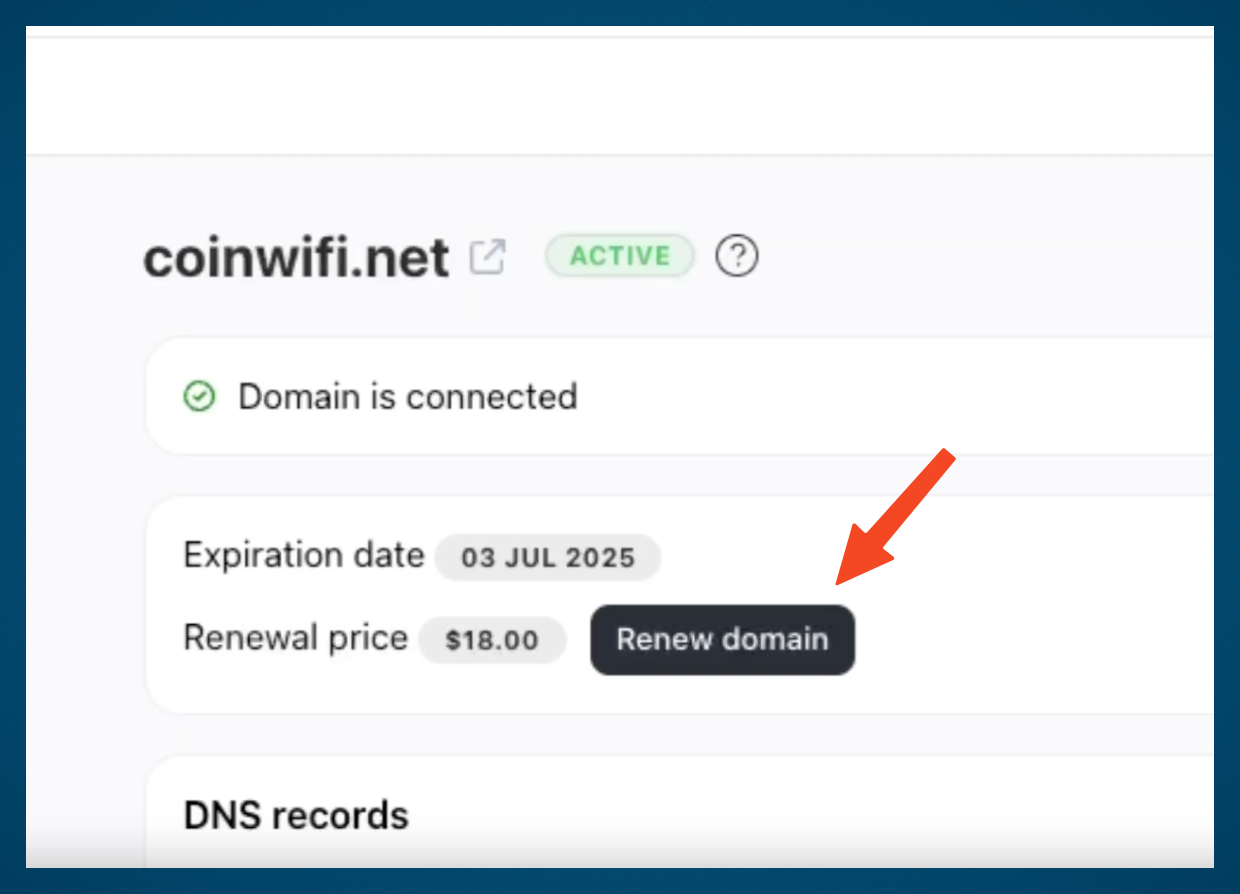
Domains must be renewed yearly. If your domain is nearing expiry (within 45 days), a Renew Domain button will appear under Admin > Settings > Domains. You can click on the button and you will be redirected to the payment page. Once payment is successful, the domain will extend for another year.
Troubleshooting
If your domain does not connect within 24 hours, consider the following steps:
- Check Payment Status: Ensure that your payment for the domain has been successfully processed.
- Clear Browser Cache: Sometimes, cached data can prevent you from seeing the updated connection.
- Contact Support: If the issue persists, reach out to Take App's support team for assistance.