
Tax in Take App has three settings: a store-wide rate, an optional override per product, and a separate rule for delivery fees. Service charges are configured separately — see Adding service charge.
Set your store tax rate
- Go to Admin > Settings > Store detail and find the Tax rate section.
- Set the tax rate and choose whether it is inclusive or exclusive, then click
Save.
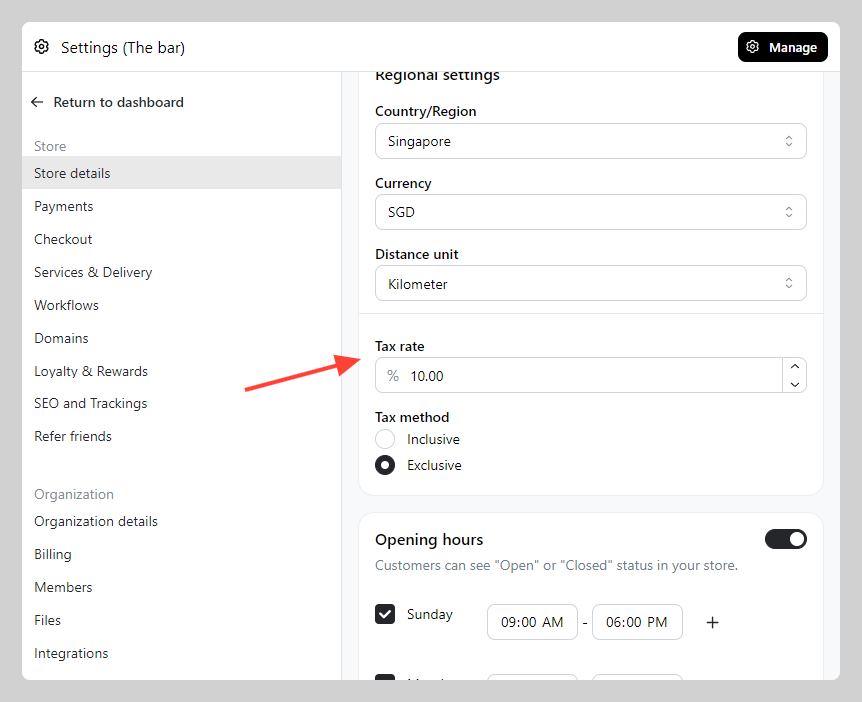
The rate then appears on your invoices.
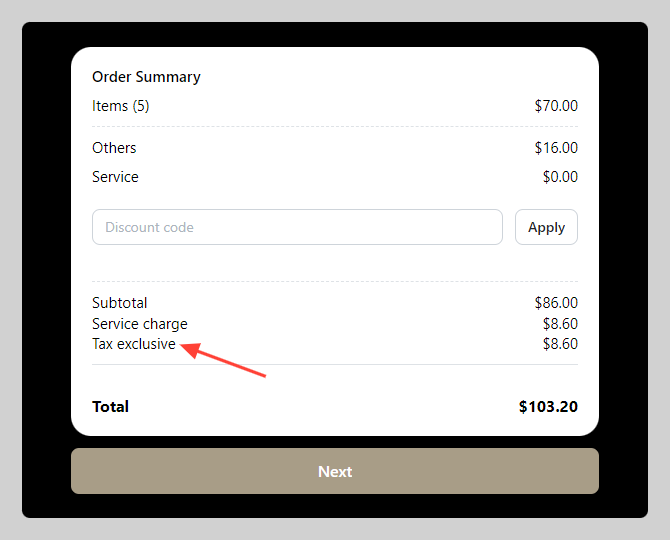
Override the rate for one product
A single product can carry its own rate instead of the store rate.
-
Go to Admin > Products > All and open the product you want to override.
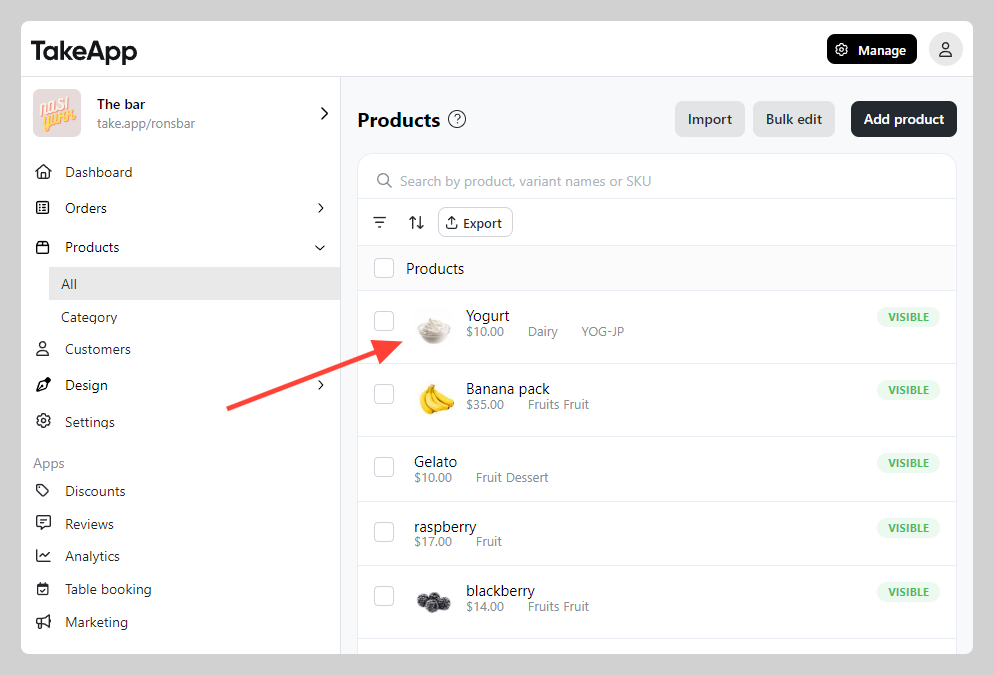
-
Navigate to the "Pricing" section and click
Show more.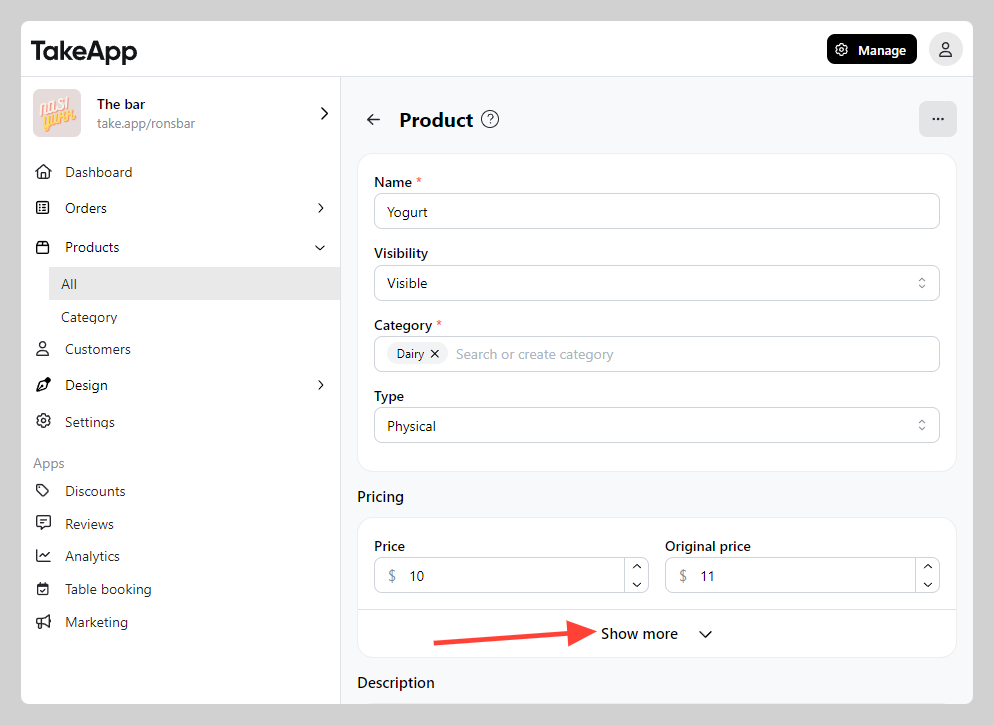
-
Toggle on "Tax override", fill in the item's tax rate, and click
Save.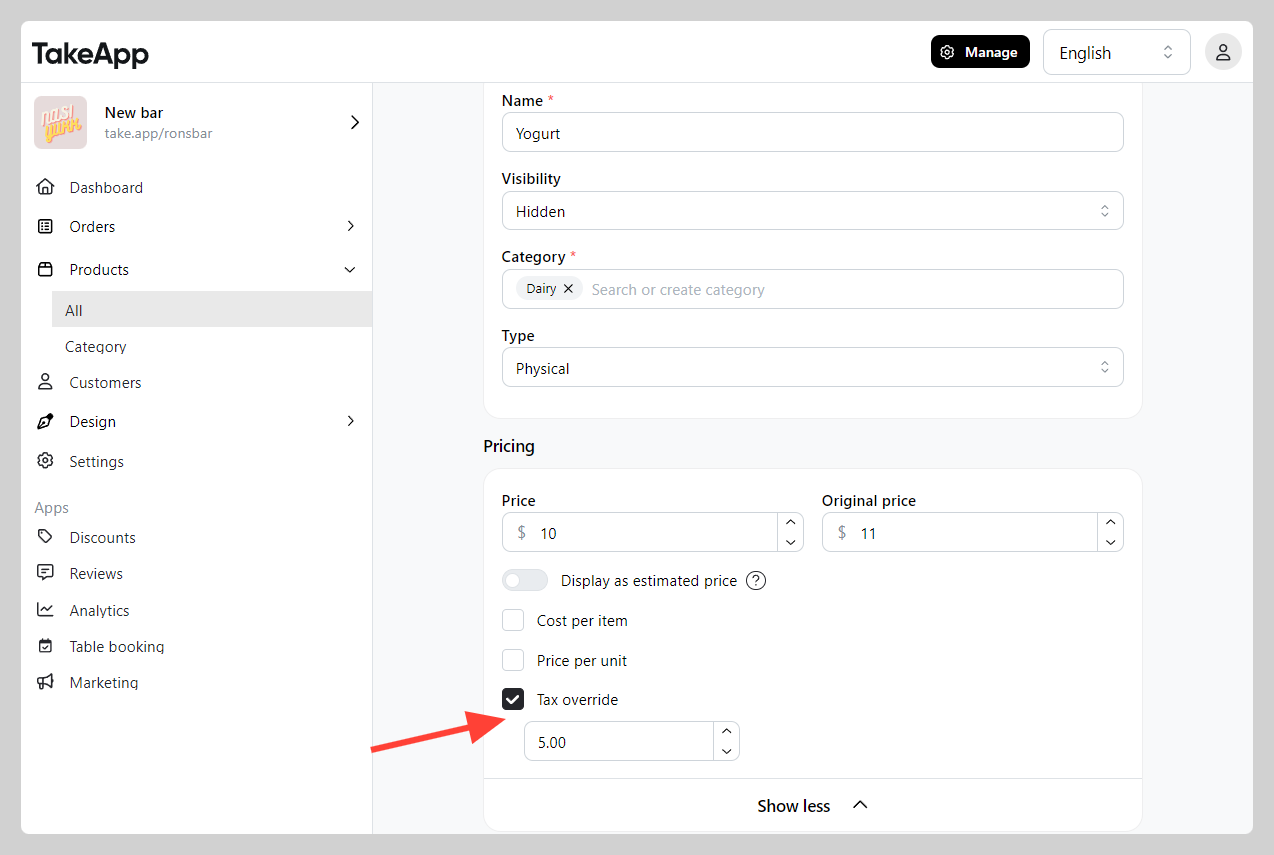
The override replaces the store rate for that product entirely. For example, with a store tax of 10% and a product override of 5%, the store tax no longer applies to that product.
Tax on delivery fees
In some countries, tax rules differ between products and delivery fees — or vary by region entirely. This setting controls whether tax is included in the delivery fee shown to customers at checkout, so your pricing reflects your local tax policy.
-
Go to Settings in your admin panel.
-
Select Delivery.
-
Click on the delivery method you want to configure.
-
Scroll to the Fee section and make sure a delivery fee is set.
-
Uncheck the box "Include tax in delivery fee" to display the fee without tax included. Leave it checked to show the fee excluding tax.
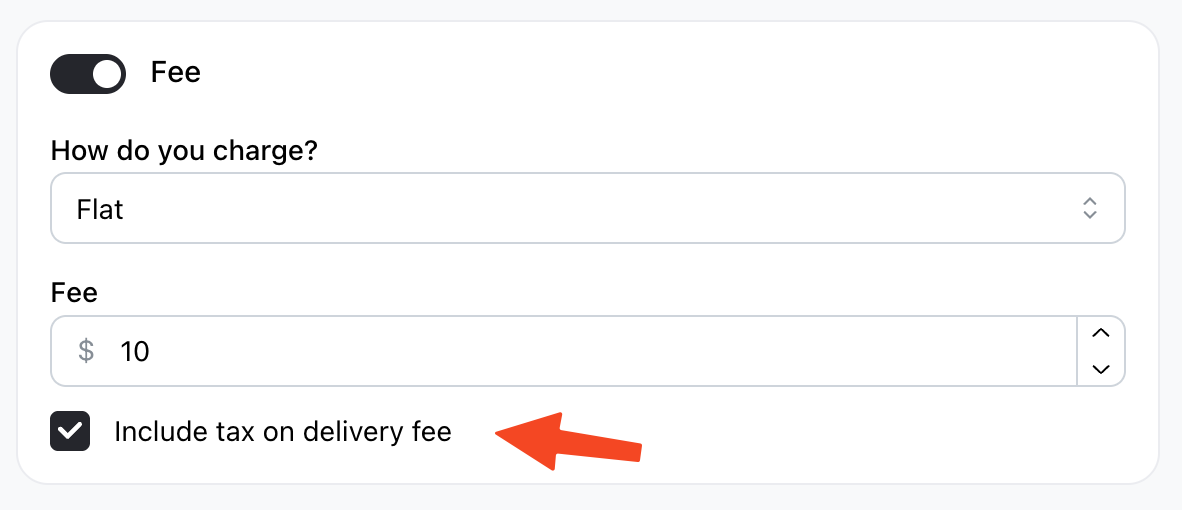
💡 You can configure this independently for each delivery method, so different delivery options can have different tax display rules.