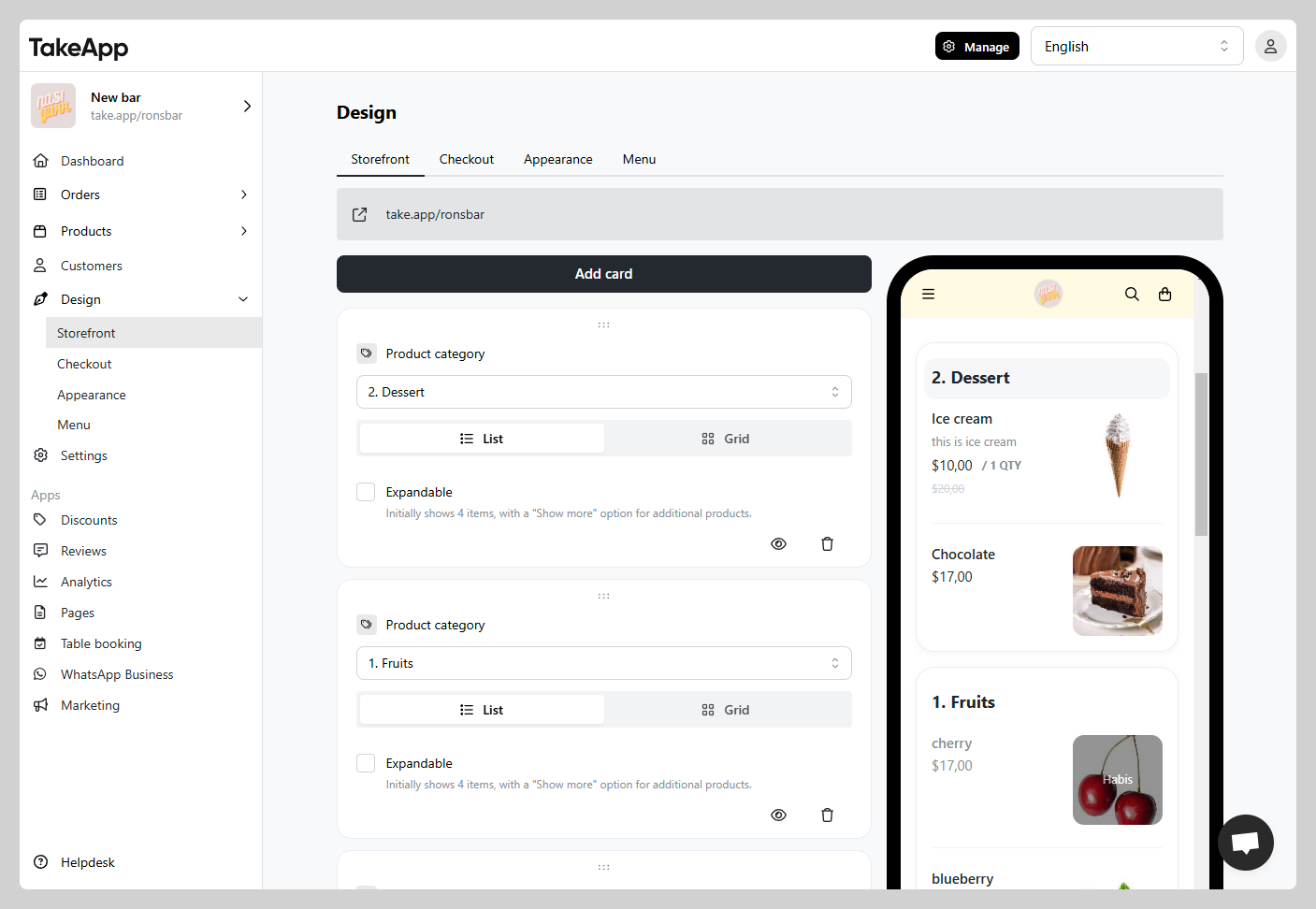
Both the products inside a category and the category cards themselves are ordered by drag and drop.
Reorder the products in a category
-
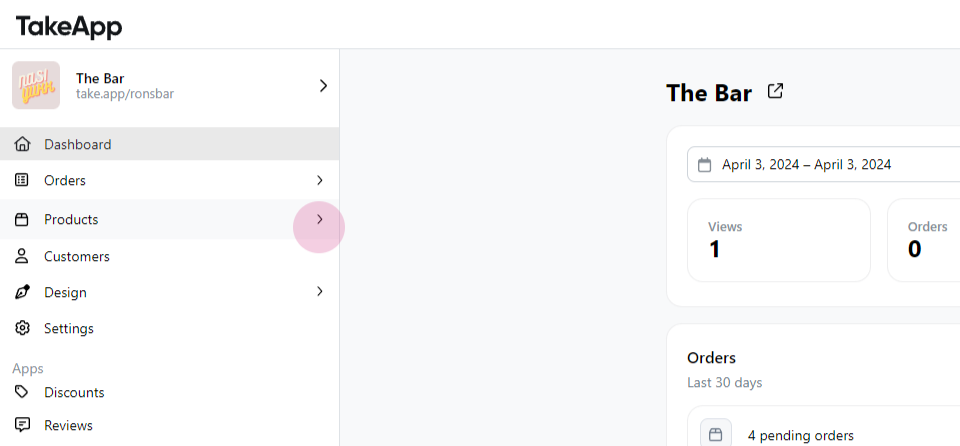
Go to Admin > Products.
-
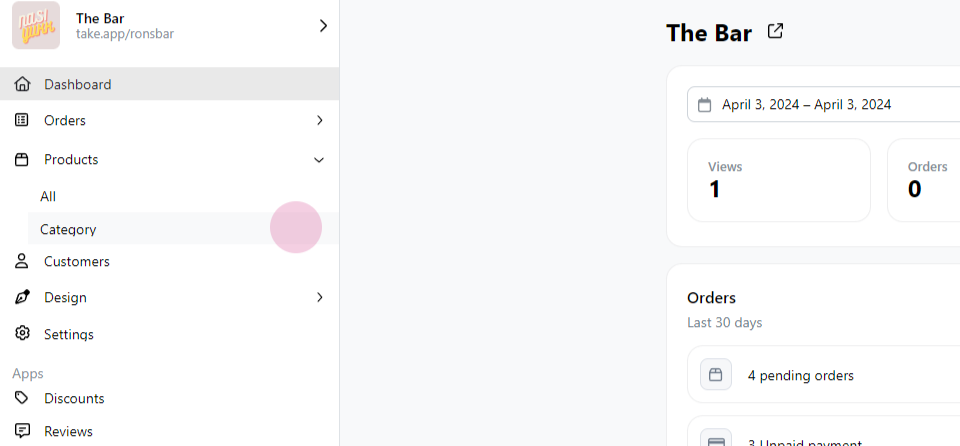
Click Category.
-
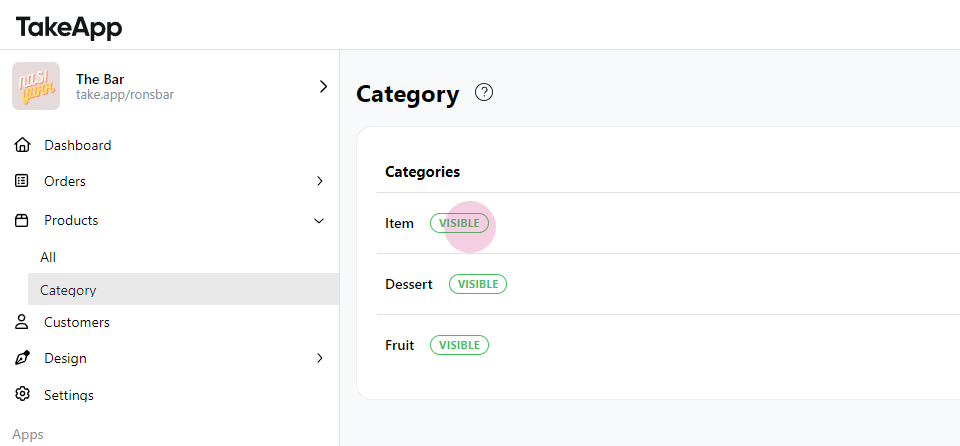
Select the category you want to reorder.
-
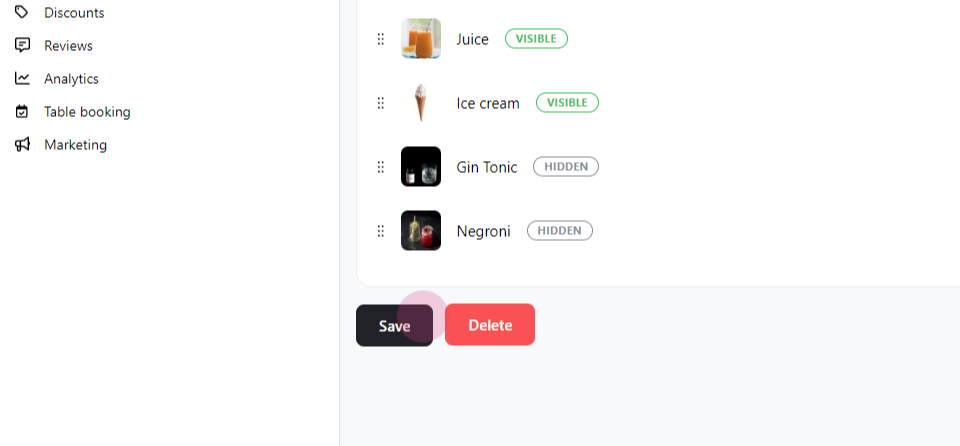
Drag the products — hold the dots next to a product image — into the order you want.
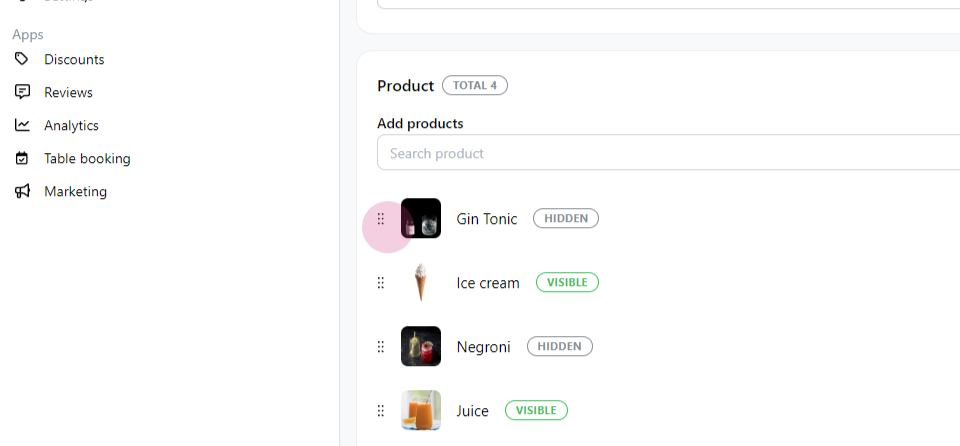
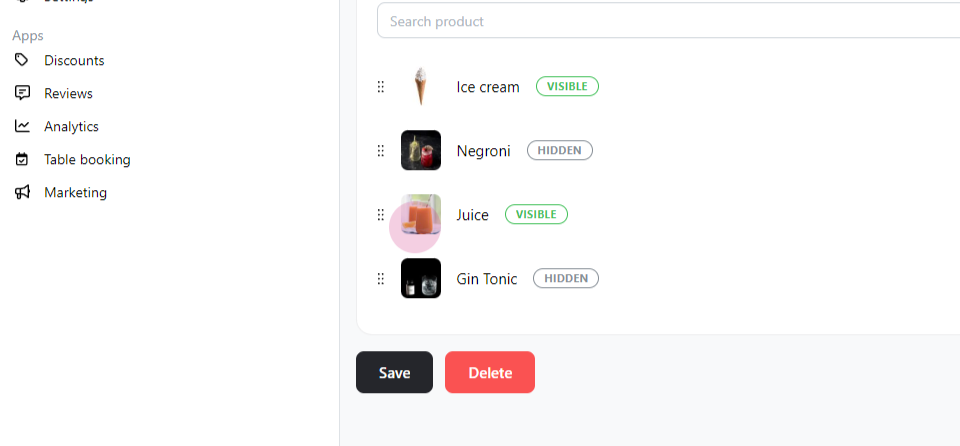
-
Save the changes.
Reorder the category cards on your storefront
-
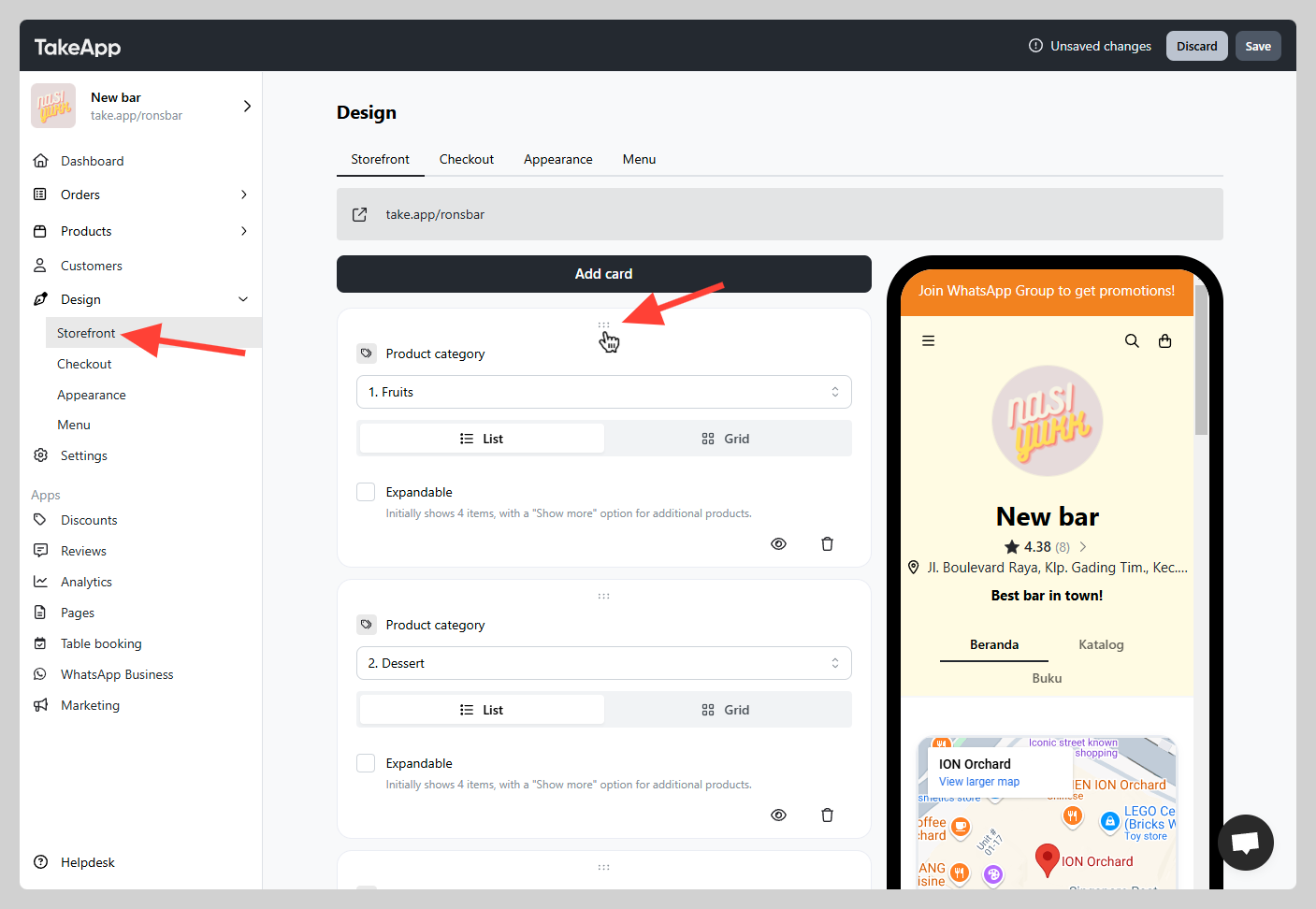
Go to Admin > Website > Storefront and find the
Product categorycard you want to move. -
Hold the six-dot handle at the top of the card and drag it to the position you want.
-
Click
Save, then check the preview to confirm the new order.