
This guide provides instructions on how to use the new Conversation Status Management and Inbox Filtering features to help you better organize your inbox and handle customer messages efficiently.
Close & Reopen Message Cases
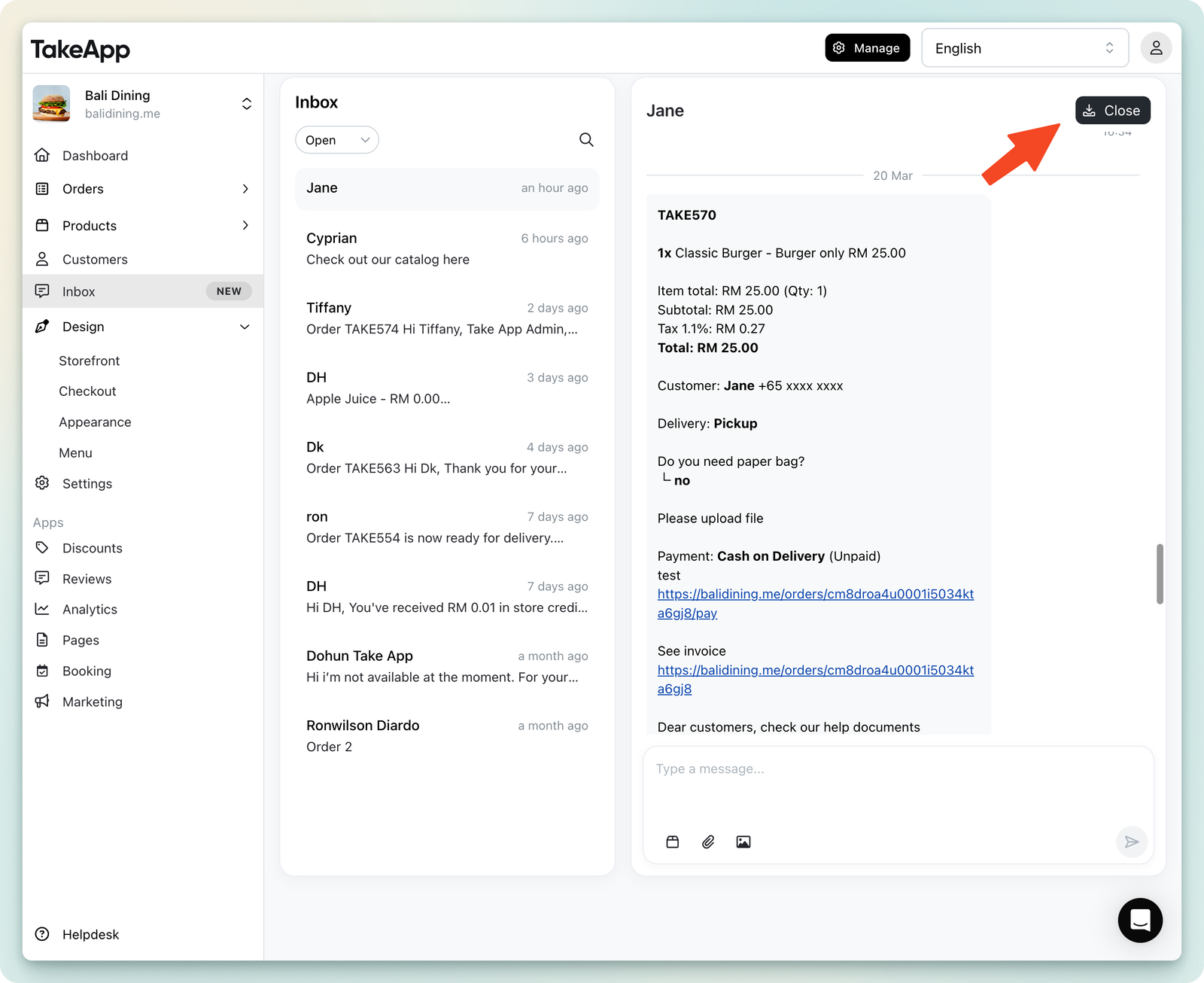
How to Close a Conversation
- Select Chat > Inbox in your dashboard.
- Select the conversation you want to close.
- Click on the “Close” button.
- The conversation status will change to Closed, and it will be moved to the Closed tab.
When to close a conversation?
- When the customer inquiry is resolved.
- To keep the inbox organized and focus on active cases.
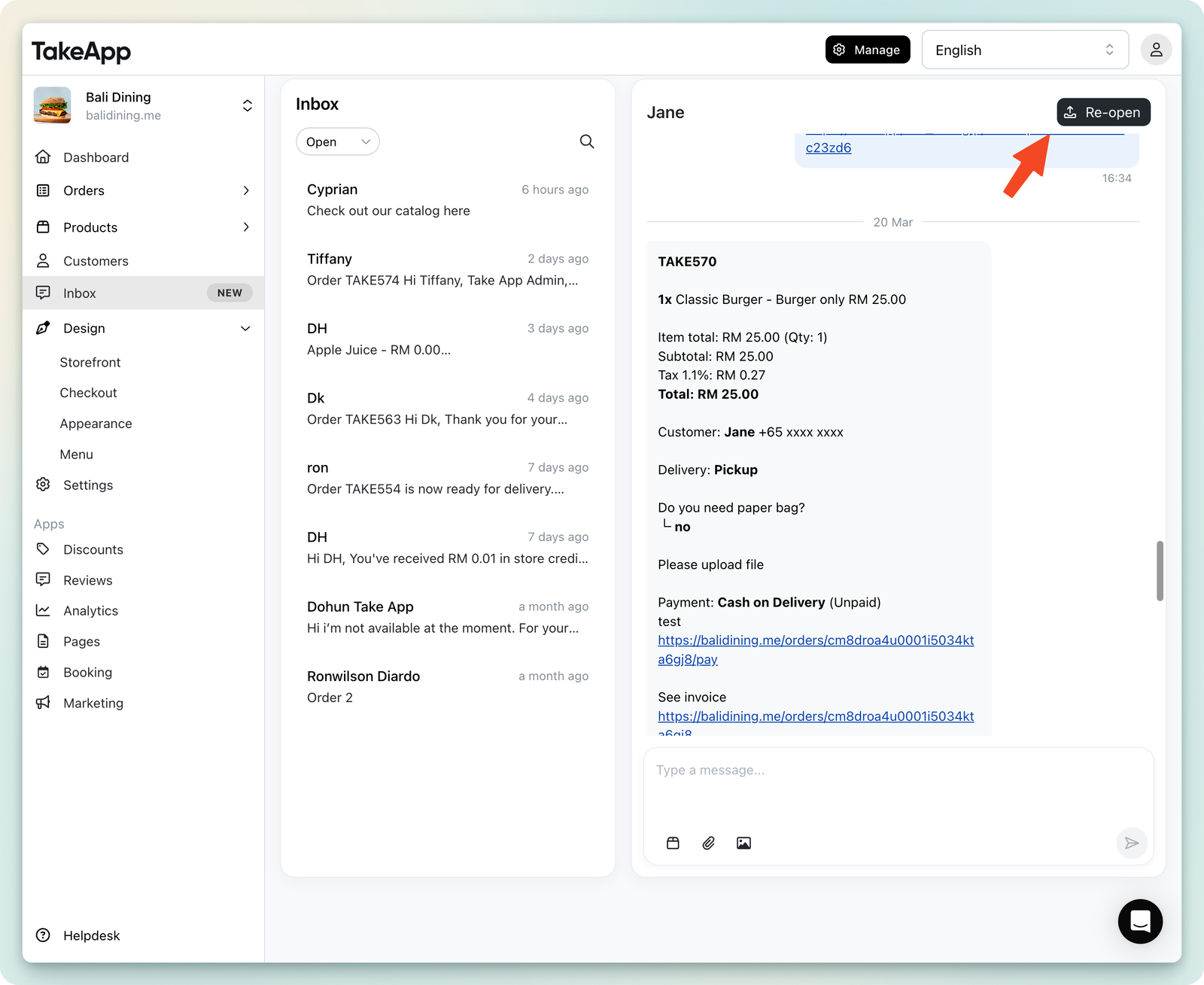
How to Reopen a Conversation
- Go to the Closed tab in the Inbox.
- Select the conversation you want to reopen.
- Click on the “Reopen” button.
- The conversation will move back to the Open tab.
✅ Automatic Reopening
- If a customer sends a new message to a closed conversation, it will automatically reopen and move to the Open tab.
Inbox Filtering
You can filter conversations to manage their inbox more effectively.
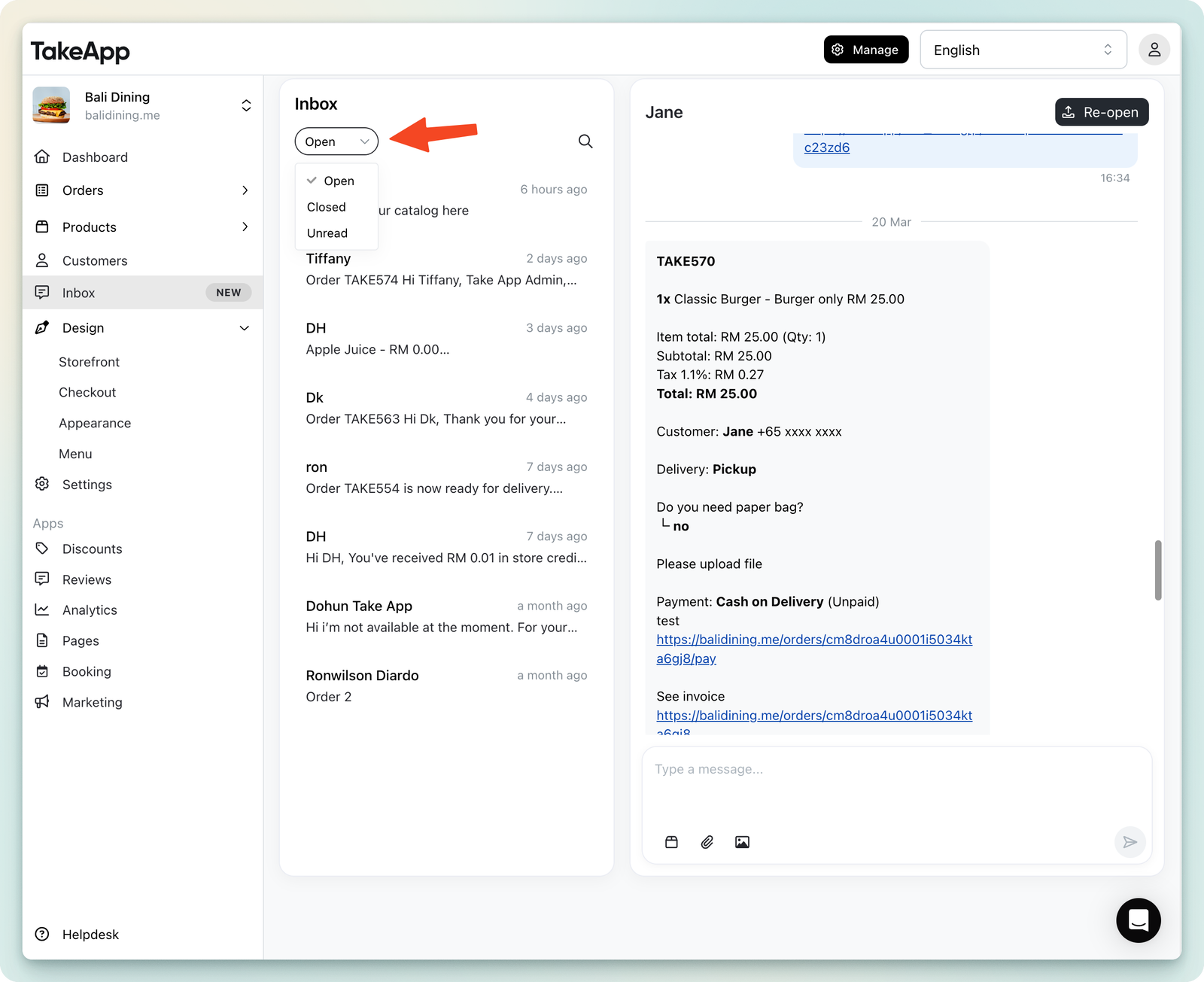
Available Filter Options:
- Open (Default) – Displays all active conversations.
- Closed – Shows conversations that have been marked as resolved.
- Unread – Highlights messages that have not been read yet.
How to Use Filters
- Open the Inbox.
- Click on the Filter option.
- Select one of the available filters (Open, Closed, or Unread).
- The inbox will update based on the selected filter.
Staff Assignment
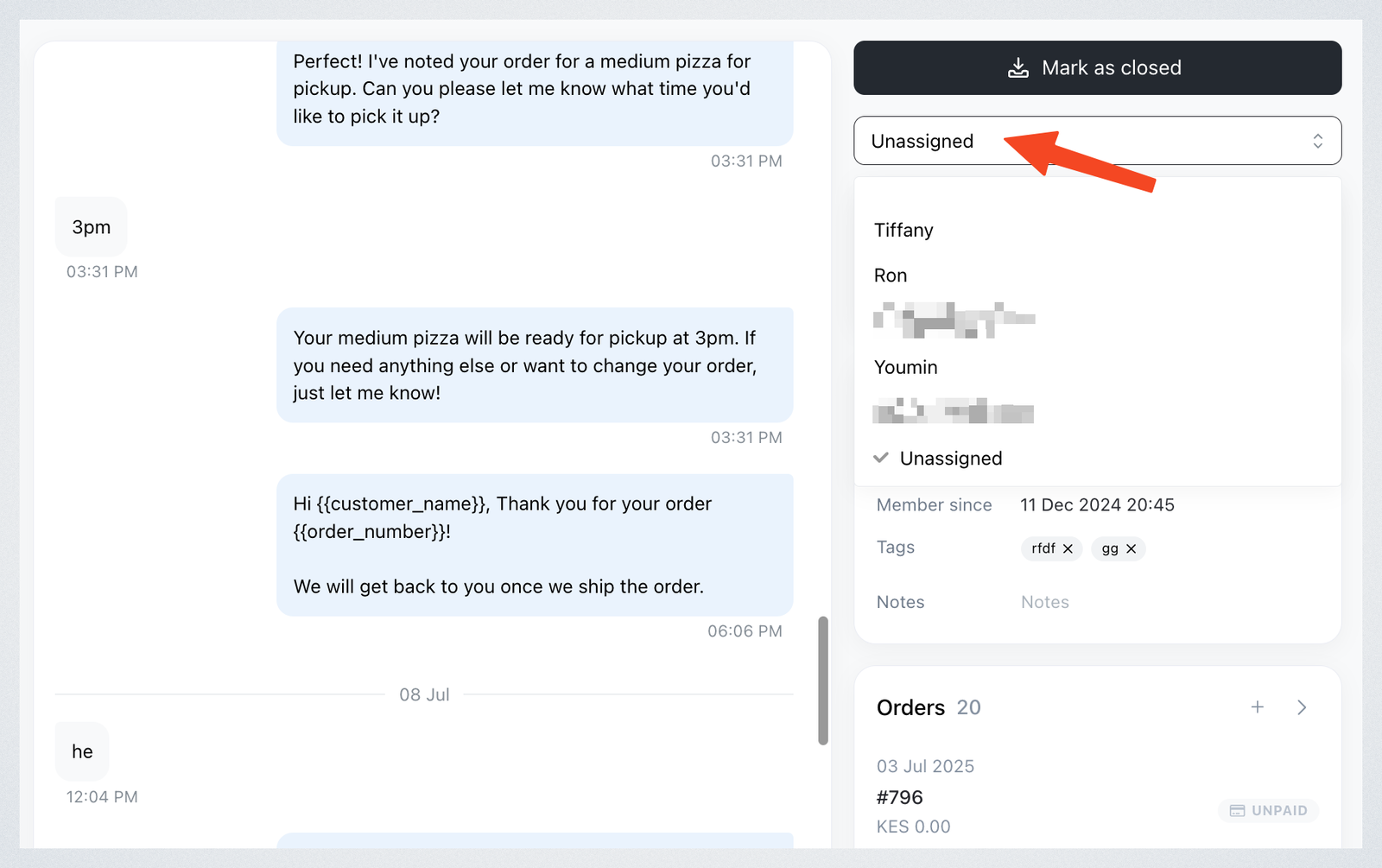
You can assign staff to conversations to ensure proper follow-up.
- Open the chat from your Inbox
- In the conversation panel at the right, select the staff member from the dropdown list
Auto-reply automation will assign staff if human help is needed.
Keyboard Shortcuts
Boost your productivity with these shortcuts:
- Cmd/Ctrl + Backspace – Close the current conversation
- Cmd/Ctrl + ↑ / ↓ – Navigate between conversations
Tip: You can also use the Search Bar with filters to find specific conversations by phone number or customer name.