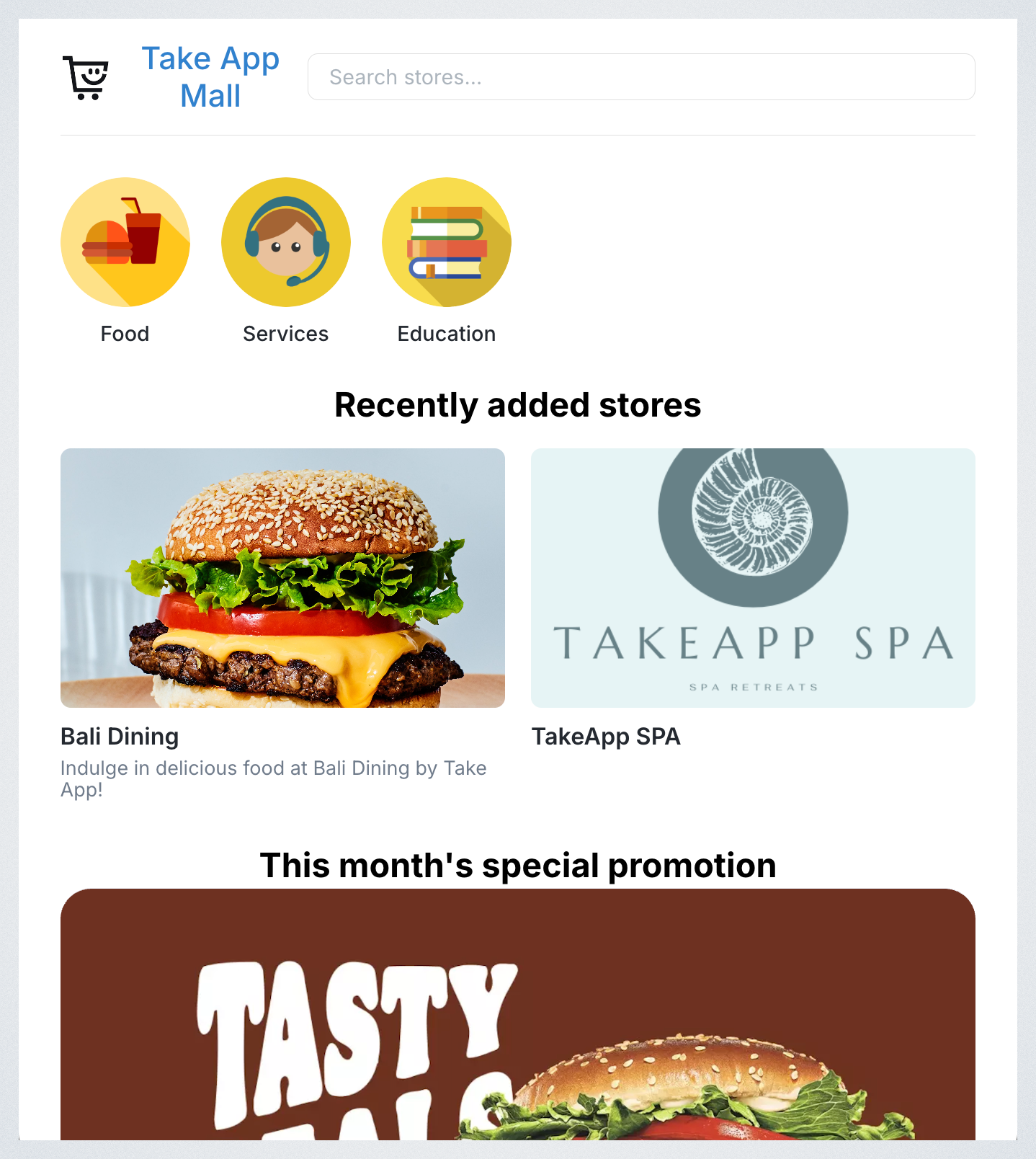
The Directory Website is perfect if you manage multiple stores, whether they are different restaurants, branches of the same brand, or even a collection of vendors. It’s ideal for multi-restaurant setups (like food delivery platforms) or chains with multiple outlets, giving your customers one place to browse and discover all your stores.
How to Access the Directory
- Go to Settings.
- Select Directory.
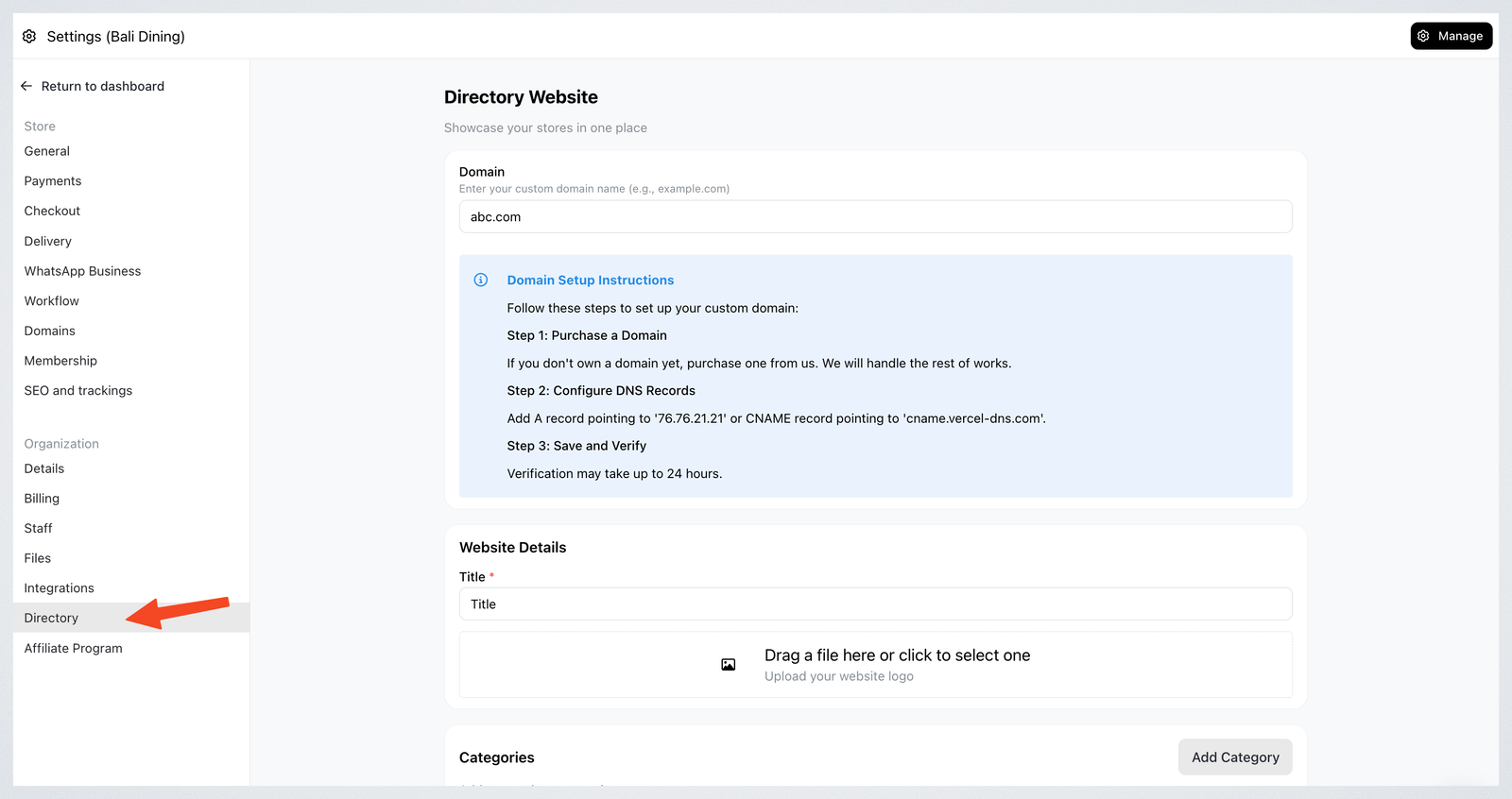
You can connect your own domain to the directory. Just follow the on-screen instructions.
⚠️ If the domain is already connected to one of your stores, you must disconnect it from that store first.
Sections of the Directory Website
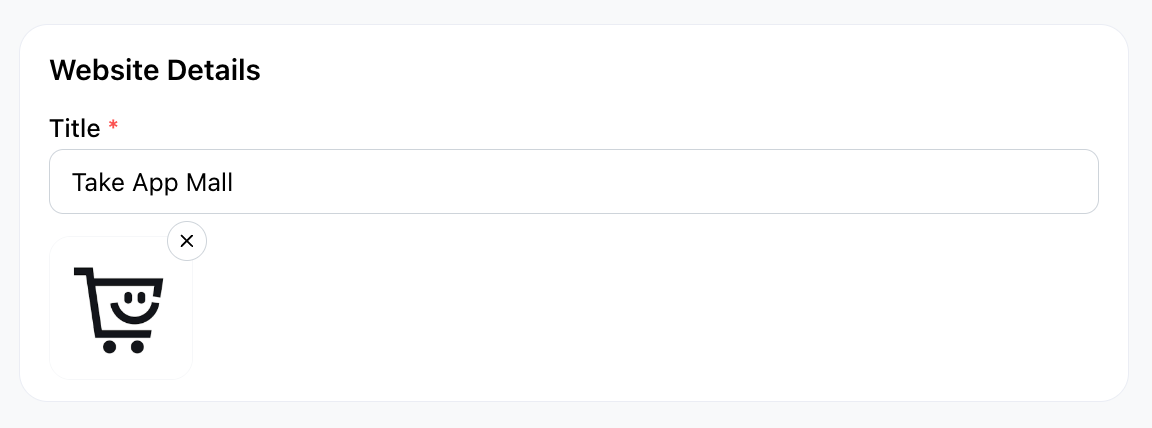
1 . Website Details
- Website Title: Set a name that represents your brand or group.
- Logo: Upload a logo that will appear on your site.
2 . Categories
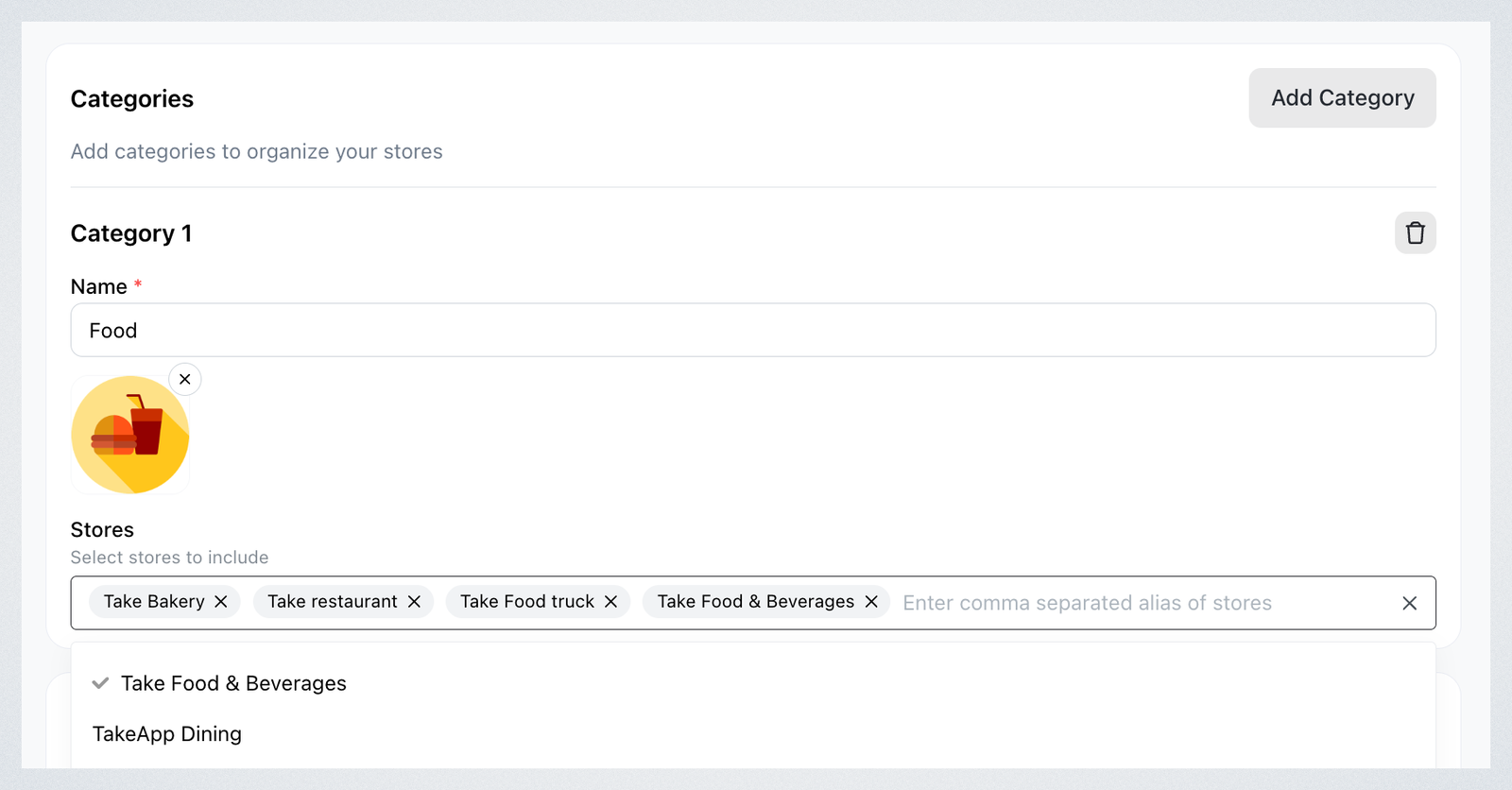
Use categories to organize your stores into logical groups, like food types (e.g., Burger, Pizza, Asian) or business type (e.g., Restaurant, Clothing, Grocery)
How to add categories
- Click on
Add Category - Input a name.
- Upload an image
- Select the stores that belong to this category from the dropdown menu.
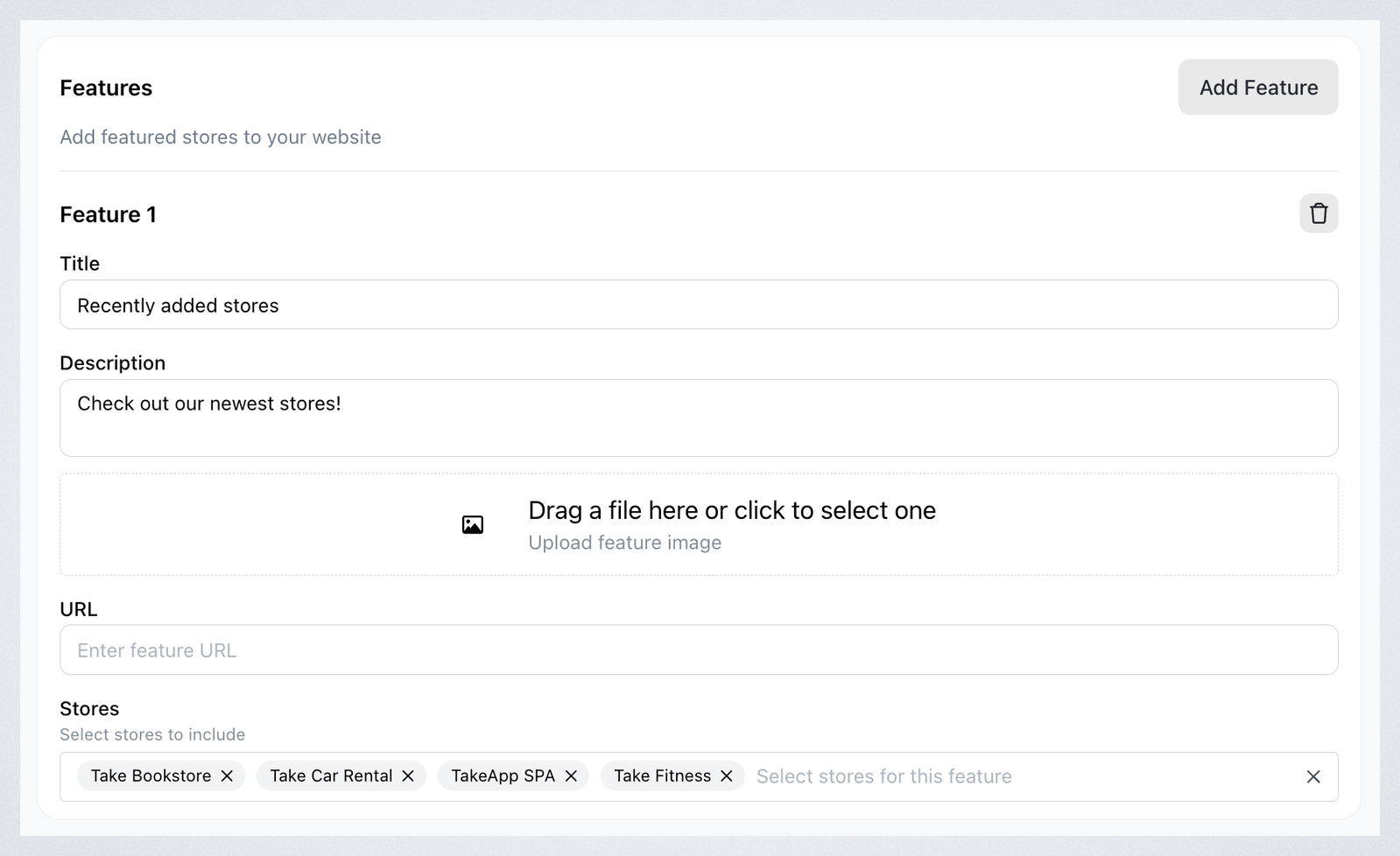
3 . Features
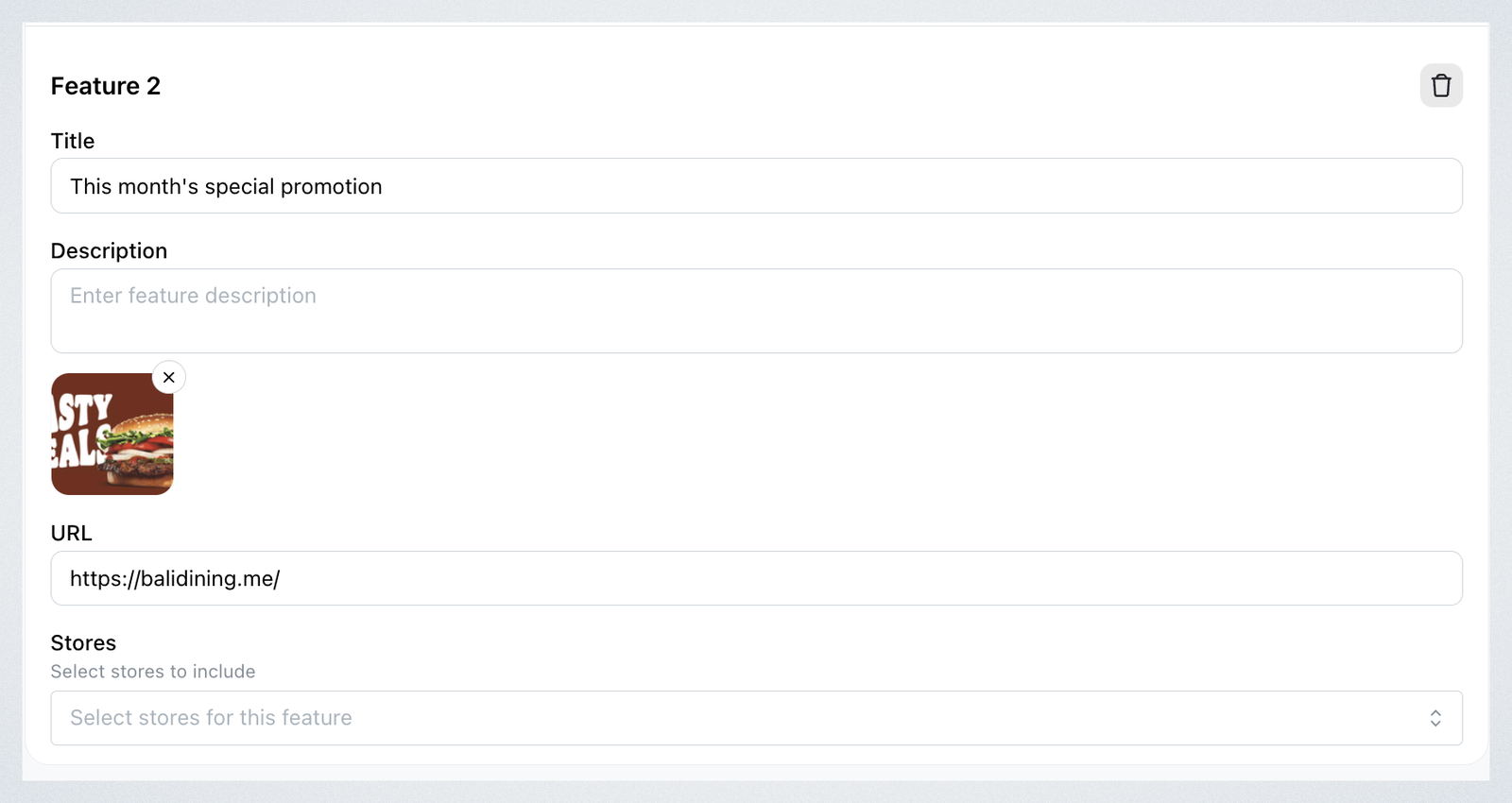
Use the Features section to highlight special content or promotions on your website. For example, "Recently Added Stores" or "This Month’s Highlights"
For each feature:
- Add a title.
- Add a description
- Add an image
- Add a link: When customers click the image, they’ll be redirected. Great to showcase offers or featured menus.
- Select Stores to feature.