
Take App offers built-in WhatsApp automation to keep your team and customers updated when specific order-related events happen. These workflows are pre-configured and automatically send WhatsApp messages to staff, customers, or drivers based on various triggers.
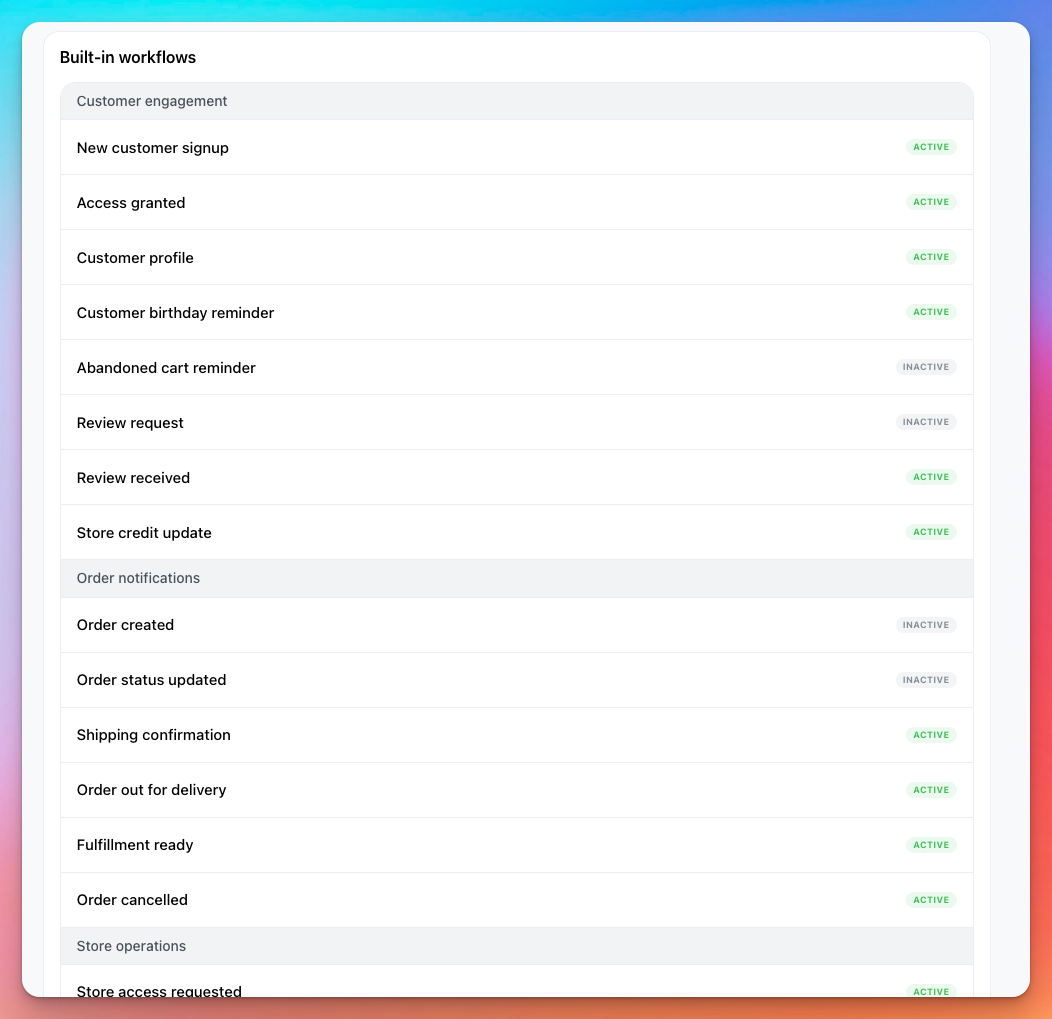
What Are Built-in Workflows?
Built-in workflows are ready-to-use automations that notify relevant parties via WhatsApp when important events occur in your store. These include scenarios such as:
- Order assigned to a staff member
- Store credit updated
- New customer signup
- Customer review received, etc.
Each workflow uses a predefined WhatsApp template message and is active by default for new stores.
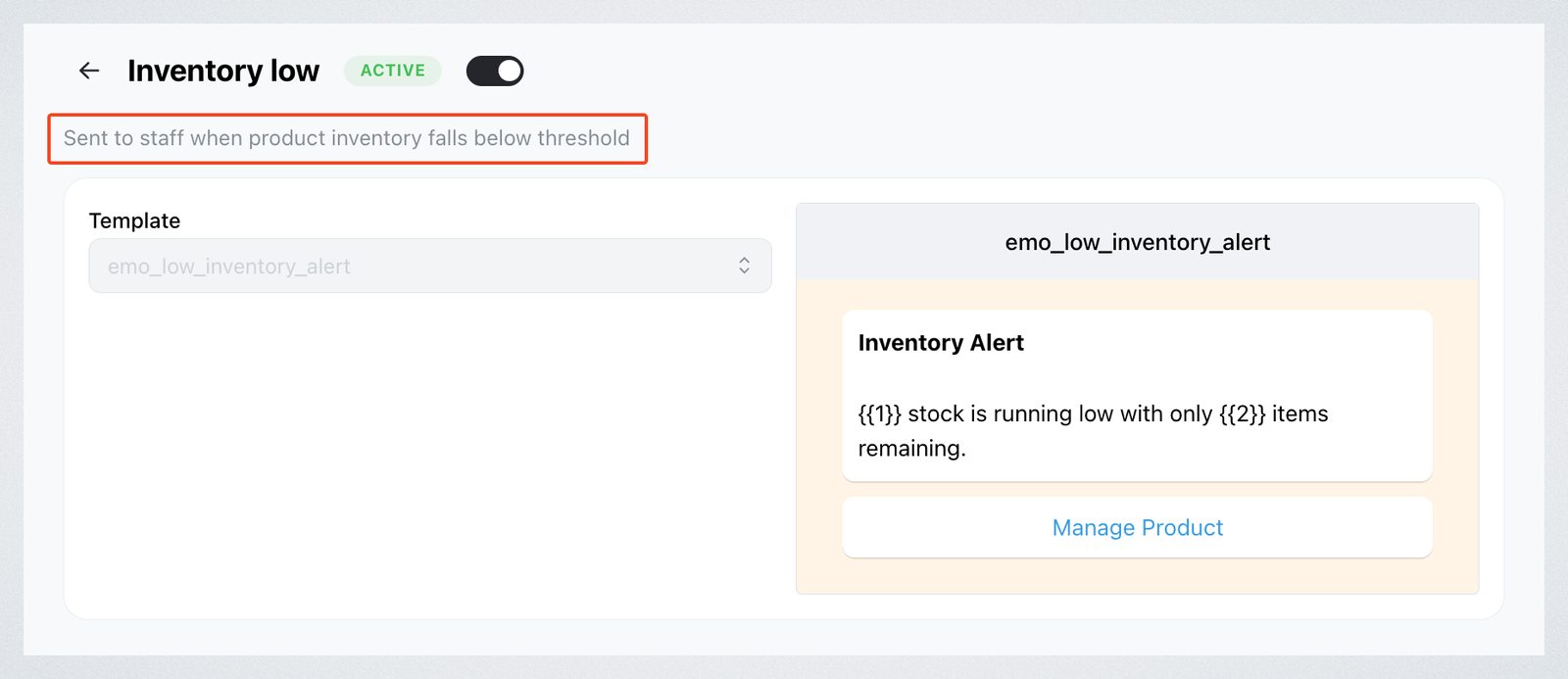
If you want to know what a workflow is about before making changes, click on it and you will see a short description under the title explaining its purpose.
How to Enable or Disable Workflows
You can now turn these workflows ON or OFF as needed.
- Go to Settings → Workflows
- Under Built-in workflows, click on any listed item (e.g., New customer signup)
- Use the toggle switch at the top right to enable or disable it.
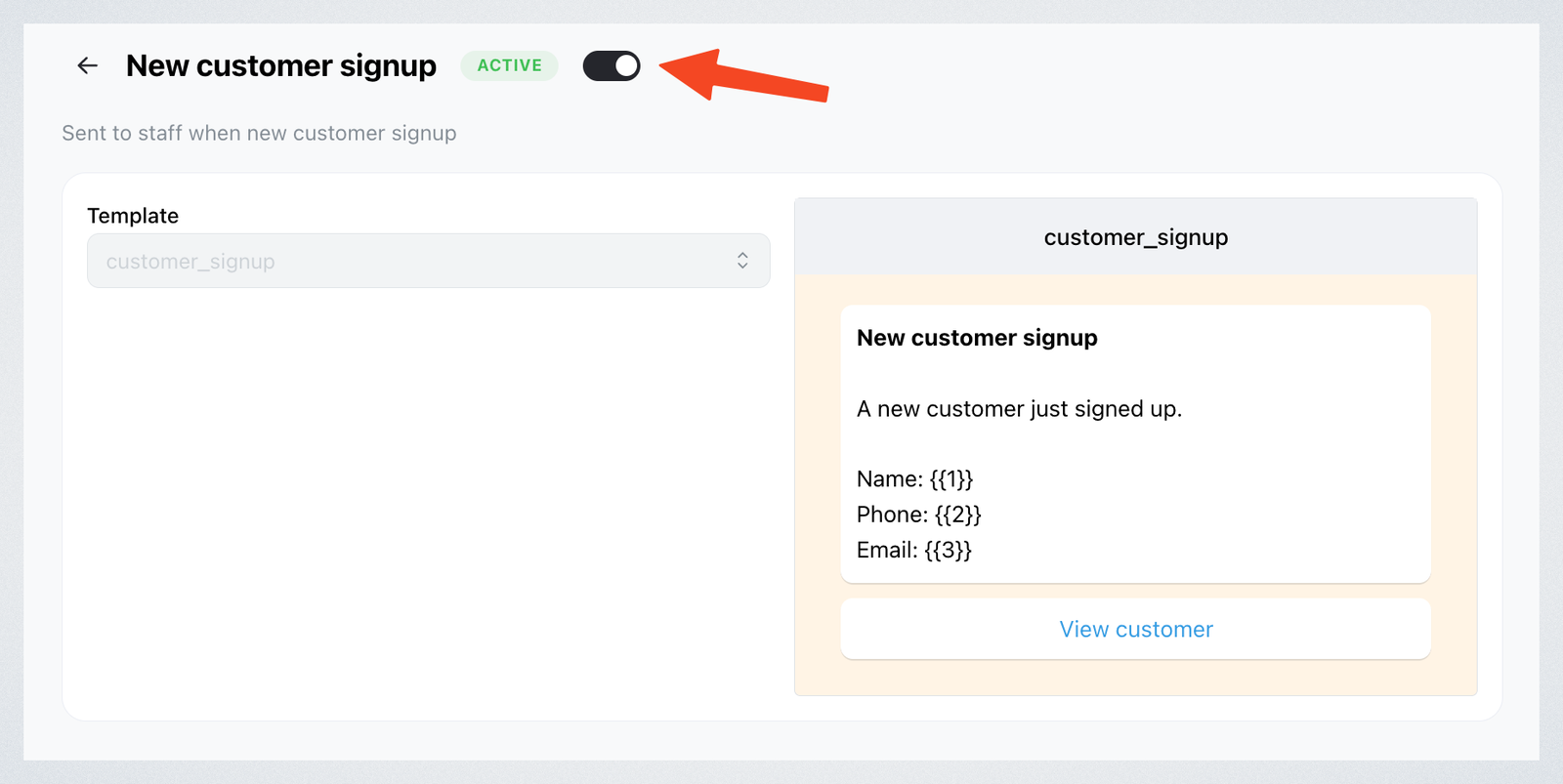
When a workflow is active, messages will be sent automatically upon the specified trigger. If it's off, no WhatsApp messages will be sent for that event.\
💡 Tip
If you have two workflows with the same trigger — one in Workflows and another in Built-in workflows — the message will be sent twice. Double-check your workflows to avoid duplicate notifications.
Choose who gets staff messages
Six built-in workflows message your staff, and on each one you can choose who gets it:
| Workflow | If you leave Send to empty |
|---|---|
| Order created | Everyone with access to the store |
| Store access requested | Everyone with access to the store |
| Inventory low | Everyone with access to the store |
| New online reservation | Everyone with access to the store |
| Order assigned | The staff member the order is assigned to |
| Fulfillment ready | The driver on the order |
- Go to Settings → Workflows and click the workflow.
- Under Send to, pick the people who should get it. Only staff with a phone number on their account can be picked.
The people you pick replace the default. On Order assigned and Fulfillment ready, that means the message goes to them instead of the assigned staff member or driver.
If none of the people you picked can be reached any more — they left, lost access to the store, or removed their phone number — the message goes to whoever it would go to with Send to empty, so nothing is missed.