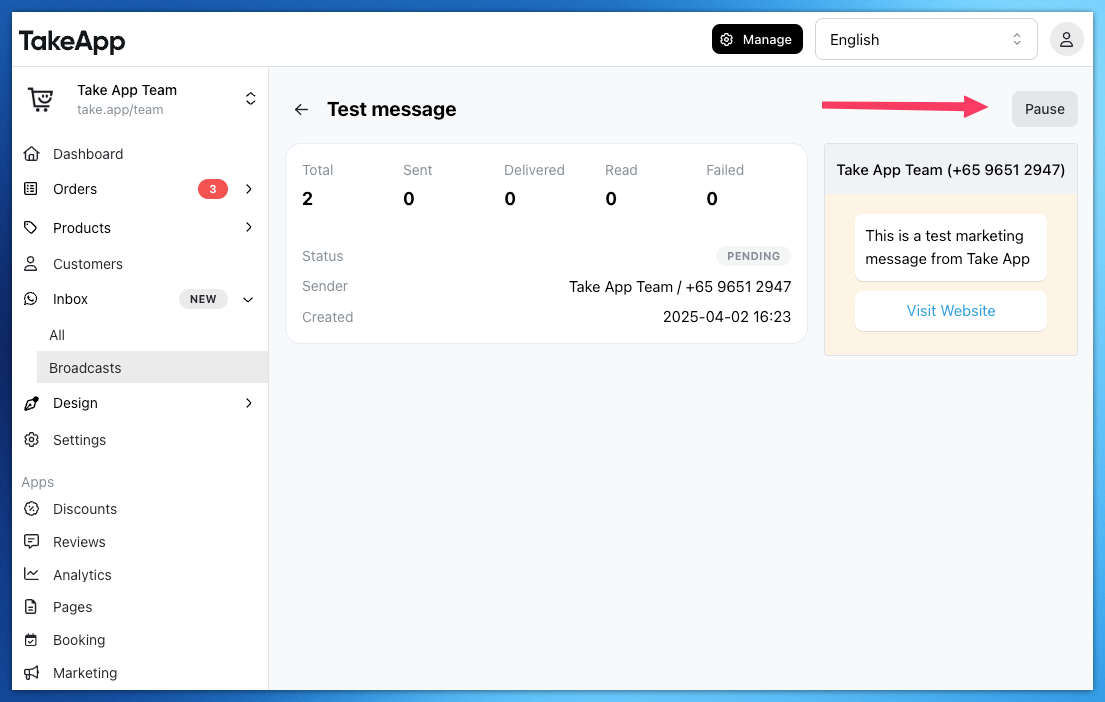
You can send broadcast messages to your customers using your own WhatsApp Business account. This feature is ideal for sending marketing messages, such as a new discount, product launch, or store update.
Step 1: Create a Message Template
Before sending a broadcast, you must first create the template:
- Go to Customers > Broadcasts and click Create Broadcast
- Fill in the content of your message, including optional image header, buttons and message variables (see below).
- Click "Create Template". The template will be submitted to Meta for approval (can take up to 3 days).
Step 2: Send the Broadcast
Once your template is approved, you can send your broadcast in two ways:
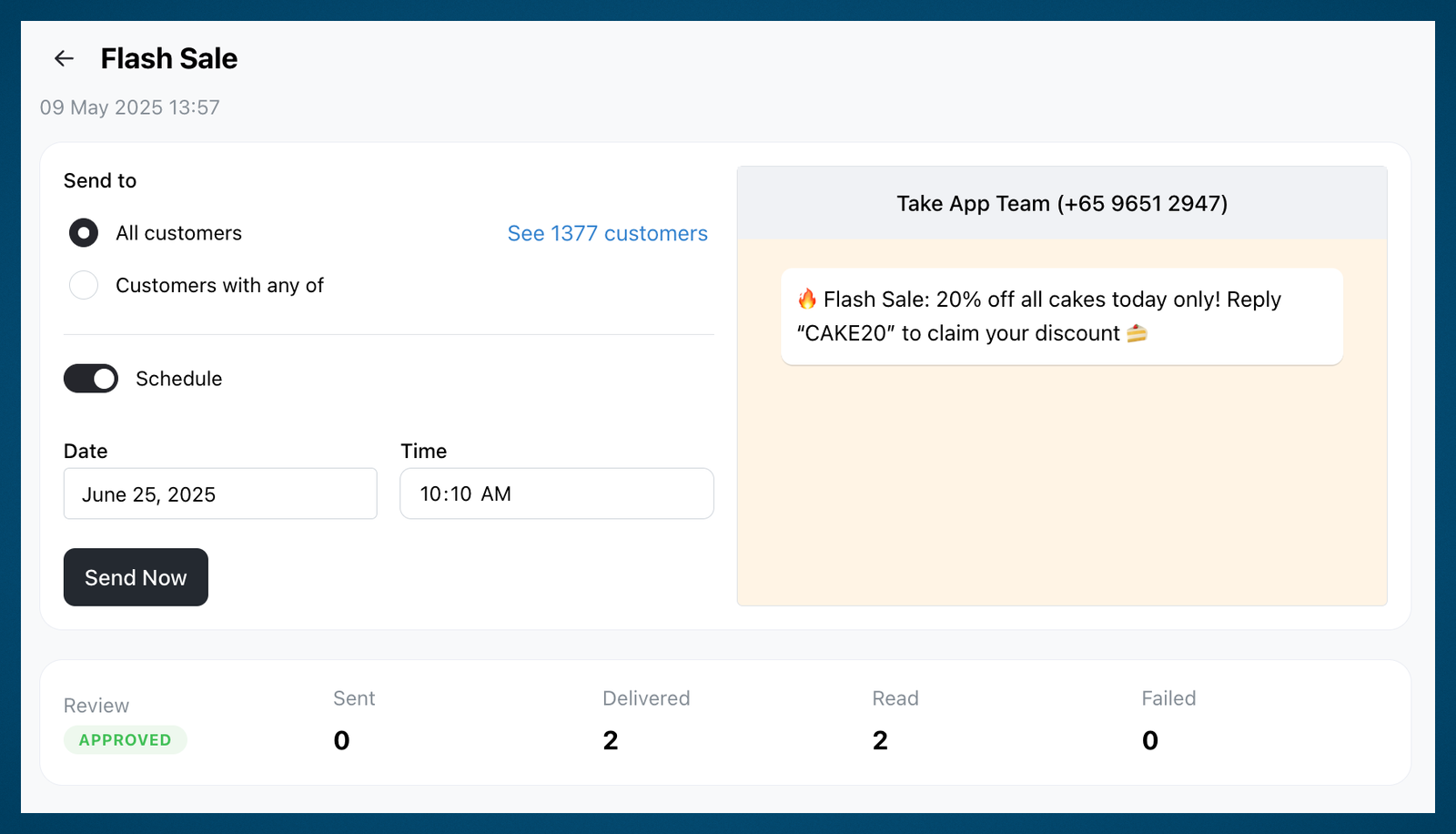
- Send Immediately
- Click "Send Now" to send the message right away to your selected recipients.
- Schedule for Later
- Toggle "Schedule".
- Choose your preferred date and time.
- Click "Send Now" to confirm the scheduled broadcast.
Choosing Recipients
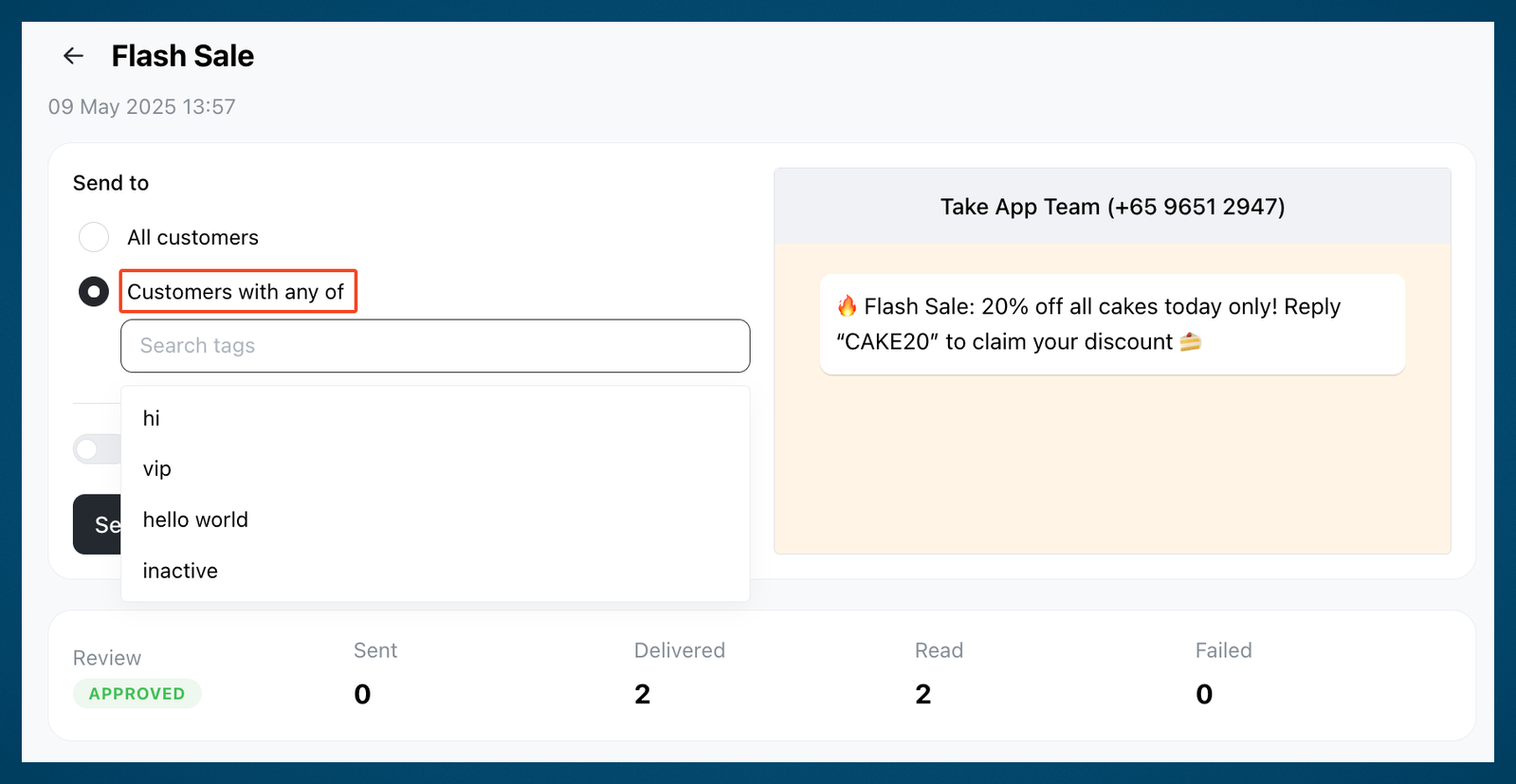
You can choose who receives your broadcast:
- Send to all customers (Max. is depending on your WhatsApp account. You can check your limit by going to Settings > WhatsApp Business)
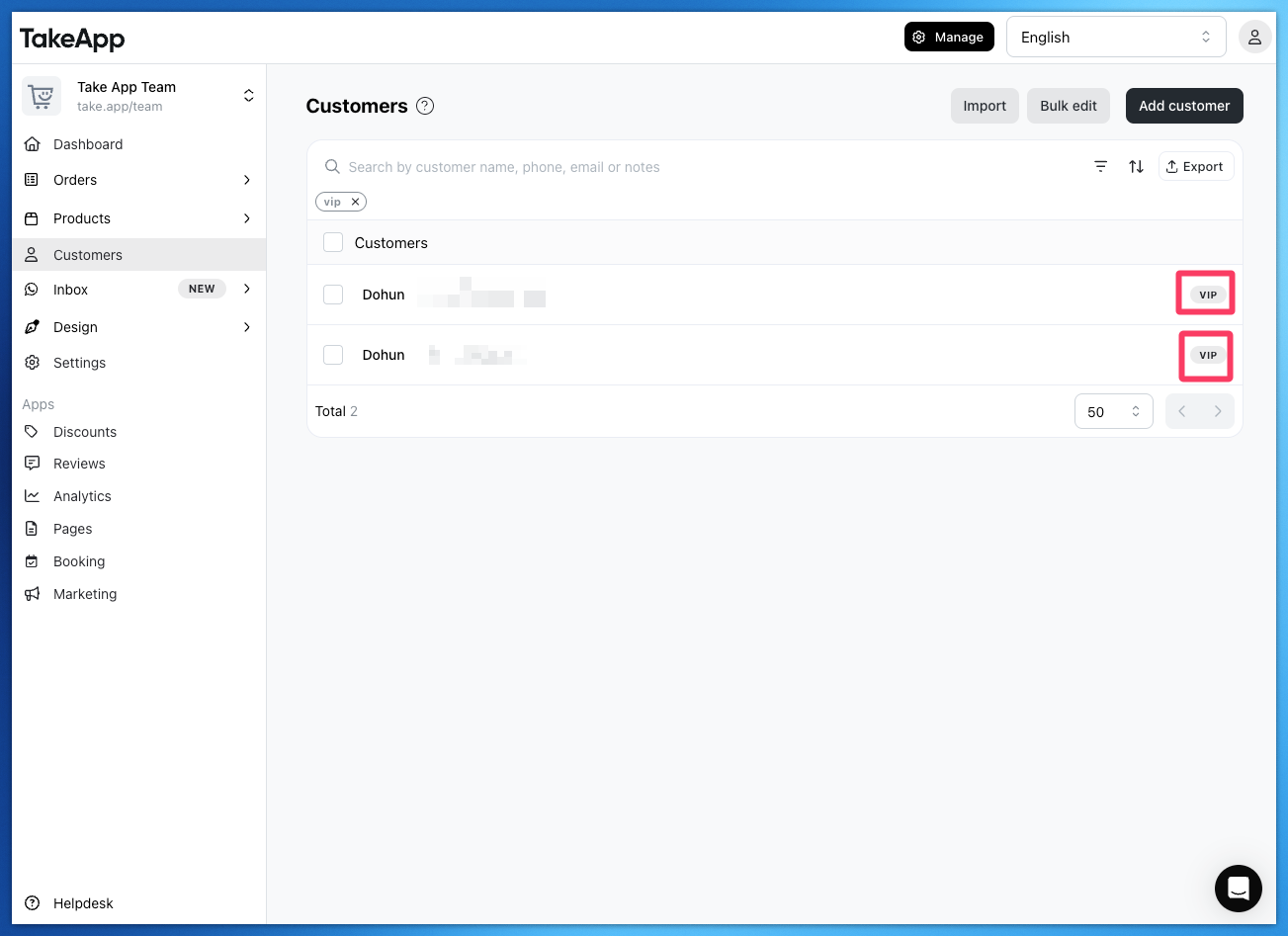
- Customers with any of specific tags
- You can go to Customers page to assign tags to specific customers or use existing tags to select a group of customers
Attach image header in the template
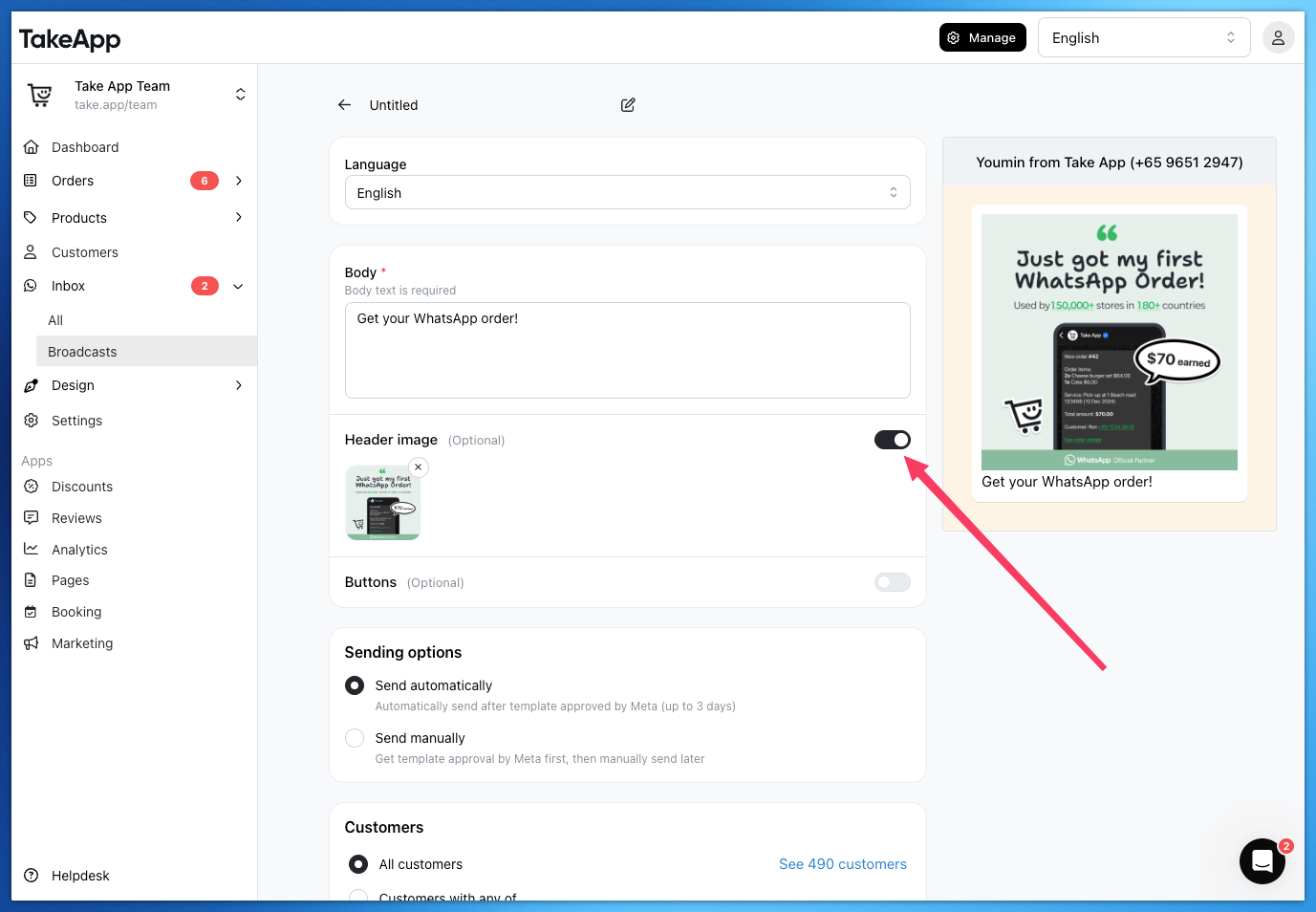
Toggle "Header Image" on to attach a image for your broadcast template.
It is optional to attach an image.
Broadcast Message Variables
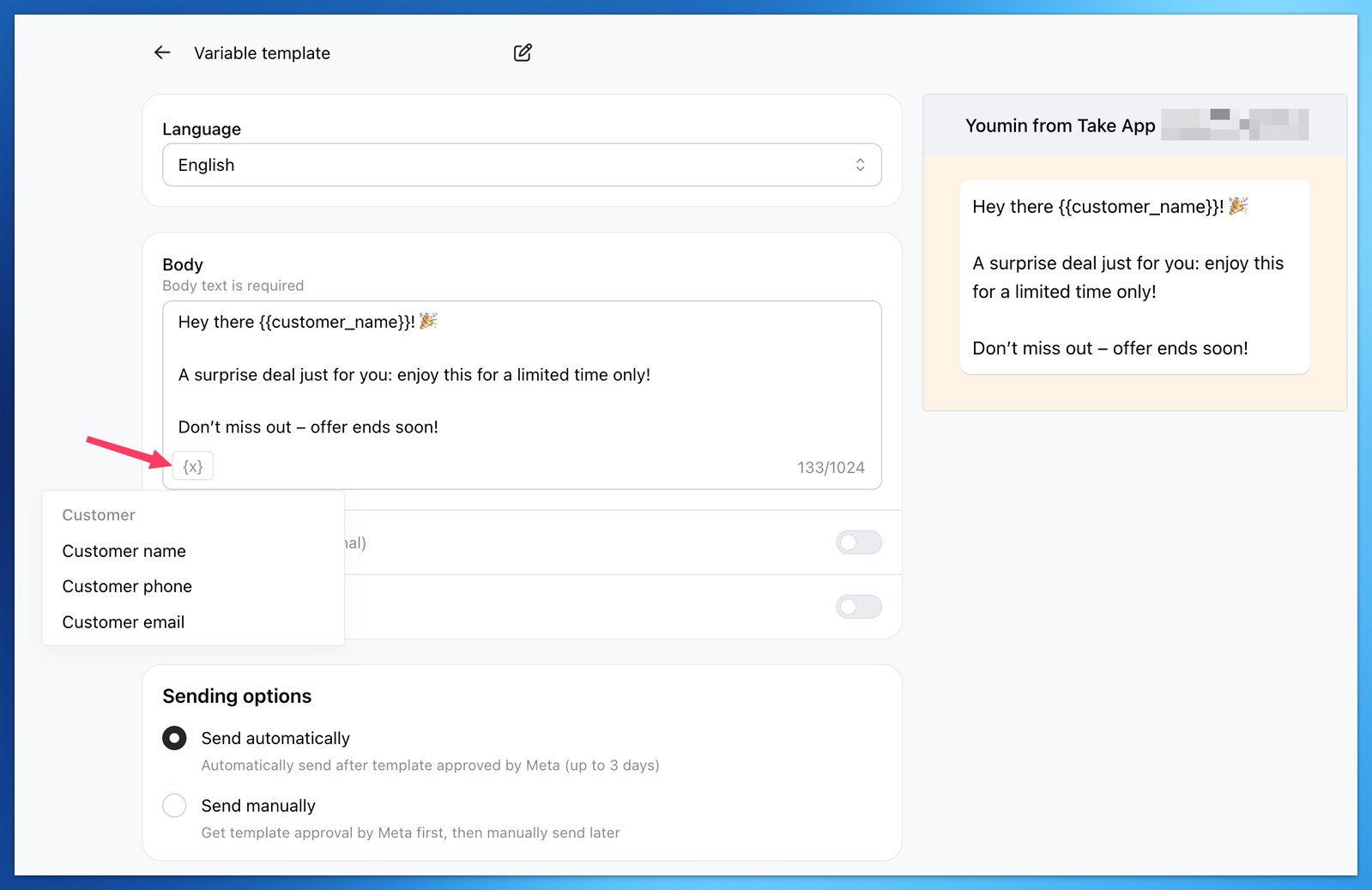
Make your messages feel more personal by using dynamic variables like:
- Customer name
- Customer phone number
- Customer email
To add a variable, click the {x} button in the body text and choose the variable you'd like to insert. This is a great way to personalize your broadcasts and improve open rates. Don't start or end the body with a variable; if create fails, the error message shows Meta's reason.
Pausing or Canceling a Broadcast
If you change your mind, you can pause or cancel a pending broadcast by clicking the Pause button in the top right corner.
⚠️ Once the broadcast has started sending—or has already been sent—it can no longer be paused or canceled.