
Learn how to invite team members to your Take App store
Invite a team member
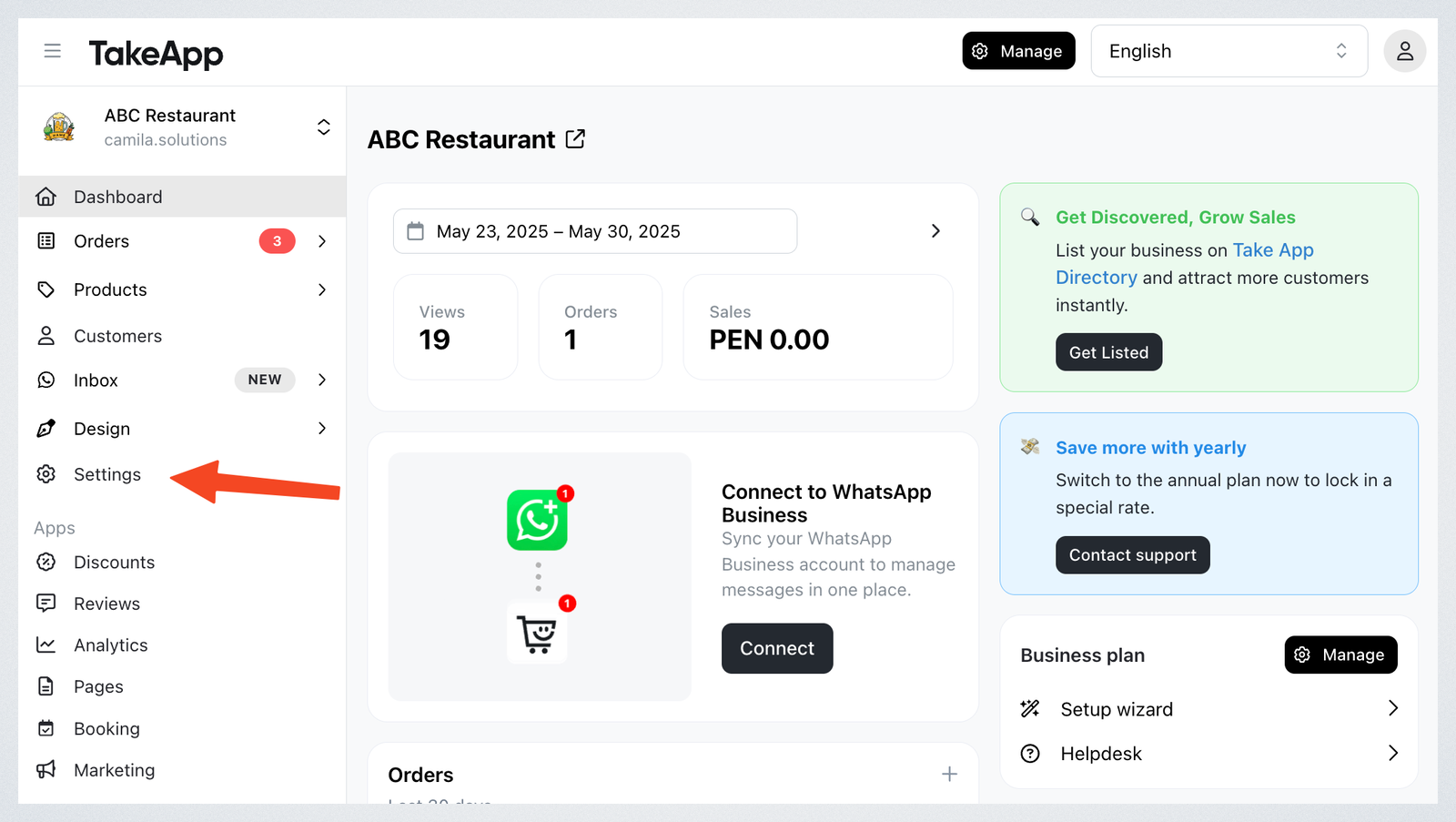
Step 1: Navigate to Settings.
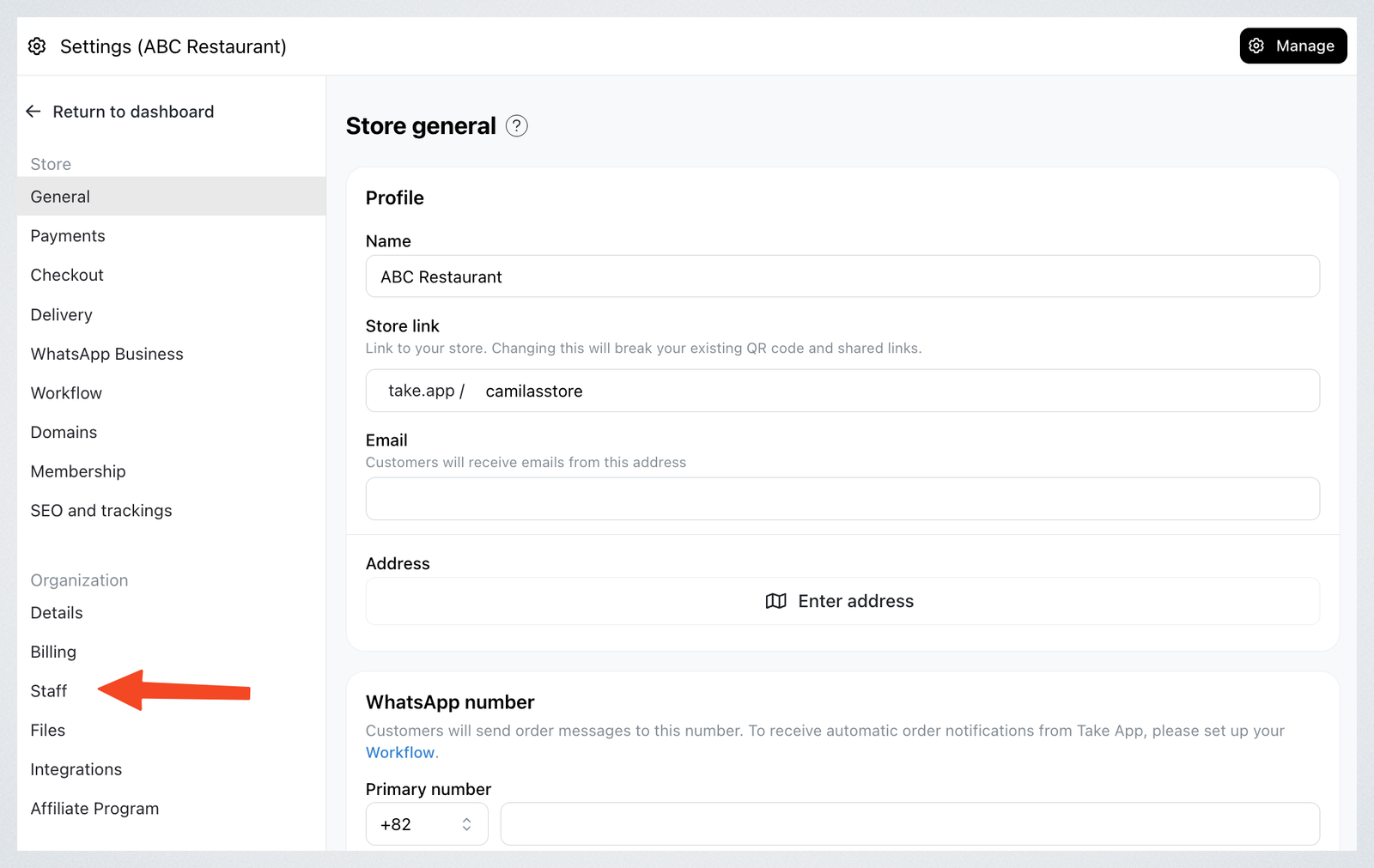
Step 2: Proceed to Staff.
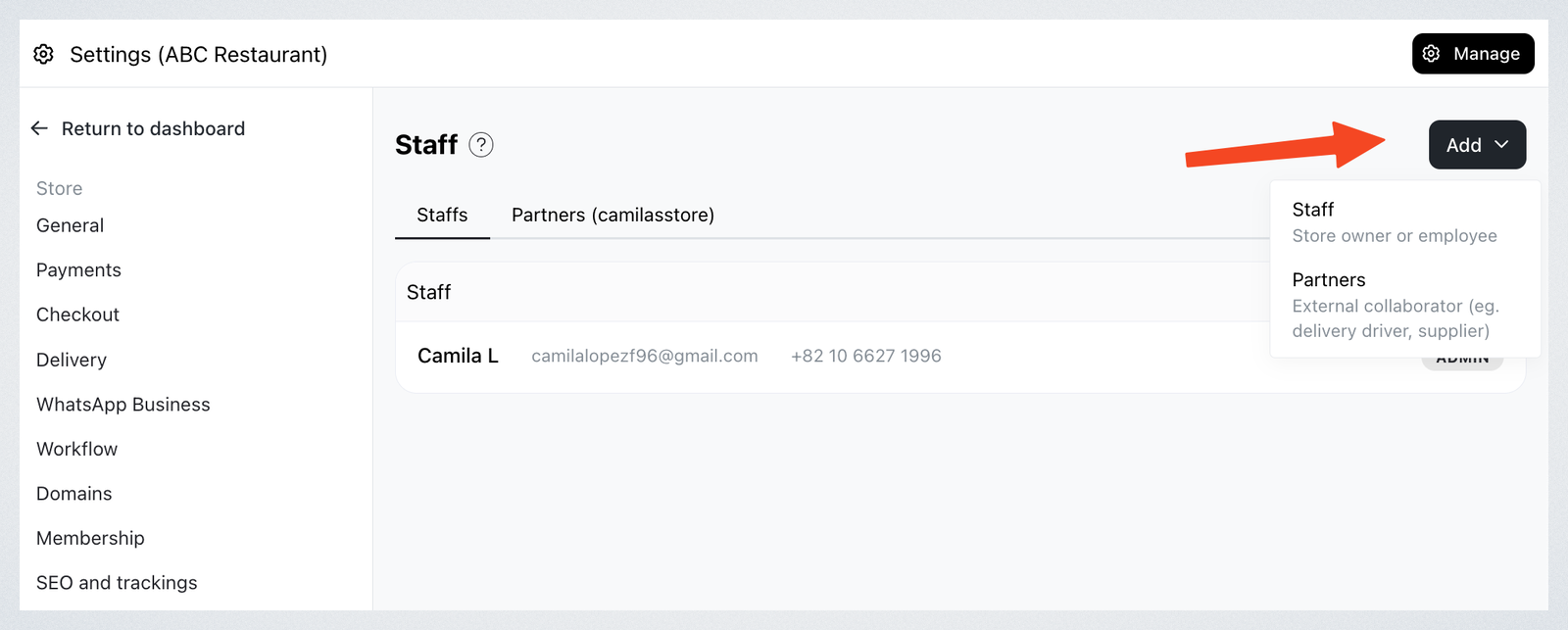
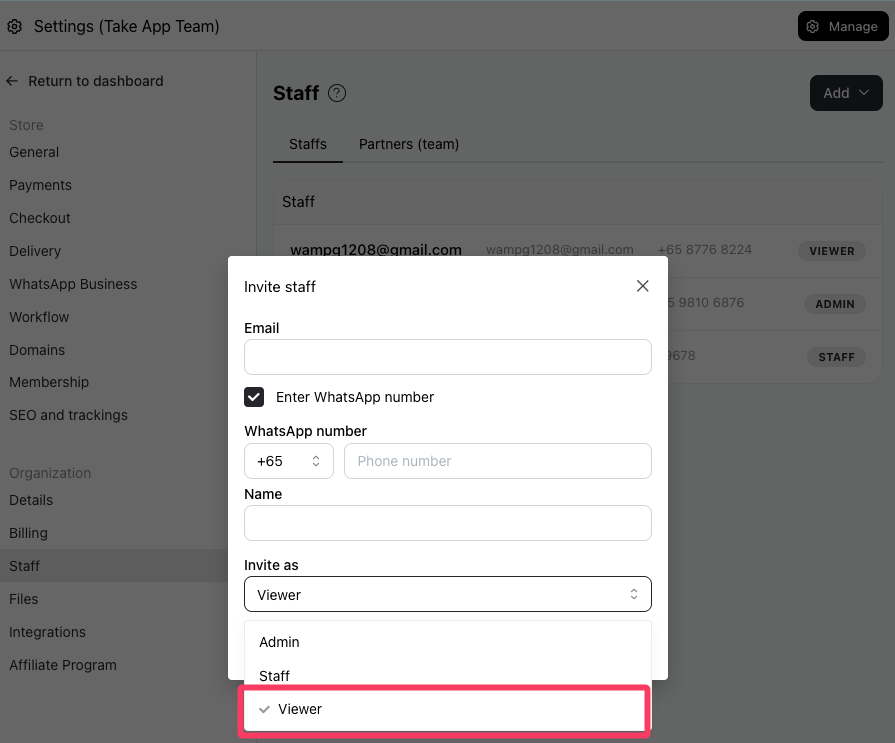
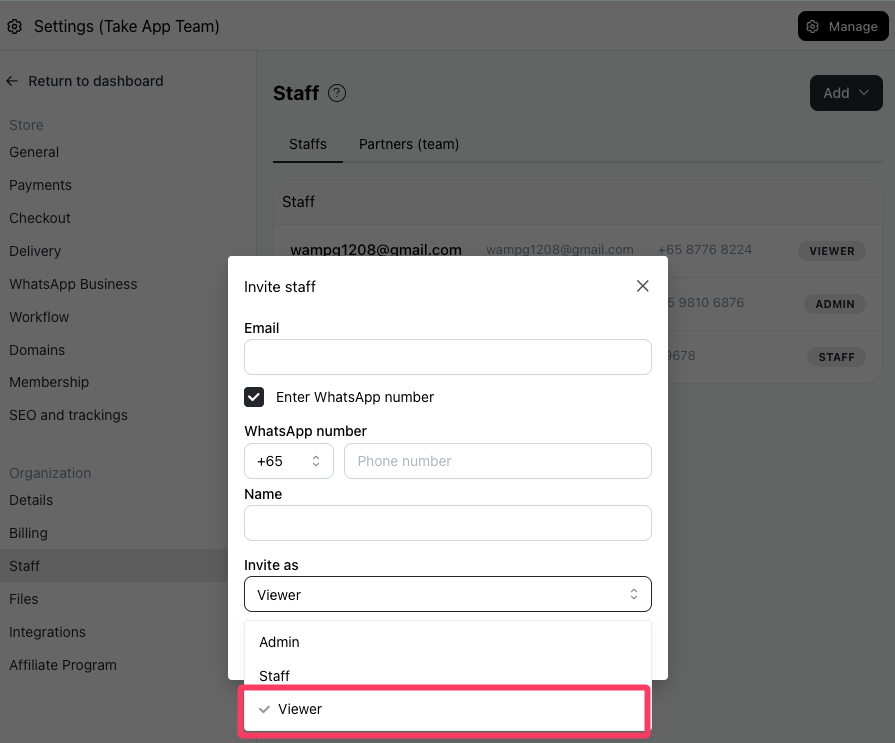
Step 3: Click on Add and choose the role you want to invite — Staff or Viewer.
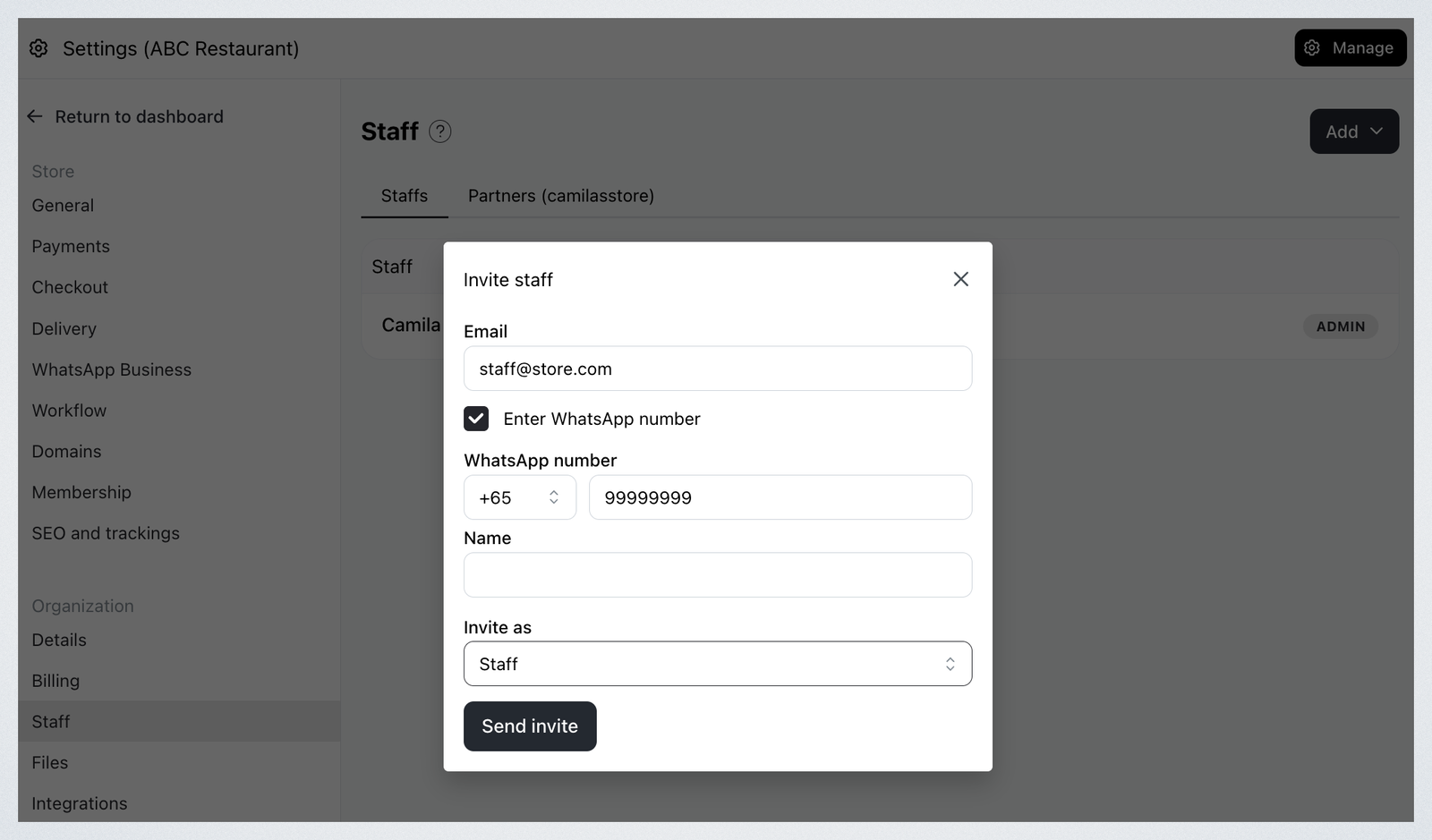
Step 4: Input the email addresses and WhatsApp number (if wanted) of the members you want to invite. Click Send Invite.
Step 5: Refresh the page and check if the staff has properly been invited.
Assigning Access to Stores
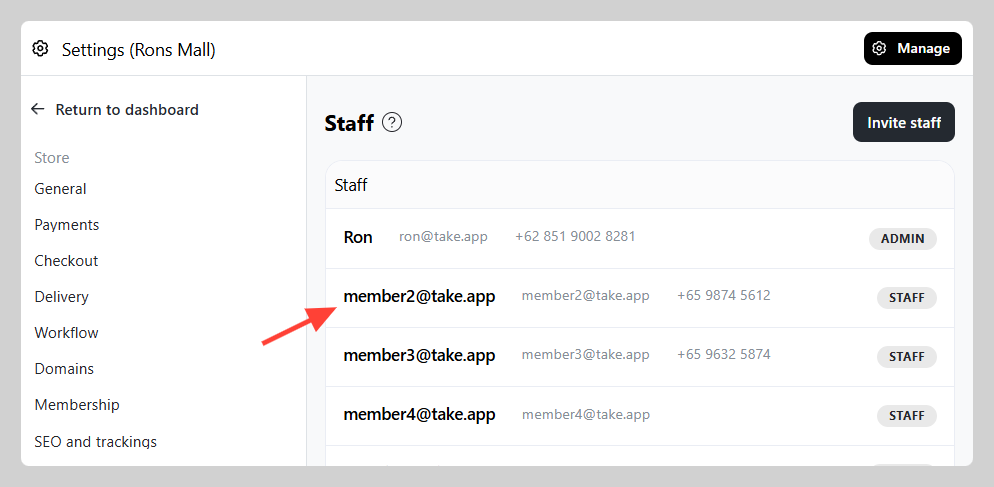
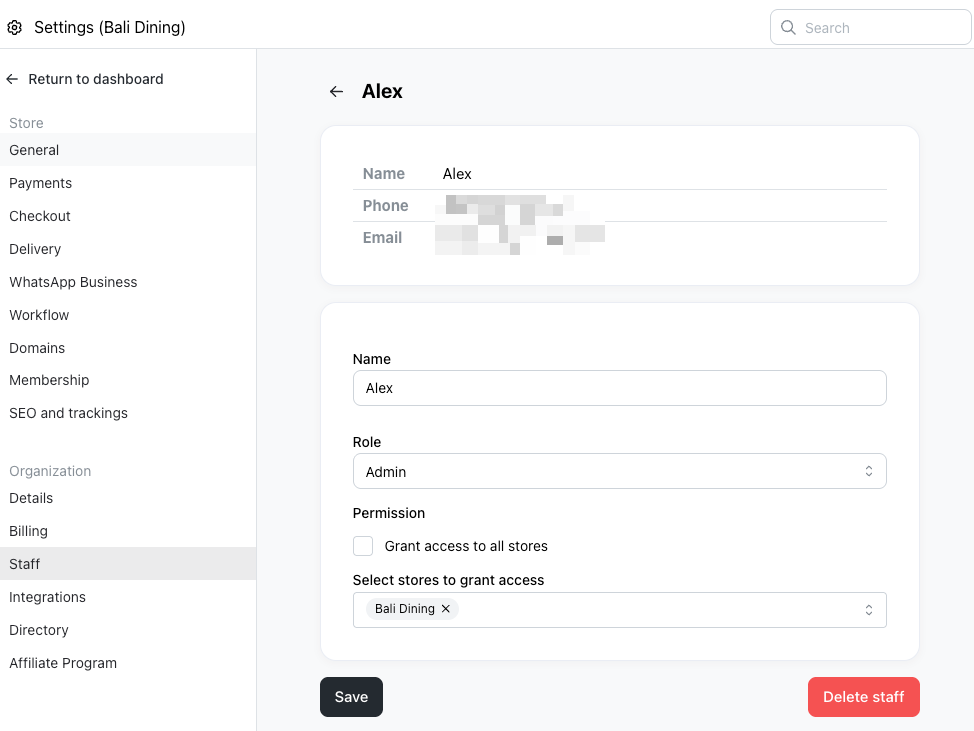
Step 1: Click on the Admin or Staff member you wish to assign access to.
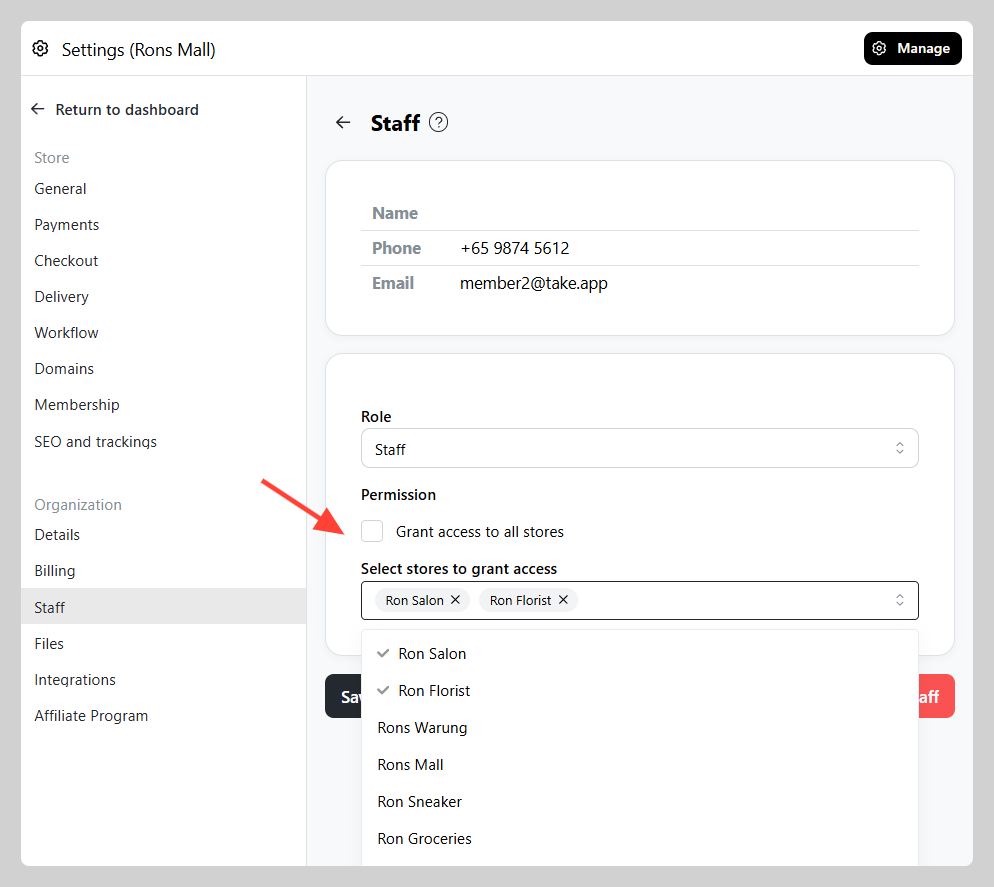
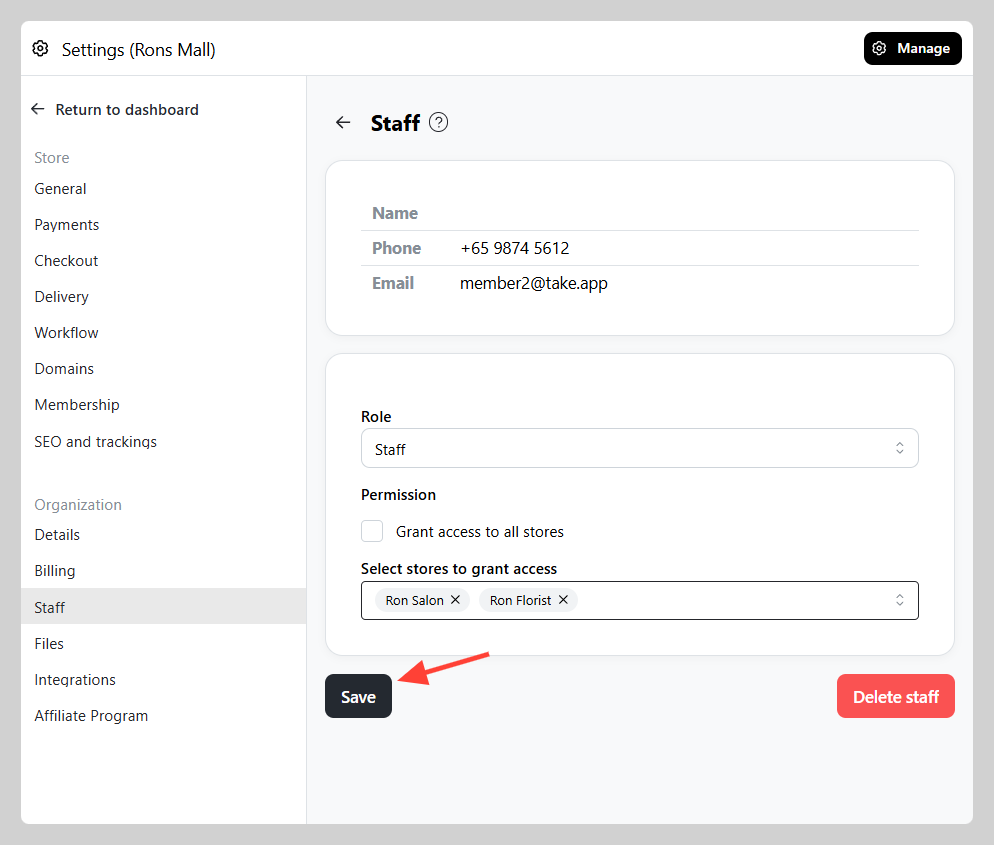
Step 2: Untick "Grant access to all stores". Assign one or more store to grant them access. Click "Save".
Unticked and with no store chosen means no stores — the member will see nothing. Pick at least one store, or leave the box ticked. The form will not save an empty selection.
Staff Roles
Admin (Owner)
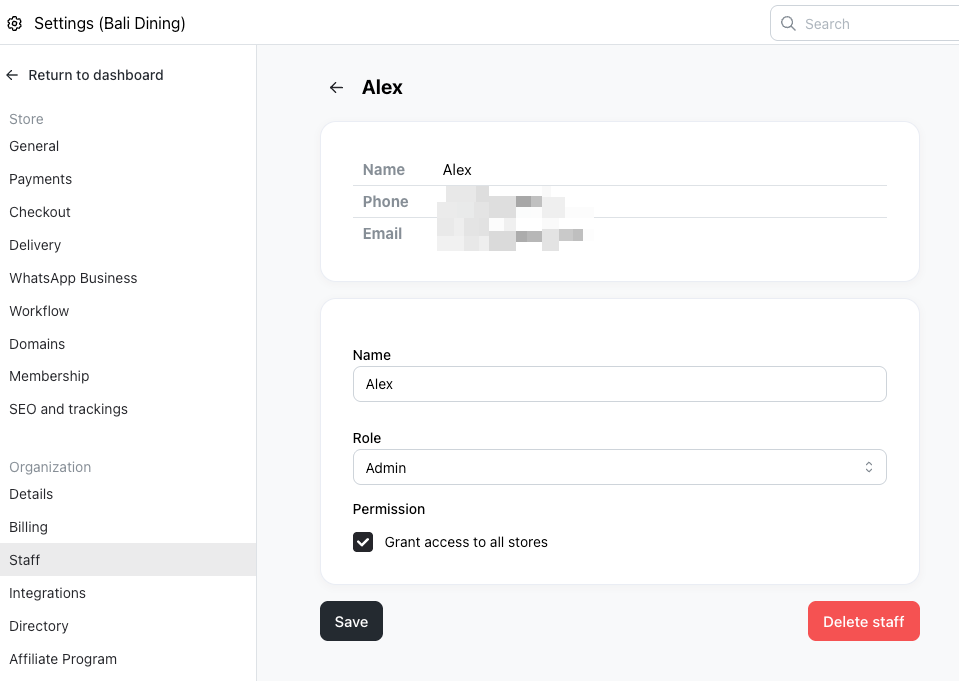
The first Admin who joined the Organisation or Admin with access to all stores has full access to the stores and the ability to manage all users. Only the Admin can modify or remove other Staff. For an Admin, "Grant access to all stores" also grants Organisation settings.
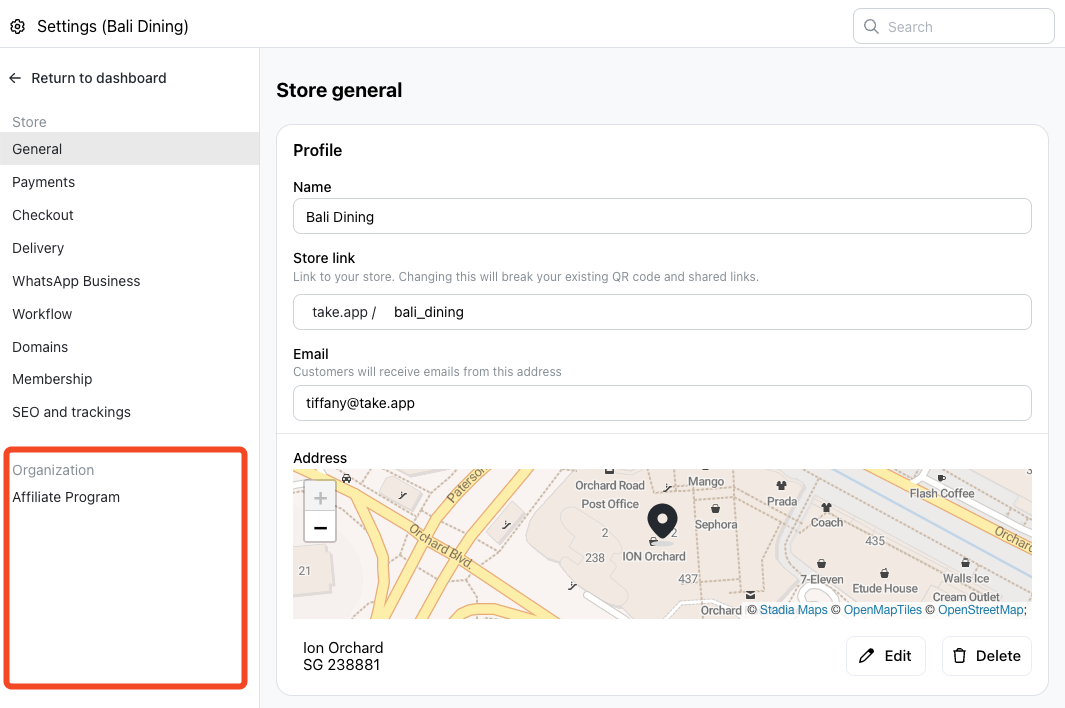
Admin with limited Store Permission
Has full access to the settings of the stores they were given, but not Organisation settings — Billing, Staff and Integrations are closed to them, including by opening the address directly. They cannot create a new store.
Staff
Has limited access to the stores (according to Admin's configuration) and cannot modify/remove the Admin. Staff has no access to Analytics and Settings of the store, and cannot create a new store.
Viewer
The most restricted role. Choose Viewer when you add the member, and they will have no access to the Settings page and will not be able to update or delete anything in the store.
What each role can do
| Create a store | Organisation settings | Store settings | Add, edit, delete | |
|---|---|---|---|---|
| Admin (Owner) | Yes | Yes | Yes | Yes |
| Admin with limited store permission | No | No | Yes | Yes |
| Staff | No | No | No | Yes |
| Viewer | No | No | No | No |
Organisation settings are Billing, Staff and Integrations. Roles are checked when the page loads and again when the change is saved, so a page cannot be reached by typing its address.
Your role comes from what the member row says today. An Admin who is later changed to Staff or Viewer gets that role's access, even if they were the one who created the organisation.