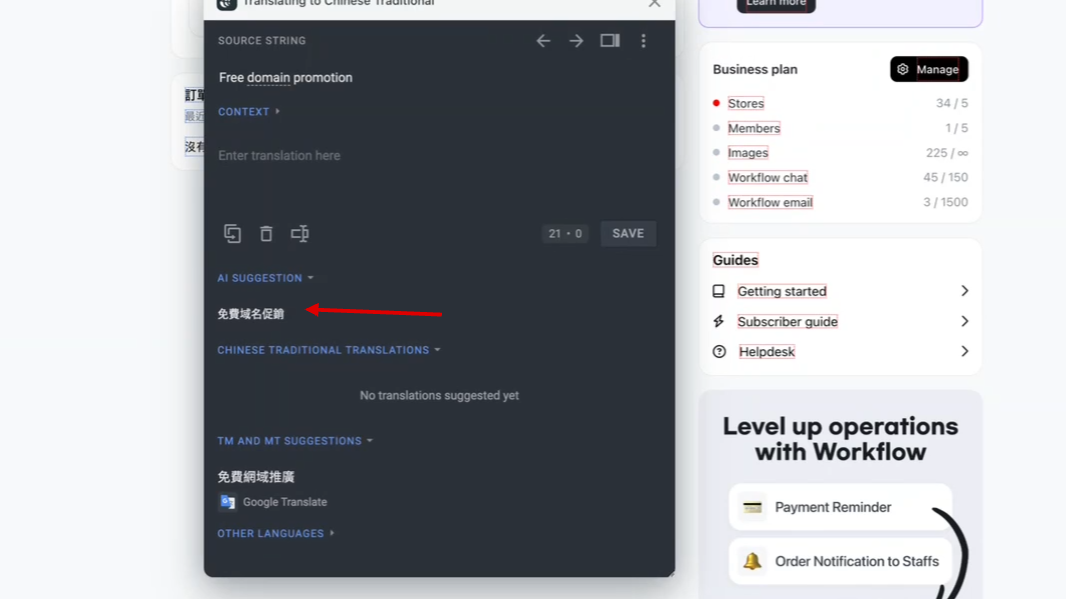
How to contribute to translation
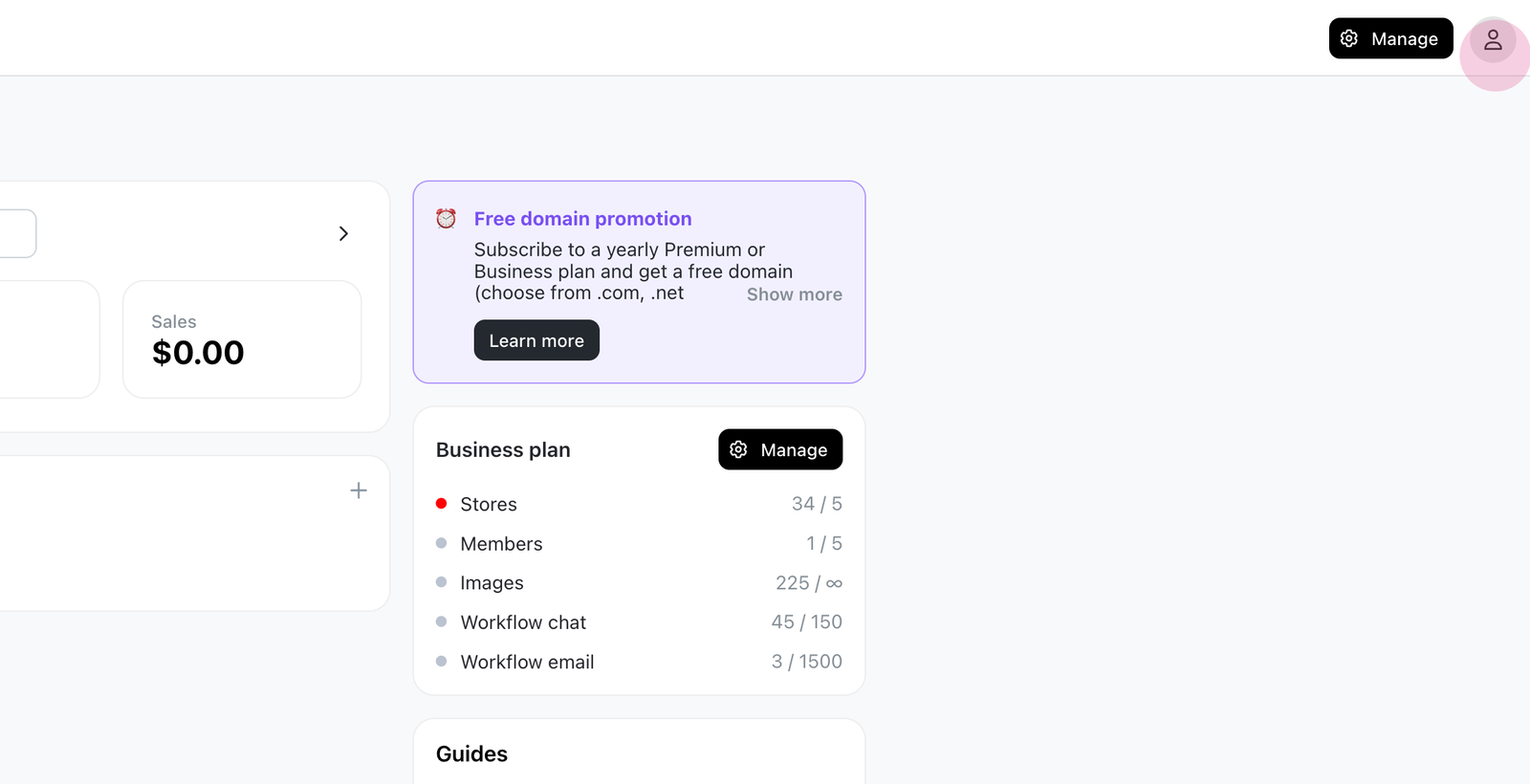
Step 1: Click the account icon.
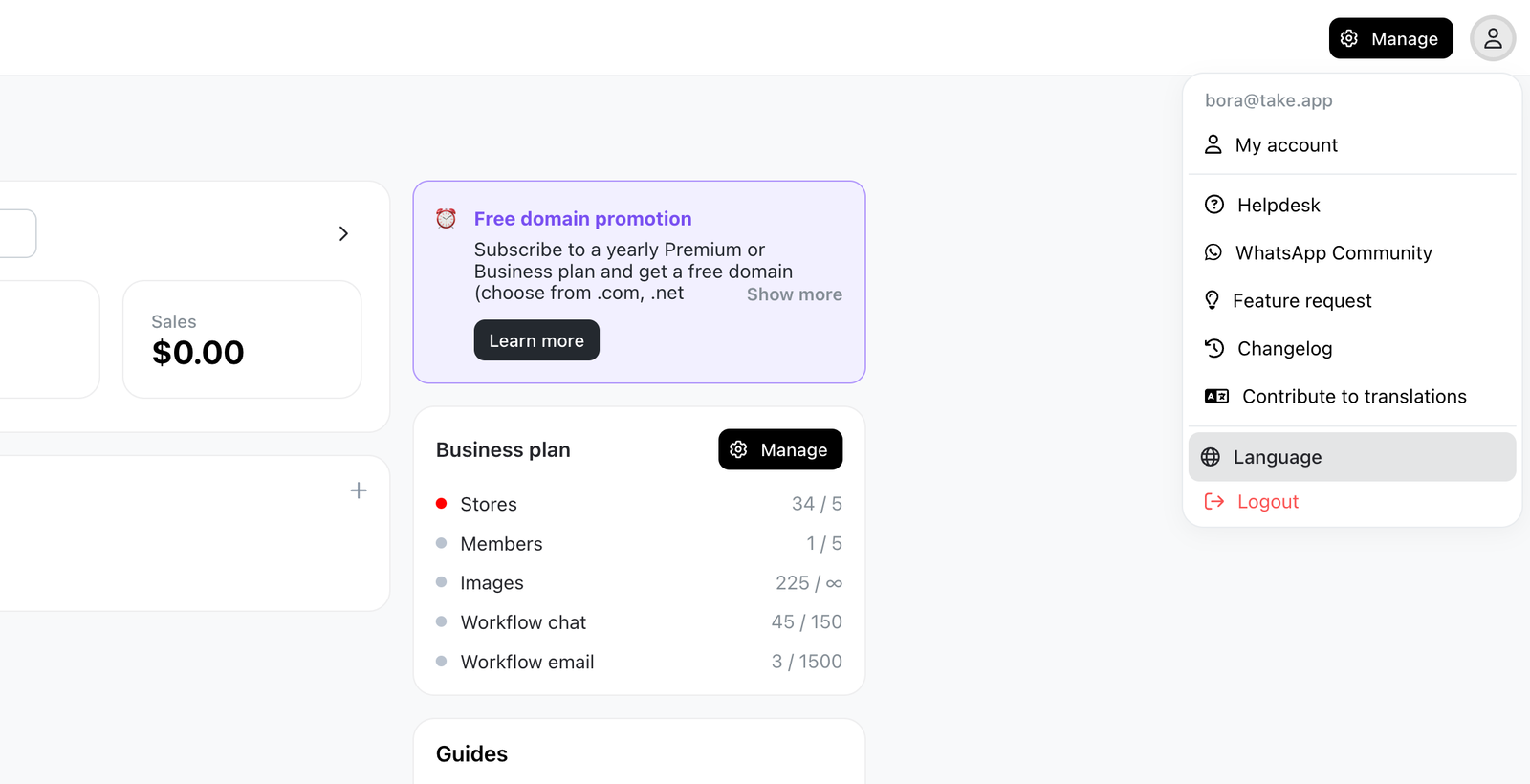
Step 2: Click the language menu.
Step 3: Select contribute from the options.
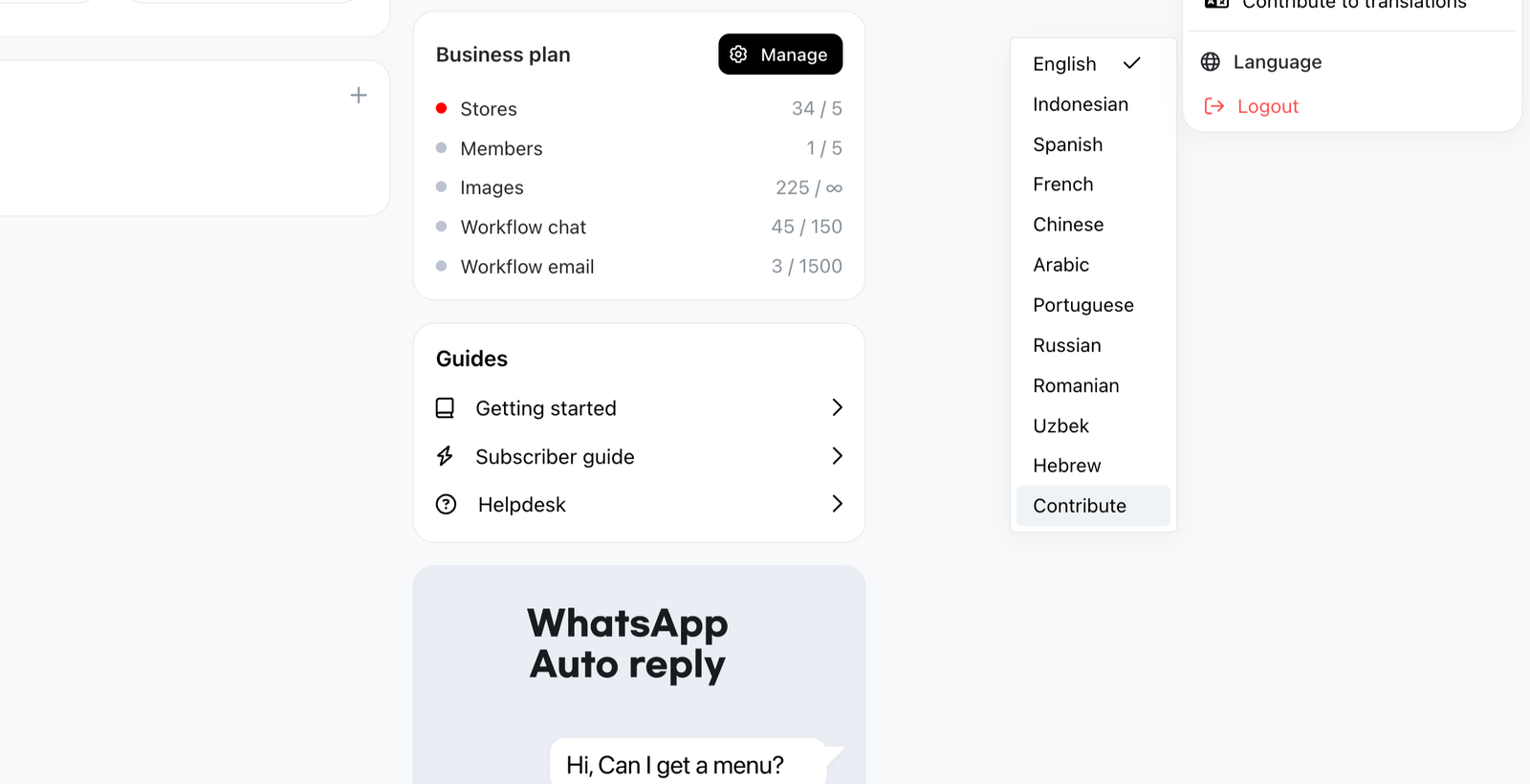
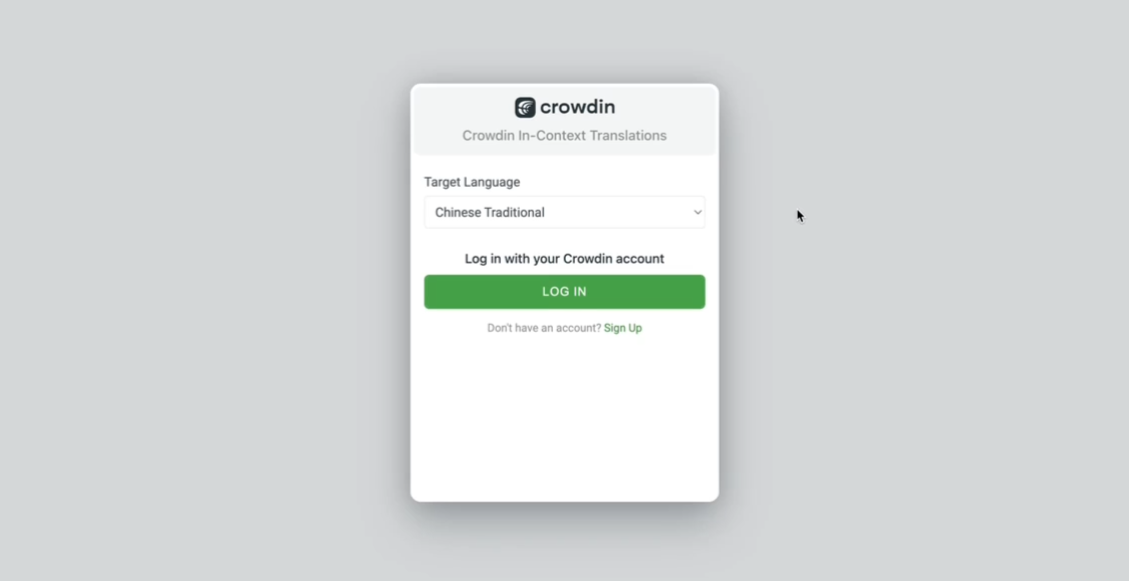
Next, select the desired language for translation and log in.
Step 4: Choose the language for translation and Click the login option.
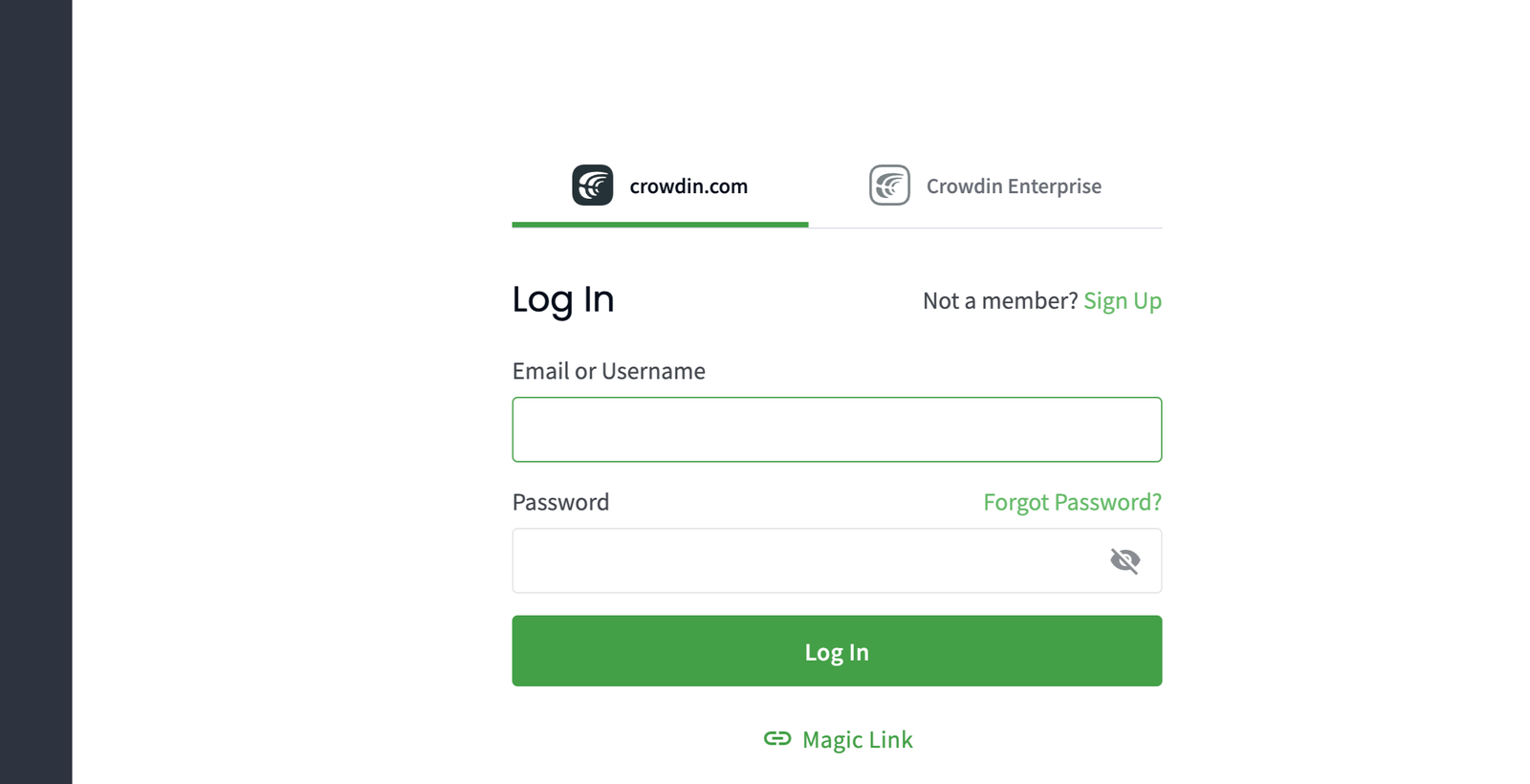
Step 5: Log into Crowdin.
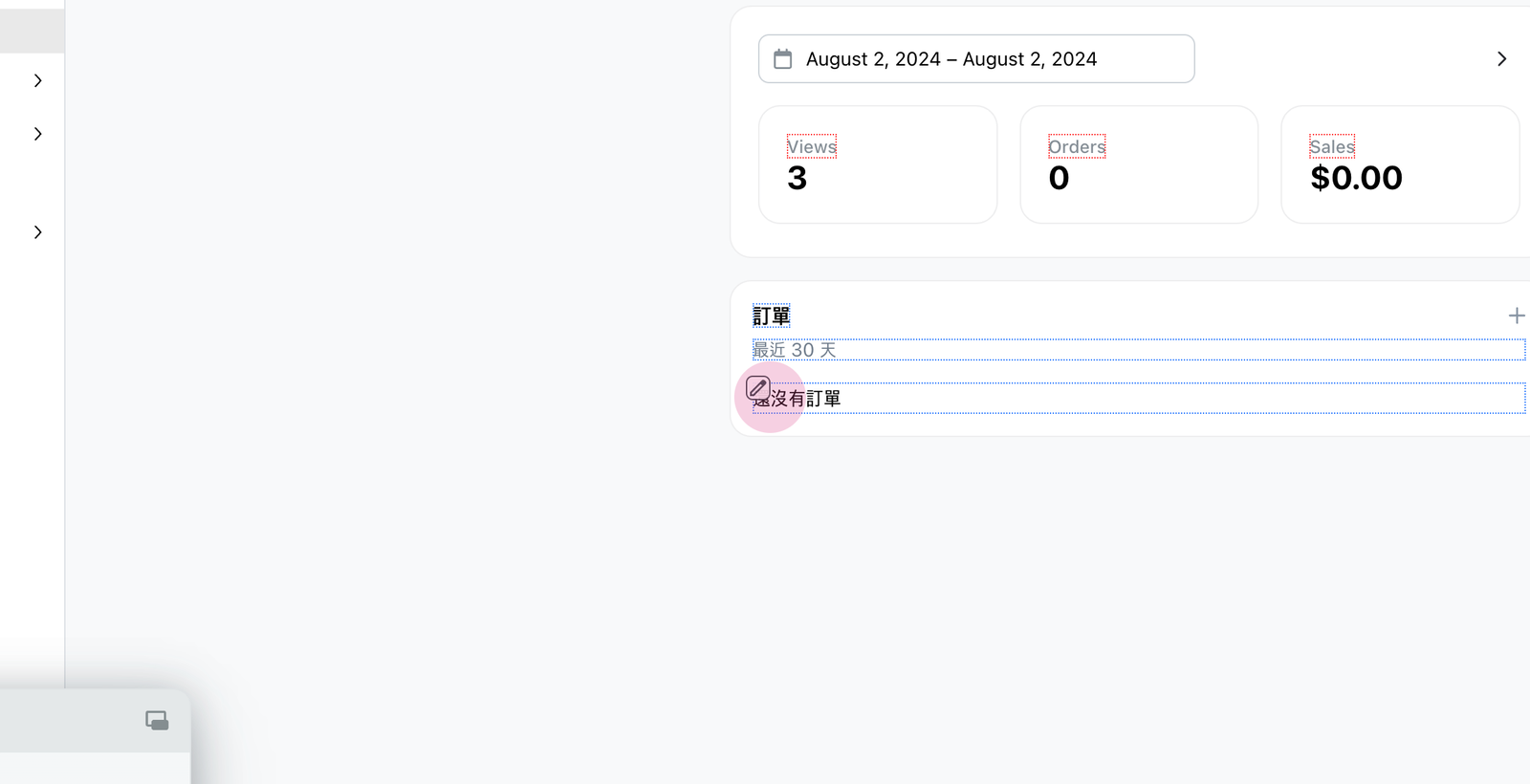
Now, navigate to the dotted line box and the pencil icon.
Step 6: Hover over the dotted line box to reveal the pencil icon. Click it.
This opens the crowding pop-up. Here, translations can be changed or added.
Step 7: Use the field in the crowding pop-up to change or add translations.
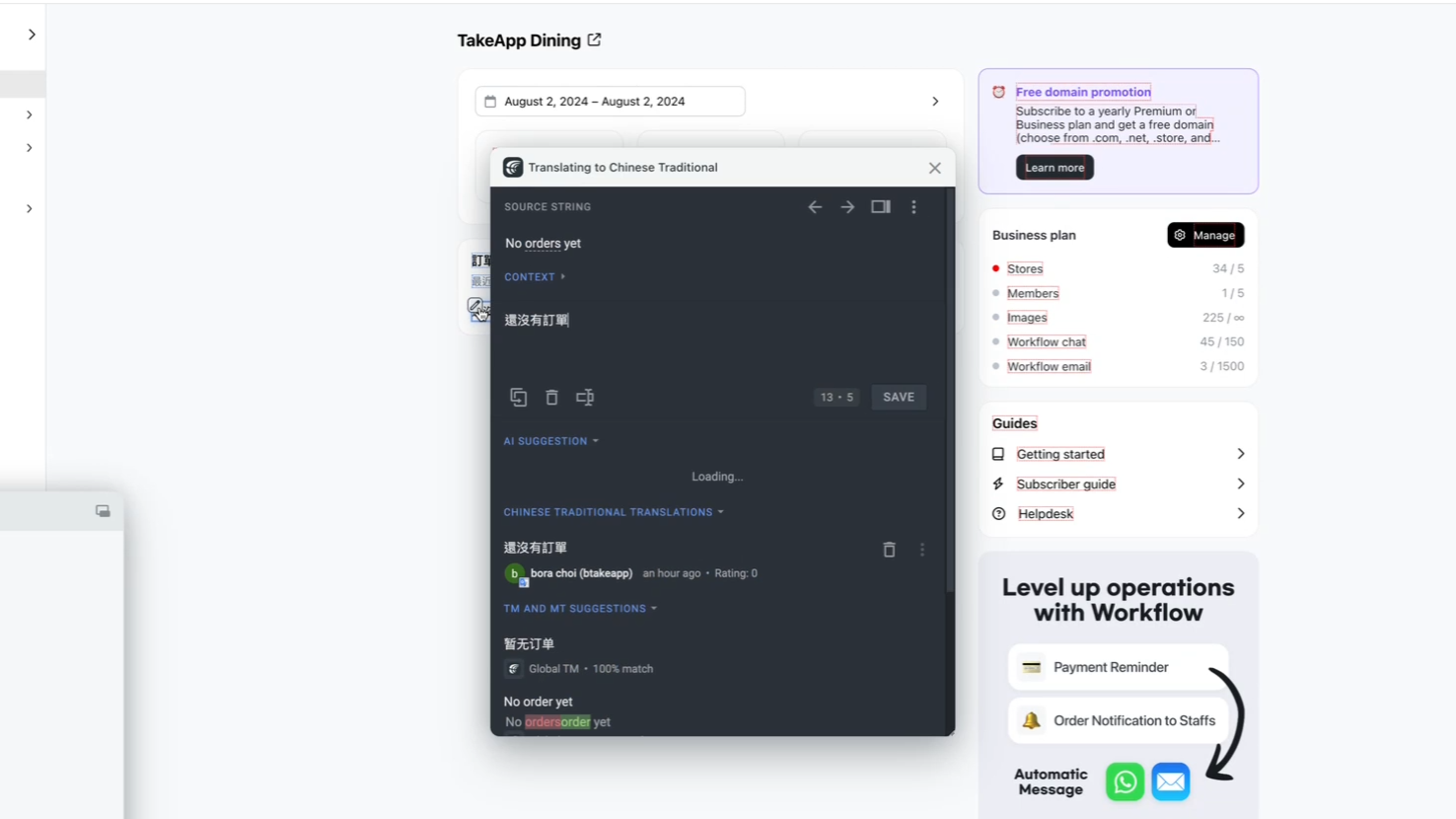
Step 8: Utilize the translation memory if needed.
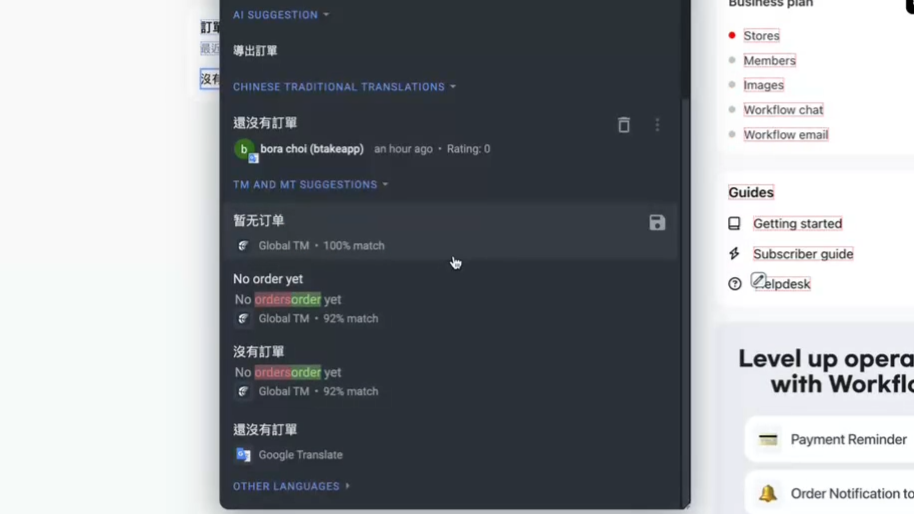
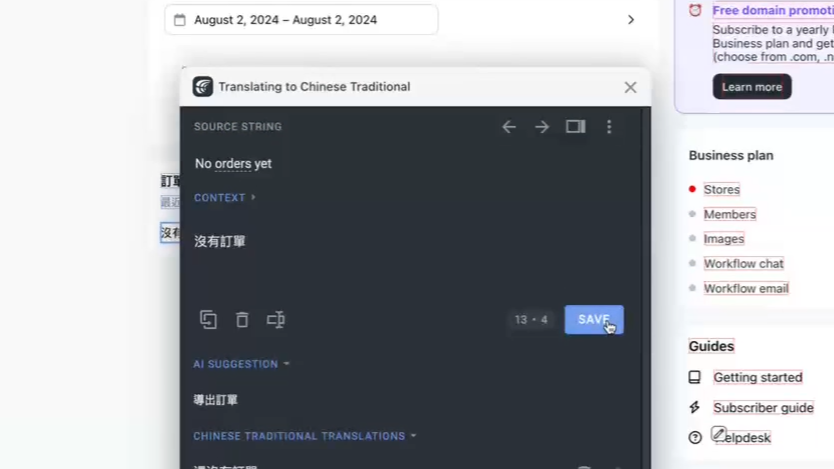
Step 9: Once satisfied with the translation, click save.
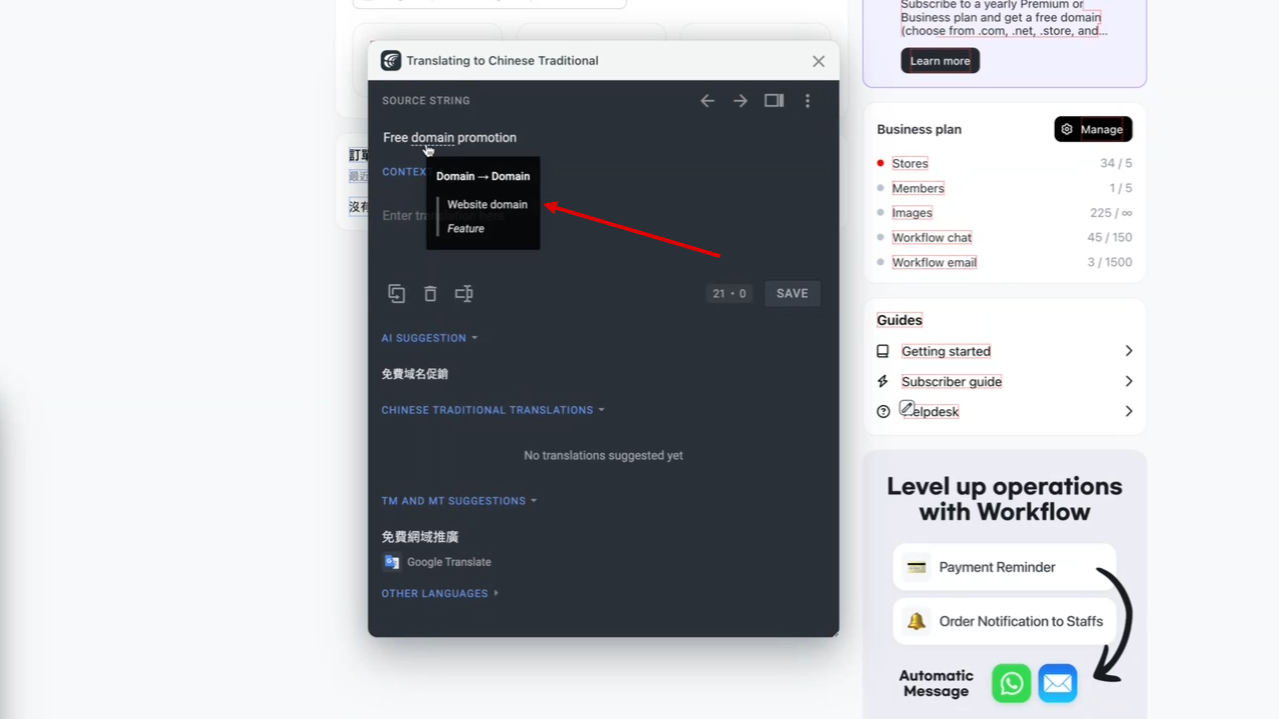
Words with specific contexts or multiple meanings are underlined. Hover over these for definitions and context. This is crucial for maintaining consistency and translation quality.
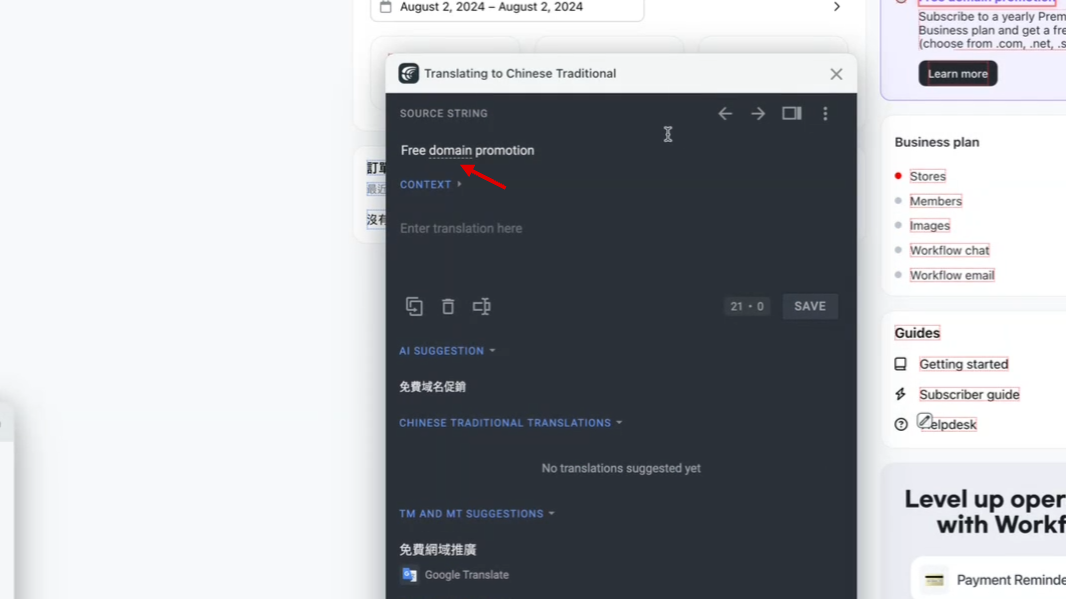
Step 10: Hover over underlined words to view their definitions and context.
Finally, make use of the AI suggestion feature if necessary.
Step 11: Use the AI suggestion feature as needed.