
You can easily import customer data into your store using a CSV file. This is useful for bulk uploading and updating customer details.
How to import customer data using a CSV file.
-
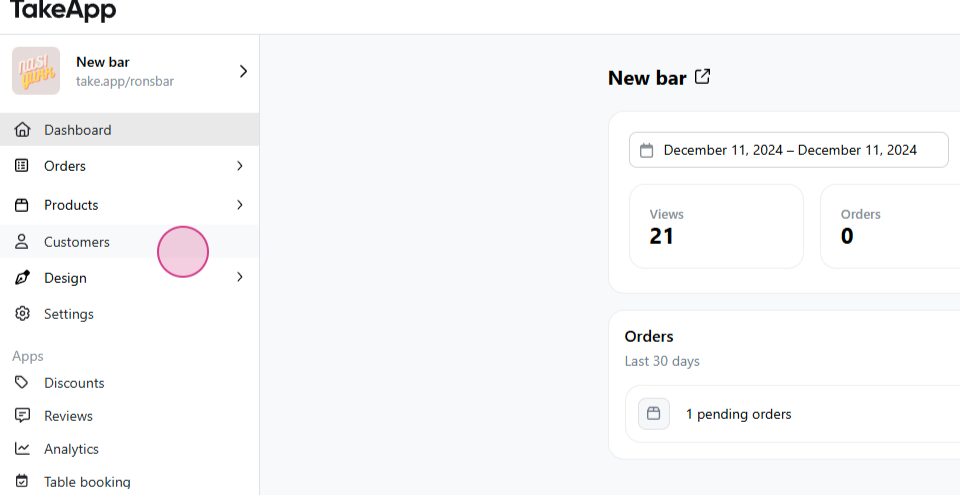
Navigate to the Customers section.
-
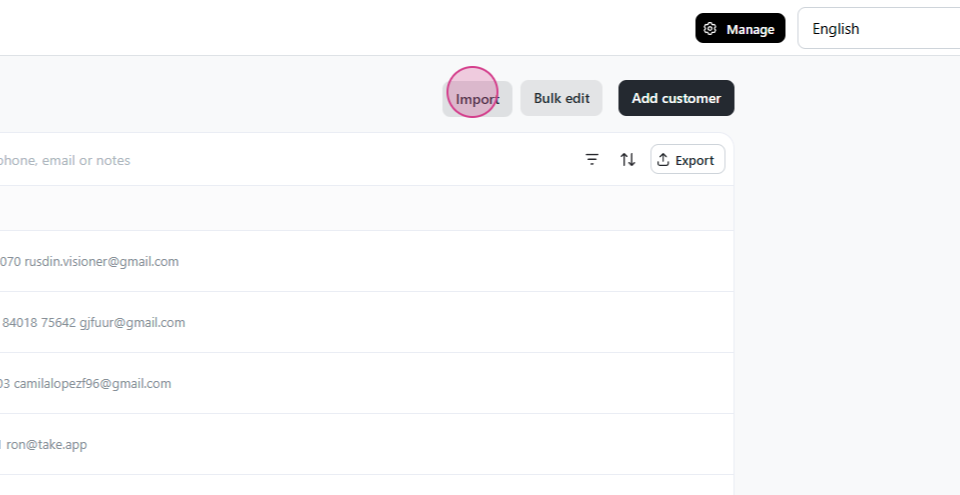
Click on the Import button.
-
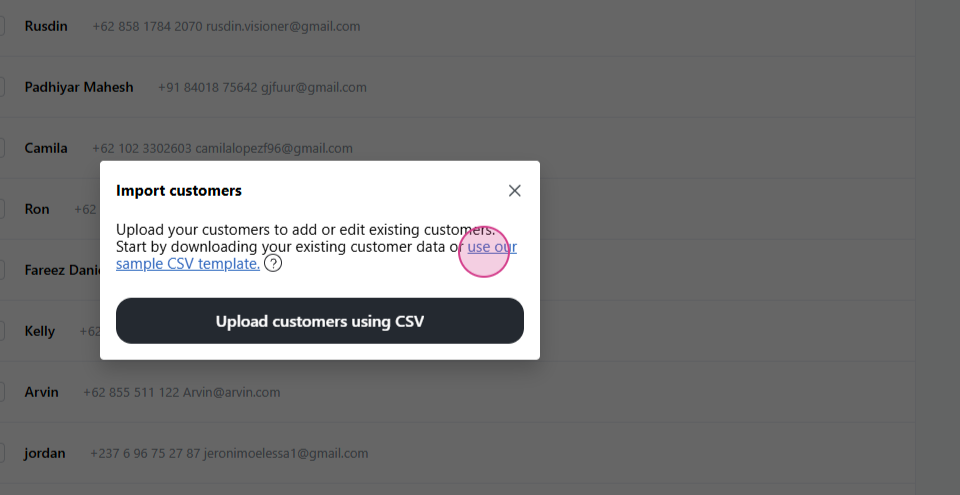
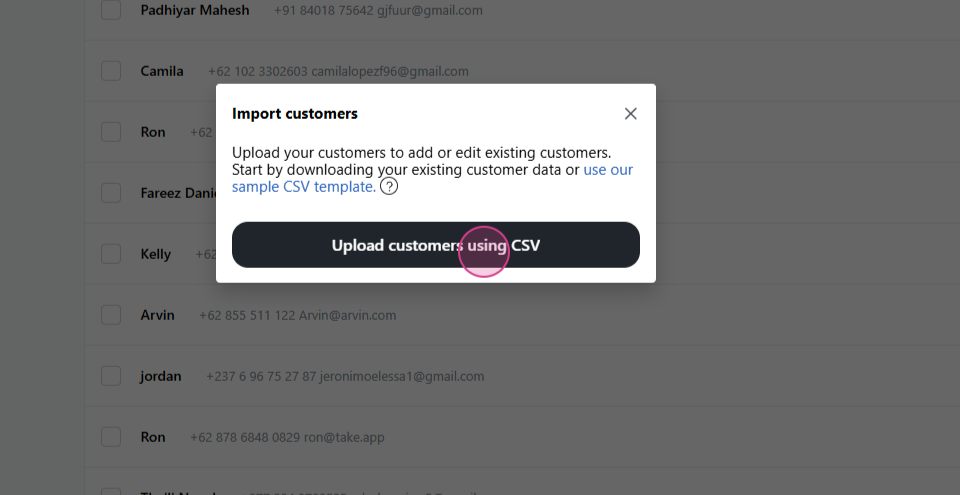
Download the CSV template.
-
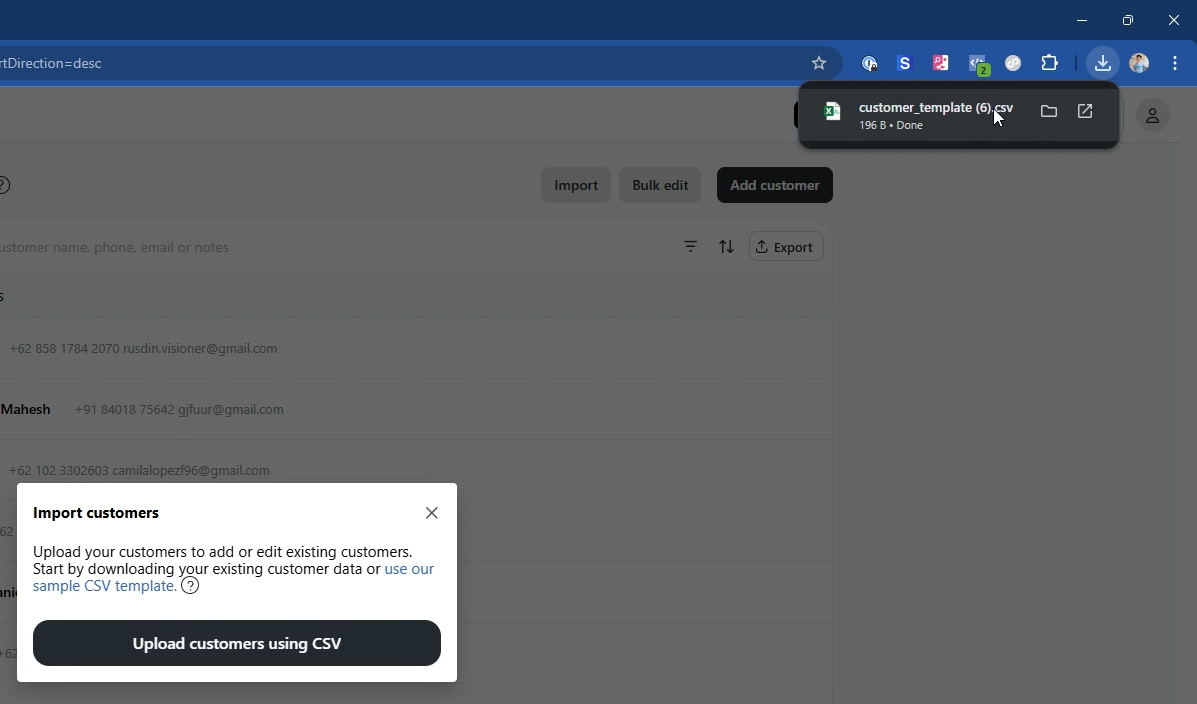
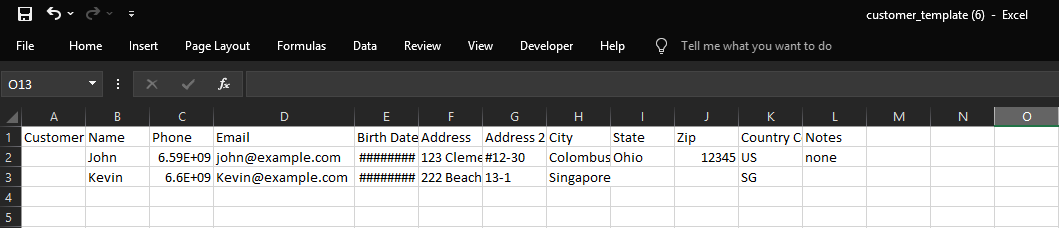
Open the downloaded CSV template. Fill in the required data and save the file. Please make sure that you DO NOT edit the 1st row of the CSV template file
-
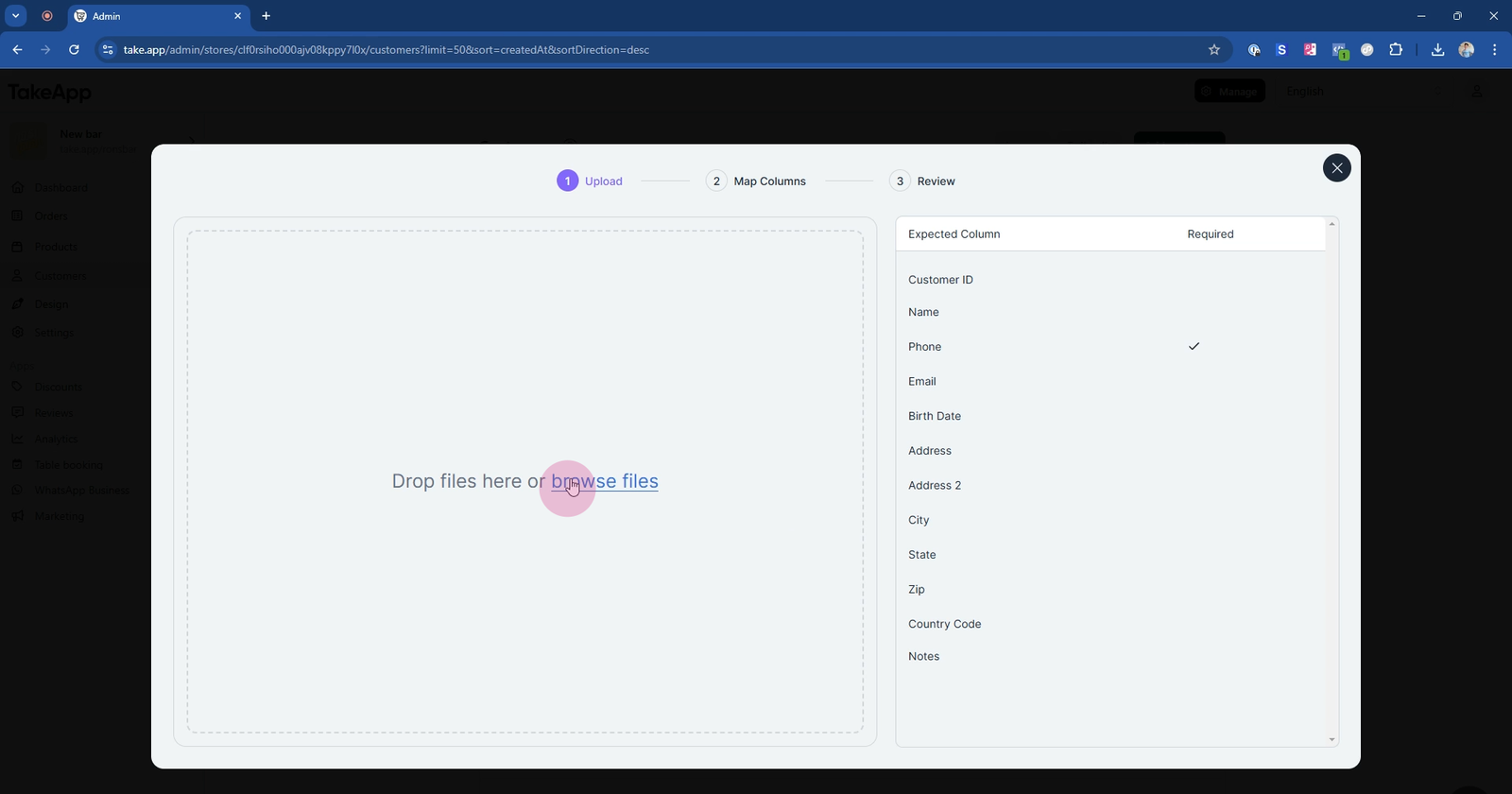
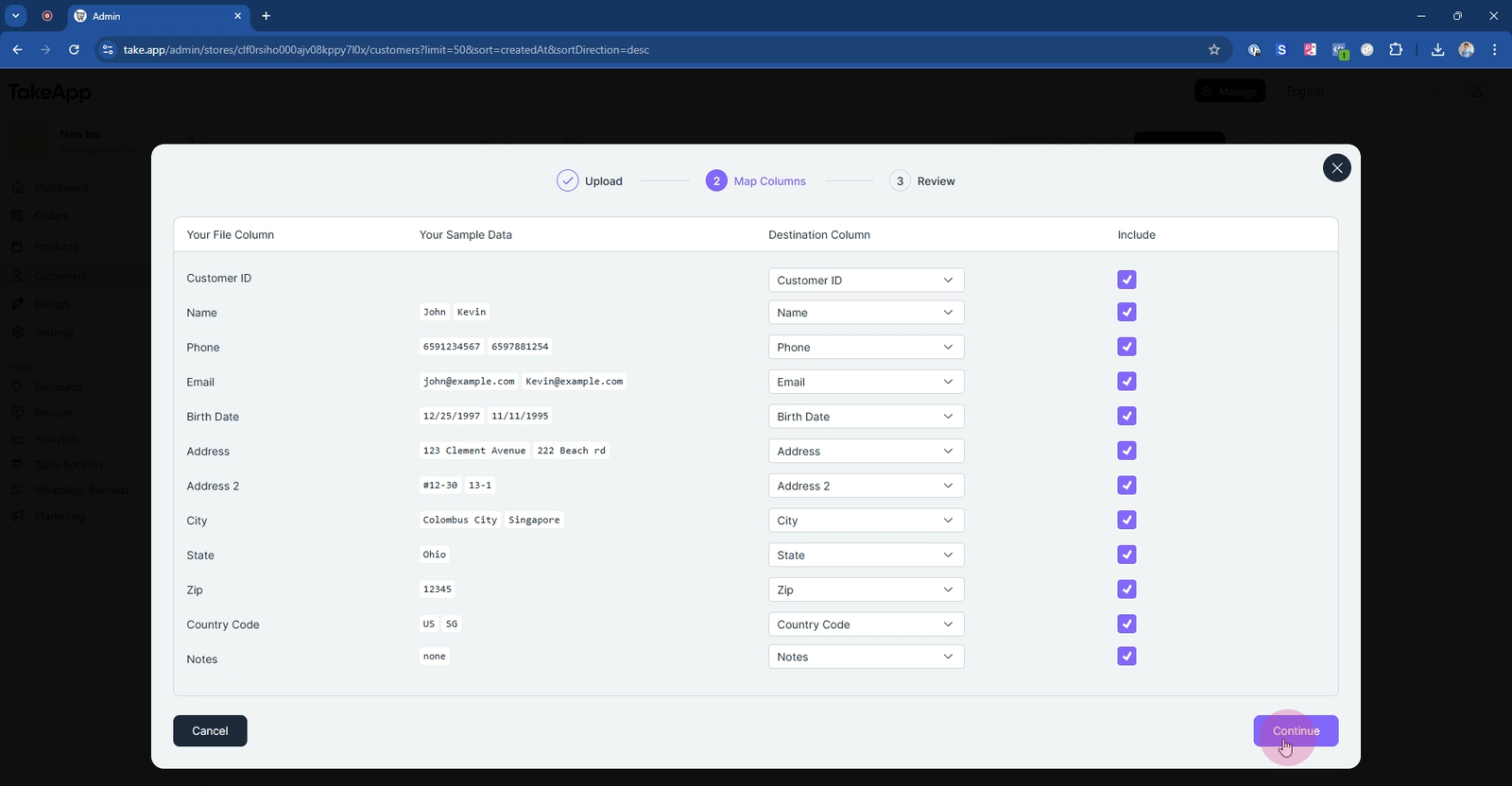
Upload the saved CSV file. Click Continue and then Submit. Your customer data is now imported.
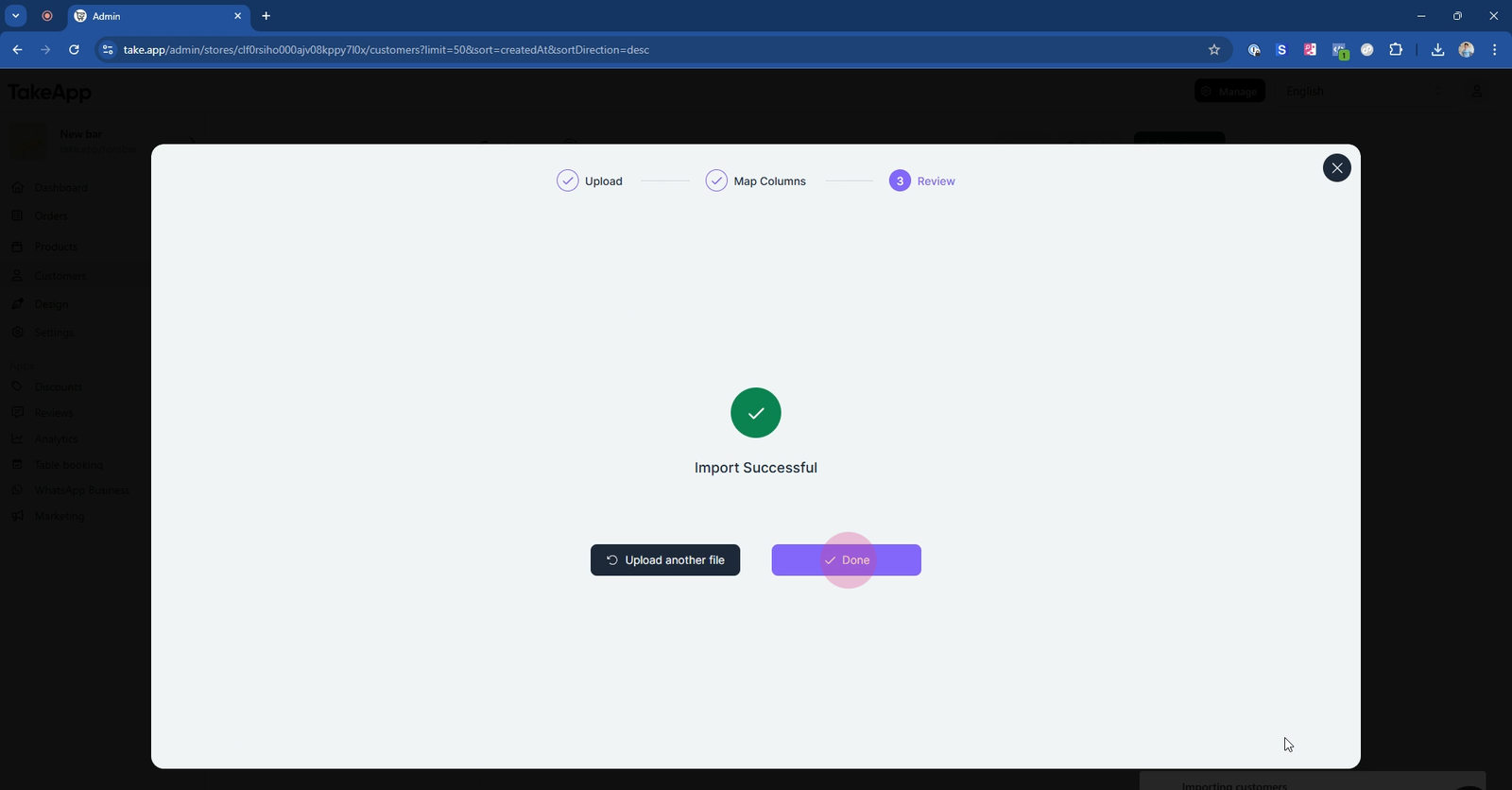
Your customer data is now imported.
You can use the CSV to create new customers and also edit existing ones.
You may also set a store credit amount and tags for each customer
