Updates from the week since 24 October.
Take a payment at the counter from any browser
Point of Sale in the Admin sidebar is now a payment screen you can use on a laptop or tablet, without installing anything. Enter the amount and a reference, then choose how the customer pays:
- Payment link: the customer scans the QR, or you send them the link, and they pay with any of your payment methods.
- One of your payment methods: methods with their own QR, like PayNow or Pix, show that QR for the customer to scan. Others open the payment link on that method.
- Cash: nothing to scan. Take the money and record it.
When you've been paid in cash or by a method's own QR, click Mark as paid. The sale is saved as an order and counts in Analytics > Daily closing.
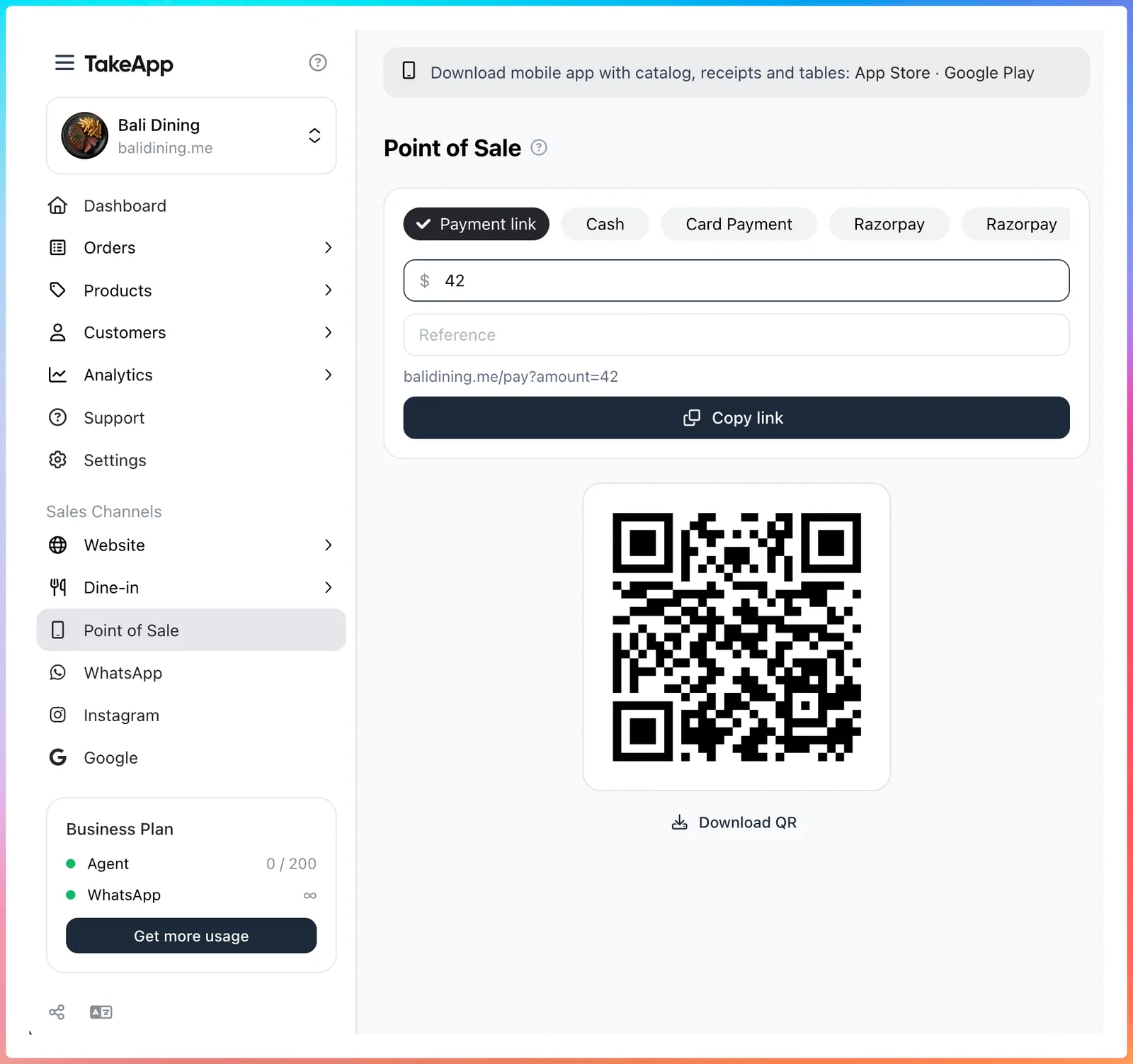
The same Send payment link is now in the ⋯ menu on Orders, as well as on Payments. The link updates as you type the amount and reference, with Copy link and Download QR beside it. Need your catalog, receipts or tables at the counter? The page links to the Take App mobile app.
Learn more about payment links
Scan barcodes with your phone camera
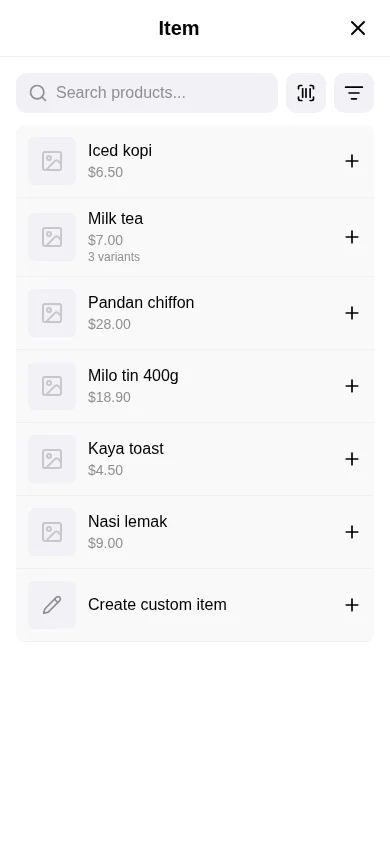
In the Take App mobile app, scan a product's barcode to add it to an order. Turn on Scan with camera under Barcode scanner in Settings, then tap the scan button when you add an item. The camera stays open, so you can scan one product after another.
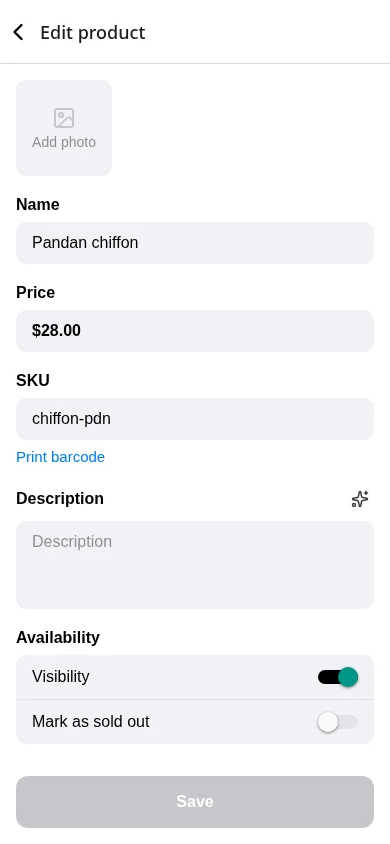
A product's SKU is its barcode. You can now set the SKU when you add or edit a product in the app. Once it's saved, Print barcode opens the free barcode generator with that code filled in, ready to print as labels.
Learn more about barcode scanning
Customers can sort a category
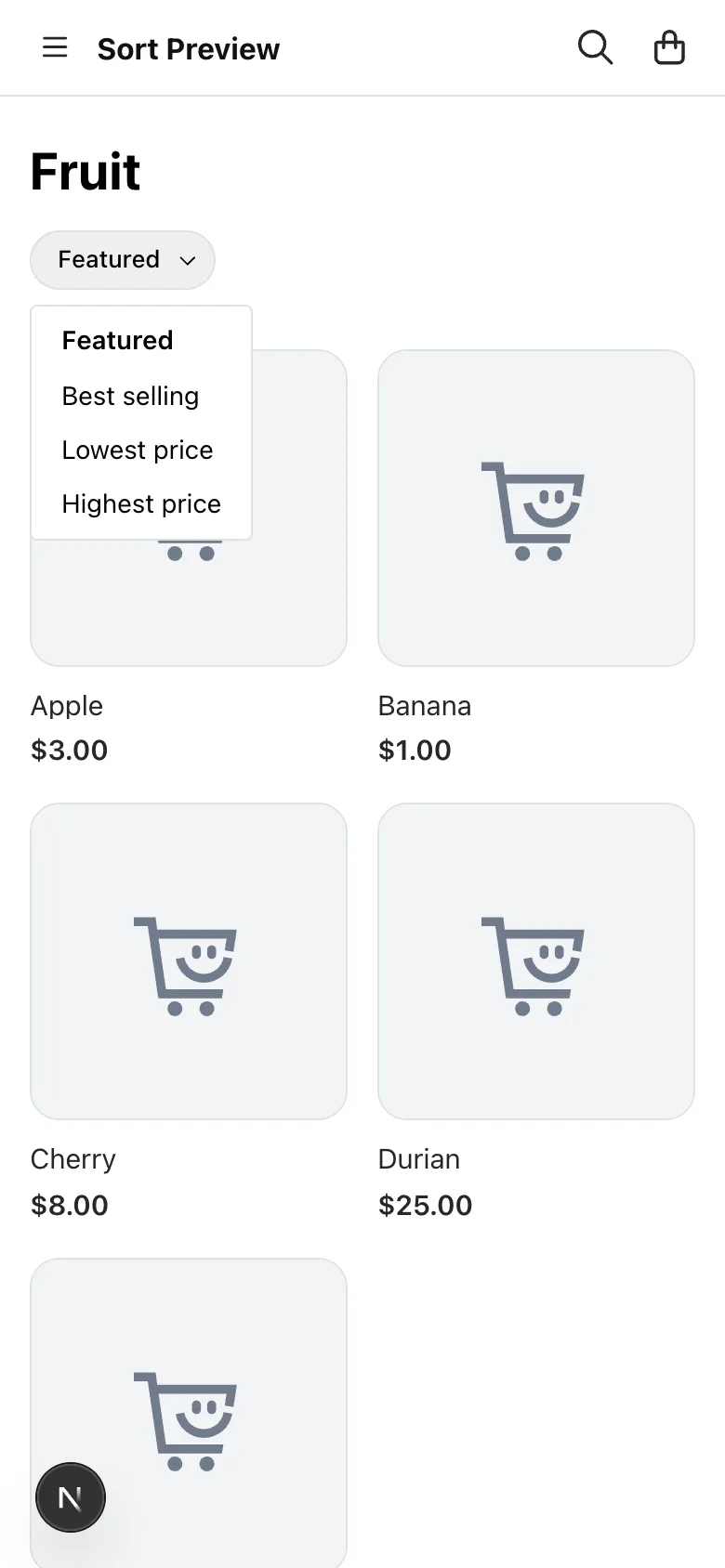
Category pages on your store now have a sort menu: Featured (your own order), Best selling, Lowest price and Highest price. Best selling ranks by what sold most in the last 30 days. Search has Best selling too.
Choose who gets new order messages
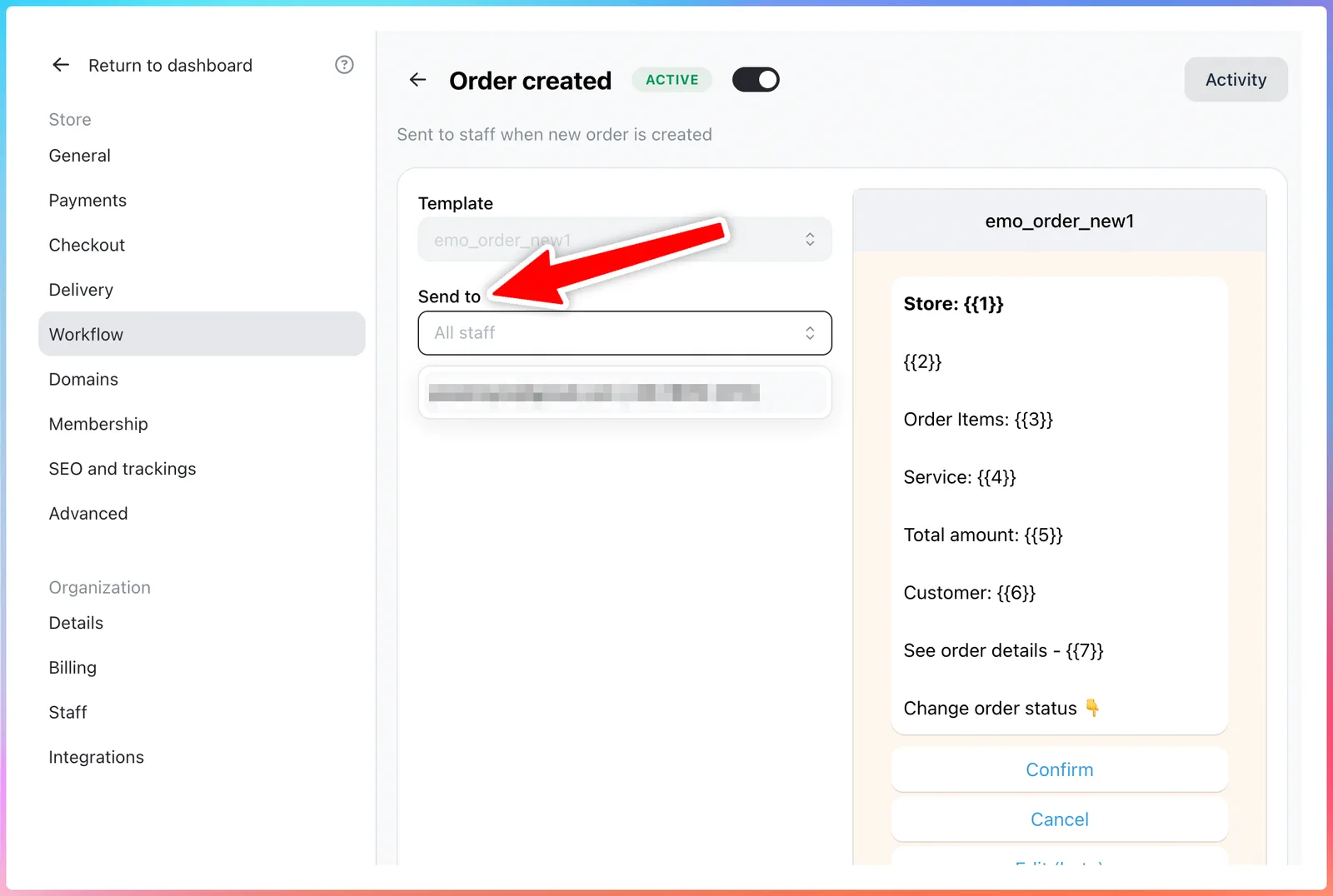
If you run more than one store, every new order used to reach everyone with access to that store on WhatsApp, owners included. Now you choose. Go to Settings > Workflow, open Order created and pick the staff under Send to. Leave it empty and everyone with access is notified, as before. If none of the people you picked can be reached any more, everyone is notified, so no order goes unannounced.
Learn more about order notifications to staff
Your sales on the dashboard
The numbers at the top of your dashboard are now Today's orders, Today's sales and Monthly sales, in place of page views. Click one to see its chart: the last 7 days for today's numbers, and the last 7 months for monthly sales.
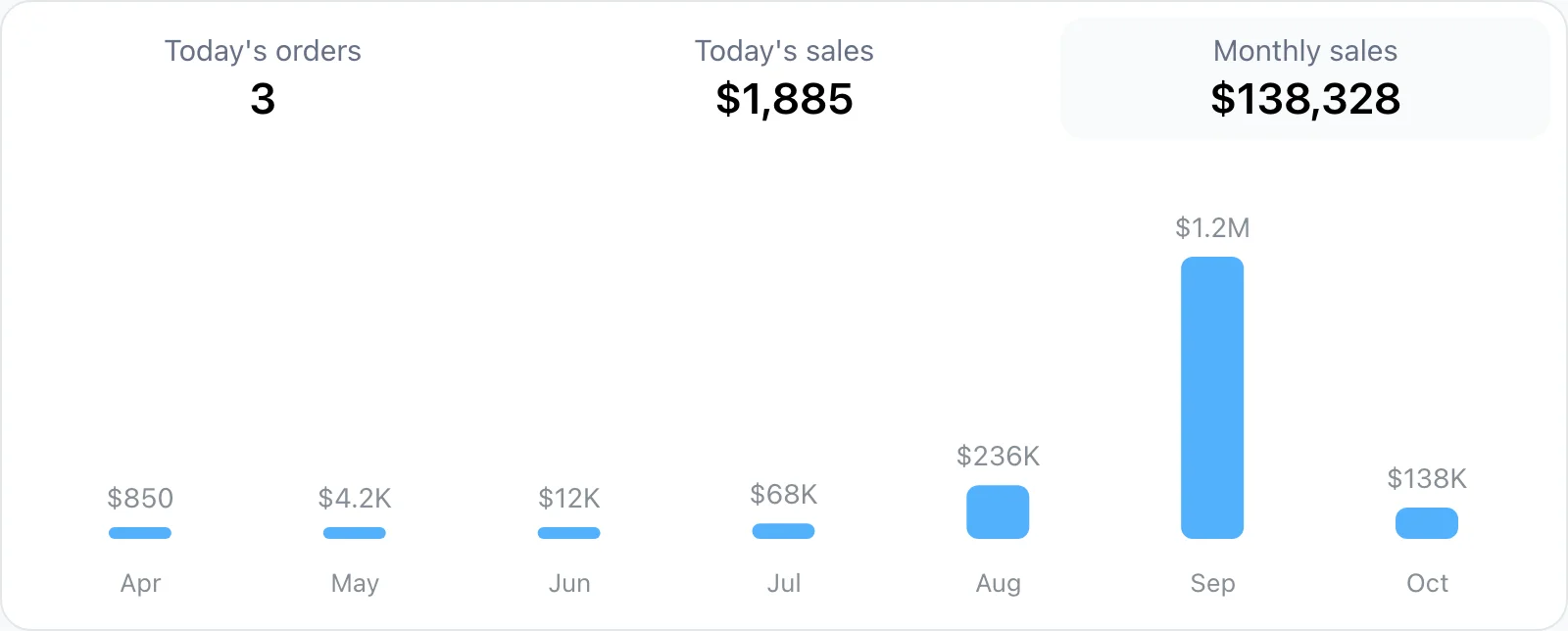
Page views are still in Analytics.
Export your chats
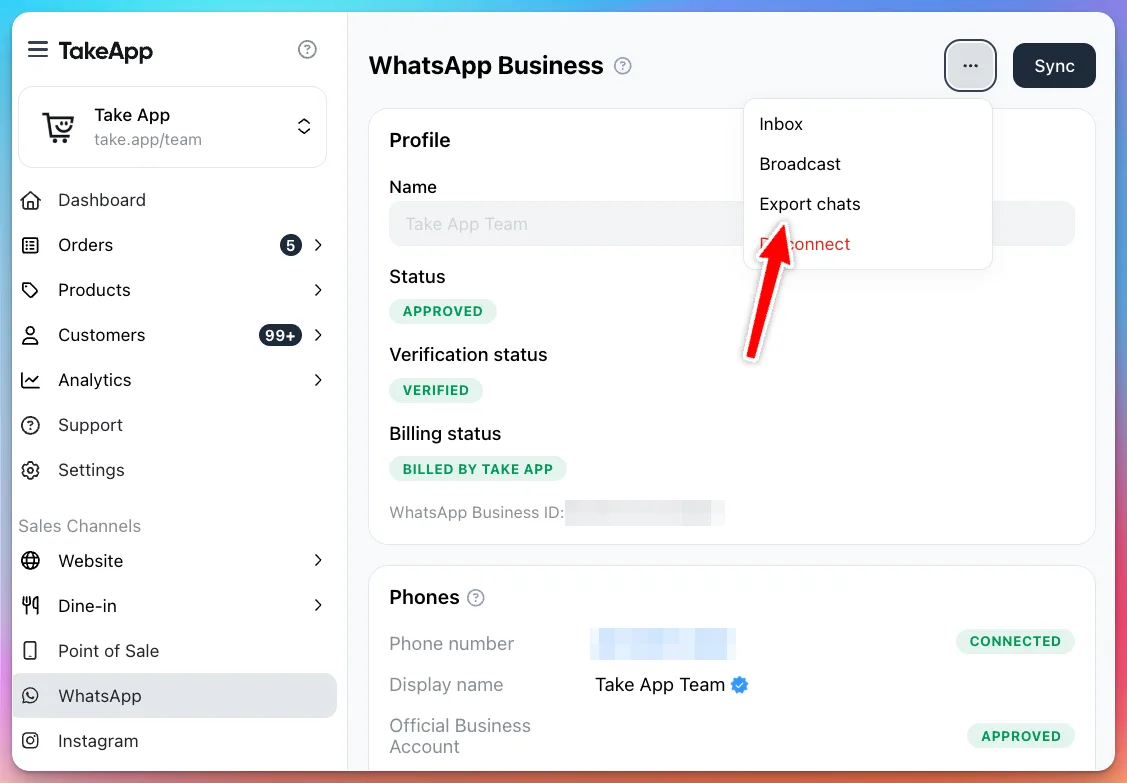
Download your full chat history as a spreadsheet. On the WhatsApp or Instagram settings page, open the ⋯ menu and choose Export chats. We email you a link to the CSV, which works for 7 days. Every message is in it, with who sent it and when.
Learn more about the WhatsApp inbox
New ways to get paid
- Bre-B for stores in Colombia: add your Bre-B key in Settings > Payments, and customers pay you to it from their bank app.
- Mercado Pago in Colombia now shows Visa, Mastercard and Amex at checkout.
Others
- Google and AI assistants like ChatGPT can now read your opening hours, location and each variant's price and stock from your store pages, so they can answer customers who ask whether you're open or what something costs. There's nothing to set up.
- Customers who aren't logged in now see your automatic discounts in search results too, not only in the product list.
- In the mobile app, Print shows on every order, even before you pair a printer.
- Picking a time slot at checkout no longer opens the phone keyboard.
- For developers: orders created through the API or the MCP tools can include each item's product options, by choice ID or text, with the option's price added to the line. See the API reference.