
Store credit is a balance you hold for a customer. Use it for memberships, pre-payment, or discounts. Customers can then spend it at checkout, on its own or alongside another payment method.
Add or deduct a customer's store credit
-
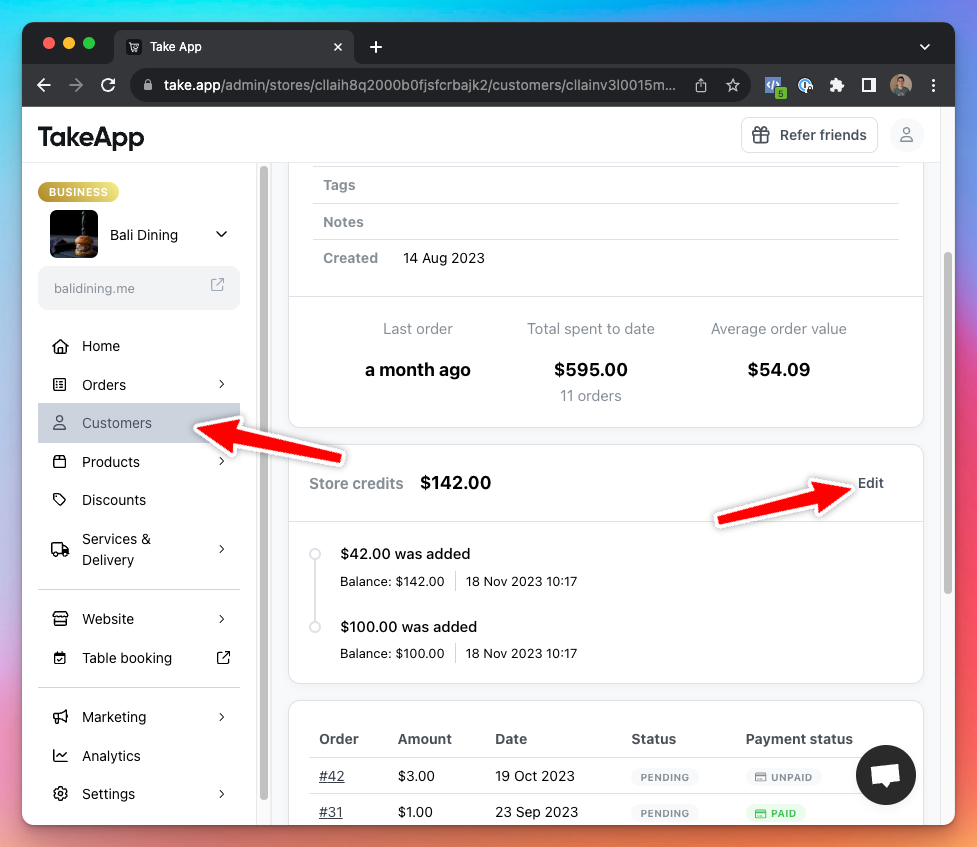
Go to Admin > Customers and find the customer. Click on the customer name.
-
Navigate to the
Store creditsection and clickEdit.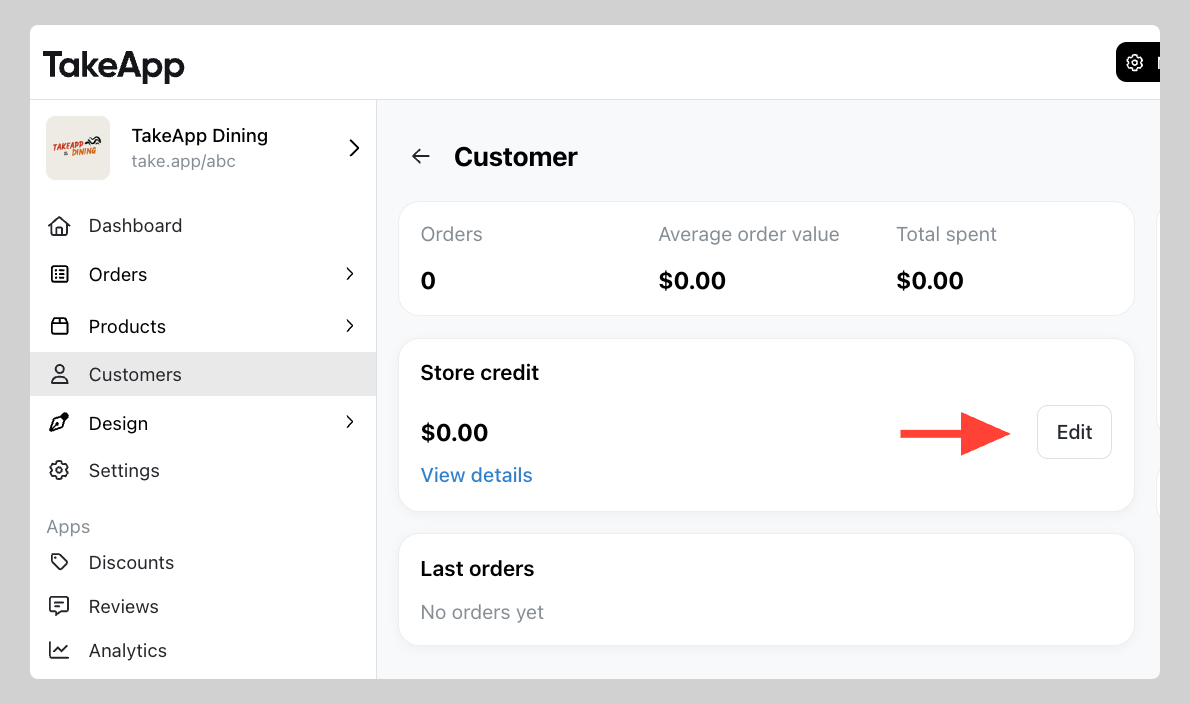
-
Add or deduct store credit — use a minus sign to deduct — then click
Save.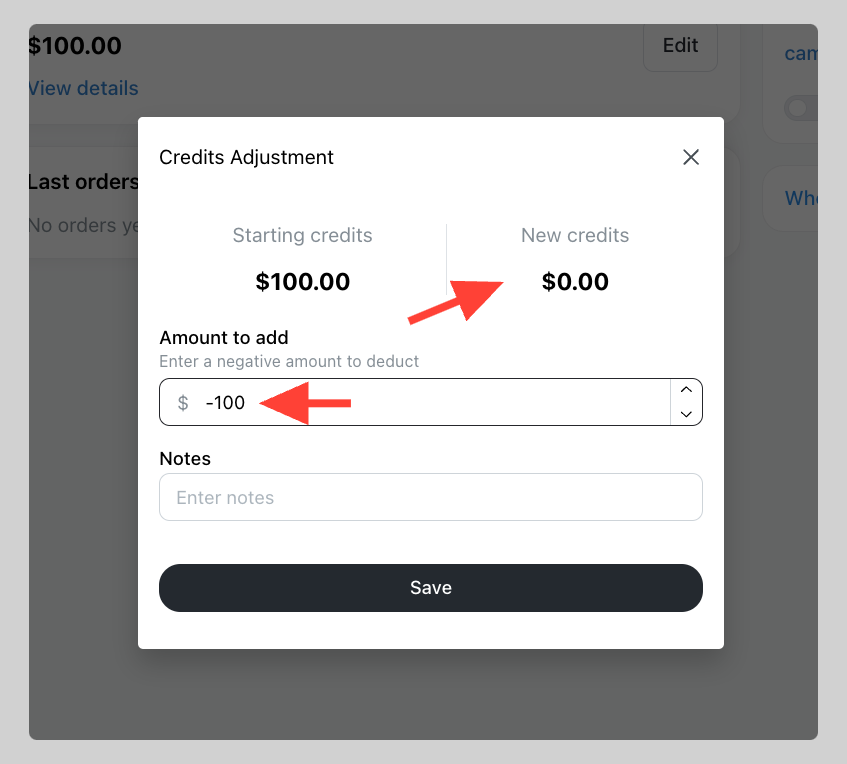
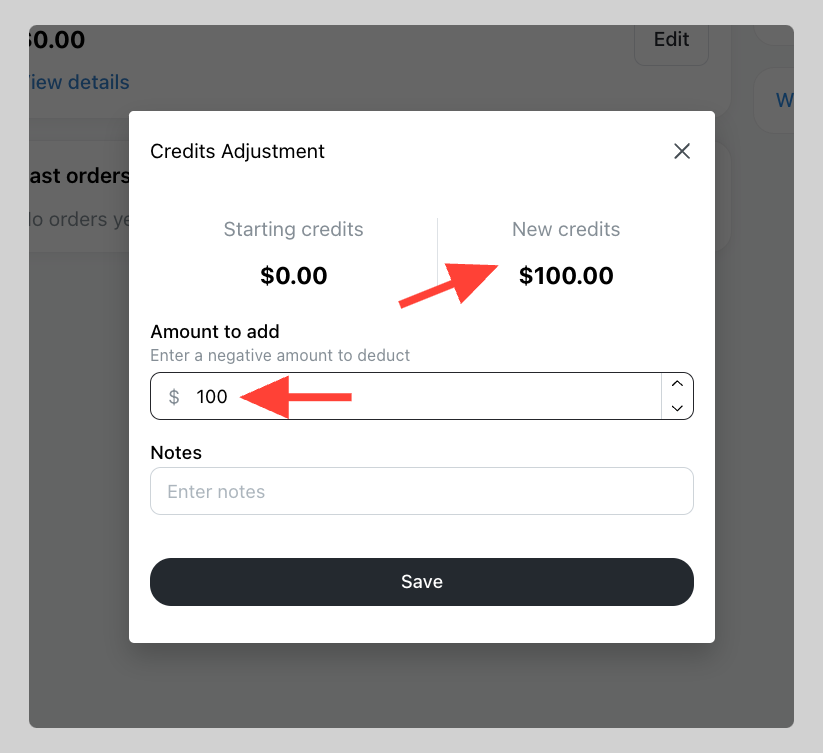
Store credit is not deducted automatically when a customer buys something — they choose to pay with it at checkout.
Turn on store credit as a payment method
-
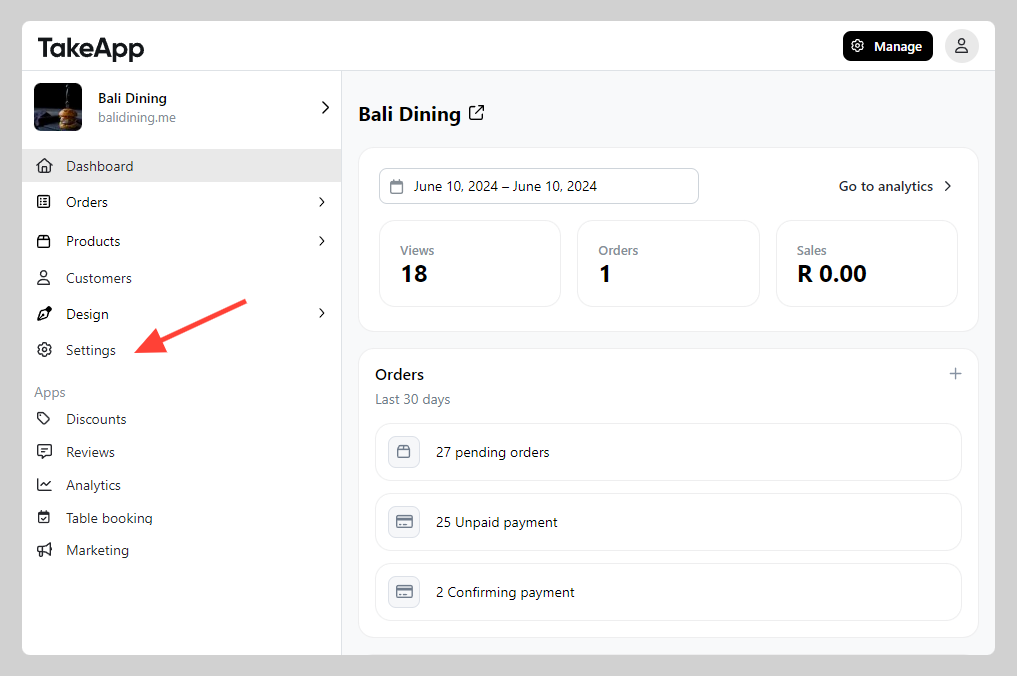
Go to Admin > Settings.
-
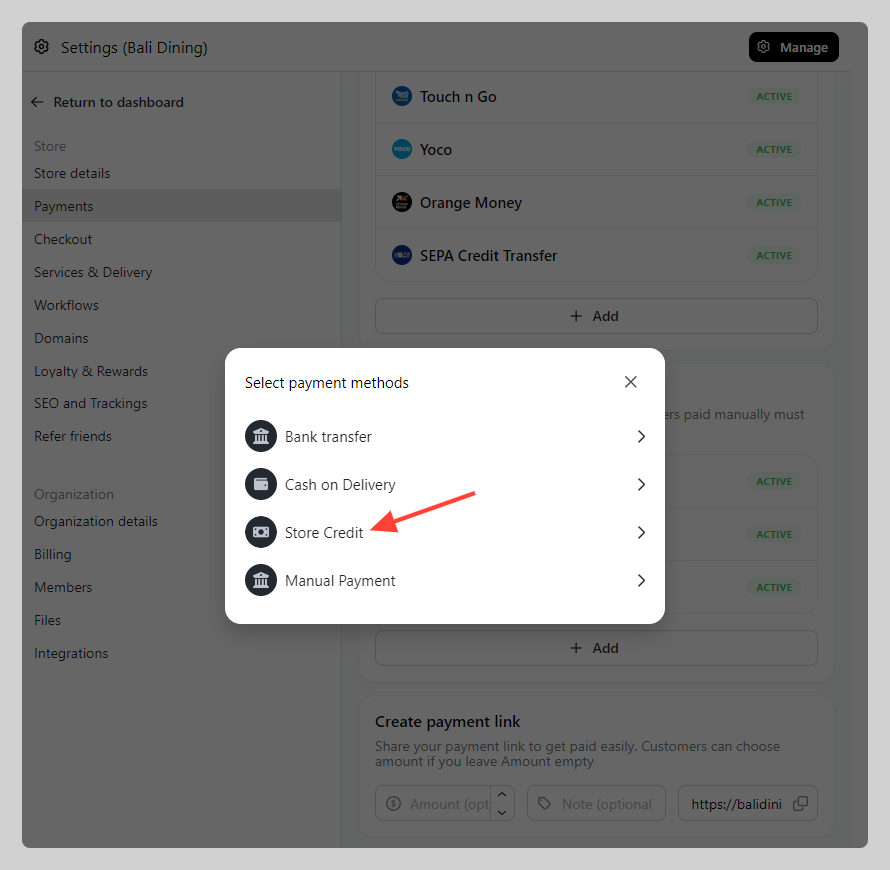
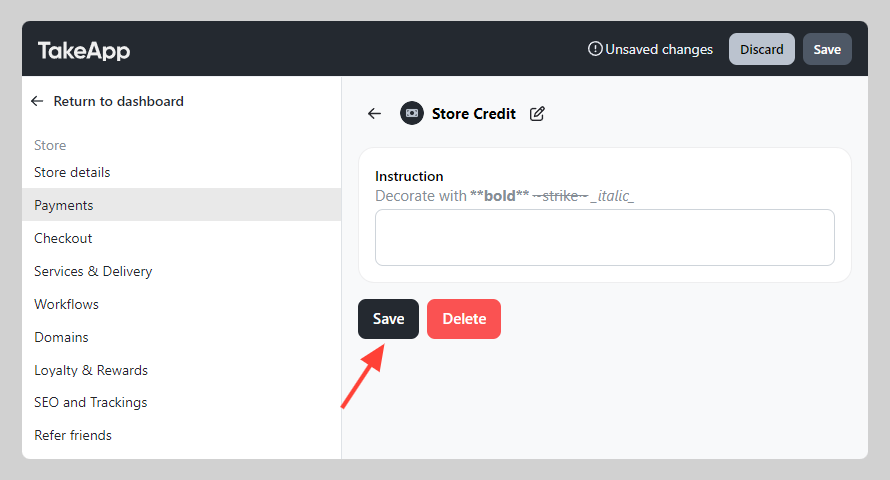
Go to Payments > Manual Payments and add the "Store credit" payment method. Click
Save.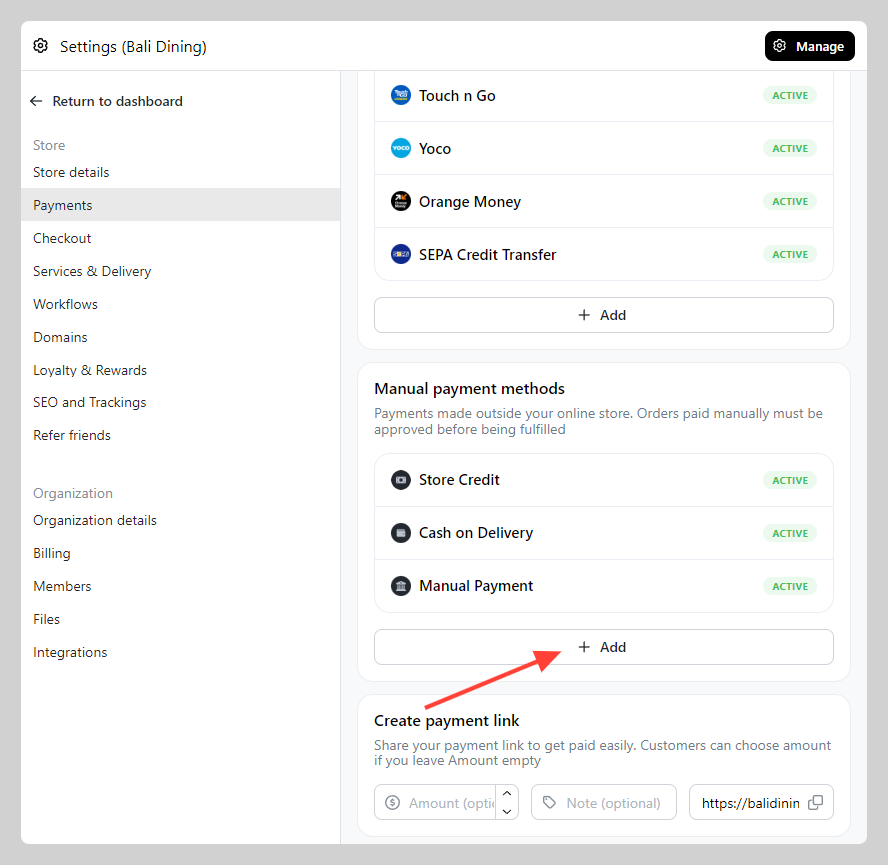
-
Adjust each customer's balance in Admin > Customers.
-
Customers will then see
Store crediton the order payment page.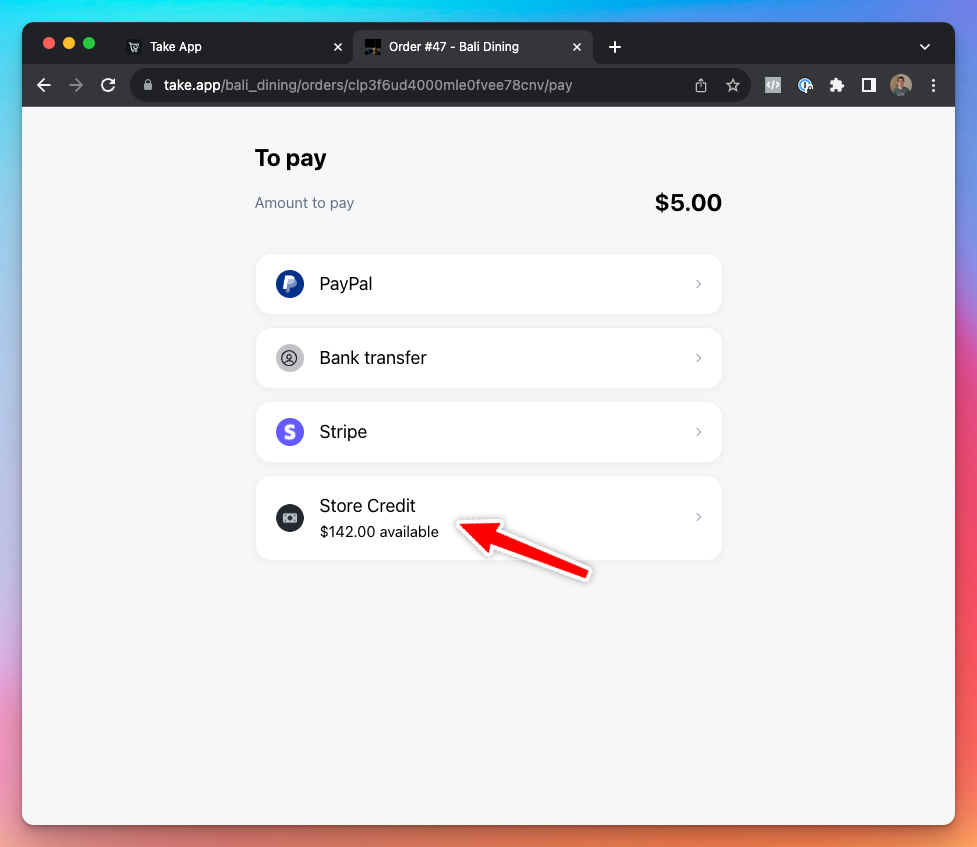
Pay part of an order with store credit
Note that this feature is only available for the Business Plan
A customer does not have to cover the whole order with credit — they can spend some of it and pay the rest another way.
-
Make sure
Store Creditis added under Settings > Payments > Manual Payments, as above. It then appears as one of the manual payment methods.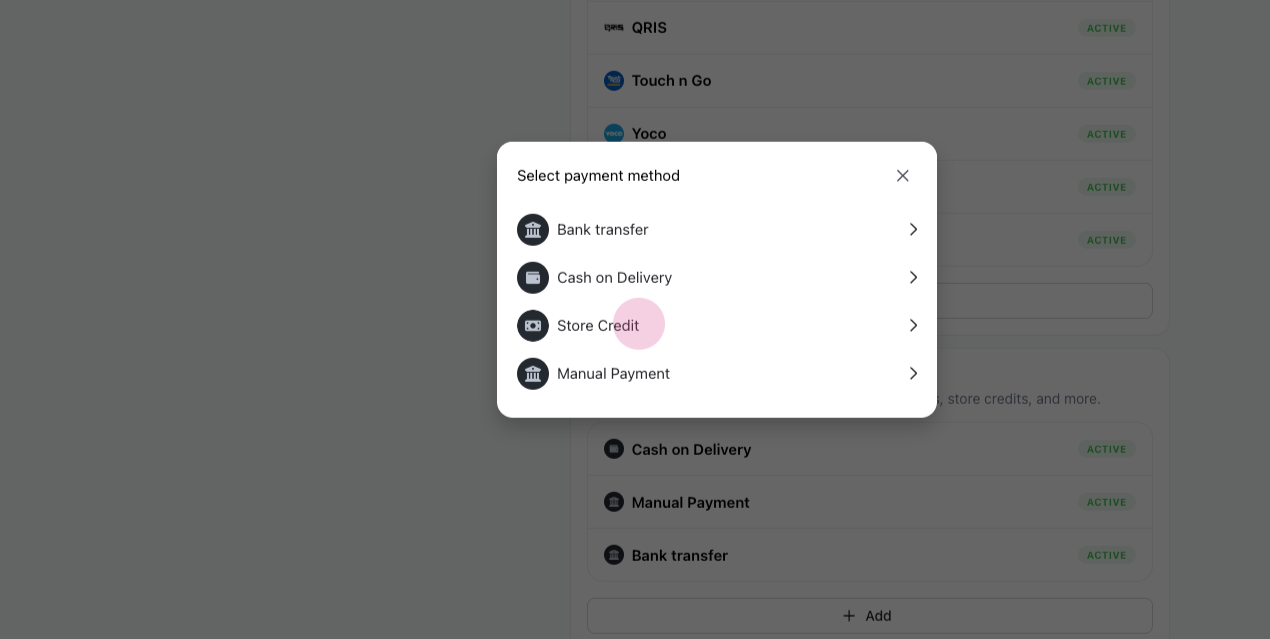
-
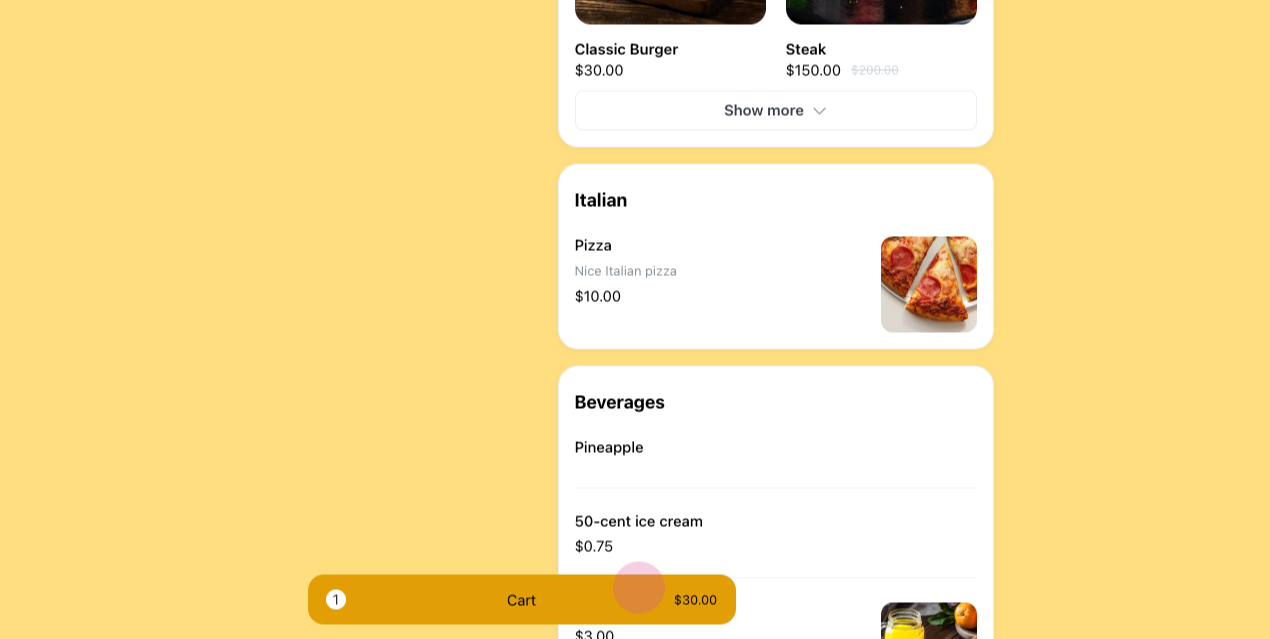
The customer selects items from the store, adds them to the cart, and checks out.
-
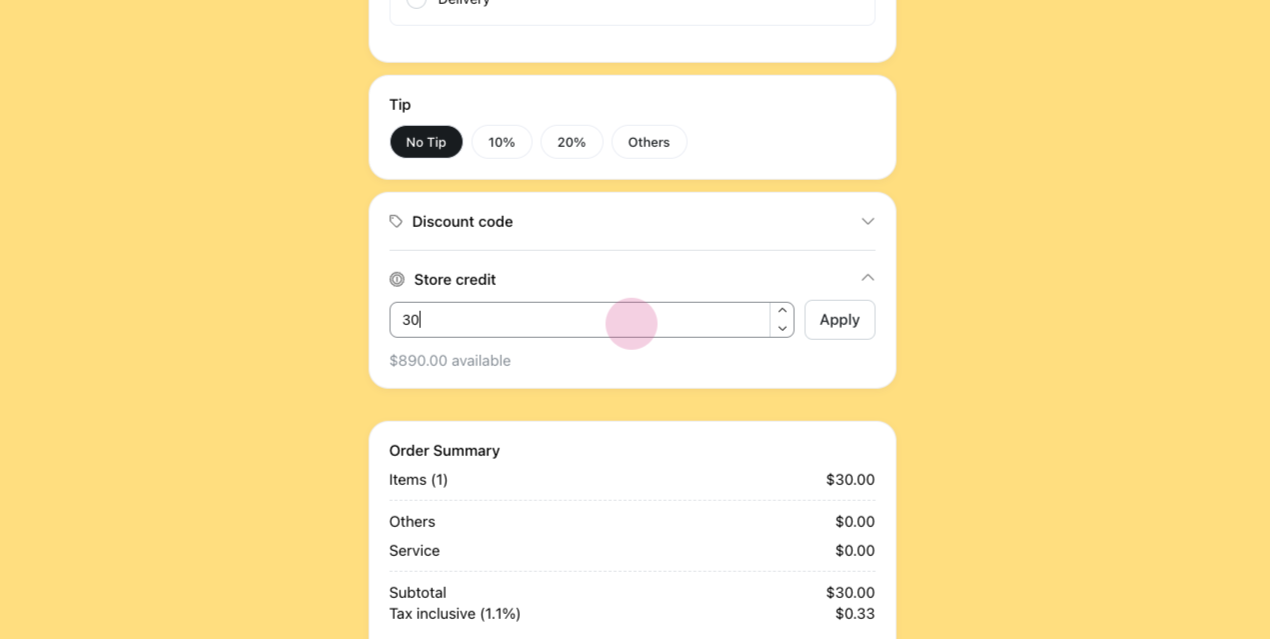
They enter their phone number, and their available store credit appears in the Store Credit section.
-
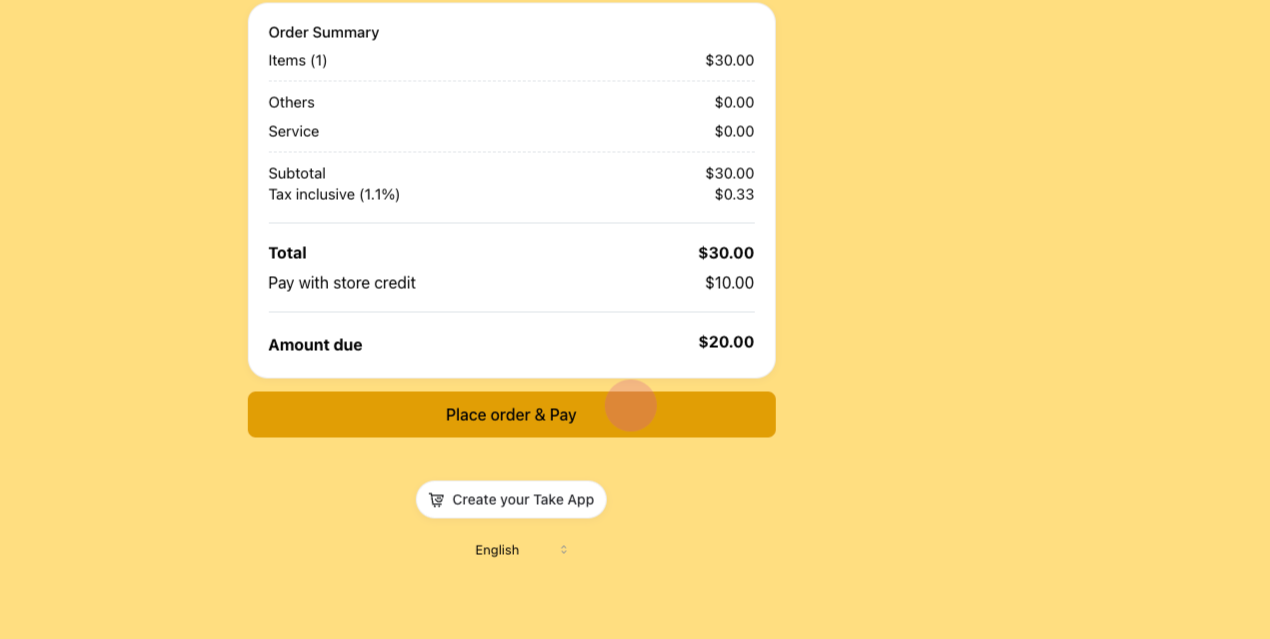
They enter how much credit to use. The system may suggest the full item price — say $30 for a burger — but they can use less and pay the balance another way.
-
They place the order.
-
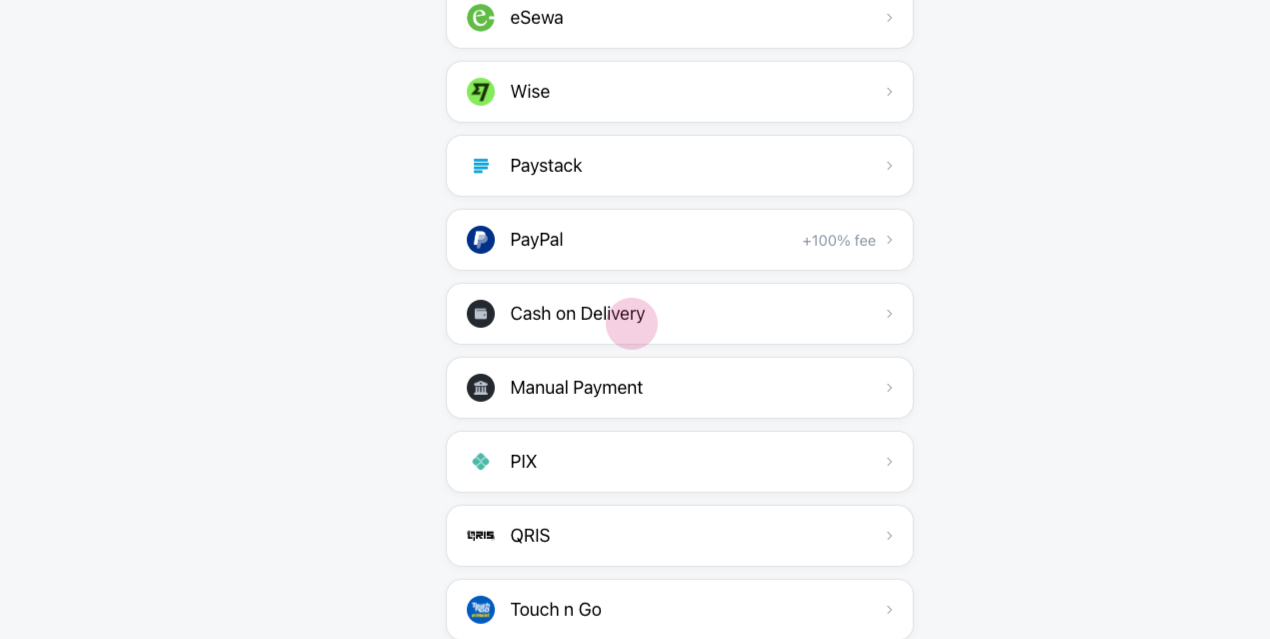
They pick another payment method for the balance, for example cash on delivery, and confirm.
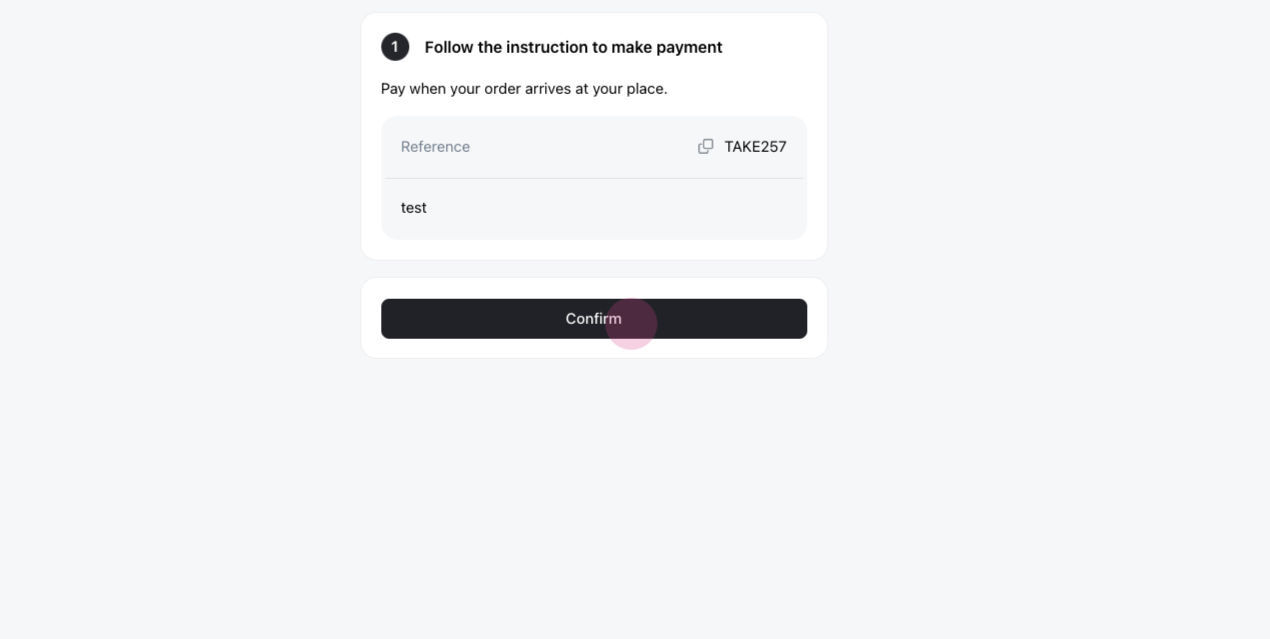
The invoice then shows the payment status as partially paid: part was covered by store credit, and the rest is due on delivery.
Refunds
When a customer pays for an order using store credit and the order status is set to "Cancelled", the store credit payment is refunded to their account automatically.
-
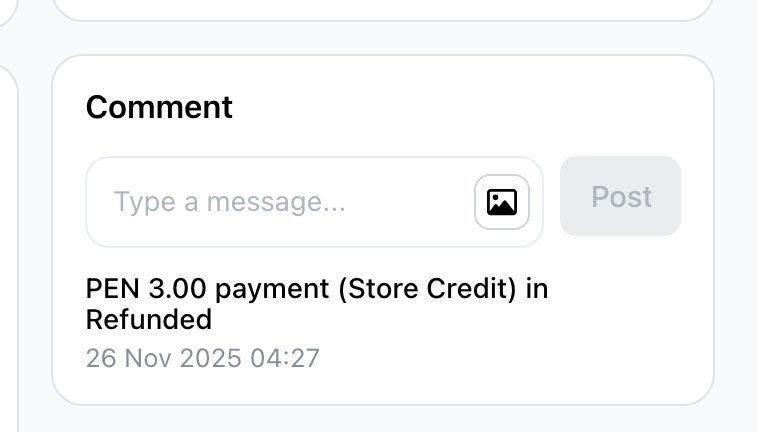
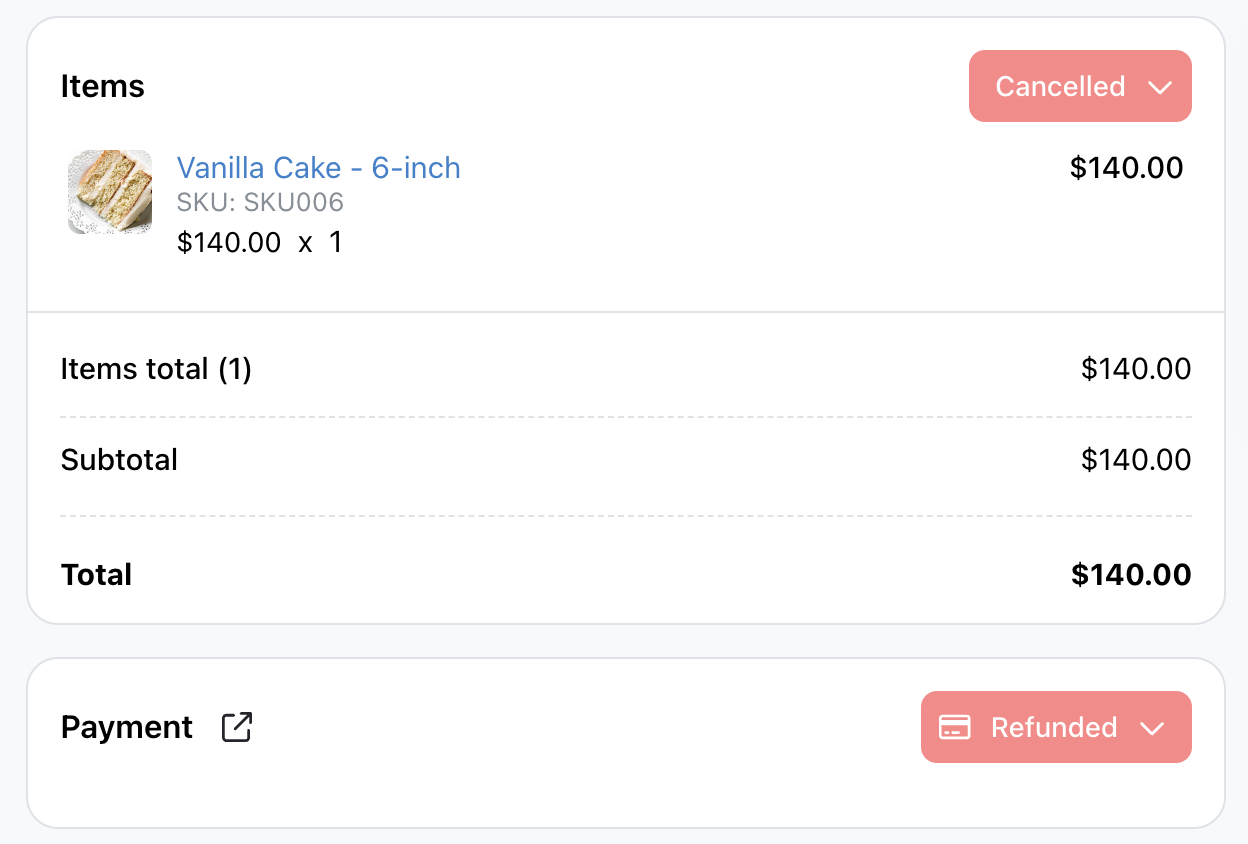
The invoice will display the payment as refunded.
-
The refunded store credit is immediately added back to the customer's balance.
-
If you change the order status to "Pending" and then cancel it again, the refund will not happen a second time because the payment is already marked as refunded.
-
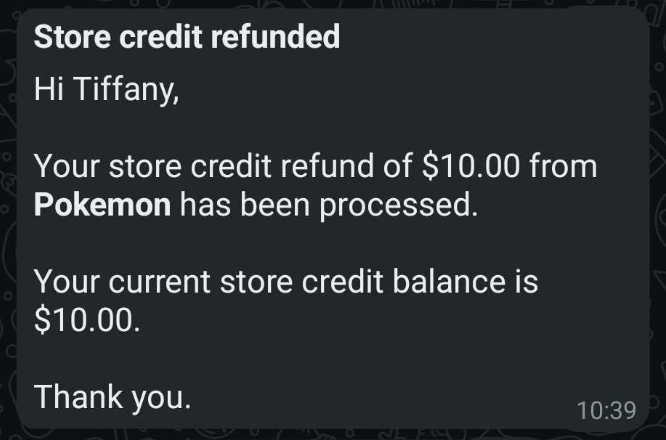
Customers receive an automatic workflow notification informing them that their store credit has been refunded.
-
After store credits are refunded upon order cancellation, the payment status of the entire order is changed to "Refunded".
This ensures customers always recover their store credit whenever an order they paid for is cancelled.